What is a WordPress theme? A WordPress theme controls the visual design and much of the page layout of a WordPress website, including colors, typography, headers, footers, menus, and the way content appears. Your posts, pages, and media generally live in the WordPress database or uploads folder, while the theme determines how visitors see that content. Understanding what a WordPress theme does helps you choose a design, customize your site, and change its appearance without rebuilding every page.
This beginner-friendly guide explains what a WordPress theme is, how themes work, what themes can and cannot control, and how to choose, install, customize, update, and troubleshoot one. You will also learn the difference between a theme, a plugin, a page builder, and a block theme so you can make confident decisions for your website.
What is a WordPress theme and what does it control?
A WordPress theme is a collection of design files, templates, styles, and sometimes features that shape the front end of your site. If you are learning what is a WordPress theme for the first time, start by separating design from the content you publish. The front end is the part visitors see in their browsers. To understand what is a WordPress theme in everyday use, imagine the theme as the design layer between your content and the visitor’s screen. A theme may set the overall page width, header layout, footer content, typography, colors, blog archive design, single-post layout, and other visual details.
Think of your WordPress website as a house. Your content is the furniture, documents, and personal items inside it. The theme is closer to the floor plan, paint, lighting, and interior design. You can often change the design without throwing away the content, although a theme change may affect theme-specific features or custom layouts.
When people ask what a WordPress theme does, they often mean “What makes my site look the way it does?” That is the practical answer to what is a WordPress theme: it provides the presentation rules that turn stored content into a website visitors can use. The answer includes more than colors. A theme can define template parts, responsive behavior, spacing, menus, content widths, and the visual treatment of posts, pages, search results, and archives. Some themes also include extra features, but specialized functions usually belong in plugins.
How does a WordPress theme work?
When a visitor opens a page, WordPress identifies the requested content, loads the relevant template, and combines content with the theme’s layout and styling. The browser then displays the resulting page. The exact process depends on whether the site uses a classic theme, a block theme, a page builder, and any plugins that affect the output.
- A visitor requests a URL. The browser asks your web server for a page, post, archive, or other resource.
- WordPress finds the content. WordPress reads the relevant post, page, settings, and other data from the database.
- The template is selected. WordPress uses its template hierarchy or block-template system to decide which layout should render the request.
- The theme adds presentation. Theme styles, template files, template parts, and supported features define how the content appears.
- Plugins may add functionality. A plugin might add a contact form, SEO metadata, a store, or other features that work with the theme.
- The browser renders the page. Visitors see the assembled page on desktop, tablet, or mobile.
This separation is one of WordPress’s useful strengths. Your content does not normally depend on one theme’s visual design. However, if you build layouts with theme-specific shortcodes, widgets, or custom post types, switching themes may leave some pieces missing or looking different.
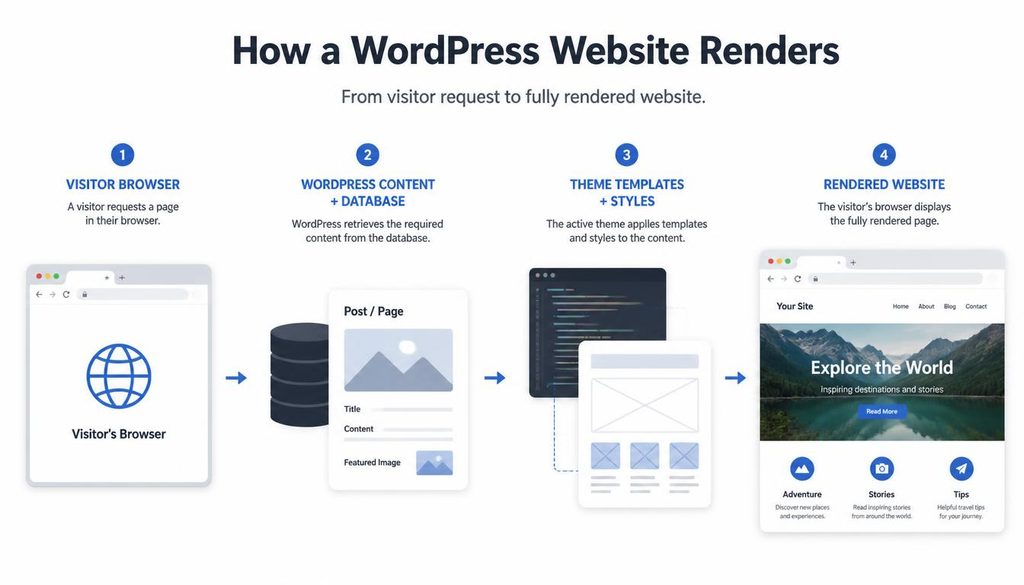
Diagram showing how WordPress content and theme templates work together to display a website.
What is the difference between a WordPress theme and a plugin?
A theme mainly controls presentation. A plugin adds or extends functionality. The distinction is not absolute because some themes include extra features, and some plugins change the appearance of particular elements, but it is a useful rule for choosing the right tool.
| Task | Usually use | Example |
|---|---|---|
| Change site colors and typography | Theme or site styles | Set heading fonts and brand colors |
| Change the header or footer layout | Theme or site editor | Build a logo, navigation, and footer area |
| Add a contact form | Plugin | Collect visitor messages |
| Add SEO controls | Plugin | Manage meta descriptions and XML sitemaps |
| Add online store functions | Plugin | Products, checkout, and order management |
| Change blog post layout | Theme, block template, or page builder | Adjust content width and post metadata |
Why does this matter? If you switch themes, theme-specific design settings may change, but a well-supported plugin often continues to provide its core functionality. For example, a contact form plugin should not need a particular theme to store its entries. For long-term flexibility, keep essential site functions in reputable plugins rather than relying only on a theme that bundles them.
For more background, read What Is WordPress? A Complete Beginner’s Guide and How Does WordPress Work?.
Classic themes vs. block themes
WordPress themes generally fall into two broad groups: classic themes and block themes. Both can control a site’s design, but they offer different ways to edit layouts. Knowing which type you use makes the answer to what is a WordPress theme more useful when you start customizing a site.
What is a classic WordPress theme?
A classic theme commonly uses PHP template files, CSS, and WordPress template functions. Depending on the theme, you may use the Customizer, theme options, widgets, and menus screens to make changes. Developers can extend a classic theme with template files and a child theme.
Classic themes vary widely. Some offer only a few design settings, while others include extensive layout controls or integrate with a page builder. Before choosing one, check whether its editing approach suits the way you want to manage the site.
What is a WordPress block theme?
A block theme uses blocks for site-wide templates and template parts. With a compatible theme, the Site Editor lets you edit areas such as the header, footer, archive templates, and single-post templates using a visual block interface. Global styles can control colors, typography, and other design choices across the site.
Block themes can make many design changes accessible without editing code. They do not remove every technical consideration, though. Some advanced layouts still need careful testing, and available controls depend on the theme and WordPress version.
Which theme type should beginners choose?
Choose a block theme if you want to edit templates and site-wide styles directly in the Site Editor. Consider a classic theme if you prefer its Customizer workflow, need a particular established design, or depend on a compatible theme feature. Neither type wins for every project. Look at the editing experience, support, performance, accessibility, and update history before you decide.
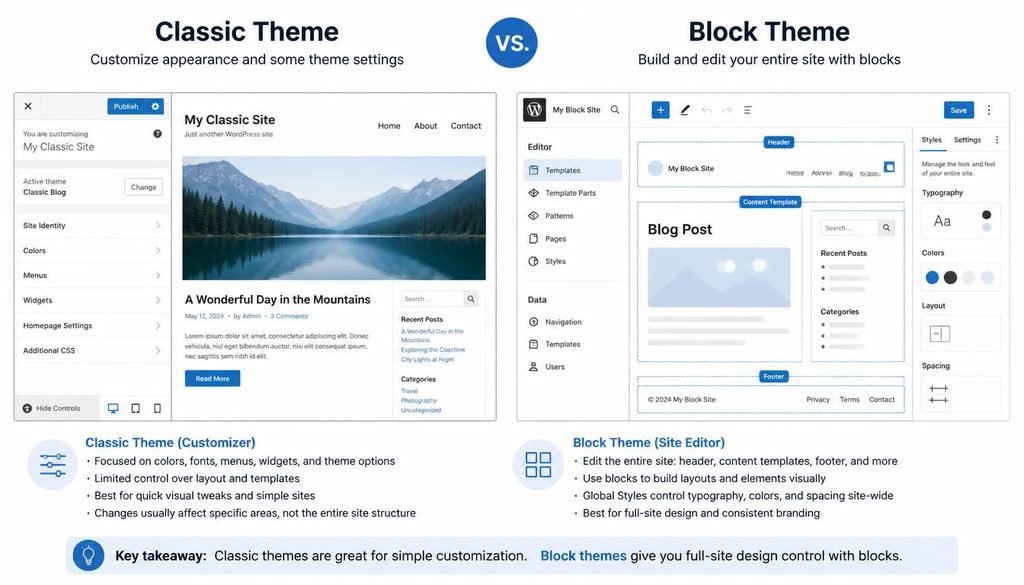
Comparison of classic WordPress themes and block themes with their different editing interfaces.
What parts of a website can a WordPress theme change?
The available controls depend on the theme, but many themes influence several parts of the site.
- Header: Logo, site title, navigation, search, and sometimes a call-to-action area.
- Footer: Footer columns, copyright text, menus, widgets, and other footer content.
- Typography: Font families, heading sizes, line height, and text spacing.
- Colors: Backgrounds, links, buttons, headings, borders, and accents.
- Page layout: Content width, sidebars, columns, and spacing.
- Blog layouts: Post lists, featured images, author details, dates, categories, and single-post templates.
- Responsive design: How navigation, columns, images, and text adapt to smaller screens.
- Templates: The design for pages, posts, search results, archives, and sometimes custom content types.
A theme does not automatically control every element. A page builder may override part of the layout, a plugin may add its own styles, and custom CSS can change the result. If an option does not appear in the dashboard, check the theme’s documentation before assuming WordPress is missing a feature.
How to choose the right WordPress theme
The best theme is not necessarily the one with the most demos or effects. Once you understand what is a WordPress theme, compare real features rather than choosing a design based on its demo alone. Choose a theme that supports your site’s goals, gives you the controls you need, and remains easy to maintain.
1. Start with the purpose of your website
List the main tasks visitors should complete. A blog may need readable article templates and category archives. A business website may need service pages, contact details, and clear calls to action. An online store needs a theme that works well with its commerce plugin and checkout flow.
Use your goals to create a short requirements list. Avoid selecting a theme only because its demo looks attractive; a demo may depend on extra plugins, sample content, or premium features that you do not plan to use.
2. Check mobile layout and accessibility
Preview the theme on phones and tablets, not only on a large monitor. Check navigation, button sizes, contrast, text readability, form labels, keyboard focus, and heading structure. A theme can look impressive while still making important content difficult to read or use.
3. Review performance
Look for a theme that avoids unnecessary scripts, heavy animations, and oversized assets. A theme alone does not determine speed; hosting, images, plugins, caching, and site configuration also matter. Still, a lightweight theme gives you a better starting point.
Read our guide to WordPress speed optimization for ways to improve loading time after choosing a design.
4. Check updates, support, and compatibility
Review the theme’s update history, documentation, support options, and compatibility notes. Check whether the developer maintains it and whether it works with your WordPress version and important plugins. A theme that no longer receives security or compatibility updates can become a long-term risk.
5. Look for clean customization options
Choose a theme that lets you change colors, fonts, and layout without editing core theme files. If you need custom code, learn whether the theme supports a child theme or a documented extension method. Avoid adding code directly to a parent theme because a theme update can overwrite those changes.
6. Test the demo realistically
Try a few sample pages and imagine your own content in the same layout. Check a long article, a short page, an image-heavy post, a menu with several items, and any special page your site needs. A demo homepage alone does not show how every template will work.
Free vs. premium WordPress themes
A free theme can be a strong choice for a personal blog, small business site, or beginner project. Premium themes may offer additional designs, support, layout controls, or bundled features. Price alone does not prove that a theme is faster, safer, or better coded.
| Consideration | Free theme | Premium theme |
|---|---|---|
| Initial cost | Often no purchase cost | Usually requires a license or subscription |
| Design options | May cover common needs well | May include more layouts and controls |
| Support | Depends on the developer and support channel | May include direct support for a defined period |
| Updates | Depends on ongoing maintenance | Also depends on ongoing maintenance and license terms |
| Best choice | When it meets your needs and is maintained | When its specific features justify the cost |
Before paying, check renewal terms, support duration, demo requirements, included plugins, and what happens when the license expires. A premium theme may still require separate licenses for bundled tools.
How to install a WordPress theme
You can install many themes from the WordPress dashboard. If someone asks what is a WordPress theme and how do I add one, the dashboard is often the easiest place to begin. If you are new to WordPress, take a backup before changing the active theme on an established site.
Install a theme from the WordPress theme directory
- Sign in to your WordPress dashboard.
- Open Appearance → Themes.
- Click Add New Theme or the equivalent button shown in your version.
- Search for a theme by name or browse the available themes.
- Open the theme details and review its features and preview.
- Click Install.
- After installation, preview the result where the interface offers that option, then click Activate when you are ready.
- Visit the homepage and a few inner pages to check the result.
Upload a theme ZIP file
If you obtained a theme from a trusted developer, you may receive a ZIP file. Make sure it is the installable theme package, not a ZIP containing documentation, demo assets, and several separate downloads.
- Download the theme from the official developer or trusted source.
- In WordPress, open Appearance → Themes → Add New Theme.
- Choose Upload Theme if your dashboard provides that option.
- Select the theme ZIP file and upload it.
- Install the package and review any error message before continuing.
- Activate the theme only after you are ready to test the site.
Some managed WordPress plans limit theme uploads or require a different process. In that case, follow your host’s documentation. For a complete site setup walkthrough, see how to start a WordPress website and how to install WordPress step by step.
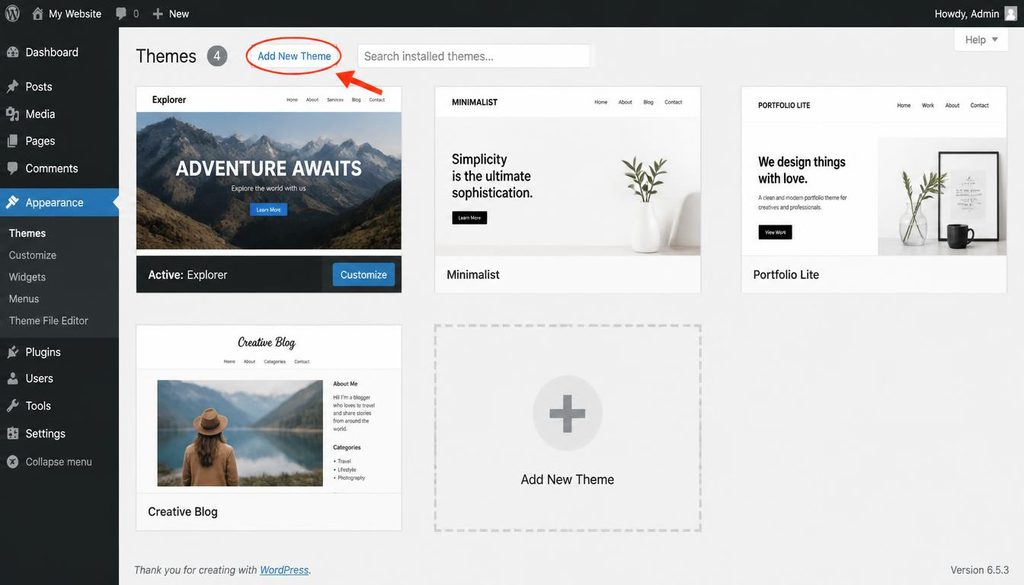
WordPress dashboard Themes screen with the Add New Theme control highlighted.
How to customize a WordPress theme
The customization process depends on whether your site uses a block theme or a classic theme. The answer to what is a WordPress theme becomes clearer when you explore how your active theme exposes its design controls. Before making broad design changes, note the current settings and test on staging if the website receives regular visitors or sales.
Customize a block theme with the Site Editor
- Open Appearance → Editor when your active theme supports the Site Editor.
- Open Styles to review site-wide colors, typography, and layout options.
- Open Templates to edit layouts for pages, posts, archives, or other supported views.
- Open Patterns or template parts to adjust reusable sections such as headers and footers.
- Preview changes across desktop and mobile widths.
- Save only after checking which templates and parts the changes affect.
The Site Editor can change shared templates, so a change to one template part may affect many pages. Review the save confirmation and scope before applying updates.
Customize a classic theme
Many classic themes use Appearance → Customize, theme options, widgets, and menus. The exact controls vary by theme. You may be able to change the logo, site identity, colors, header layout, menus, and widget areas from those screens.
If the Customizer does not appear, your theme may use the Site Editor or a theme-specific settings page instead. Follow the theme’s documentation rather than installing an unrelated plugin just to find a missing control.
Use custom CSS carefully
Custom CSS can adjust details that the theme settings do not expose. Use the built-in Additional CSS panel when your theme provides it, or use a maintainable method recommended by the theme developer. Test changes on mobile, keep a copy of the original code, and add comments to explain unusual rules.
Do not edit WordPress core files to customize a theme. Avoid changing a parent theme’s files directly, because updates can overwrite your work. Developers who need PHP template changes should consider a child theme and test it before using it on a live site.
What happens when you change your WordPress theme?
Changing a theme usually changes the visual presentation rather than deleting your standard posts and pages. This distinction is central to what is a WordPress theme: it changes how content appears, not normally the content itself. However, your site can look very different after the switch because each theme defines its own templates, styles, and supported features.
- Posts and pages: Standard content usually remains in the database.
- Media files: Uploaded files generally remain, although the new design may display them differently.
- Menus: Menus may need to be assigned to the new theme’s menu locations.
- Widgets and sidebars: Widget areas can differ, leaving some widgets in inactive areas.
- Theme settings: Customizer settings and theme-specific options may not carry over.
- Shortcodes and blocks: Content created by a theme-specific feature may show raw shortcodes or missing output.
- Homepage and archive layout: The new theme may use different templates or content widths.
- Custom code: Parent-theme edits do not transfer automatically to another theme.
Before you switch, back up your site and record important theme settings. If possible, test the new theme on a staging copy. Review the homepage, blog archives, individual posts, contact page, navigation, footer, forms, and mobile display before making the change live.
Do you need a child theme?
A child theme is a separate theme that inherits much of its behavior and styling from a parent theme. It gives developers a place to add supported customizations without editing the parent theme’s files directly. Parent theme updates can then arrive without automatically overwriting the child theme’s custom files.
You may not need a child theme if you only use the theme’s built-in settings, Site Editor, or Additional CSS controls. For custom PHP templates or deeper code changes, a child theme can be useful. Follow the parent theme’s instructions because some themes require specific setup steps.
A child theme does not guarantee that every customization will remain compatible forever. Major parent theme changes can affect template behavior, so test updates and review custom code after upgrading.
WordPress themes and page builders
A page builder provides tools to design pages or templates with a visual editor. Some builders work with many themes, while others provide a tightly integrated design system. The active theme still matters because it may control the header, footer, default page template, typography, and content width unless the builder overrides those areas.
If you use a page builder, check how it handles theme templates before choosing a new theme. A theme change may leave builder-designed pages intact but alter their surrounding header, footer, or global styles. Test a representative page and any builder-created templates on staging before switching the live site.
Try to avoid layering multiple tools that do the same job. A theme, page builder, and several design plugins can all add CSS and scripts. Use the simplest combination that gives you the design and editing controls you need.
Common WordPress theme problems and how to fix them
The theme looks different after activation
This is common because the demo may use sample content, menus, widgets, or plugins that your site does not have. Assign the correct menu locations, check homepage settings, review widgets, and open the theme’s documentation. Do not import demo content onto a live site without understanding what it adds or replaces.
The header or footer is missing
Check whether the theme uses the Customizer, Site Editor, widgets, or a page builder to manage those areas. A block theme may use template parts, while a classic theme may use menu locations or widget areas. Review the relevant settings and confirm that the new theme supports the feature you expect.
The theme cannot be installed
First, confirm that you uploaded the correct ZIP file. A “missing stylesheet” error often means WordPress received a package that contains documentation or a parent folder rather than the installable theme directory. Other errors can come from upload limits, file permissions, PHP compatibility, or an incomplete download. Download a fresh copy from the trusted source and consult your hosting provider if the error continues.
The site breaks after a theme update
Check the site’s front end and dashboard, then review the theme’s release notes and compatibility guidance. If the problem began immediately after the update, use a verified backup or staging environment to investigate. Do not repeatedly reinstall themes or delete files before you know whether the cause is a theme conflict, plugin conflict, or server error.
For blank screens or server errors, see our guides to fixing the WordPress White Screen of Death and fixing the WordPress 500 Internal Server Error.
The site is slow after installing a theme
Check whether the theme adds large images, animations, external fonts, or scripts. Test a few representative pages and compare them before and after activation. Also review plugins, caching, image sizes, and hosting; a slow site may have several causes rather than one theme problem.
Theme changes do not appear on the website
Clear the relevant page cache or browser cache, then reload the page. If your site uses a caching plugin or CDN, follow its instructions for purging cached content. Check that you edited the active theme and the correct template. Avoid clearing server data you do not understand.
How to update a WordPress theme safely
Theme updates can include security fixes, bug fixes, compatibility improvements, and new features. Before updating, create a backup, review the update notes, and test on staging if the site is important to your business.
- Back up the database and site files.
- Review the theme’s changelog and compatibility notes.
- Check whether you made custom changes directly to the theme files.
- Update through the WordPress dashboard or the trusted method recommended by the developer.
- Open the homepage, posts, pages, menus, forms, and mobile layout.
- Check custom CSS and child-theme code for visual or functional problems.
- Keep a record of the update and any issue you found.
Do not ignore updates indefinitely, but avoid making several major changes at once when you cannot quickly identify the cause of a problem. See our detailed guide on how to update WordPress safely.
WordPress theme security and maintenance
A theme is part of your site’s software, so treat it like other components. Understanding what is a WordPress theme also means recognizing that themes need trusted sources, maintenance, and updates. Download themes from WordPress.org or a reputable developer, keep them updated, and remove themes you do not need. Keep one default WordPress theme installed as a useful fallback when appropriate, but do not leave many unused themes around without a reason.
- Choose a theme with an active maintenance history.
- Download updates from trusted sources only.
- Remove themes you no longer use, after confirming you have the correct active theme and backups.
- Avoid “nulled” or pirated premium themes, which may contain malicious code or lack reliable updates.
- Use strong administrator passwords and limit access to trusted users.
- Back up before major theme changes or updates.
- Test new themes and custom code on staging when possible.
Read our WordPress security guide for broader steps to protect your site.
How to know whether your current WordPress theme is right for you
Review your theme when your website goals change, the theme stops receiving updates, editing becomes difficult, or the design no longer works well on mobile. You do not need to switch themes just because a new design looks trendy.
Ask yourself these questions:
- Can visitors find the most important information quickly?
- Does the site work on mobile devices and with a keyboard?
- Can you edit common content without repeated technical help?
- Does the theme receive maintenance and work with your required plugins?
- Does the theme load efficiently on representative pages?
- Can you customize the design without fragile code changes?
- Will a theme change improve a real user or business need?
If the current theme meets these needs, you may only need to improve its settings or templates. A redesign is a project, not a required part of running WordPress.
Frequently asked questions about WordPress themes
What is a WordPress theme in simple words?
A WordPress theme controls the design and layout of a website. It affects how headers, footers, menus, posts, pages, colors, fonts, and other visual elements appear to visitors.
Does a WordPress theme contain my posts and pages?
Normally, WordPress stores posts and pages in the database rather than inside the theme. A theme controls how that content appears. However, theme-specific features, shortcodes, or custom content types may depend on the original theme or an associated plugin.
Can I change my WordPress theme without losing content?
Usually, standard posts, pages, and media remain when you switch themes. The design, menus, widgets, theme settings, and special features may change. Make a backup and test the new theme before switching on an important live site.
Are free WordPress themes safe?
A free theme can be safe when you obtain it from a trusted source and the developer maintains it. Check its update history, documentation, compatibility, and support. Avoid downloads from suspicious sites that offer modified or pirated themes.
What is the difference between a classic theme and a block theme?
Classic themes commonly use PHP templates and may offer the Customizer, widgets, and theme options. Block themes let you edit supported site templates and template parts with the Site Editor and blocks. The best choice depends on your preferred workflow and site needs.
Do I need a page builder if I have a WordPress theme?
No. Many themes provide enough layout and style controls for a complete website. A page builder can help when you need more visual control over pages or templates, but it may add complexity, so use one only when its features serve a clear purpose.
Can I use the same WordPress theme on multiple websites?
That depends on the theme’s license. Many free themes can be used on multiple sites, while premium themes may limit usage or support by license. Check the developer’s current terms before installing the theme on additional websites.
How many themes should I install?
You can install several themes, but only one theme is active at a time for a standard WordPress site. Keep the active theme and remove unused themes you do not need. A default theme can be helpful as a troubleshooting fallback.
Why do some WordPress themes look different from their demos?
Demos may include sample content, menus, widgets, images, plugins, and premium settings that your installation does not have. Review the setup guide and import demo content only after checking what it will add or change.
Official WordPress theme resources
- Browse themes in the official WordPress theme directory
- WordPress documentation: Work with themes
- WordPress documentation: Site Editor
- WordPress Theme Developer Handbook
- WordPress template hierarchy
A theme should make your content easier to read and your site easier to manage. If it slows the site down, blocks simple edits, or no longer gets updates, it may be time to find a better fit.