To reset WordPress without losing content, first decide what you need to reset: your settings, plugins, theme, WordPress core files, or the entire website. These actions have very different effects. A full site reset can delete posts, pages, media, users, and settings, while a careful troubleshooting reset can often fix a problem and keep your content intact.
This guide explains how to reset WordPress without losing content using safer, targeted methods. You will learn how to make a complete backup, reset plugin and theme settings, reinstall WordPress core files, use a reset plugin carefully, and recover from common mistakes. If your site contains customer orders, membership records, form submissions, or other important data, do not skip the backup and recovery steps.
What does resetting WordPress actually mean?
WordPress does not have one universal reset button. People use the word “reset” to describe several different tasks, and choosing the wrong one can remove data you meant to keep.
- Reset a setting: Change one option back to its previous or default value. This is usually the lowest-risk approach.
- Reset a plugin: Clear a plugin’s configuration or stored data. The result depends on the plugin and the reset option.
- Reset a theme: Return theme settings or customizer values to defaults. This can change the site’s appearance without deleting posts.
- Reinstall WordPress core: Replace core software files while keeping the database, uploads, themes, and plugins. Use the correct reinstall method and a backup.
- Reset the whole site: Remove site content and settings to start over. This is the option most likely to cause data loss.
If your goal is to fix a broken website, a full reset is often unnecessary. To reset WordPress without losing content, use the smallest change that can solve the problem and test the result before moving to a more disruptive method. This targeted approach is the best starting point when you need to reset WordPress without losing content on a live site.
Before you reset WordPress without losing content
Make a recovery plan before changing settings, deleting plugins, or running a reset tool. A backup is not optional when the site contains anything you cannot easily recreate.
1. Back up the database and files
Your database stores posts, pages, comments, users, site options, and data from many plugins. Your files include media uploads, themes, plugins, and WordPress core files. To reset WordPress without losing content, back up both parts so you can restore the complete site if the reset affects more than expected.
- Open your hosting dashboard or trusted backup plugin.
- Create a full database backup.
- Back up the WordPress files, especially
wp-content/uploads, themes, plugins, and any custom files. - Confirm the backup completed successfully and note its location.
- Check the restore instructions before you start.
- When possible, download a copy to a secure location outside the hosting account.
Do not assume that a backup plugin completed the job just because you clicked a button. Look for its success message and confirm that the backup files exist. A verified backup is essential when you reset WordPress without losing content. For a business site, test restoration on staging or ask your host to confirm the recovery process.
2. Record your current settings
Take notes or screenshots of settings you may need later. Focus on the site title and URL, permalink structure, reading settings, navigation menus, widget areas, theme customizations, plugin settings, SMTP details, and SEO configuration. Store secrets such as API keys and passwords securely; do not place them in public screenshots or support tickets.
3. Identify the content you must preserve
List the data that matters to your website. It may include:
- Posts, pages, custom post types, and their revisions.
- Images, documents, video files, and other media uploads.
- User accounts, roles, and profile data.
- Comments, form submissions, bookings, orders, and membership records.
- Menus, widgets, reusable blocks, and theme settings.
- SEO metadata, redirects, custom fields, and plugin configuration.
Some data lives in plugin-specific database tables or external services. A reset tool may not preserve it in the way you expect. If you run a store or membership site, check the plugin developer’s documentation before clearing any data.
4. Use a staging site for high-risk changes
A staging site is a separate copy of your website where you can test the reset first. It is especially useful if you plan to reset a plugin, change themes, reinstall core files, or use a reset tool. Confirm that staging has a recent database and file copy, and keep it private while testing.
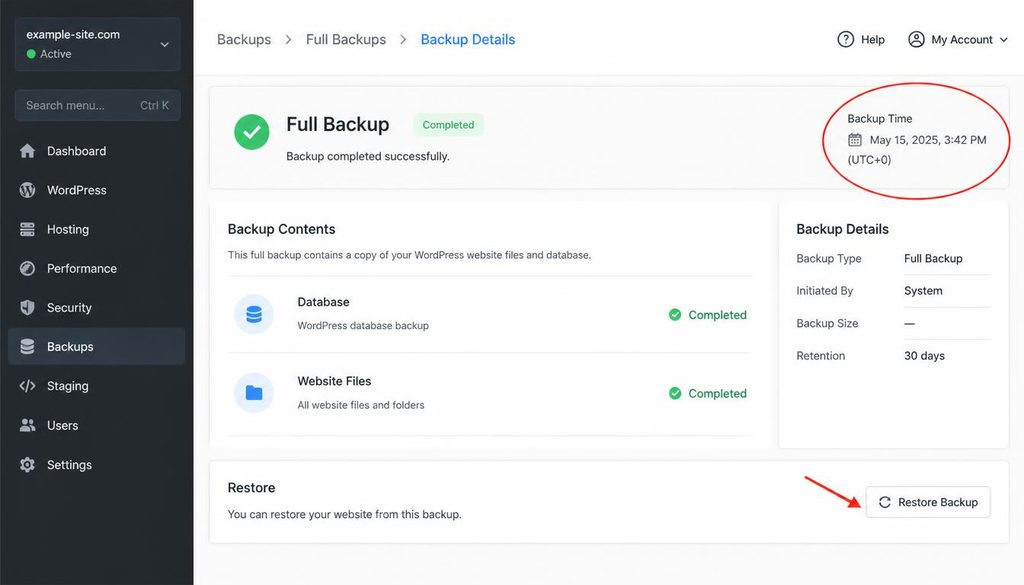
WordPress hosting dashboard showing a completed database and files backup before resetting WordPress.
Method 1: Reset one WordPress setting instead of the whole site
If one feature is misbehaving, start by changing only the setting linked to the problem. This is usually the safest way to reset WordPress without losing content because it avoids deleting unrelated data.
Reset permalink settings
If posts or pages show 404 errors, you may need to refresh the permalink rules rather than reset the site.
- Sign in to your WordPress dashboard.
- Go to Settings → Permalinks.
- Record the current permalink structure.
- Leave the intended structure selected and click Save Changes.
- Open several posts and pages in a private browser window.
Do not change the URL structure without a reason. Changing permalinks can affect existing links and search traffic. Read our guide to changing WordPress permalinks safely if you need to choose a different structure.
Review the WordPress site URL
If WordPress redirects to the wrong domain or protocol, check Settings → General and review the WordPress Address and Site Address fields. Do not edit these values at random; an incorrect URL can lock you out of the dashboard. Use our guide to changing the WordPress site URL before making changes.
Reset a specific plugin or theme option
Open the relevant plugin or theme settings and look for a documented reset or restore-defaults control. Read what the control removes. Some options restore preferences only, while others erase saved data, logs, templates, or records. Export settings first if the plugin supports it.
Method 2: Troubleshoot plugins while keeping your content
A plugin conflict can make WordPress slow, break the editor, or stop a page from loading. You often do not need to reset WordPress to fix the issue. Instead, isolate the plugin that causes the problem.
- Back up the site and note the time the issue began.
- Go to Plugins → Installed Plugins.
- Deactivate one suspected plugin, then test the problem page.
- If the problem remains, reactivate it and test another likely cause.
- When you identify the plugin, check for an update, compatibility note, or documented fix.
- Contact the plugin developer if the issue persists.
Deactivating a plugin usually does not delete your posts or pages, but the plugin may stop showing its features while inactive. Some plugins also offer uninstall options that remove their settings or tables. Read the plugin’s uninstall notes before deleting it.
If the dashboard will not open, use your hosting file manager or another documented recovery method only if you understand the steps. Rename a single suspected plugin folder temporarily, then restore its original name after testing. Do not rename or delete multiple folders at once, because that makes it harder to find the cause.
For related help, read how to fix the WordPress White Screen of Death or how to fix a WordPress 500 Internal Server Error.
Method 3: Switch themes without deleting content
If the site design breaks after a theme change, test with a default WordPress theme or a known-good theme that is already installed. Switching themes can change the layout, menus, widgets, and theme-specific features, but it does not normally remove posts or pages stored in the database.
- Take a backup and record the active theme’s settings.
- Open Appearance → Themes.
- Activate a default or known-good theme, if available.
- Check the homepage, posts, pages, menus, and mobile layout.
- If the problem disappears, investigate the original theme or its customizations.
- Switch back after testing if needed.
Theme-specific settings may stop applying while another theme is active. A page builder can also control parts of the layout, so check its templates before deciding that the theme is the cause. Avoid deleting the original theme until you have confirmed that you no longer need its files or custom code.
Method 4: Reinstall WordPress core files without removing content
If core files are missing or damaged, reinstalling WordPress core may help. This is different from resetting the entire site. A core reinstall replaces WordPress system files while leaving the database and wp-content directory in place when you use the standard dashboard method. Still, take a backup first and confirm that you are working on the correct installation.
Reinstall core through the WordPress dashboard
- Back up the database and files.
- Sign in to the dashboard and open Dashboard → Updates.
- If WordPress offers a reinstall option for the current version, review the screen and choose it when appropriate.
- Wait for the process to finish without repeatedly clicking the button.
- Open the homepage, dashboard, editor, and important pages.
- Check error logs if the original issue remains.
The exact controls can vary by WordPress version and site setup. If the dashboard does not offer a reinstall option, do not improvise with file deletion. Follow the official WordPress documentation or ask your hosting provider for help.
What a core reinstall will not fix
Reinstalling core files does not usually repair a plugin conflict, a broken theme, an incorrect site URL, damaged plugin data, or a server configuration issue. If the problem comes from wp-content, a database option, PHP compatibility, or the hosting environment, replacing core files may change nothing.
Do not overwrite or delete wp-content, wp-config.php, or the database as part of a core reinstall unless a trusted recovery procedure specifically requires a carefully planned change. Those areas may contain the content and configuration you are trying to preserve.
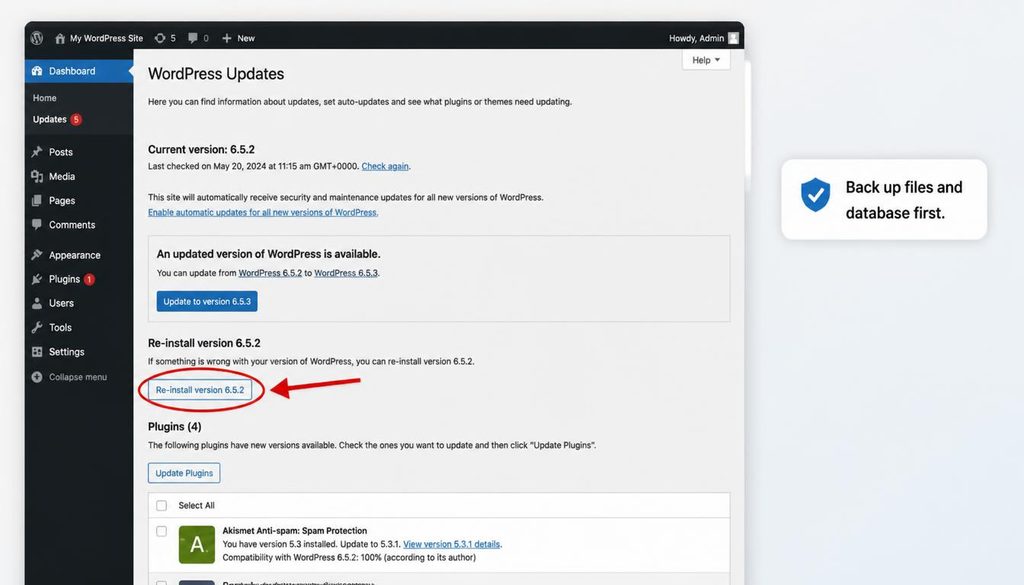
WordPress Dashboard Updates screen illustrating the core reinstall option after a full backup.
Method 5: Use a WordPress reset plugin carefully
Reset plugins can be useful for developers, test sites, or a site that genuinely needs a fresh start. However, the word “reset” can mean different things in different tools. Some plugins reset selected settings, while others remove posts, pages, users, or database tables. To reset WordPress without losing content, never assume that a reset plugin preserves content by default.
Before you run a reset tool
- Read the plugin’s current documentation and reset description.
- Confirm whether it changes settings, deletes content, clears plugin tables, or removes users.
- Check whether it offers a partial reset, settings export, or content-preserving option.
- Create and verify a full backup outside the reset tool.
- Run the reset on staging first if possible.
- Do not continue if the warning screen does not clearly explain what will be removed.
A tool that resets the database can remove content even if the media files remain on the server. Another tool may preserve posts but delete plugin settings. Check the exact behavior for the tool and version you plan to use.
Do not confuse a reset with reinstalling core
These actions solve different problems. A core reinstall replaces WordPress system files; a database reset can remove stored content and settings. If you want to reset WordPress without losing content, avoid any option described as deleting all tables, restoring a blank database, clearing all site data, or starting from scratch unless you deliberately want that outcome and have a verified recovery plan.
Can you reset WordPress and keep posts, pages, and media?
Yes, you can reset WordPress without losing content, but the method matters. Posts and pages usually live in the database, while uploaded media files live in the uploads directory and their attachment records live in the database. If you remove database tables, you may lose the media library records even when image files remain on disk.
Use this guide to choose the least risky action:
| What you want to reset | Usually preserves content? | Safer first step |
|---|---|---|
| One WordPress setting | Yes | Change only that setting |
| Plugin configuration | Often, but plugin-dependent | Export settings and read reset notes |
| Theme appearance | Usually posts and pages remain | Test with a known-good theme |
| WordPress core files | Usually, when using a proper core reinstall | Back up and use Dashboard → Updates when available |
| Entire WordPress database | No guarantee; content may be deleted | Do not proceed unless you intend a full reset |
| Hosting account or installation | No guarantee | Ask the host to explain what the reset removes |
The word “usually” matters. Plugins and custom site setups may store data in their own tables or external services, so always confirm the behavior before taking action.
How to reset WordPress without losing SEO settings
A reset can affect SEO even if your main pages remain. If you reset WordPress without losing content, protect your SEO settings as well. SEO plugins may store titles, meta descriptions, canonical URLs, redirects, schema settings, and social metadata in the database or plugin-specific tables. If you remove plugin data, those settings may disappear.
- Export SEO settings if your plugin supports an export tool.
- Save a copy of important title and description templates.
- Record custom redirects and robots settings.
- After the reset, check a few posts and pages for titles, meta descriptions, canonical tags, and schema output.
- Open the XML sitemap and confirm that important URLs still appear.
- Test important URLs for 404 errors and unexpected redirects.
If your site uses SEOPress or another SEO plugin, use its own documentation for backup and restore options. Do not assume that reinstalling the plugin will restore the settings from before the reset.
How to protect users, orders, forms, and membership data
Content means more than blog posts. A store may hold orders, customer records, coupons, and payment-related references. A membership site may store subscriptions and access rules. Forms may keep entries in a plugin table or send them to an external service.
Before you reset WordPress without losing content on a business website, identify where these records live and confirm how your backup handles them. Never use a full database reset on a live store simply to fix a layout issue. If a reset is necessary, plan for recent orders or submissions that arrive after the backup; restoring an older database can remove those newer records.
For sites with sensitive data, restrict access to backup files and remove temporary copies when they are no longer needed. Ask your hosting provider or plugin vendor for help if you are unsure which records a reset will affect.
What to do if you already reset WordPress and content is missing
Stop making changes as soon as you notice missing content. New writes can make recovery harder, especially if a reset tool changed database tables or you installed a fresh copy over the old site.
- Do not create more content yet. Avoid additional resets, imports, or cleanup actions.
- Check the Trash. Open Posts and Pages and review the Trash, if the items were moved rather than permanently deleted.
- Check the media library and uploads directory. Files may still exist even when attachment records are missing.
- Look for a recent backup. Identify the database and files backup from before the reset.
- Ask your host about snapshots. Some providers keep automatic backups or server snapshots.
- Restore to staging first. If possible, restore a copy to a separate environment and verify the missing data before changing production.
- Plan recovery for newer data. For stores and membership sites, avoid overwriting new orders or user records without a merge plan.
If you need technical help, provide the reset tool name, the time of the reset, the data that disappeared, and the backup date. Do not post database passwords, API keys, or unredacted configuration files in public support forums.
Common mistakes when resetting WordPress
- Using a full reset to solve a small issue: Fix the setting or component linked to the problem instead.
- Backing up only media files: Posts, pages, users, and plugin data may live in the database.
- Assuming deactivation and deletion are the same: Deactivation usually stops a plugin from running; deletion or a reset option may remove its data.
- Ignoring plugin-specific tables: Some important records live outside standard post and page tables.
- Testing directly on production: Use staging for destructive or hard-to-reverse changes.
- Restoring an old database without checking new transactions: You could lose recent orders or form entries.
- Deleting core configuration files during a reinstall: Files such as
wp-config.phpcan contain critical connection settings. - Failing to test afterward: Check pages, login, forms, media, SEO output, and important site functions.
After the reset: test your WordPress website
Once the targeted reset or reinstall finishes, check the site methodically. Do not assume that the absence of an error message means everything works.
- Open the homepage and several important posts and pages.
- Sign in to the dashboard and open the editor.
- Confirm that images and downloadable files load.
- Check menus, widgets, headers, footers, and mobile layouts.
- Submit a test contact form and verify the message arrives.
- For stores, use the site’s safe order-testing process.
- Review SEO titles, meta descriptions, canonical URLs, and sitemap output.
- Check the browser console and hosting logs if anything looks wrong.
- Confirm backups and scheduled tasks still work.
For more troubleshooting help, see the WordPress dashboard guide, our tutorial on changing your WordPress password, and the WordPress security guide.
Frequently asked questions
Can I reset WordPress without deleting posts and pages?
Yes. Reset a specific setting, troubleshoot plugins, switch themes, or reinstall core files using the proper method. Avoid a full database reset unless you intend to remove site content, and always back up first.
Does WordPress have a built-in reset button?
WordPress does not provide one universal button that safely resets every part of a site. Some plugins offer reset tools, but their behavior varies. Read the tool’s documentation before using it.
Will reinstalling WordPress delete my media library?
A standard core reinstall should leave the database and the wp-content directory in place, but you should back up first. Do not delete the uploads directory or database tables as part of a core reinstall.
Will a reset delete my theme and plugin settings?
It depends on what you reset. Changing one setting may affect only that option, while a plugin reset or database reset can remove saved configuration. Export settings and check the tool’s documentation before proceeding.
Can I reset WordPress from cPanel?
Hosting panels vary. Some provide backups, staging, file tools, or one-click installers, and some installers can create a new installation rather than repair the existing one. Confirm exactly what the control will delete before using it.
What if I already ran a reset and lost content?
Stop making changes, check the Trash and available backups, and ask your host about snapshots. Restore to staging first when possible, then plan how to preserve any orders, submissions, or other data created after the backup.
Is a reset plugin safe for a live website?
It can be risky if the tool removes database content or plugin records. Test on staging, read the current documentation, and verify a full backup before using a reset plugin on a live site.
Official WordPress resources
- WordPress documentation
- Updating WordPress
- WordPress backup guidance
- WordPress configuration file guidance