A WordPress white screen can be alarming: you open your website and see a blank page, a white screen with no message, or a page that loads only halfway. The cause is often a PHP error, a plugin or theme conflict, a memory limit, or a failed update. In many cases, you can restore the site without reinstalling WordPress or losing your content.
This guide explains how to fix the WordPress White Screen of Death in a safe order, from quick checks to plugin, theme, PHP, memory, and recovery steps. If this is a business website, take a backup or hosting snapshot before making changes whenever possible.
What is the WordPress White Screen of Death?
The WordPress White Screen of Death (WSOD) is a problem where a WordPress page appears blank or stops rendering before the content appears. Sometimes only the public site is affected; sometimes the dashboard is blank too. In other cases, one page or one action—such as opening the editor—triggers the issue.
The blank screen is a symptom, not a diagnosis. WordPress, PHP, the active theme, plugins, the database, and server resources all play a role in loading a page. The right fix depends on which part failed.
Quick fixes to try first
Start with low-risk checks before editing files or the database.
- Open the site in a private browser window and refresh once.
- Check the homepage, one post, and
/wp-admin/to see whether the issue affects every URL. - Check your hosting provider’s status page for an outage or recent PHP change.
- If the problem began just after a plugin, theme, or WordPress update, note exactly what changed.
- Look for a recent backup or hosting snapshot before troubleshooting further.
- If you use a cache or CDN, clear it after checking the underlying site.
Do not immediately delete WordPress files, reinstall the site, or run database repair commands without a backup. Those steps can turn a recoverable error into a longer outage.
1. Identify where the white screen appears
First, narrow down the scope. The pattern often points toward the cause.
- Only the homepage is blank: a homepage template, page builder, cache, or a plugin used on that page may be involved.
- The entire public website is blank: check plugin and theme conflicts, PHP errors, memory limits, and hosting logs.
- The dashboard is blank too: investigate a plugin or theme fatal error, PHP compatibility, and server-side errors.
- Only one admin screen is blank: the plugin or feature that powers that screen may be failing.
- The site breaks after an update: compare the timing with the update and inspect the error log.
Write down the exact URL, the time the issue started, and what you did immediately before it happened. These details help when checking logs or contacting your host.
2. Clear browser, WordPress, and CDN caches
A cache is not the most common cause of a PHP fatal error, but it can make an old broken response appear to persist after the underlying issue has been fixed. Test the site in a private window or another browser first.
If you use a WordPress caching plugin, clear its cache using the plugin’s own controls. If your host has server-level caching, purge it from the hosting panel. If a CDN such as Cloudflare sits in front of the site, purge only what is necessary or follow the provider’s recommended process.
If you cannot access the dashboard, do not install another plugin to clear cache. Use your host’s control panel or ask support how to purge it. If the screen remains blank, continue below.
3. Enable WordPress debugging and check the error log
The most useful clue is often a PHP fatal error recorded at the moment the page fails. WordPress has debugging constants that can record errors. On a live site, avoid displaying technical errors to visitors; log them privately instead.
Turn on logging in wp-config.php
Before editing wp-config.php, make a copy of the file and use your hosting file manager or SFTP. It is usually in the WordPress installation root, near folders such as wp-admin and wp-content.
Look for the comment that says “That’s all, stop editing!” and add the following constants above it. If any of these constants already exist, edit the existing line instead of adding a duplicate.
define( 'WP_DEBUG', true );
define( 'WP_DEBUG_LOG', true );
define( 'WP_DEBUG_DISPLAY', false );
@ini_set( 'display_errors', 0 );
Save the file and reproduce the error once. Then look for wp-content/debug.log. Depending on your host and PHP setup, the log may not be created or the error may be recorded in the hosting error log instead.
Look for entries such as PHP Fatal error, Uncaught Error, Allowed memory size exhausted, or a file path containing wp-content/plugins/ or wp-content/themes/. The path may identify the component that triggered the failure; read the surrounding lines before disabling anything.
Important: debug logs can contain file paths and other technical details. Do not publish them or share them publicly. After troubleshooting, turn debugging off again unless your developer has a specific reason to keep logging enabled. Remove or securely archive the log when it is no longer needed.
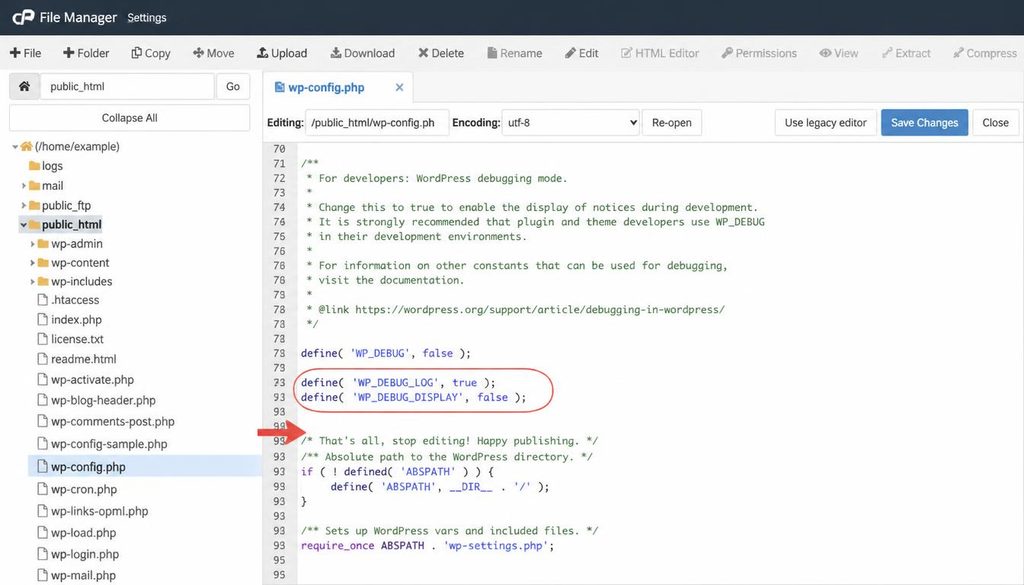
WordPress white screen troubleshooting with wp-config.php debug logging settings highlighted in a code editor.
4. Disable plugins to find a plugin conflict
A plugin may trigger the white screen after an update, conflict with another plugin, or use code that is incompatible with the current PHP version. If you can access the dashboard, deactivate recently changed plugins first. If the dashboard is inaccessible, you can temporarily rename the plugins folder through your hosting file manager or SFTP.
Method A: Deactivate plugins in the dashboard
- Open Plugins → Installed Plugins.
- Deactivate the plugin you installed or updated most recently.
- Reload the affected page in a private browser window.
- If the site still fails, temporarily deactivate the remaining plugins, preferably during a low-traffic period.
- If the site works, reactivate plugins one at a time and test after each activation until the problem returns.
Method B: Rename the plugins folder with file access
Use this method if the dashboard is blank and you have hosting file manager or SFTP access.
- Open the WordPress installation directory.
- Go to
wp-content. - Rename the folder
pluginsto a temporary name such asplugins.disabled. - Reload the website and dashboard.
- If WordPress loads, a plugin conflict is likely. Rename the folder back to
plugins. - Isolate plugins one at a time. If needed, use a careful, reversible test plan with your host or developer.
Renaming the entire folder can make WordPress treat plugins as unavailable, and you may need to reactivate them after restoring the folder name. Do not leave essential security, backup, or business plugins disabled longer than necessary.
When the site returns, check the plugin’s update notes, supported PHP versions, and support documentation. If the error began after an update, report the exact error to the developer or keep the plugin disabled until a safe fix is available. For general plugin management, see our WordPress plugins guide.
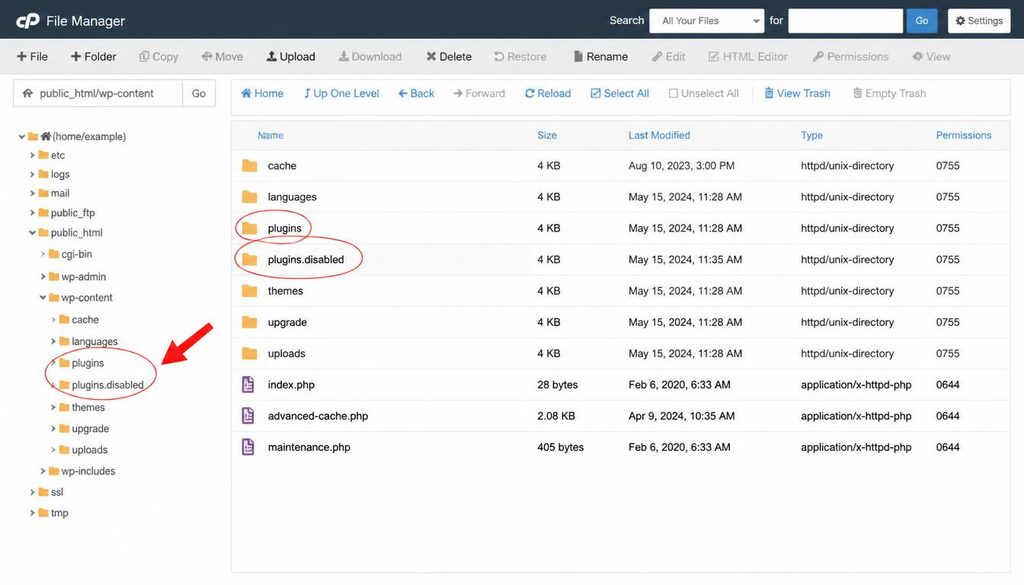
WordPress plugin conflict troubleshooting by temporarily renaming the plugins folder in the hosting file manager.
5. Switch to a default WordPress theme
If disabling plugins does not solve the problem, the active theme or a theme customization may be responsible. A theme can fail because of a PHP error, outdated function, broken template, or compatibility issue after an update.
If you can access Appearance → Themes, activate an installed, current default WordPress theme temporarily and test the affected page. Do not delete your active theme or its customizations while troubleshooting.
If the dashboard is unavailable, use your host’s documented recovery tools or ask support to help switch themes safely. Renaming a theme directory may cause WordPress to fall back only if a suitable default theme is installed; it is not guaranteed to restore the site. Keep a copy of custom theme files before changing them.
If a default theme fixes the issue, investigate the original theme and any child-theme code. Check its update history, compatibility notes, and error logs. For future customizations, use a child theme or a supported method rather than editing the parent theme directly.
6. Increase the WordPress memory limit only when the error supports it
A memory-related fatal error may say Allowed memory size exhausted. This means the PHP process reached its available memory limit. The right fix may be to increase the limit, reduce a resource-heavy operation, or fix a plugin that consumes too much memory.
Check your hosting plan and PHP error log first. WordPress constants cannot override every server-level limit, and some hosts manage PHP memory through a control panel or support request.
If your host permits it, you may be able to set a WordPress memory limit in wp-config.php, above the “That’s all, stop editing!” line:
define( 'WP_MEMORY_LIMIT', '256M' );Use a value supported by your host and site requirements. If a higher limit does not help, do not keep increasing it blindly. Find the code or process exhausting memory and ask your host about PHP’s actual memory_limit. Imports, image processing, page builders, and backup tasks can use more memory than normal page requests.
7. Check PHP version and compatibility
A PHP version change can expose old code in a theme or plugin. If the white screen started immediately after your host changed PHP, check the PHP error log and compare the timing with that change.
Use your hosting control panel to view the current PHP version and any compatibility tools it provides. Review WordPress core, theme, and plugin requirements before switching versions. Do not upgrade or downgrade PHP repeatedly on a live site without a backup and a clear plan.
If a component is incompatible, update it to a supported release or contact its developer. Use a PHP version supported by WordPress and your host. Avoid leaving the site on obsolete PHP just to keep one abandoned plugin working.
8. Undo a failed theme or plugin update
If the white screen began directly after an update, use your backup or hosting restore point if the update has broken the live site and no quick fix is available. Restore the affected files and database together when your backup system expects them to match.
Some managed WordPress hosts provide staging sites or safe rollback options. If you must roll back a plugin or theme manually, obtain a clean copy from its official source and follow the developer’s instructions. Avoid unknown “fixed” copies from third-party websites.
After restoring service, reproduce the update on a staging copy, check compatibility, and identify the failing component before trying again. Keep WordPress core, themes, and plugins maintained, but avoid updating everything at once while diagnosing an active outage.
9. Check hosting error logs and server status
If WordPress debug logs do not explain the problem, open your hosting control panel and look for sections named Errors, Logs, PHP logs, or Resource Usage. Labels vary by host. Look at entries from the same time as the blank page and compare them with your notes.
Errors about missing files, permissions, failed database connections, or resource limits may point to a hosting configuration issue rather than a plugin alone. If the account has reached CPU, memory, process, or disk limits, the host may need to investigate.
Send support the affected URL, approximate time, recent changes, and relevant error lines. Remove passwords, authentication tokens, database credentials, and personal information before sharing logs. A host can often identify server-level problems faster than trial-and-error changes.
10. Check file permissions and WordPress core files carefully
Incorrect permissions or missing core files can cause errors, though they are less likely than a plugin or theme problem in many cases. Do not recursively change permissions to broad values such as 777. That can expose the site to security risks.
Ask your host for the correct file and directory permissions for its server configuration. If you suspect corrupted WordPress core files, use the official WordPress package or a trusted host recovery tool to replace core files while preserving wp-content and wp-config.php. Make a backup first and avoid overwriting content or configuration accidentally.
Never replace the entire installation with a random archive or delete the wp-content directory. It can contain uploads, themes, plugins, and other site-specific files.
11. Recover when wp-admin and the public site are both blank
When neither the public site nor the dashboard loads, work through file access and hosting tools rather than relying on the WordPress admin interface.
- Sign in to your hosting account and confirm the service is active.
- Take a backup or snapshot if the host allows it.
- Check PHP and hosting error logs for the first relevant fatal error.
- Use file manager or SFTP to enable private debug logging if needed.
- Temporarily disable plugins using the folder-rename method described above.
- If the problem remains, investigate the active theme and PHP compatibility.
- Contact hosting support if logs indicate server limits, missing files, database errors, or permissions problems.
If you need to change a password or regain account access as part of recovery, use a documented process rather than sharing credentials with a stranger. Our guides explain how to change your WordPress password and navigate the WordPress dashboard once it is available again.
12. What not to do when WordPress shows a white screen
- Do not reinstall WordPress first. A reinstall usually will not fix a plugin fatal error and can introduce new problems if files are overwritten.
- Do not delete plugins or themes without a backup. Temporarily disable them to test first.
- Do not expose errors to visitors. Log diagnostic details privately on a production site.
- Do not paste credentials into public forums. Logs and configuration files can contain sensitive information.
- Do not change several things at once. Make one controlled change, then test the same URL.
- Do not set file permissions to 777. Use the values recommended by your host.
- Do not leave debug mode enabled indefinitely. Turn it off when the investigation is complete.
13. Prevent the WordPress White Screen of Death
You cannot prevent every software conflict, but good maintenance makes recovery easier.
- Maintain automated backups and test that you can restore them.
- Update WordPress, plugins, and themes on a schedule, with a backup before major changes.
- Use maintained themes and plugins from trusted sources.
- Test major updates on a staging site when possible.
- Keep PHP on a supported version compatible with your installed components.
- Monitor hosting resource usage and disk space.
- Remove unused plugins and themes instead of leaving them installed without a reason.
- Keep a record of updates and site changes so you can identify what happened before an outage.
For a broader prevention plan, read our WordPress security guide and WordPress speed optimization tips. If you are still setting up your site, our WordPress website launch guide covers the essential checks before going live.
Frequently asked questions
What causes the WordPress White Screen of Death?
Common causes include a PHP fatal error, a plugin or theme conflict, exhausted PHP memory, incompatible code after an update, or a server-side problem. Check the error log to identify the cause rather than guessing.
Can I fix the WordPress white screen without access to wp-admin?
Often, yes. Hosting file manager or SFTP access can help you inspect logs, edit wp-config.php, and temporarily disable plugins. If the cause is server-side, your hosting provider may need to help.
Will disabling plugins delete my content?
Deactivating a plugin normally does not delete posts or pages, although features provided by that plugin may stop working while it is disabled. Avoid uninstalling plugins during diagnosis unless you understand their data-removal behavior.
Where is the WordPress debug log?
When WP_DEBUG_LOG is enabled and supported, the log is commonly located at wp-content/debug.log. Some hosts record PHP errors in a separate hosting error log instead.
Should I increase the WordPress memory limit?
Only when logs or hosting data suggest a memory limit problem. A higher limit may help resource-heavy tasks but will not repair faulty code, and your host may restrict the actual PHP memory limit.
Can a WordPress update cause a white screen?
Yes. An update can reveal incompatibilities between WordPress, PHP, a theme, or a plugin. Check logs and update history, then test the suspected component or restore a known-good backup if the site is down.
When should I contact my hosting provider?
Contact your host when logs point to server errors, resource limits, permissions, database connectivity, or PHP configuration you cannot change. Share the relevant error message and the time it occurred, but remove passwords and other secrets.
Official documentation and trusted resources
Use the official WordPress documentation for current guidance. The WordPress debugging guide explains debugging constants and error logging, and the wp-config.php reference documents configuration options. For PHP errors and server-specific logs, consult your hosting provider’s documentation.