You can start a WordPress website without knowing how to code. The trick is to follow the right order: choose a clear goal, register a domain, pick reliable hosting, install WordPress, build the key pages, and test the site before you share it.
This guide walks through the process from an empty idea to a working website. The steps are written for a first-time site owner, with practical checks to help you avoid expensive mistakes and confusing setup screens.
How to start a WordPress website: the full process
Work through the steps in order, but do not rush the decisions that affect your domain, account security, and website addresses. You can polish the design after the core setup is working.
What you need before you start
A basic WordPress website needs a domain name, a place to host the site, and the WordPress software. You will also need an email address you can access, a way to store passwords safely, and a little time to plan the site’s purpose.
WordPress itself is free open-source software. A public website may still cost money for its domain, hosting, premium design tools, or professional help. You do not need to buy every add-on on day one.
Understand the three main parts
- Domain name: the address visitors type, such as
example.com. - Web hosting: the server space where your WordPress files, database, and media are stored.
- WordPress: the content management system you use to write pages, publish posts, and manage the site.
For a plain-English explanation of the platform, read our WordPress Basics guides. The official WordPress getting-started guide is another useful reference.
Step 1: Decide what your website is for
Before buying anything, write one sentence that explains what the website should help people do. For example: “This website teaches new gardeners how to grow vegetables in small spaces.” A clear goal makes later choices easier.
Choose the type of website you need
- Blog: publish articles around a topic, hobby, or area of expertise.
- Business website: explain your services, show proof of your work, and help customers contact you.
- Portfolio: present projects, case studies, and examples of your skills.
- Online store: list products, accept payments, and manage orders with an appropriate commerce setup.
- Community or membership site: provide protected resources or member-only areas, using tools that fit your needs.
You can combine these later. For the first version, focus on the main job the website must do rather than trying to build every feature at once.
Make a short page plan
Write down the pages you expect to need. A small business may need Home, Services, About, Contact, and Privacy Policy. A tutorial blog may need Home, Blog, About, Contact, and category pages.
List the first five to ten article ideas if you are starting a blog. This gives you a useful starting point after the site goes live and helps you organize categories before publishing.
Step 2: Choose a domain name
Your domain should be easy to say, spell, and remember. Keep it close to the name or topic of your project, and avoid confusing spelling, unnecessary hyphens, or a long string of keywords.
Domain name checklist
- Say it aloud and ask someone to spell it back to you.
- Check the spelling carefully before you pay.
- Choose a domain ending that suits your audience and budget.
- Check that the name does not conflict with a known brand or trademark.
- Confirm the renewal price, not just the first-year offer.
- Use an email address you can access for registration and renewal notices.
You can often register a domain through your hosting provider or a separate registrar. Keeping domain registration separate from hosting can make it easier to move providers later, but either approach can work if you keep control of the account.
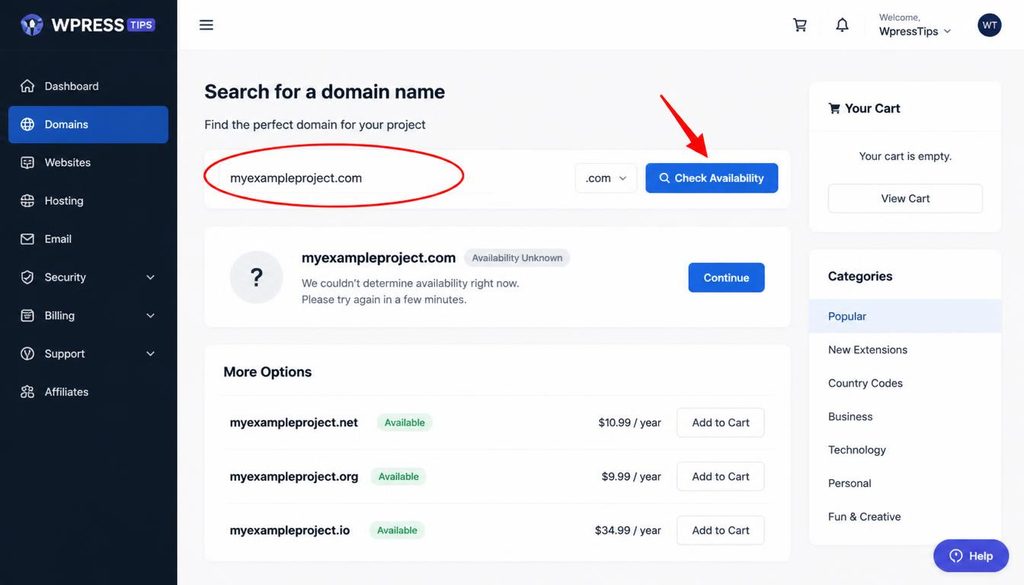
Domain name search screen showing how to choose a domain for a new WordPress website.
Step 3: Choose WordPress hosting
Hosting is the service that keeps your website available online. Your host stores the WordPress installation, database, uploaded files, and other site data, then sends the requested page to a visitor’s browser.
Look for a host that supports current WordPress requirements, provides HTTPS, offers backups, has clear support options, and makes it easy to manage your domain and files. If you expect to grow, check the upgrade path before signing up.
What hosting type should a beginner choose?
- Shared hosting: often a low-cost starting point for a small website. Many sites share server resources.
- Managed WordPress hosting: the provider handles some WordPress-specific maintenance and tools, usually for a higher price.
- Virtual private server or cloud hosting: offers more control but can require more technical work.
- Local WordPress installation: runs on your computer for practice and testing, but does not by itself make the site public.
For most first websites, choose a beginner-friendly plan with support and backups rather than the most powerful server on the pricing page.
Compare the full hosting cost
Check the introductory price, renewal rate, backup policy, SSL support, storage limits, email options, and migration help. Read what the plan includes, and ask support if a feature is unclear. “Unlimited” plans can still have fair-use rules or other limits.
Use the official WordPress server requirements as a reference when checking compatibility.
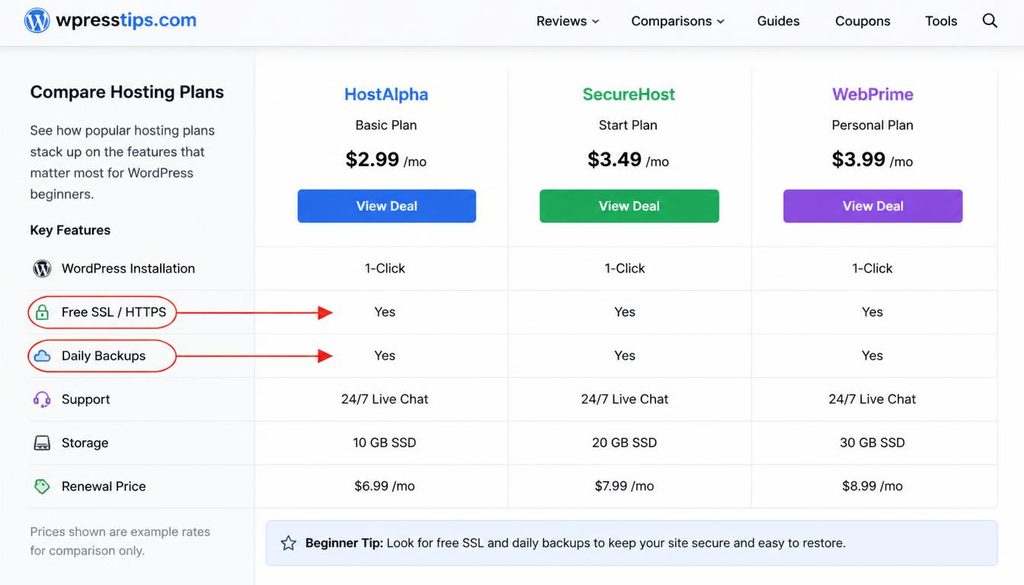
WordPress hosting comparison showing SSL, backups, support, and storage features to check before buying.
Step 4: Connect your domain to hosting
If you registered the domain and hosting with the same provider, the connection may happen automatically. If you used separate companies, you may need to update the domain’s nameservers or DNS records using the instructions from your host.
Do not guess at DNS values. Copy the exact nameservers or records supplied by the hosting company, save the change, and allow time for it to update across the internet. The update may not appear everywhere immediately.
Check the connection
- Sign in to the account where the domain is registered.
- Open the domain’s DNS or nameserver settings.
- Compare the existing values with the instructions from your host.
- Make the required change carefully and save it.
- Use your host’s domain checker or visit the domain after the changes have had time to spread.
If email already uses the domain, be careful with DNS edits. Changing or deleting mail records by mistake can interrupt email delivery. Contact the provider if you are unsure which records must remain.
Step 5: Install WordPress
Most beginner-friendly hosts offer a WordPress installer in the hosting dashboard. This is usually the easiest route because the installer creates the database and sets up the files for you.
Install WordPress with your hosting dashboard
- Sign in to your hosting account.
- Open the website tools, app installer, or WordPress section.
- Choose the domain where the site should live.
- Choose the correct installation path. For a main website, this is often the root domain rather than a subfolder.
- Enter a site title. You can change it later.
- Create a unique administrator username and a strong password. Do not use a predictable username or reuse a password from another account.
- Enter an email address you can access for administrator notices.
- Review the details and run the installer.
- Save the login address and credentials in a password manager.
After installation, the login address is often https://yourdomain.com/wp-admin/. Replace yourdomain.com with your own domain. If that address does not work, check the installer confirmation or your host’s help guide.
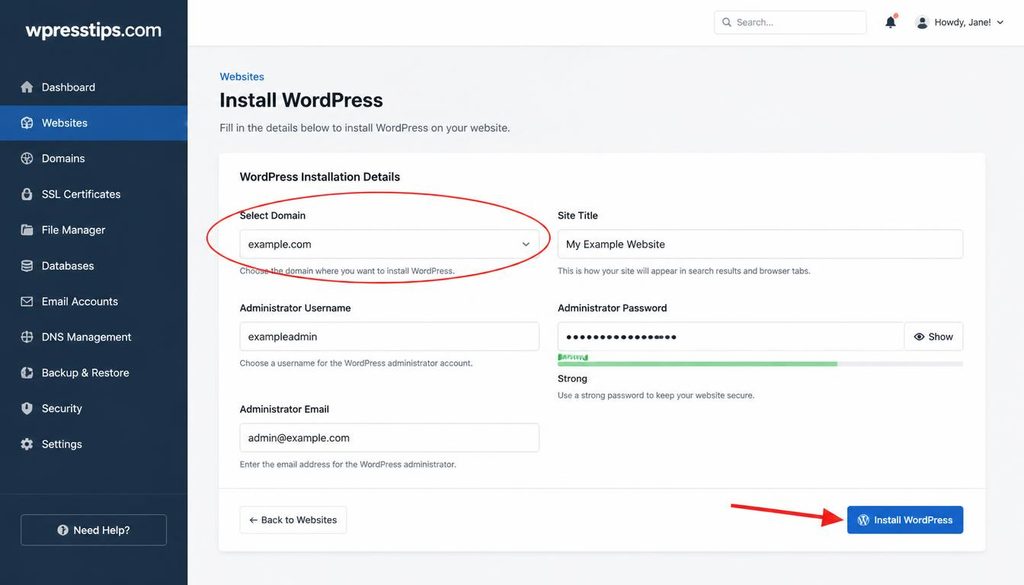
WordPress installation wizard showing the domain selection and Install WordPress button.
What if your host does not offer an installer?
You can install WordPress manually, but it takes more care. You will need to download WordPress, prepare a database and database user, upload the files, set the configuration, and run the install script. Follow the official manual WordPress installation instructions rather than using an outdated tutorial.
Step 6: Sign in and learn the dashboard
The WordPress dashboard is the control center for your website. The left menu gives you access to posts, pages, media, appearance, plugins, users, tools, and settings. Some menu items may differ depending on your theme and installed plugins.
Take a few minutes to explore before changing settings. You do not need to understand every menu on your first day.
Dashboard areas you will use most
- Posts: publish time-based content such as blog articles.
- Pages: create stable pages such as About and Contact.
- Media: upload and manage images and other files.
- Appearance: manage themes, menus, and design tools. The exact controls depend on the theme.
- Plugins: add features to the website.
- Settings: manage the site title, URL structure, reading options, and other core choices.
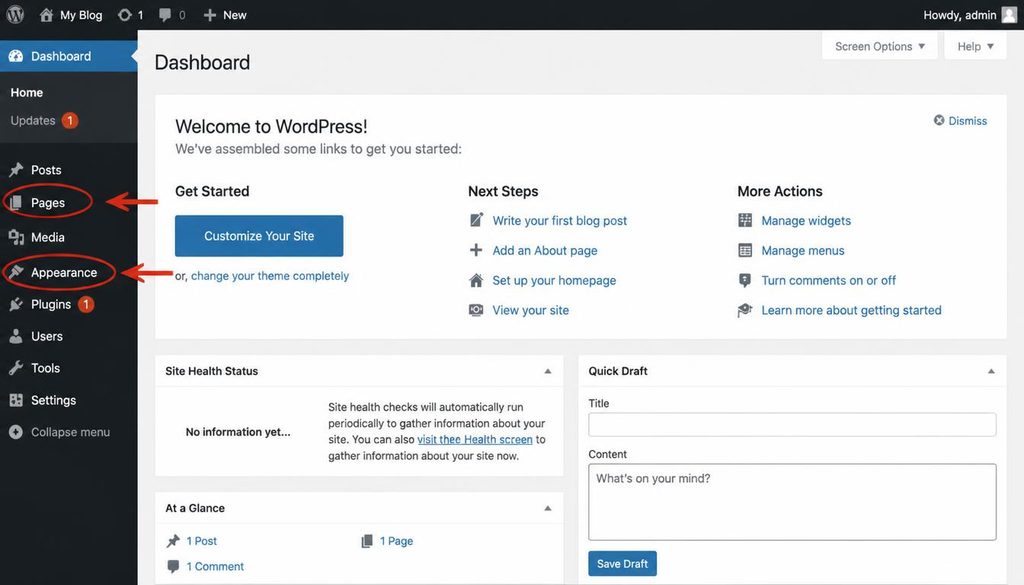
WordPress dashboard menu showing Pages and Appearance for a new website owner.
Step 7: Set the basic WordPress settings
Before designing the homepage, set the site’s identity and URL structure. These small choices help you avoid messy links and confusing site details later.
Set the site title and timezone
- In the dashboard, go to Settings > General.
- Enter the site title and a short tagline if it helps explain the site.
- Check the site language, timezone, date format, and time format.
- Confirm the WordPress Address and Site Address are correct. Do not change these URLs casually on an established site.
- Click Save Changes.
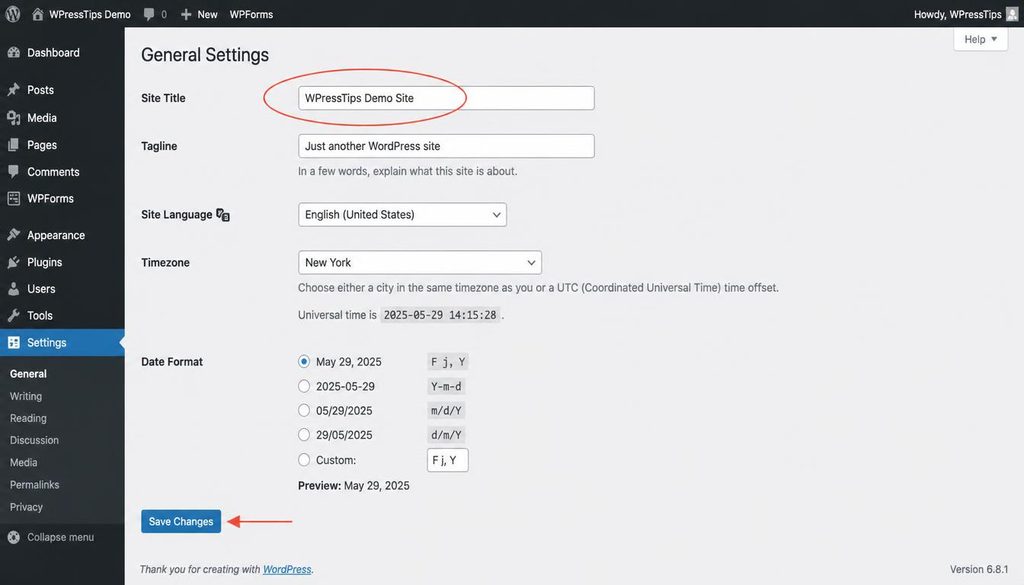
WordPress General Settings screen showing where to set the website title and timezone.
Choose readable permalinks
Go to Settings > Permalinks. For a new blog or content site, the Post name option usually creates short, readable URLs such as example.com/how-to-care-for-roses/.
Save the setting once you have chosen the structure. If the website already has published pages or receives visitors, do not change its URL structure without planning redirects, because old links may stop working.
Check search engine visibility
Open Settings > Reading and look for the option that discourages search engines from indexing the site. During private development, you may choose to discourage indexing. Before launch, check that you have not left this option enabled by mistake. It is a request to search engines, not a privacy lock.
Step 8: Choose a WordPress theme
A theme controls the overall design of your website, including layout, typography, colors, and many page elements. Start with a lightweight, well-maintained theme that looks good on phones and is easy for you to edit.
How to install a theme
- Open Appearance > Themes.
- Select Add New Theme if that control is available.
- Search for a theme or browse the available choices.
- Preview the theme and check its layout on small screens.
- Choose Install, then Activate.
- Open the theme’s customization tools or Site Editor and make small changes first.
Before settling on a theme, check recent updates, accessibility, documentation, and compatibility with the plugins you need. Avoid choosing a theme only because its demo has many effects. A simple design can be easier to maintain.
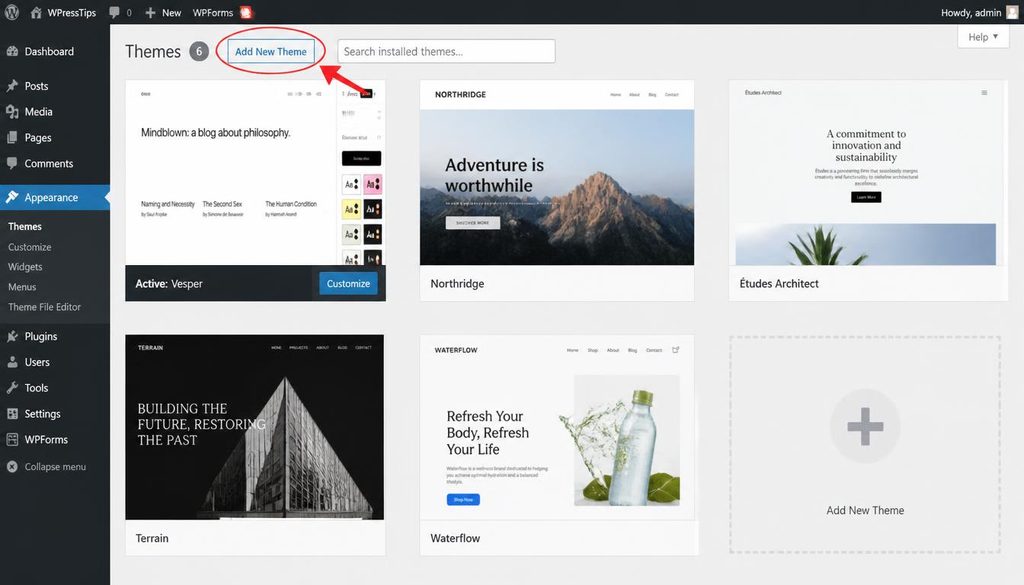
WordPress Appearance Themes screen highlighting Add New Theme when setting up a website.
Step 9: Create your essential pages
Most websites need a small set of clear pages before launch. Do not publish empty pages just to fill the menu. Give each page a purpose and enough information to help a visitor take the next step.
Home page
Tell visitors what the site is about near the top of the page. Use a clear heading, a short explanation, and a useful next action. A business homepage may point to services or contact details; a blog homepage may point to the newest guides or key categories.
About page
Explain who runs the site, what it covers, and why readers should trust the information. Use real details. Avoid invented credentials, fake customer quotes, or claims you cannot support.
Contact page
Give visitors a reliable way to reach you. This may be a contact form, a business email address, or other suitable contact details. Test the form after setup so you know messages are delivered.
Privacy and legal pages
If you collect personal information, use analytics, show ads, accept payments, or run a mailing list, review which privacy disclosures and legal pages apply to your situation. Requirements vary by location and business type. Do not copy a policy from another site without checking whether it fits your practices.
Create a page in WordPress
- Go to Pages > Add New Page.
- Enter a clear page title.
- Add the page text using the block editor. Use headings to break up longer sections.
- Preview the page on desktop and mobile.
- Save it as a draft while you review it, then publish when it is ready.
Use Pages for information that does not depend on a publishing date. Use Posts for articles that belong in your blog feed or categories.
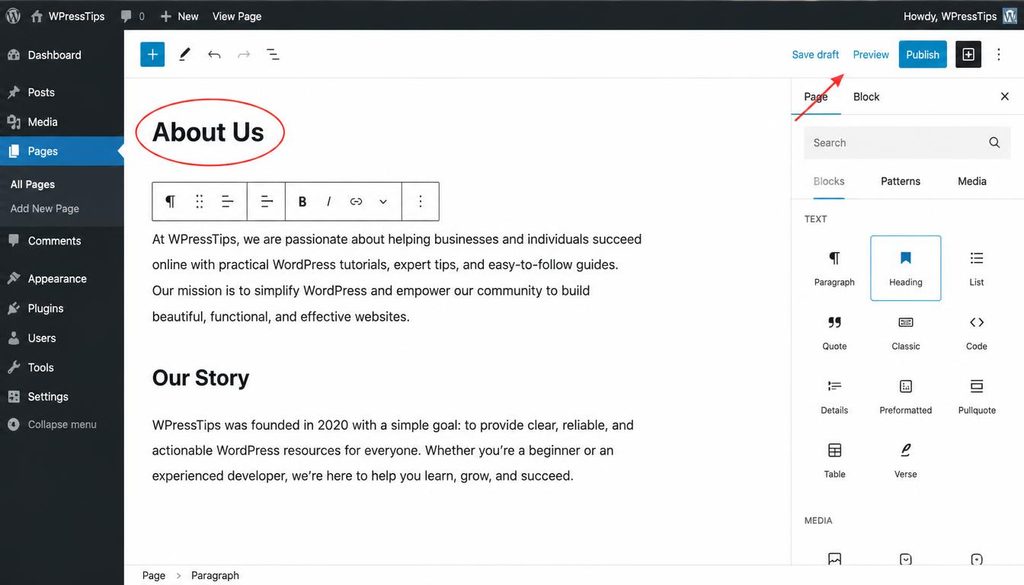
WordPress page editor showing how to create and preview an About page.
Step 10: Build your navigation menu
Navigation helps visitors find the most useful parts of your site. Keep the main menu short enough to scan. A small website may need only Home, About, Services or Blog, and Contact.
Depending on your theme, open Appearance > Menus or use Appearance > Editor to edit the Navigation block. Add the pages you want, arrange them in a sensible order, and save the changes. Menu controls differ between classic themes and block themes.
Open the public-facing site in a new browser tab and test each menu item. Check the mobile menu too, since visitors may use a phone as their main device.
Step 11: Add plugins carefully
Plugins extend WordPress with features such as SEO controls, forms, backups, security tools, and online stores. Start with the features your website actually needs. Every extra plugin is another thing to update and check.
How to install a plugin
- Go to Plugins > Add New Plugin.
- Search for the feature you need, not just a popular plugin name.
- Review the plugin description, recent updates, compatibility notes, support history, and user feedback.
- Select Install Now, then Activate.
- Open its settings and follow the developer’s documentation.
- Test the site to make sure the new feature works and has not broken an existing one.
Do not install two plugins that perform the same job unless you have a clear reason. Download extensions from trusted sources and remove tools you no longer use.
Explore our WordPress plugins tutorials before adding advanced features. If you install an SEO plugin, fill in page titles and descriptions thoughtfully instead of repeating keywords unnaturally.
Step 12: Publish your first post or main service page
A new site feels unfinished until it has something useful to offer. If you are building a blog, publish a strong first article that answers a real question. If you are building a business site, make sure your main service or product page explains what you offer and how people can contact you.
Write for the visitor first
- Use a title that tells readers what the page will help them do.
- Put the main answer near the beginning.
- Break long sections into clear headings and short paragraphs.
- Use original examples and images where they help explain a point.
- Link to related pages when the link helps the reader take the next step.
- Check facts, spelling, and links before publishing.
For blog posts, assign a relevant category and add a featured image only if it improves the page. Avoid publishing thin pages just to make the site look busy.
Step 13: Set up basic WordPress SEO
SEO helps search engines understand your pages and helps people decide which result to visit. No plugin or keyword list can guarantee a fast ranking. Start with clear content, a logical site structure, readable URLs, and pages that work well on mobile.
Basic SEO checklist
- Use a descriptive SEO title: write a unique title for each important page and place the main topic naturally near the start.
- Write a useful meta description: summarize the page accurately in a short, readable sentence. Google may choose a different snippet for some searches.
- Use a clear heading structure: one main H1 for the page title, followed by H2 sections and H3 subsections where needed.
- Write helpful URLs: use readable slugs and avoid changing established URLs without redirects.
- Add internal links: connect related guides using anchor text that describes the destination.
- Describe useful images: write accurate alt text for meaningful images. Decorative images should not have keyword-stuffed descriptions.
- Check indexing settings: make sure important pages are not accidentally blocked from search engines.
- Review the sitemap: check whether your SEO plugin or WordPress setup provides a sitemap and submit it through Google Search Console if appropriate.
For more help, browse our WordPress SEO guides and read Google’s SEO Starter Guide.
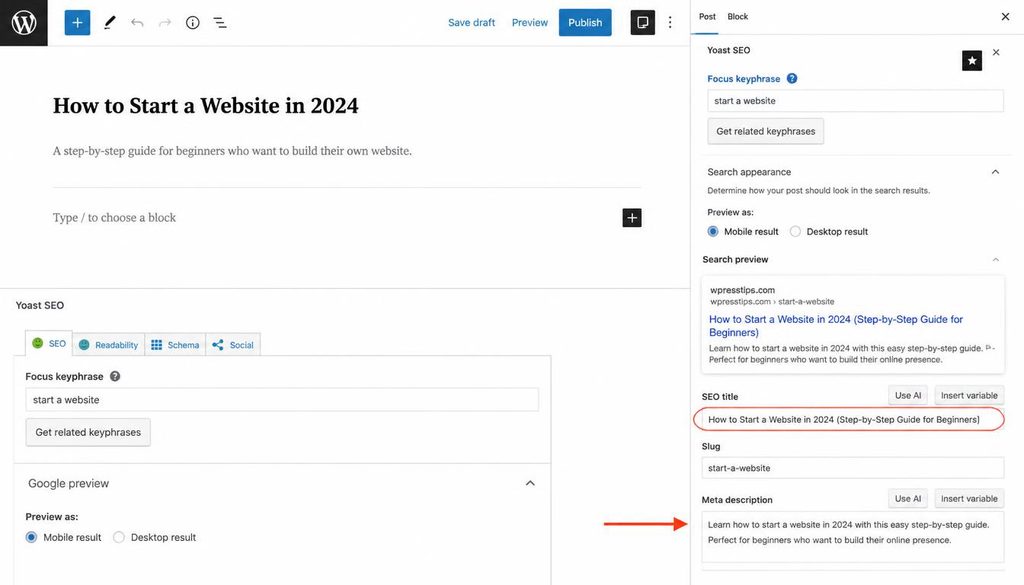
WordPress SEO settings showing the SEO title, meta description, and URL slug for a new website.
Step 14: Protect the website before launch
Security starts with good habits. Use a strong unique administrator password, protect the email account tied to the site, and enable two-step verification when your hosting or login tools support it.
- Keep WordPress, themes, and plugins updated.
- Set up backups and learn how to restore them.
- Use HTTPS and fix any mixed-content warnings.
- Give each user only the permissions needed for their work.
- Remove unused themes and plugins when they are no longer needed.
- Never install pirated themes or plugins from unknown websites.
Ask your host how backups are stored and how long they are kept. A backup is useful only if you can restore it. Read our WordPress security tutorials for more practical guidance.
Step 15: Make the website load well on phones
A site can look fine on a large monitor and still be hard to use on a phone. Open every important page on a smaller screen, check that text is readable, and make sure buttons and links are easy to tap.
Resize images before uploading when practical, use modern image formats when supported, avoid autoplaying heavy media, and remove plugins or visual effects that do not help the visitor. A caching tool may help, but set it up carefully and test the result.
See our WordPress speed tutorials for ways to improve loading time without blindly adding optimization plugins.
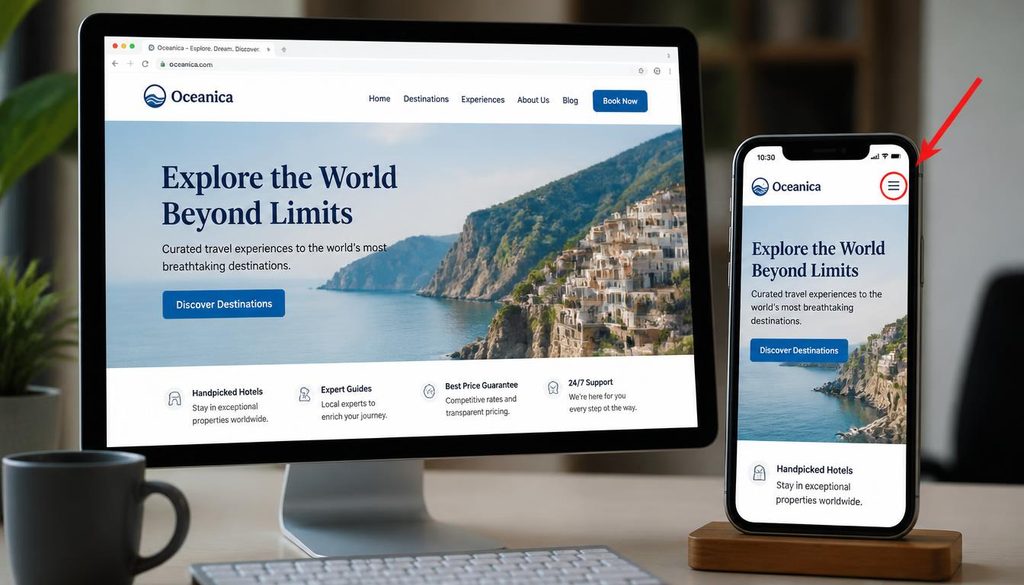
Responsive WordPress website preview on desktop and mobile before launch testing.
Step 16: Test everything before you launch
Do not announce the site until you have checked the basics. A short test now can prevent broken links, missing forms, and embarrassing spelling errors after visitors arrive.
Website launch checklist
- Open the homepage and each main page in a private browser window.
- Test the menu, footer links, buttons, and contact form.
- Check that the site uses HTTPS and that the correct domain loads.
- Review the website on a phone and a desktop screen.
- Check spelling, headings, images, and image alt text.
- Remove sample posts, placeholder text, and unused demo pages.
- Confirm that the homepage and important pages can be indexed when you are ready to launch.
- Check that backups are running and that you know how to restore the site.
- Save your domain, hosting, and WordPress account details securely.
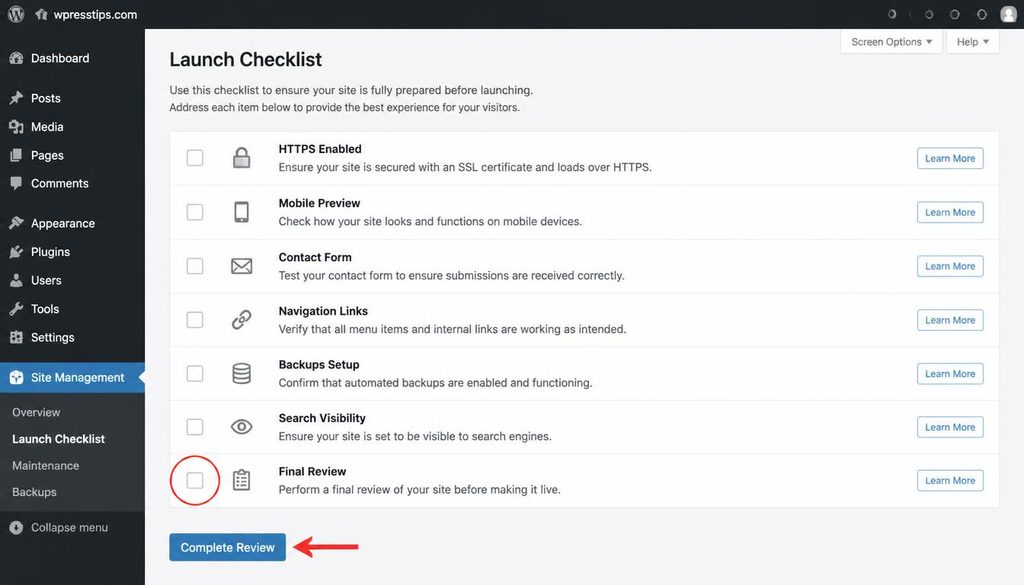
WordPress website launch checklist for testing HTTPS, mobile layout, forms, backups, and SEO settings.
Common mistakes when starting a WordPress website
Buying too many tools too early
You do not need a premium theme, several page builders, and a large collection of plugins before the first page is ready. Start small, learn what is missing, then add a tool to solve a real problem.
Changing URLs after publishing
Readable URLs are useful, but changing an existing site’s URL structure can break old links. Choose a sensible permalink structure early and use redirects when a change is needed.
Skipping backups
A new website still needs backups. An update, accidental deletion, or configuration problem can affect a small site just as it can affect a large one.
Launching with empty or copied content
Publish pages that answer real visitor questions. Replace demo text, use your own examples, and make sure every page has a clear reason to exist.
Expecting SEO results overnight
Search engines need to discover and assess pages, and competing topics can take time to rank for. Keep improving the content and technical setup rather than stuffing extra keywords into every paragraph.
Frequently asked questions
Can I start a WordPress website for free?
You can practice WordPress locally or use a hosted platform with free options, but a custom-domain website with your own hosting usually has ongoing costs. Check the current terms before choosing a free plan.
How long does it take to build a WordPress website?
A simple site with a few pages may take a day or a weekend if you already have the content ready. A store, membership site, or custom design can take much longer because it needs more setup and testing.
Do I need to know coding?
No. Most beginners can install a theme, create pages, and publish content through the dashboard without writing code. Code may be useful for advanced customization, but it is not a requirement for a basic website.
Should I use WordPress.org or WordPress.com?
WordPress.org provides the open-source software that you can install on hosting you choose. WordPress.com is a hosted service with plan-based features. Explore our WordPress Basics tutorials as you decide which setup fits your needs.
What should I install first?
Install WordPress, choose a suitable theme, and create your key pages first. Add only the plugins you need for tasks such as SEO, forms, backups, or security, after checking what your host already provides.
How do I get my new website on Google?
Make sure the site is public and not accidentally set to discourage indexing. Publish useful pages, check the sitemap, and consider verifying the site in Google Search Console. Indexing and ranking are not guaranteed, and they may take time.
Can I change my theme later?
Yes, but a theme change may affect layouts, menus, and some design elements. Back up the site and test the new theme before applying it to an important live website.
Your first website does not need to be perfect
Get the domain and hosting right, install WordPress, publish useful pages, and test the site before you promote it. You can improve the design as you learn, but keep backups and make changes carefully. What matters most is that your website works for the people who visit it.