Changing your WordPress password is straightforward when you can still sign in. It takes a little more care if you have lost access, use a password manager, or manage a site with several administrators. The safest method depends on which password you need to change: your own WordPress user password, another user’s password, or the credentials used by your hosting account.
This guide walks through the normal dashboard method first, then covers the lost-password email, administrator recovery options, security checks, and fixes for common problems. Before changing anything, make sure you know which account you are updating.
Quick answer: how to change your WordPress password
- Sign in to your WordPress dashboard at
https://yourdomain.com/wp-admin/. - Open Users → Profile (or Users → All Users and select your account).
- Find the Account Management section and choose Set New Password.
- Use the password WordPress generates, or replace it with a long, unique password that meets the site’s password-strength guidance.
- Select Update Profile to save the change.
- Sign out if needed and test the new password in a separate browser tab before closing your current session.
If you cannot sign in, skip to the WordPress login troubleshooting guide and use the password reset link on the login screen first.
What password are you trying to change?
WordPress websites use several different credentials. Changing one does not automatically change the others.
- WordPress user password: Lets you sign in to the WordPress dashboard. This is the password covered by the steps below.
- Hosting account password: Used to access your hosting control panel, such as cPanel. Change it through your hosting provider.
- Database password: Used by WordPress to connect to its database. Do not change it casually; if you change it at the host, the matching value in
wp-config.phpmust be updated too. - FTP or SFTP password: Used for file access. Change it in your hosting account or with the relevant server administrator.
If you can open /wp-admin/, you usually need the WordPress user password. If you cannot, start with the standard recovery email rather than editing database records right away.
Before you change your WordPress password
A password change should be quick, but take a moment to avoid locking yourself out.
- Confirm the username or email address for the account you want to update.
- Make sure you can access the email inbox attached to that WordPress user, especially if you may need recovery later.
- Use a unique password that you do not use on another website.
- If the site has multiple administrators, avoid sharing one login. Give each person their own account and the lowest role they need.
- If you suspect someone has accessed the site without permission, change the password from a trusted device and review other administrator accounts after you regain control.
A password manager can generate and save a long password so you do not have to memorize it. If you use one, verify that it saved the correct login URL and username.
Method 1: Change your WordPress password from the dashboard
This is the recommended method when you can still sign in. WordPress provides a built-in password control on each user’s profile, so you do not need an extra plugin.
Step 1: Sign in to WordPress
Open your site’s login page. The default address is https://yourdomain.com/wp-login.php, and you can usually reach the dashboard at https://yourdomain.com/wp-admin/. Replace yourdomain.com with your real domain.
Enter your current username or email address and password. If the login page looks different because your site uses a security plugin or custom login URL, use the login address your site administrator provided.
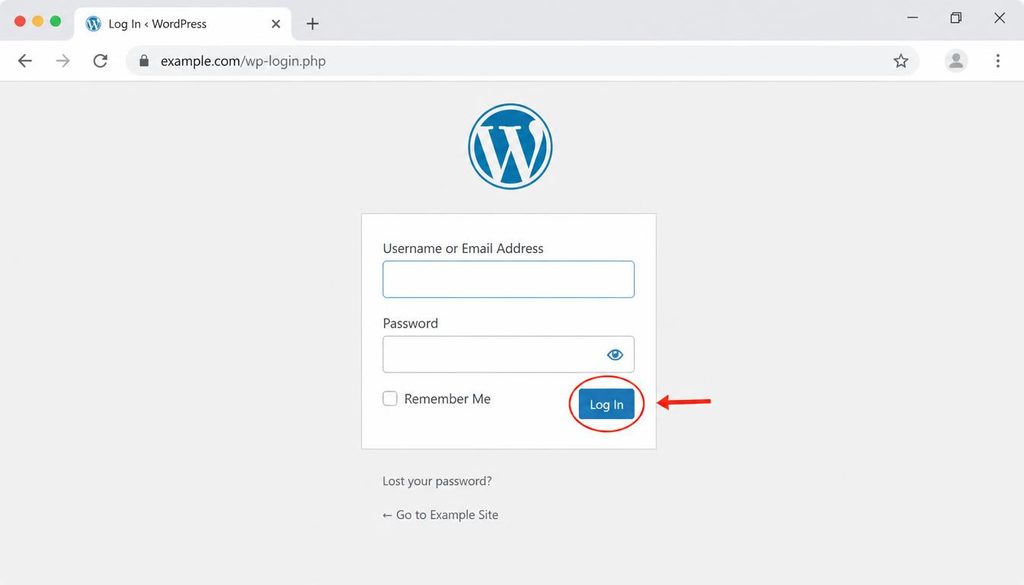
WordPress login page showing the username and password fields before changing a WordPress password.
Step 2: Open your user profile
In the dashboard’s left-hand menu, go to Users → Profile. On some sites, the menu may display your name or profile link near the bottom of the admin menu. You can also open Users → All Users, locate your account, and select Edit.
If you do not see the Users menu, your account may not have permission to manage users. Editors and authors generally cannot change other users’ passwords, though they can usually manage their own profile. Ask a site administrator for help if the profile controls are missing.
Step 3: Find Account Management
Scroll down the profile page until you reach Account Management. WordPress versions and admin layouts can differ slightly, but the section includes a password control. Select Set New Password.
WordPress will normally generate a strong password and display it in a field. You can use the generated password or enter a different one that meets the strength guidance. Avoid short phrases, names, birthdays, keyboard patterns, or a password that you already use elsewhere.
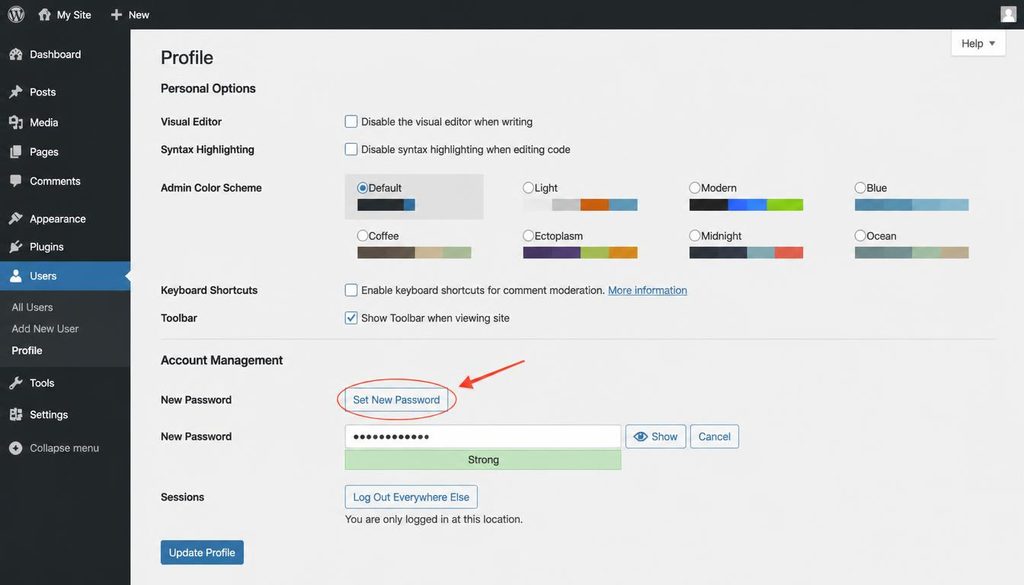
WordPress user profile Account Management section with the Set New Password control highlighted.
Step 4: Save the new password
Scroll to the bottom of the profile page and select Update Profile. Do not leave the page before the save finishes. If WordPress reports that the profile was updated, the new password should now be active.
Keep your current session open while you test the new password in a private window or another browser. Open the login page, enter the same username and the new password, and confirm that you can sign in. Only then should you close the original session.
Step 5: Update saved login details
If your browser or password manager stores the old password, update the saved entry after you confirm the new one works. Otherwise, autofill may keep submitting the old password and make it seem as if WordPress rejected your change.
Method 2: Change your password from the WordPress login screen
Use this method if you forgot your current password or cannot get into the dashboard. You do not need to know the old password, but you must be able to access the account’s registered email address or have another approved recovery method.
- Open
https://yourdomain.com/wp-login.php. - Select Lost your password?.
- Enter your WordPress username or the email address linked to the account.
- Submit the request and check your inbox for the password reset message.
- Open the reset link and follow the instructions to set a new password.
- Return to the login page and sign in using the new password.
Check your spam, junk, and promotions folders if the message does not arrive. The email may take a few minutes, and some sites have mail delivery problems. Do not repeatedly submit the form in a short period, since that can trigger security limits or create several reset messages.
For more help with messages that never arrive, see how to troubleshoot WordPress email delivery. If you cannot reach the email account, ask another trusted administrator or your hosting provider to help you recover access safely.
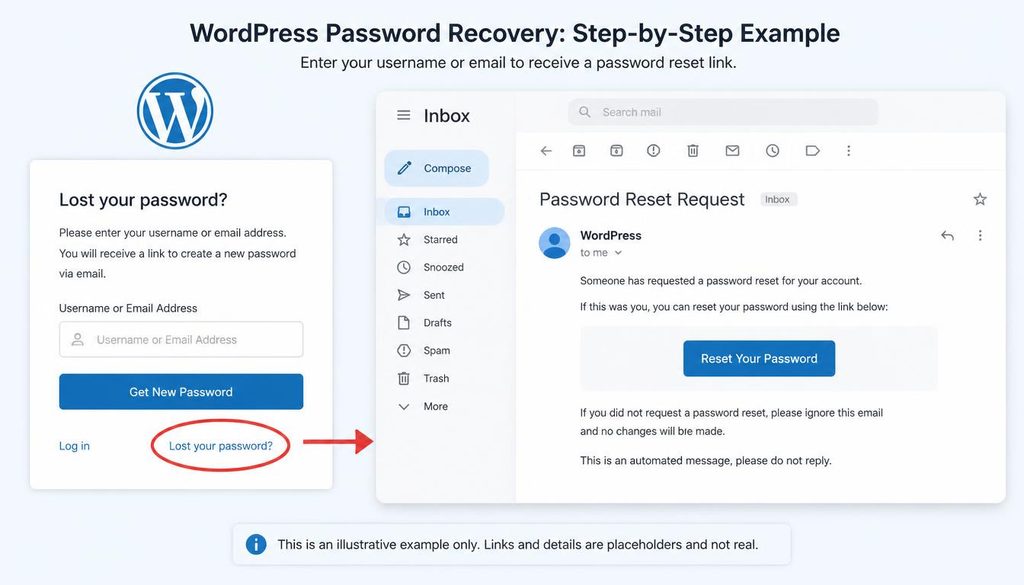
WordPress lost password form used to request a password reset email.
Method 3: Change another user’s WordPress password
If you are an administrator and need to reset a team member’s password, you can do it from the dashboard. Only do this for an account you are authorized to manage, and tell the user how to sign in securely afterward.
- Sign in with an account that has permission to manage users.
- Go to Users → All Users.
- Find the correct account and select Edit.
- Scroll to Account Management and select Set New Password.
- Save the profile with Update User or the equivalent save button shown on the page.
- Share the reset instructions through a trusted channel. Do not send a permanent password in a public message or group chat.
Menu labels may vary slightly by WordPress version. If you cannot edit a user’s profile, check your role and capabilities rather than installing a plugin just to expose the control.
For a site with several people, review whether each account still needs administrator access. Most contributors do not need full control over plugins, themes, or site settings.
How to choose a strong WordPress password
A good password should be hard for someone else to guess and easy for you to store safely. Length and uniqueness matter more than clever substitutions such as replacing every letter “a” with “@”.
- Use a long password or passphrase generated by a trusted password manager.
- Give every important account its own password, including WordPress, hosting, email, and domain registrar accounts.
- Avoid personal details, common phrases, repeated characters, and passwords exposed in old data breaches.
- Never paste your password into a support ticket, public comment, screenshot, or chat with someone you do not trust.
- Turn on multi-factor authentication for administrator accounts if your security setup supports it.
Do not rely on a routine calendar schedule alone to decide when to change a password. Change it promptly if you suspect exposure, reused it on a compromised service, shared it with someone who no longer needs access, or received a credible security alert.
What to do if WordPress will not accept the new password
The new password keeps being rejected
First, make sure you are using the right username and the new password, not an old browser autofill entry. Check whether Caps Lock is on and whether your password manager inserted an extra space. If the login form continues to reject the credentials, use the password reset flow again and test the new password in a private browser window.
The password change did not save
Return to your profile and look for a success message after saving. If the page reloads without a confirmation, try again after temporarily ruling out a browser extension or a stale cached admin page. Do not disable security controls on a live site without understanding why they are blocking the request.
The reset email never arrives
Check spam and junk folders, confirm you entered the correct account email, and wait a few minutes. If nothing arrives, the site’s mail configuration or hosting provider may be the problem. Ask your host or site administrator to review mail delivery logs and sender configuration. Avoid posting your reset link publicly because it can grant access to your account.
You can sign in, but WordPress keeps logging you out
This may be a cookie, URL, browser, or security-plugin issue rather than a wrong password. Check that the site uses the correct HTTPS address, clear the browser cookies for your site, and test another browser. If the issue began after a site URL change, review the guide to changing the WordPress site URL.
Your account does not have permission to change users
A non-administrator role may not be allowed to edit other accounts. Ask an existing administrator to perform the reset. Do not attempt to raise your own role or bypass site permissions unless you are the authorized site owner and are following a documented recovery process.
Advanced recovery options if you cannot use the reset email
If you own the site and the normal recovery process is unavailable, there are administrative recovery routes. Start by contacting your hosting provider or another trusted administrator. Use advanced methods only when you understand the consequences and have a current backup.
Ask your hosting provider for help
Hosting support may be able to help you regain access after verifying ownership. Tell them whether you can access the WordPress dashboard, the registered email, and the hosting control panel. Never send them your existing password; legitimate support should not need to know it.
Use WP-CLI when you have authorized server access
WP-CLI is the command-line tool for managing WordPress. An authorized site administrator with shell access can use its user commands to update a password. Confirm the correct WordPress installation and user ID before running any command, and keep the new credential out of shared terminal logs or public documentation.
If you are not comfortable with the command line, skip this method and ask your host or developer to help. A typo in a server command can affect the wrong site, especially on accounts that host multiple WordPress installations.
Use the database only as a last resort
Direct database editing should be a last resort for an authorized owner, not the first fix for a forgotten password. WordPress stores user records in the database, and the table prefix may not be wp_. Incorrect edits can affect the wrong account or site. Make a backup first and use a trusted, documented recovery procedure or qualified support.
Do not replace password values with a plain-text string in the database. WordPress must store a supported password hash. After access is restored, sign in and set the password through the normal WordPress profile or reset process.
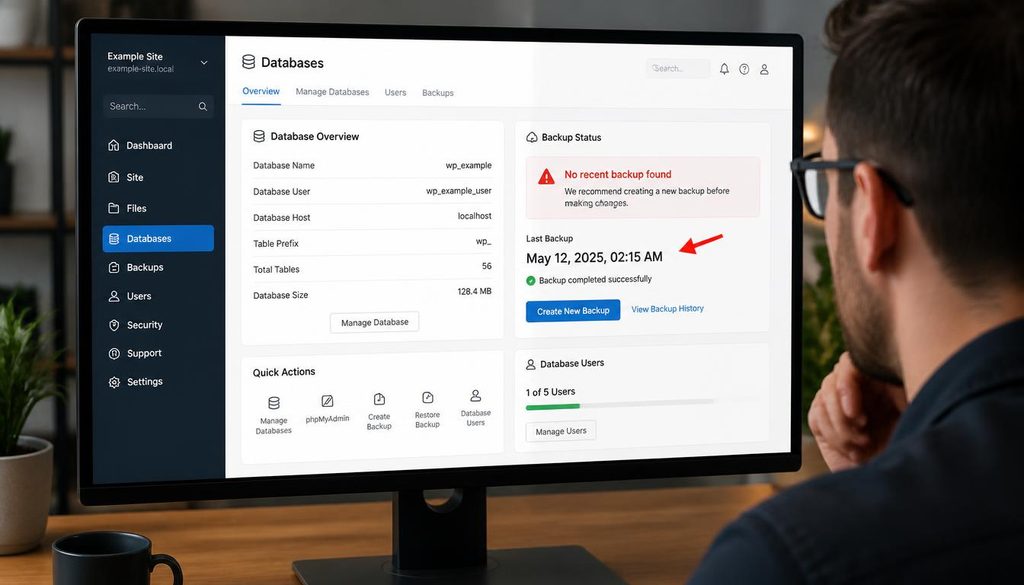
WordPress password recovery preparation showing a database backup and hosting control panel before advanced troubleshooting.
Secure your WordPress account after changing the password
If you changed your password because you think someone accessed your account, treat the password change as one part of a wider security check.
- Review administrator accounts. Open Users → All Users and look for accounts you do not recognize. Verify with the site owner before deleting any account.
- Check recent changes. Review unexpected posts, pages, plugins, themes, redirects, or settings changes. Remove suspicious items only after confirming they are not part of legitimate site work.
- Protect the email account. Secure the inbox used for WordPress recovery. Someone who controls that inbox may be able to reset the WordPress password again.
- Secure hosting access. If the incident may involve the hosting account, update its password separately and enable multi-factor authentication where available.
- Update software safely. Check WordPress core, themes, and plugins for security updates, and make a backup before major changes.
- Enable stronger login protection. Consider multi-factor authentication, login rate limits, and unique accounts for each person who manages the site.
Use the WordPress security guides for more steps on protecting administrator access. If you find signs of a compromise, contact your host or a qualified security professional instead of assuming a password change removed every threat.
Common WordPress password mistakes to avoid
- Changing the wrong credential: The WordPress dashboard password is different from your hosting, database, and email passwords.
- Reusing an old password: A password exposed on another service may already be known to attackers.
- Closing your only active session too soon: Test the new password in a separate window before signing out of your current session.
- Sharing a single administrator login: Individual accounts make it easier to manage access and understand who made a change.
- Editing the database without a backup: Try normal recovery first, then ask for help before making database changes.
- Ignoring the recovery email: If the email account is outdated or inaccessible, update it through the appropriate WordPress user settings when you regain access.
- Installing an unnecessary password plugin: WordPress already includes password management and reset features for standard user accounts.
WordPress password change checklist
- ☐ Confirm the exact WordPress account you need to update.
- ☐ Use the dashboard profile or the Lost your password? flow first.
- ☐ Create a long, unique password and store it securely.
- ☐ Save the profile and confirm WordPress accepted the change.
- ☐ Test the new password in a separate browser window.
- ☐ Update the password manager entry and remove outdated saved credentials.
- ☐ If compromise is suspected, review administrator accounts, email security, hosting access, and recent site changes.
Frequently asked questions
How do I change my WordPress password if I am logged in?
Open Users → Profile, find Account Management, select Set New Password, and save with Update Profile. Test the new password before closing your current session.
How do I reset my WordPress password without knowing the old one?
Open the WordPress login page and select Lost your password?. Enter the username or registered email address, follow the reset link, and choose a new password. You generally need access to the account’s recovery email.
Can I change a WordPress password from the hosting control panel?
Some hosts provide WordPress management tools that can help with user access, but the exact features depend on the provider. The standard WordPress dashboard or reset email is usually the simplest choice when it is available.
Does changing my WordPress password log out other devices?
Session behavior can depend on the WordPress version, security plugins, and session settings. Do not assume that changing a password alone has ended every existing session. If you suspect unauthorized access, review your security tools and use a trusted session-termination feature if available.
Why am I not receiving the WordPress password reset email?
The message may be in spam, the email address may not match the account, or the website may have an email delivery problem. Verify the account details and ask your host or administrator to investigate if the message still does not arrive.
Can an administrator change another user’s WordPress password?
Yes. An administrator with permission to manage users can open Users → All Users, edit the correct user, set a new password, and save the profile. Only do this when authorized to manage that account.
Should I change my WordPress password regularly?
Use a unique password and change it when you suspect it has been exposed, reused on a compromised service, or shared with someone who no longer needs access. A password manager and multi-factor authentication can help reduce account risk.
Official WordPress references
- WordPress documentation: Reset your password
- WordPress documentation: Your Profile screen
- WP-CLI documentation: User update command