Changing your WordPress site URL can fix a domain change, move a website from a temporary address, or switch a site to HTTPS. But the wrong edit can also break the homepage, send you into a redirect loop, or lock you out of the WordPress dashboard. The safest method depends on whether you are changing the address of an existing site, moving to a new domain, or correcting a URL that was entered incorrectly.
This guide explains what each WordPress URL setting controls, how to change it from the dashboard, and how to recover when the dashboard no longer opens. Before editing anything, make a backup and confirm that the new domain points to the correct hosting account.
Quick answer: For a normal change, sign in to WordPress and open Settings → General. Update the WordPress Address (URL) and Site Address (URL) as needed, then save. If the fields are unavailable or the change locks you out, use the recovery methods in this guide instead of repeatedly changing settings.
What is the WordPress site URL?
People often use “WordPress URL” to mean several different things. WordPress has two important address settings, and they are not always meant to be identical.
WordPress Address (URL)
The WordPress Address (URL), commonly called WP_SITEURL, is the address where the WordPress core files are installed. Those files include the WordPress application that runs the dashboard and builds your website.
For example, if the WordPress files live in the main web directory, the address might be https://example.com. If WordPress core is installed in a subdirectory, the address might instead be https://example.com/wordpress.
Site Address (URL)
The Site Address (URL), often called WP_HOME, is the public address visitors use to reach your website. For many standard installations, it matches the WordPress Address. In some setups, WordPress files live in a subdirectory while the public website appears at the root domain.
Example: the WordPress files could be in https://example.com/wordpress, while visitors see the site at https://example.com. This is a specific configuration, so do not copy it unless your installation is set up that way.
Important: Do not change both fields simply because they look similar. First confirm where the WordPress files are installed and what public address you want visitors to use.
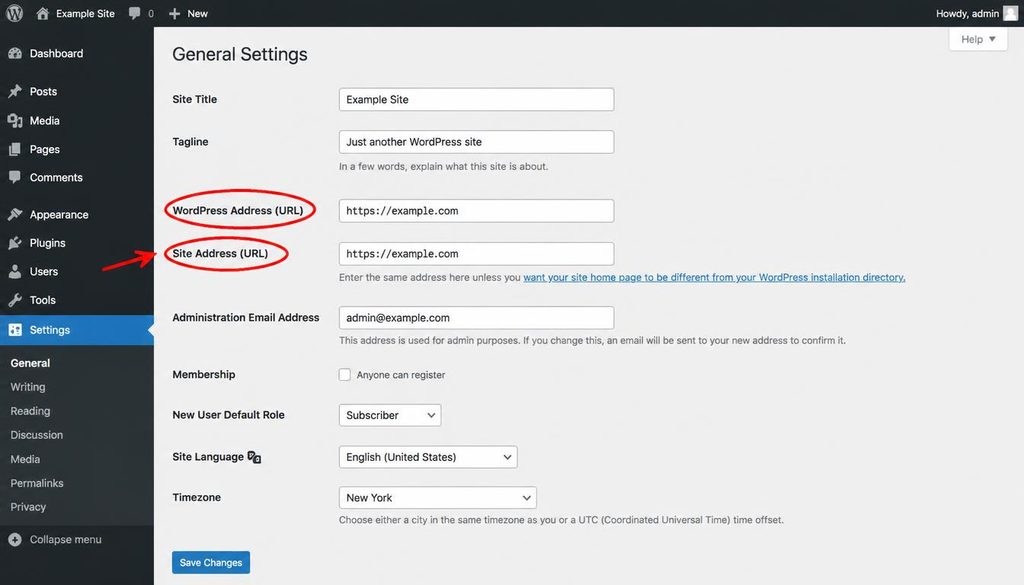
WordPress General Settings showing the WordPress Address and Site Address URL fields.
When should you change the WordPress URL?
You may need to update the address for several reasons. Identify your situation first, because the right fix for a simple HTTPS change is different from the steps for moving a website to a new domain.
- Switching from HTTP to HTTPS: your SSL certificate is active and you want the site to use its secure address.
- Changing the domain name: the website is moving from an old domain to a new one.
- Leaving a temporary hosting URL: development took place on a temporary address and the final domain is ready.
- Correcting a typo: the address was saved with the wrong domain or path.
- Moving WordPress out of a subdirectory: the public site should load from the root domain rather than a folder.
- Moving to a subdirectory or subdomain: the intended public address has changed.
If you are starting a new website, our guide to setting up a WordPress website step by step explains the domain and hosting choices to make before launch. If WordPress has not been installed yet, see how to install WordPress.
Before changing the URL: protect your website
Do not skip these checks. A URL change can affect links, login access, images, plugins, and redirects. A backup gives you a way back if the new address does not work.
1. Create a complete backup
Back up both the WordPress files and the database. The database contains posts, pages, settings, and many plugin records; the files include themes, plugins, uploads, and WordPress core. A copy of only one part may not be enough to restore the site.
Use your host’s backup tool or a trusted backup plugin. If your hosting account offers a restore point, check its date and what it includes. Ideally, keep a copy outside the same hosting account. Do not test a restore on the live site without understanding what it will replace.
2. Confirm the new domain or protocol is ready
If you are changing domains, add the new domain to your hosting account and point its DNS records to the correct server. If you are switching to HTTPS, make sure the SSL certificate is active for the exact hostname you will use, including the www version if that is your chosen address.
Do not set WordPress to use HTTPS and assume the certificate will appear automatically. If the certificate is not ready, visitors may see browser security warnings or a connection error.
3. Record the current settings
Open Settings → General and note both URL values before making a change. If you cannot access the dashboard, write down the current address from your browser and check your hosting notes. You will need the intended final URL too, including whether it uses www and whether WordPress is in a folder.
4. Check whether another setting controls the URL
Some sites define the address in wp-config.php, a hosting environment setting, or a deployment configuration. When those values are set in code, the dashboard fields may be locked or may not control the final address. Check with the developer or hosting provider if the site is managed through a deployment system.
Method 1: Change the WordPress site URL from the dashboard
This is the easiest method when you can still sign in and the URL fields are editable. Use it for a planned change where the new domain or HTTPS setup is already ready.
Step 1: Sign in to WordPress
Open your current WordPress admin address, commonly https://example.com/wp-admin/, and sign in with an administrator account. If the login page redirects to the wrong domain, skip to the recovery methods below rather than fighting the redirect.
Step 2: Open General Settings
From the left-hand dashboard menu, go to Settings → General. Near the top of the page, look for WordPress Address (URL) and Site Address (URL).
Step 3: Enter the intended address
Enter the correct URL in the relevant field or fields. Use the full protocol, such as https://, and do not add a trailing slash unless your configuration specifically calls for it. WordPress commonly stores these values without a trailing slash.
For a standard site where WordPress files and the public website are both at the root of the same domain, both values often look like this:
https://example.comFor a switch from HTTP to HTTPS, change the protocol only after SSL is active. For a domain move, use the new domain only after DNS and hosting are ready. If the core files are installed in a subdirectory, do not remove that path from the WordPress Address without checking your setup.
Step 4: Save the changes
Scroll to the bottom and click Save Changes. WordPress may sign you out or send you to the new address. That can be expected because the login URL is now based on the saved settings.
Step 5: Sign in using the new address
Open the intended admin URL, usually https://new-domain.example/wp-admin/, and sign in again if asked. Check the homepage, a post, a page, and an image. If the browser redirects back to the old address or shows an error, do not keep changing the fields at random. Use the troubleshooting section to identify what still points to the old URL.
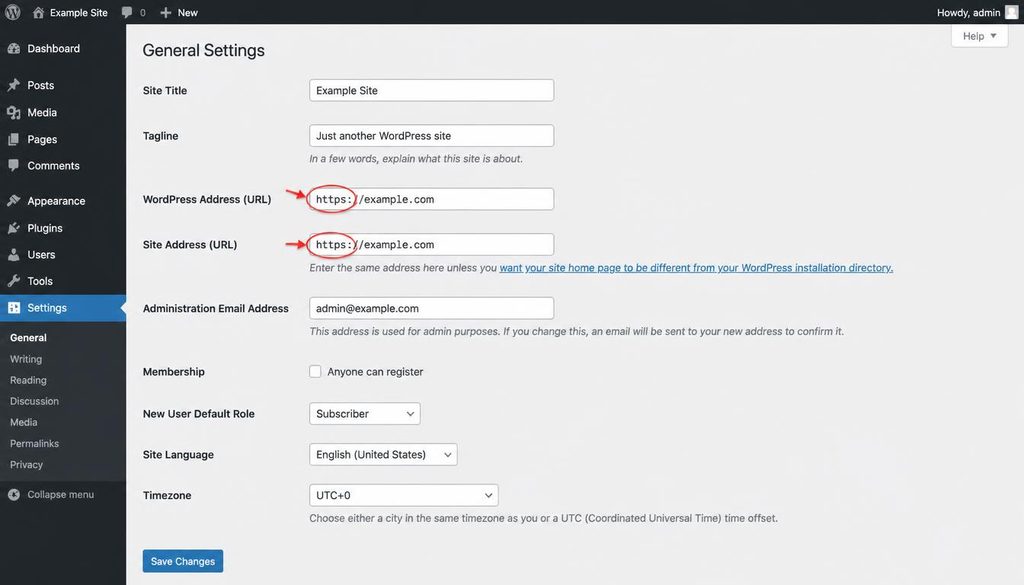
Changing the WordPress Address and Site Address from HTTP to HTTPS in General Settings.
Method 2: Change the URL in wp-config.php
Use this method when the dashboard fields are unavailable or when you need to restore access after a wrong URL was saved. It requires access to your website files through cPanel File Manager or SFTP. Make a backup before editing the file.
Step 1: Open the website files
Sign in to your hosting account and open cPanel → File Manager. Browse to the document root for the website. For a common main-domain setup, that may be public_html, but use the document root assigned to your domain rather than assuming every site uses the same folder.
Step 2: Find wp-config.php
Locate wp-config.php in the WordPress installation directory. Download a copy or duplicate it as a backup before editing. If you cannot see the file, enable the option to show hidden files if your file manager has one, and confirm that you are in the right directory.
Step 3: Add the URL definitions carefully
Edit wp-config.php and add the following lines before the comment that says to stop editing. Replace the example address with the correct URL for your site.
define( 'WP_HOME', 'https://example.com' );
define( 'WP_SITEURL', 'https://example.com' );
These are examples for a standard installation where the public address and WordPress core address are the same. If your WordPress files live in a subdirectory while the public site is at the root, the two values may need to differ. Confirm the correct paths before adding them.
Do not add duplicate definitions if WP_HOME or WP_SITEURL already appears in the file. Edit the existing lines instead. Duplicate PHP definitions can cause confusion and warnings.
Step 4: Save and test the site
Save the file, then visit the new homepage and admin URL. If the site loads, check several pages and the login process. If a PHP error appears, restore the backup copy of wp-config.php or remove the incorrect lines using File Manager or SFTP.
These constants override the corresponding values stored in the database, so the dashboard fields may become unavailable. When you later remove the constants, make sure the database contains the intended values before you do so.
Method 3: Correct the URL through the database
Use a database edit only when you understand which WordPress installation and database you are changing. A mistake can affect the wrong site. For many users, the dashboard or temporary wp-config.php constants are safer options.
Step 1: Identify the correct database
Open cPanel → File Manager and inspect the database name in wp-config.php, or check the database details provided by your host. Then open phpMyAdmin from cPanel and select that database. Do not guess based on a database name that looks familiar.
Step 2: Find the options table
Open the table whose name ends in _options. The table prefix may not be wp_, so use the actual prefix from your installation. Find the rows where option_name is siteurl and home.
Step 3: Update only the intended values
Edit the option_value for those two rows to the intended URLs. For a typical root installation, both might be https://example.com. If you are unsure whether the WordPress core files are in a subdirectory, stop and confirm before editing.
Do not run a broad SQL replacement across every table just to change the site URL. WordPress and plugins may store serialized data, where text length is recorded as part of the value. A plain database replacement can damage that data. For a full domain move, use a WordPress-aware search-and-replace tool or a migration tool that handles serialized values.
Step 4: Test the site and admin
Open the homepage and the admin login in a private browser window. If the site redirects to the old domain, clear any relevant cache and check for a configuration override, redirect rule, or cached page. Keep your backup until you have checked the site properly.
Method 4: Change the URL with WP-CLI
WP-CLI is a command-line tool for managing WordPress. It can be useful for developers or hosting plans that provide terminal access. If you are not comfortable with the command line, use one of the dashboard or hosting-file methods instead.
From the correct WordPress installation directory, check the current values:
wp option get home
wp option get siteurl
To update a standard installation, use the intended URL in both commands:
wp option update home 'https://example.com'
wp option update siteurl 'https://example.com'
Run these commands only for the correct WordPress installation. If WP_HOME or WP_SITEURL is defined in wp-config.php, those constants override the database values, so changing the options alone may not change the active address. For details, see the official WP-CLI option command documentation.
How to change WordPress from HTTP to HTTPS
A move from HTTP to HTTPS is a common URL change, but it has a few extra checks. HTTPS depends on a valid SSL certificate and correct server settings, not just a WordPress setting.
- Ask your host to confirm that the SSL certificate is active for the domain you use.
- Open the HTTPS version of the domain in a browser and confirm it loads without a certificate warning.
- Back up the site, then update the WordPress Address and Site Address to use
https://. - Check that your host redirects HTTP requests to HTTPS using a supported redirect method.
- Review images, stylesheets, scripts, and embeds for old HTTP URLs that may cause mixed-content warnings.
- Clear the WordPress, hosting, CDN, and browser caches where relevant.
- Test the homepage, login, contact forms, and key pages on desktop and mobile.
If the site is behind a reverse proxy or CDN, HTTPS detection can depend on the host’s configuration. Ask the provider for the correct setup rather than adding random code to wp-config.php. A misconfigured proxy can cause redirect loops.
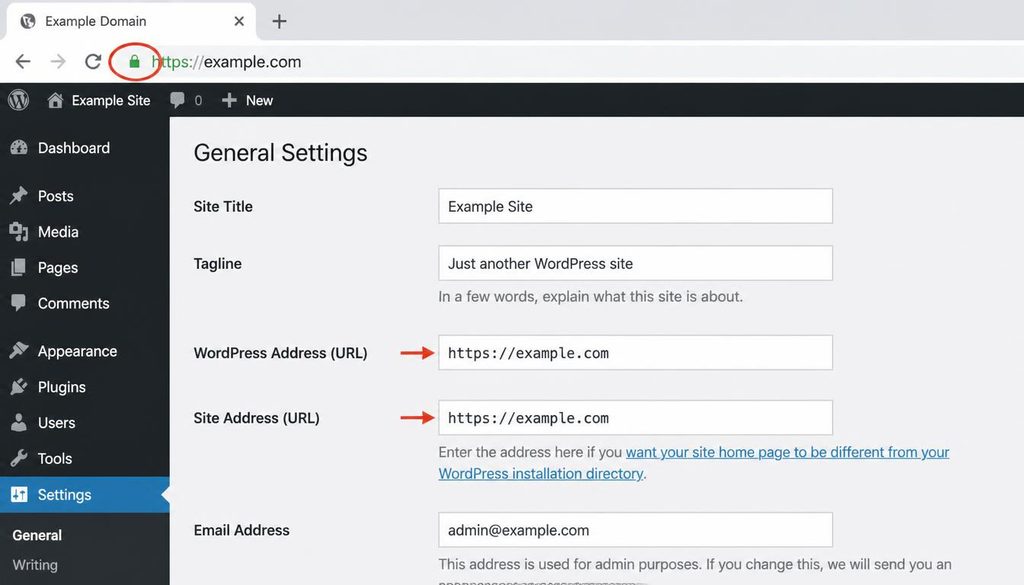
WordPress site URL set to HTTPS with a secure browser connection after SSL setup.
How to change WordPress to a new domain
Changing the domain is more involved than switching the protocol. Updating the two URL fields changes WordPress’s main address, but it does not automatically update every old domain reference stored in posts, page content, image URLs, plugin settings, or other database records.
1. Prepare the new domain and hosting
Add the new domain to your hosting account, point its DNS records to the correct server, and confirm that the site files and database are ready. Set up SSL for the new domain before forcing HTTPS. Keep access to the old domain while you test and prepare redirects.
2. Back up the old site and database
Create a complete backup before making changes. If you are migrating to a new hosting account as well, make sure the files and database belong to the same copy of the site. A mismatch can lead to missing uploads or outdated content.
3. Change the main WordPress address
Use the dashboard if it remains accessible, or choose a file, database, or WP-CLI method that suits your setup. Set the new public address correctly. If WordPress core lives in a subdirectory, preserve the correct core path.
4. Update old URLs in the content database safely
After changing the main address, search the database for references to the old domain. Images inserted into posts, internal links, builder data, and plugin settings may still point to the old address. Use a migration plugin or a WordPress-aware search-and-replace tool that handles serialized data. First run a dry run if the tool offers one, review the number of proposed changes, and keep a backup.
Do not replace every occurrence blindly. Some old-domain references may be intentional, such as a link to an old resource or a separate service. Check the result before committing changes.
5. Set up permanent redirects from the old domain
If visitors and search engines already know the old domain, set up server-level 301 redirects from each old URL to its closest matching page on the new domain. Redirecting every old page to the new homepage can create a poor user experience and may be treated as a soft 404.
Keep control of the old domain and its DNS for as long as the redirects are needed. Test important URLs from the old site and confirm they reach the right destination without redirect loops.
6. Update search and third-party services
Review your sitemap, canonical URLs, analytics configuration, advertising settings, and any verification records that depend on the domain. If you use Google Search Console, follow its current site-move guidance. See Google’s official guide to site moves with URL changes before completing a domain migration.
Also check your WordPress SEO plugin settings and social profile links. The main WordPress URL change does not guarantee that every plugin-generated canonical or social URL has been updated correctly.
What if you cannot access WordPress after changing the URL?
Do not panic and do not keep guessing at the address. You can often restore access through your hosting account.
Option A: Use wp-config.php to temporarily set the correct URL
If you can access the WordPress files through cPanel File Manager or SFTP, add or correct the WP_HOME and WP_SITEURL definitions as described above. Use the correct values for your installation. Then open the expected admin URL again.
Option B: Fix the database values in phpMyAdmin
If the database values are wrong and no code constants override them, edit the home and siteurl rows in the correct options table. Back up the database first and verify the table prefix and database name.
Option C: Check hosting redirects and HTTPS settings
If the URL values are correct but the browser still sends you elsewhere, inspect the host’s redirect controls, CDN settings, and any redirect plugin. Ask the host to check for a conflicting HTTP-to-HTTPS rule or domain redirect. A repeated redirect loop is often caused by conflicting rules rather than the URL field alone.
Once access is restored, check the WordPress Address and Site Address settings, remove any temporary recovery configuration if appropriate, and verify the site before clearing your backup.
Common WordPress URL mistakes to avoid
Changing only one URL field without knowing why
The WordPress Address and Site Address can differ in specific installations. For a standard setup they are often the same, but changing only one field without understanding the file location can cause unexpected redirects or broken paths.
Switching to HTTPS before the certificate works
Set up SSL first. Otherwise, the browser may reject the connection or WordPress may redirect visitors to an address that cannot load securely.
Forgetting old links and image addresses
Changing the main URL settings does not automatically rewrite all URLs inside content. A domain migration needs a careful, WordPress-aware search-and-replace process and testing of media files.
Running a blind SQL replacement
Plain SQL replacement can damage serialized plugin or theme data. Use a tool built for WordPress migrations, take a backup, and test the replacement before applying it.
Removing the old domain too soon
If the site has existing visitors or search traffic, keep the old domain available for redirects. Dropping it immediately can leave old links broken and make it harder for users to find the new site.
Ignoring cache and redirect rules
Cached pages, CDN rules, server redirects, and redirect plugins can keep sending visitors to the old address even after the WordPress settings are corrected. Clear caches and inspect the redirect chain before changing more settings.
WordPress URL change checklist
- Back up both website files and the database.
- Confirm the new domain or HTTPS certificate is ready.
- Record the current WordPress Address and Site Address.
- Confirm whether WordPress core files live in the root or a subdirectory.
- Choose the right method: dashboard, wp-config.php, database, or WP-CLI.
- Check the homepage, admin login, posts, pages, and media after the change.
- For domain moves, safely update old URLs stored in content and plugin data.
- Set up and test appropriate permanent redirects from the old domain.
- Review canonical URLs, sitemap, analytics, and search console settings.
- Keep the backup until the site has been checked and is stable.
Frequently asked questions
Will changing the WordPress URL affect my website content?
Changing the main URL settings does not normally delete posts or pages, but it can make the site unreachable if the new address is wrong. A domain move may also require updating old links and media URLs stored in the database.
Should WordPress Address and Site Address be the same?
For many standard installations, yes. They can differ when the WordPress core files are installed in a subdirectory but the public website is served from the root domain. Confirm your file layout before editing either value.
Can I change my WordPress URL without logging in?
Yes. You can recover or change the URL through wp-config.php, phpMyAdmin, or WP-CLI if your hosting setup supports those methods. Back up the site and use the method that matches your technical access.
Why does WordPress keep redirecting to the old URL?
The old address may still be set in a code constant, database value, redirect rule, plugin, CDN, or cached page. Check each layer in order and avoid making multiple untracked changes at once.
Does changing the WordPress URL hurt SEO?
A protocol change or domain move can affect crawling and rankings while search engines process the new URLs. Keep URL changes planned, use relevant permanent redirects for a domain move, update canonical URLs and sitemaps, and follow Google’s site-move guidance. No method can guarantee a specific ranking outcome.
Do I need to update image URLs after changing domains?
Often, yes. Existing content may contain absolute image URLs pointing to the old domain. A WordPress-aware search-and-replace tool can help update them safely, but inspect the result and confirm that images still load.
Can I change the URL from HTTP to HTTPS by editing only Settings?
You can update the WordPress address fields there, but the SSL certificate and server redirect must also be configured correctly. Check that HTTPS works before changing the site address, then test for mixed content and redirect loops.
Official documentation and related guides
- WordPress.org: Changing the Site URL
- WordPress Developer Resources: Moving WordPress
- WP-CLI: Option commands
- Google Search Central: Site moves with URL changes