Installing WordPress is the step that turns a domain name and a hosting account into a website you can manage. The process is usually straightforward when your hosting provider offers an automatic installer. If it does not, you can install WordPress manually by uploading its files and connecting it to a database.
This guide shows you how to install WordPress step by step, from checking your hosting plan to opening the dashboard for the first time. It covers the common one-click method, cPanel installation, and manual setup, plus the settings to check immediately after installation. Menu names vary between hosts, so use your provider’s documentation when its control panel looks different.
How to install WordPress step by step: start here
Take a few minutes to prepare. Most installation problems come from missing hosting details, a domain that points to the wrong server, or a database username that does not have the right permissions.
1. Choose a domain and hosting account
Your domain is the address visitors type into a browser. Hosting is the server space where your WordPress files and database live. You need a domain connected to a hosting account, or a temporary domain supplied by your host while you build the site.
If you have not chosen a host yet, compare storage, backups, support, renewal prices, SSL/HTTPS setup, and the tools available in the control panel. Our guide to starting a WordPress website step by step explains the planning stage before installation.
2. Check that your server meets WordPress requirements
Check the current requirements before paying for a hosting plan. WordPress.org currently recommends PHP 8.3 or later, MySQL 8.0 or later or MariaDB 10.11 or later, and HTTPS support. Older versions may run WordPress, but using software that has reached end of life can leave the site exposed to security risks. See the official WordPress hosting requirements for the latest details.
Most managed WordPress hosts take care of the server software for you. If you manage your own server, confirm the PHP version, database service, required PHP extensions, web server configuration, and HTTPS certificate before continuing.
3. Decide where WordPress should live
Choose the address carefully before you install:
- Root domain:
https://example.com/. Use this if WordPress should power the main website. - Subdomain:
https://blog.example.com/. This can keep a blog or store separate from the main site. - Subdirectory:
https://example.com/blog/. Use this when you want WordPress inside a folder under the main domain.
Do not install a second copy over an existing site without checking first. If the domain already contains files, a website, or a database, make a backup and confirm which directory and database belong to the existing site.
The easiest method: install WordPress with your hosting provider
For most beginners, an automatic installer is the simplest route. Hosting companies may call it WordPress Manager, Softaculous, Installatron, Website Installer, or a similar name. Some providers use their own guided setup instead.
Step 1: sign in to your hosting control panel
Sign in through your hosting provider’s official website. Find the section for websites, applications, or WordPress. If you cannot find an installer, search the host’s help center for “install WordPress” or ask support whether one is included in your plan.
Step 2: start a new WordPress installation
Select WordPress and choose the option to install a new site. The installer may ask you to select a domain, a protocol, and a directory. Read these fields before continuing.
- Choose
https://when your SSL certificate is active. - Select the correct domain or subdomain.
- Leave the directory field empty if WordPress should load at the root of the selected domain, unless your host instructs otherwise.
- Enter a directory such as
blogonly if the site should live at a subdirectory address.
A common mistake is typing wordpress into the directory field without intending to. That can make the site appear at example.com/wordpress/ instead of example.com/. If you are unsure, pause and confirm the destination before starting the install.
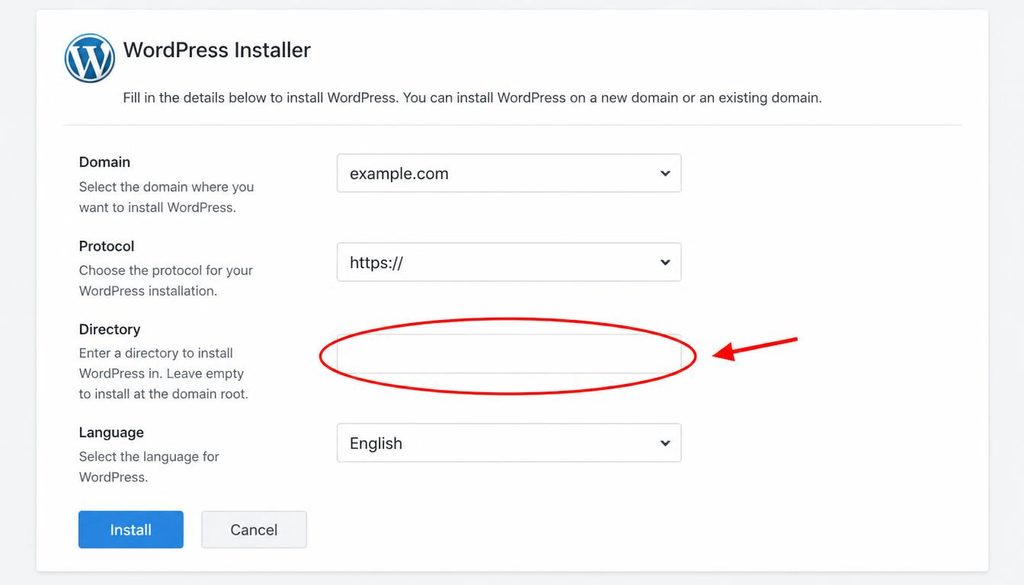
WordPress hosting installer showing the domain, HTTPS, and directory fields before installation.
Step 3: enter your site and administrator details
The installer usually asks for a site title, an administrator username, a strong password, and an email address. Some hosts ask for the language, version, or optional plugins as well.
- Site title: enter the name you want visitors to see. You can change it later.
- Administrator username: choose a unique name rather than a predictable public default.
- Password: use a long, unique password stored in a password manager.
- Email address: use an inbox you can access, since it may be needed for account recovery and site notices.
- Language: select the language you want WordPress to use.
Do not reuse a password from email, social media, or another website. Avoid sharing administrator credentials with a developer or writer. If another person needs access, create a separate account with the role they need.
Step 4: review optional settings before installing
Some installers offer optional plugins, automatic updates, backup schedules, or security settings. You do not have to install every suggested add-on. Start with the features you understand and add more when you have a clear reason.
Check the destination domain one more time. If the host offers a backup or restore point before installation, read how it works. Then select Install and wait for the success message. Do not refresh repeatedly while the installer is working.
Step 5: open the new website and dashboard
When the installer finishes, open the public site address and the admin address. A common login address is https://example.com/wp-admin/. Some hosts provide a direct login button in their control panel.
Save the login address in a safe place. If the website loads and you can sign in, the basic installation is complete. Continue to the post-install checklist below before adding lots of content.
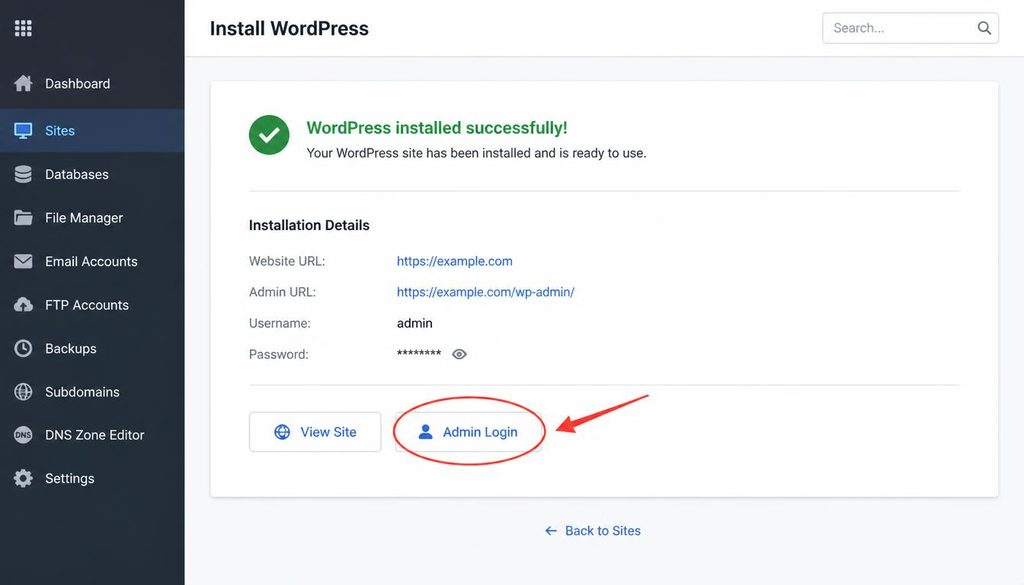
Successful WordPress installation screen with the Admin Login link highlighted.
How to install WordPress using cPanel
Some hosting plans include cPanel, a control panel for managing files, databases, domains, email, and applications. The exact tools depend on the host. If cPanel includes an application installer, use the automatic steps above. If there is no installer, you can prepare the database and upload WordPress manually.
Step 1: check for an application installer
Sign in to cPanel and look for a section such as Software, Applications, or WordPress Manager. If WordPress is listed, open it and follow the host’s installation wizard. Confirm the domain and directory carefully before starting.
Step 2: create a database if manual setup is required
If you are installing manually, open the database management tool in cPanel. Depending on the host, this may be called MySQL Database Wizard or MySQL Databases. Create a new database, then create a database user with a strong, unique password. Assign that user to the database and grant the permissions WordPress needs, following your host’s instructions.
Write down the database name, database username, password, and database host. Shared hosting often adds an account prefix to database names and usernames. Use the complete values displayed by cPanel, not just the short name you typed.
Never paste database credentials into a public document, chat, or screenshot. They allow access to important site data.
Step 3: upload WordPress files
Download WordPress from the official WordPress download page. Extract the ZIP file on your computer. In cPanel, open File Manager and navigate to the document root for the domain. This is often public_html for the primary domain, but addon domains and subdomains may use different folders.
Upload the WordPress ZIP file to the intended directory and extract it there, or upload the extracted files. If the archive creates a folder named wordpress, make sure the contents are in the correct destination. If you want the site at the root domain, the main files such as wp-admin, wp-content, and wp-includes should be in that domain’s document root, not accidentally nested in another folder.
Do not delete or overwrite files from an existing website until you know what they do and have a verified backup. If the directory contains an older site, ask your host how to install WordPress safely alongside it or in a separate location.
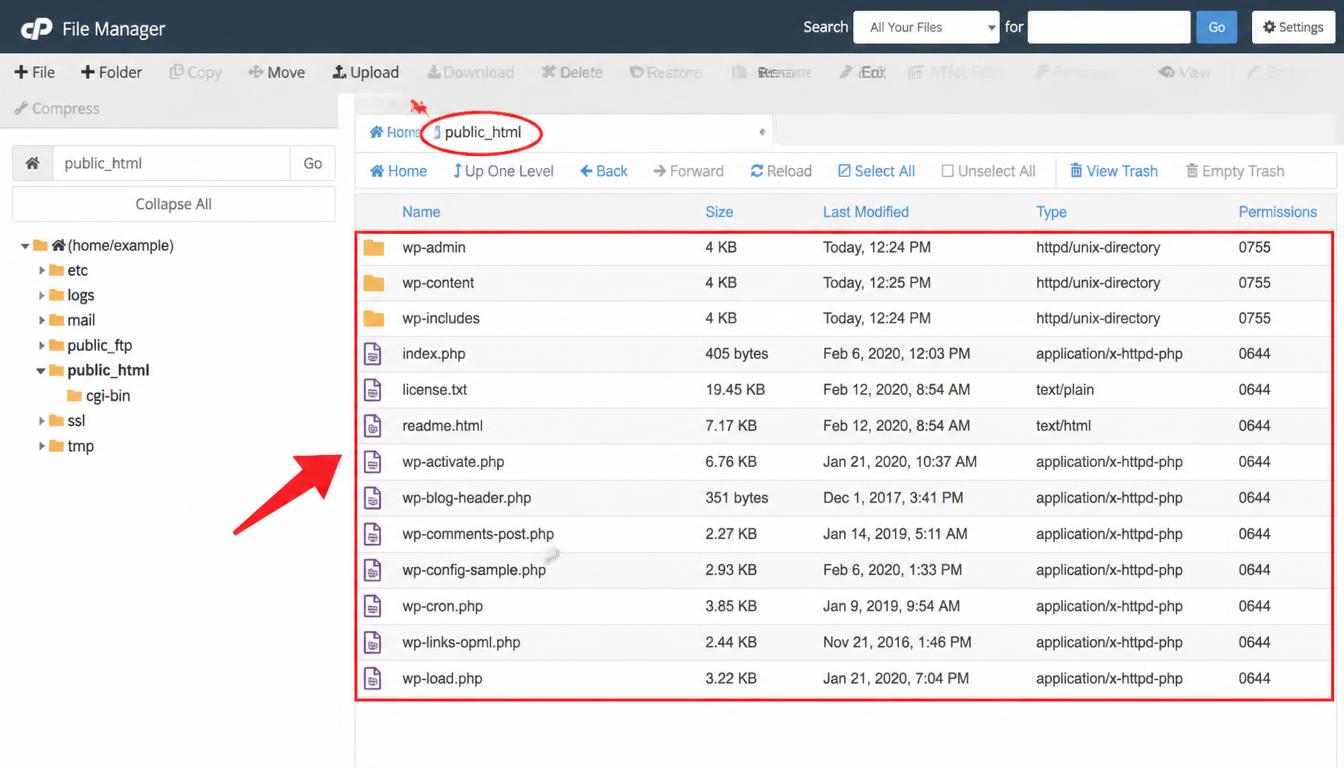
Hosting File Manager showing WordPress core files in the correct website document root.
Step 4: run the WordPress installation script
Open the installation address in your browser. If WordPress files are in the root of the domain, the setup process is commonly available at https://example.com/wp-admin/install.php. If WordPress is in a folder called blog, use https://example.com/blog/wp-admin/install.php.
Choose your language when prompted. WordPress may first ask for database connection details if it cannot create the configuration file automatically. Enter the database name, username, password, and host exactly as provided by your hosting company. The host is often localhost, but do not assume that is correct for every server.
If WordPress reports that it cannot write wp-config.php, follow the on-screen instructions or use the manual configuration approach documented by WordPress. Avoid changing broad file permissions to make the message disappear. Ask the host for the correct ownership and permissions if you do not know how to fix it safely.
Step 5: complete the site information form
Once the database connection works, WordPress asks for your site title, administrator username, password, and email address. Enter accurate details and keep the credentials somewhere safe. The form may also include a search-engine visibility option. If this is a public site you want indexed, do not enable a setting that asks search engines to stay away. You can review this later under Settings → Reading.
Select the install button. When WordPress confirms the installation, use the login link to enter the admin area. The official manual WordPress installation guide provides further detail for server setups that differ from standard shared hosting.
How to install WordPress manually on a server
Manual installation gives you more control, but it requires access to your hosting files and database. Use this method if your host has no automatic installer or you need to place WordPress in a specific directory. If you are not comfortable with database accounts or file management, ask your host to help rather than guessing.
Step 1: download the official WordPress package
Visit wordpress.org/download and download the current stable package. Extract the archive on your computer. Use the official source rather than an unfamiliar download site that may bundle modified files.
Step 2: create the database and database user
Use your host’s database tool to create a database and a dedicated user. Grant that user the permissions needed for the WordPress database, following the host’s guidance. Record these values accurately:
DB_NAME: the database name.DB_USER: the database username.DB_PASSWORD: the password for that database user.DB_HOST: the database server address supplied by the host.
These details are separate from your WordPress administrator login. The database user connects WordPress to its data; the administrator account lets you manage the website through the dashboard. Keep both sets of credentials private.
Step 3: upload the WordPress files to the correct directory
Upload the extracted files using your host’s File Manager or an SFTP/FTP client supported by the host. SFTP is preferable when available because it encrypts the connection. Put the files in the document root or subdirectory you chose earlier.
After uploading, verify that the destination contains the WordPress folders and files directly. If the files are one folder too deep, the site may show a directory listing, a hosting placeholder, or a 404 error instead of the installation screen.
Step 4: connect WordPress to the database
In many cases, WordPress creates wp-config.php during setup after you enter the database information in your browser. If you need to create the file manually, make a copy of wp-config-sample.php named wp-config.php and edit it with a plain-text editor. Enter the database details in the matching settings, preserve the PHP syntax, and save the file.
Do not add rich-text formatting or extra characters to the configuration file. A stray quote, missing semicolon, or text before the opening PHP tag can break the site. WordPress can also generate security keys and salts during setup. Do not share these values publicly.
Step 5: finish the browser setup
Visit the installation script at the address where you placed the files. Choose the language and fill out the site information. If the database connection fails, double-check the database name, username, password, host, and user permissions. If the setup completes, sign in to the dashboard and confirm that the public homepage loads over HTTPS.
For command-line administrators, WordPress also documents a WP-CLI installation method. It is intended for people who already have server access and know how to handle database credentials securely. See the official WP-CLI core install documentation.
What to do immediately after installing WordPress
A successful installation is only the starting point. Before publishing your first page, check the site’s basic settings and make sure you can recover it if something goes wrong.
1. Confirm HTTPS is working
Open the site using its HTTPS address and confirm that the browser does not show a certificate warning. If your certificate is not ready, ask your host to enable SSL before you promote the site or collect visitor information. Do not solve certificate problems by telling visitors to ignore browser warnings.
2. Review the general settings
In the dashboard, go to Settings → General. Check the site title, tagline, site language, timezone, and the WordPress Address and Site Address. Only change the address fields when you understand the effect; a wrong URL can make the site or login page difficult to reach.
3. Set your permalink structure
Open Settings → Permalinks and choose a readable URL structure. Many blogs use the post name option so article addresses are easy to understand. Decide before publishing lots of pages, because changing URL patterns later can break existing links unless redirects are set up properly.
4. Check search-engine visibility
Go to Settings → Reading and find the option that discourages search engines from indexing the site. If you are preparing a public website, make sure you have not left that option enabled by mistake. This setting is a request to search engines, not a guarantee about indexing. You will still need useful content and sound technical SEO.
5. Choose a theme and create essential pages
Start with a theme that is maintained and suits your needs. Add the pages visitors expect, such as About, Contact, Privacy Policy, and any service or product pages relevant to your site. Keep the navigation simple so visitors can find the main information without hunting through menus.
6. Install only the plugins you need
Choose trusted plugins for features your site actually needs, such as SEO, backups, security, forms, or caching. Review the developer, update history, compatibility, and support information. Too many overlapping plugins can make site management harder and may create conflicts. Explore our WordPress plugin tutorials before adding tools you do not understand.
7. Set up backups and account security
Confirm whether your host makes backups and how you restore them. A backup is only useful if it can be recovered, so learn the restore process before you need it. Use a unique administrator password, enable two-factor authentication if available, keep software updated, and create separate accounts for other people who work on the site.
8. Learn the dashboard before publishing
Open the Posts, Pages, Media, Appearance, Plugins, Users, and Settings menus to learn where the main tools live. Our WordPress dashboard guide for beginners explains what each area does. If you need a broader overview, begin with what WordPress is and how WordPress works.
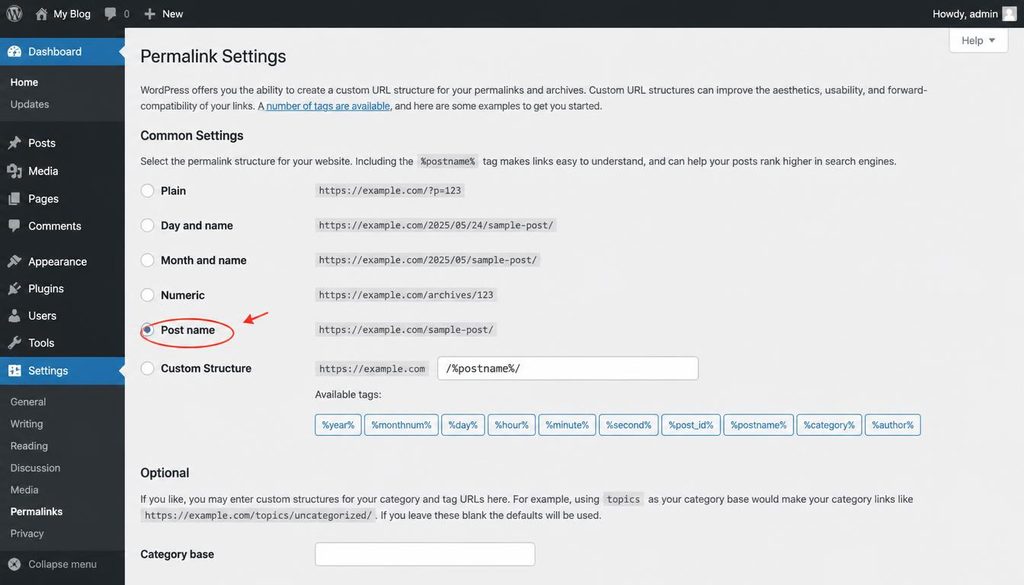
WordPress Settings Permalinks screen with the Post name URL structure highlighted.
Common WordPress installation errors and how to fix them
“Error establishing a database connection”
This usually means WordPress cannot connect to the database. Check the database name, username, password, and host in wp-config.php. Confirm that the database user has permission to access the correct database and that the database service is running. If the details are correct but the error remains, contact your hosting provider before changing database tables.
The site shows a 404 page or the wrong folder
Confirm that WordPress files are in the intended document root and that the domain points to the correct folder. If WordPress is in a subdirectory, use that directory in the address. After the site loads, you can review Settings → Permalinks. If changing permalink settings does not help, your host may need to check rewrite rules or web server configuration.
The installer says it cannot write wp-config.php
The web server may not have permission to create the configuration file in that directory. Follow the setup instructions to create the file manually or ask your host to correct file ownership and permissions. Avoid setting every file to broad write permissions, because that can put the site at risk.
A blank page or “critical error” appears
A blank page or critical error can result from a PHP problem, a plugin, a theme, or server limits. Check the hosting error logs and any recovery email WordPress sends. If you just installed WordPress and have not added anything, ask the host to check the PHP version and server configuration. Do not delete random files to try to make the error disappear.
The website loads without HTTPS
First confirm that the SSL certificate is issued and active for the exact domain, including the www version if you use it. Then review the host’s HTTPS setup instructions. Change WordPress address settings only after the secure address works, and check for mixed-content warnings if the page loads but the browser still reports insecure items.
The installation is successful, but the login does not work
Check that you are using the administrator username or email created during installation and that the correct domain and directory are in the address. Use the password reset link if email delivery is working. If you installed WordPress through a host, its control panel may offer a safe admin login shortcut. Avoid repeated guessing and never share your password with a stranger offering to fix the problem.
WordPress installation checklist
Before you start building the site, check each item below. It is easier to correct the basics now than after publishing many pages.
- Domain points to the correct hosting account.
- Hosting meets current WordPress requirements and supports HTTPS.
- WordPress is installed in the intended domain or directory.
- Administrator login works and the password is stored safely.
- Public site loads without a certificate warning.
- Site title, language, and timezone are correct.
- Permalink structure is readable and appropriate.
- Search-engine visibility is set as intended.
- A backup and recovery method are available.
- Only trusted, needed plugins and themes are installed.
- Essential pages and navigation are planned.
Frequently asked questions about installing WordPress
Is WordPress free to install?
The WordPress software is free to download. You may still pay for a domain, hosting, premium themes, plugins, or professional help. The final cost depends on the type of website you build and the services you choose.
How long does WordPress installation take?
An automatic installer can finish in a few minutes when the domain and hosting are ready. Manual installation takes longer because you must create a database, upload files, and check the configuration. DNS changes or SSL setup can take extra time depending on the provider.
Can I install WordPress without cPanel?
Yes. Many hosts provide their own control panel or a managed WordPress setup. You can also install WordPress manually on a compatible server using file access and a database. The exact steps depend on the hosting environment.
Can I install WordPress on my computer first?
Yes. A local development tool can create a WordPress site on your computer for learning and testing. A local site is not automatically public on the internet. When you are ready to launch, you will need to move or recreate the site on a live host and check the domain, URLs, media, and settings.
Should I install WordPress in the root directory or a subfolder?
Install it in the root directory if WordPress should power the main domain. Use a subfolder if you want the site to live at an address such as example.com/blog. Decide before installation, because moving a site later requires careful URL and file changes.
Why is my new WordPress site not appearing in Google?
A new site may not appear immediately. Check that search-engine visibility is enabled, the pages can be accessed publicly, and there are no unintended password protections or blocking directives. Publish useful content, add internal links, and set up Google Search Console if appropriate. These steps help discovery but cannot guarantee when a page will be indexed.
Do I need to install an SEO plugin right away?
No. WordPress can run without an SEO plugin. A plugin such as SEOPress can make it easier to manage titles, descriptions, canonical URLs, social metadata, and structured data. Install one when you are ready to use its features, and avoid running multiple plugins that control the same SEO settings.
Once WordPress is installed, log in, confirm that the public site works, and secure your recovery options before you start publishing. If something does not match the steps in this guide, check your host’s documentation before changing files or database settings.