WordPress takes a request from a visitor, finds the right content, combines it with your site’s design, and sends a finished page to the visitor’s browser. You do not need to write every page in HTML by hand. Once you understand how WordPress connects its files, database, theme, plugins, and hosting, the dashboard starts to make much more sense.
This guide explains how WordPress works behind the scenes and what happens when you publish a page, change a theme, install a plugin, or open a website. The examples use a standard self-hosted WordPress site. Some hosting dashboards look different, but the basic process is the same.
If you are new to the platform, start with our beginner-friendly guide to what WordPress is and what you can build with it. That article introduces the basics before this guide explains what happens behind the scenes.
How does WordPress work when someone visits your site?
Imagine a visitor types your website address into a browser and presses Enter. Several parts of your website work together before the page appears. The browser asks for the page, your hosting server runs WordPress, WordPress finds the requested content, and the server sends the result back.
Here is the simple version:
- The browser makes a request. It asks the server for a URL, such as
https://example.com/about/. - The hosting server receives it. The server runs the software and PHP code needed by the site.
- WordPress checks the request. It works out which page, post, archive, or other content should be shown.
- WordPress retrieves data. It may read the title, body, settings, menu, and other details from the database.
- The theme shapes the page. Templates and styles decide how the content is arranged and displayed.
- The server returns the response. The browser receives HTML and loads related CSS, JavaScript, fonts, and images.
To the visitor, this usually feels like one action. Behind the scenes, WordPress coordinates several components to build the page.
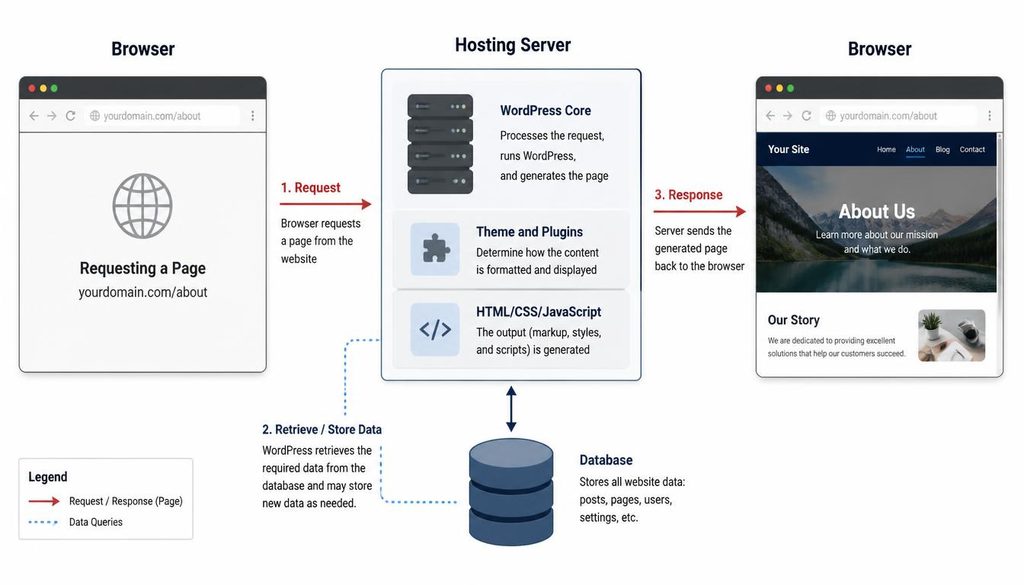
The main parts that make WordPress work
1. WordPress core: the main software
WordPress core is the software that provides the main content management features. It gives you the dashboard, user accounts, the editor, media library, menus, settings, and the tools used to manage posts and pages.
Core files live on your hosting account. You normally do not edit these files directly. WordPress updates them when you install a supported core update through the dashboard or your hosting provider’s tools. Keeping core updated helps you receive bug fixes and security improvements.
Official reference: WordPress documentation.
2. Hosting: the computer that serves your site
WordPress needs a server where its files can run. A hosting provider supplies the server space, PHP runtime, database service, and network connection that let visitors reach your site. Some hosts manage many of these tasks for you; others give you more control.
Hosting is different from WordPress itself. WordPress is the software. Hosting is the environment where that software runs. Your domain name is the address people type to reach it.
When comparing plans, check that the host supports a current version of PHP, a compatible database such as MySQL or MariaDB, HTTPS, backups, and enough resources for your expected traffic. Our WordPress tutorials and guides can help you continue learning as you set up your site.
3. The database: where much of your content lives
A typical WordPress installation uses a database to store content and settings. The database holds things such as post titles, page text, publication dates, user details, menu information, and many plugin settings. Media files themselves are usually stored as files in the uploads folder, while their attachment details are stored in the database.
WordPress organizes database information into tables. You may see names such as wp_posts, wp_postmeta, wp_options, and wp_users. Your site may use a different table prefix, so do not assume every table begins with wp_.
wp_postsstores posts, pages, attachments, and other content records.wp_postmetastores extra details connected to individual content records.wp_optionsstores many site-wide settings.wp_usersand related tables store account information and roles.
You do not need to edit database tables to manage an ordinary site. Use the dashboard for everyday changes. Direct database edits can break content or plugin behavior if you change the wrong value.
4. Themes: how your content looks
A WordPress theme controls much of the site’s presentation. It can define the header, footer, typography, colors, layout, and templates used for posts, pages, and archives. Your theme does not normally own the text of your articles. That separation lets you change the design without rewriting every post.
For example, the same article can appear in a narrow reading layout in one theme and a wide layout in another. The article’s saved text remains in the database while the theme changes how it is displayed.
To try a theme, go to Appearance → Themes in the WordPress dashboard. Review the preview, activate it when ready, and check your homepage, posts, menus, mobile layout, and footer afterward. A theme change can affect layout, so make a backup before major redesign work.
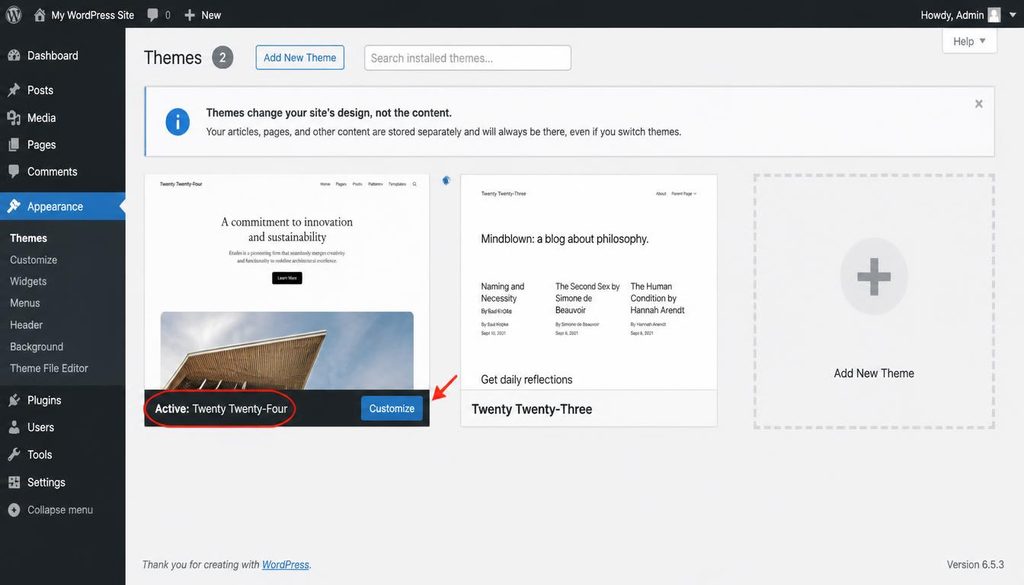
WordPress dashboard Appearance Themes screen showing where to preview and activate a website theme.
5. Plugins: extra features for your site
Plugins add features that are not part of WordPress core or that extend its existing tools. Depending on the plugin, you might add a contact form, search engine optimization controls, a backup schedule, an online store, spam protection, or a caching system.
To install one, open Plugins → Add New Plugin, search for the feature you need, review the plugin’s description and update history, and choose Install Now. After installation, select Activate. Some plugins add a new menu item; others place their settings under Settings or Tools.
Choose plugins carefully. Check whether a plugin is maintained, compatible with your WordPress version, and supported by its developer. Avoid installing several plugins that do the same job unless you know why both are needed. Deactivate and remove plugins you no longer use, after checking that your site does not depend on them.
6. The WordPress dashboard: where you manage the site
The dashboard is the administration area, often reached by adding /wp-admin/ to your domain. After signing in, you can create content, manage media, change settings, install plugins, and control user access.
Common areas include:
- Posts: articles that usually appear in date order and can use categories and tags.
- Pages: more stable content such as About, Contact, and Privacy Policy.
- Media: uploaded images, documents, and other files.
- Appearance: theme and design controls, depending on the active theme.
- Plugins: tools that add or extend site features.
- Settings: general site details, reading preferences, discussion options, and URL structure.
For more beginner tutorials, browse the WordPress tutorials and guides on our blog.
How WordPress turns saved content into a page
Understanding the difference between stored content and the final page helps explain why the same post can look different after a theme change. The editor saves your content. WordPress stores that content and its settings. When a visitor requests the page, WordPress selects a template and combines the saved data with the active theme.
Step 1: You create a post or page
From the dashboard, open Posts → Add New Post or Pages → Add New Page. Enter a title, add text and blocks, insert media where needed, and save the work as a draft. You can preview the draft before publishing it.
Posts are useful for news, tutorials, and articles that form part of a blog feed. Pages are better for information that does not depend on a publishing date, such as About or Contact. Both use the WordPress editor and can be styled by your theme.
Step 2: WordPress saves the content
When you save, WordPress stores the main content record in the database. Other details, such as custom fields, may be stored as metadata. Uploaded images are normally placed in the site’s uploads directory, and WordPress records information about those files so you can select them again from the Media Library.
A draft is saved but is not generally available as a public article to ordinary visitors. Publishing changes its status so that visitors who have permission to view it can access the page at its URL.
Step 3: A visitor requests the URL
When someone opens the post URL, WordPress interprets the request using the site’s permalink rules and rewrite system. It identifies the matching content or archive. If the URL does not match a valid public resource, WordPress may show a 404 page instead.
That is one reason to set a sensible permalink structure early. In most cases, short readable URLs are easier for people to understand and share. If you change a published URL later, set up a redirect from the old URL to the new one so existing links do not break.
Step 4: WordPress loads the right template
The active theme contains template files or block templates that define how different kinds of pages appear. WordPress follows its template hierarchy to select a suitable template. A single post, a category archive, a search page, and the homepage may each use different templates.
The template provides the page structure. The theme’s styles control things like fonts, spacing, and colors. The content fills the appropriate parts of that structure.
Step 5: Plugins and settings may affect the result
Plugins can add fields, change selected behavior, generate metadata, add structured data, optimize images, or cache a rendered page. WordPress also checks settings such as the site’s address, reading preferences, and user permissions. This is why two WordPress websites can behave differently even when both use the same core software.
Plugins should come from trusted sources and be tested before major changes. If a page suddenly breaks after installing or updating a plugin, a plugin conflict is one possible cause. Make a backup before troubleshooting production sites.
Step 6: The browser displays the response
The server sends HTML for the page, while the browser loads linked stylesheets, scripts, images, and fonts. The browser uses those resources to render the final design. A slow server, oversized images, too many scripts, or heavy third-party tools can make this process feel slow.
Caching can reduce repeat work. A page cache may save a ready-made version of a page so WordPress does not have to build it from scratch for every visitor. Object caching, browser caching, and a content delivery network can help in different situations, but the right setup depends on your host and site.
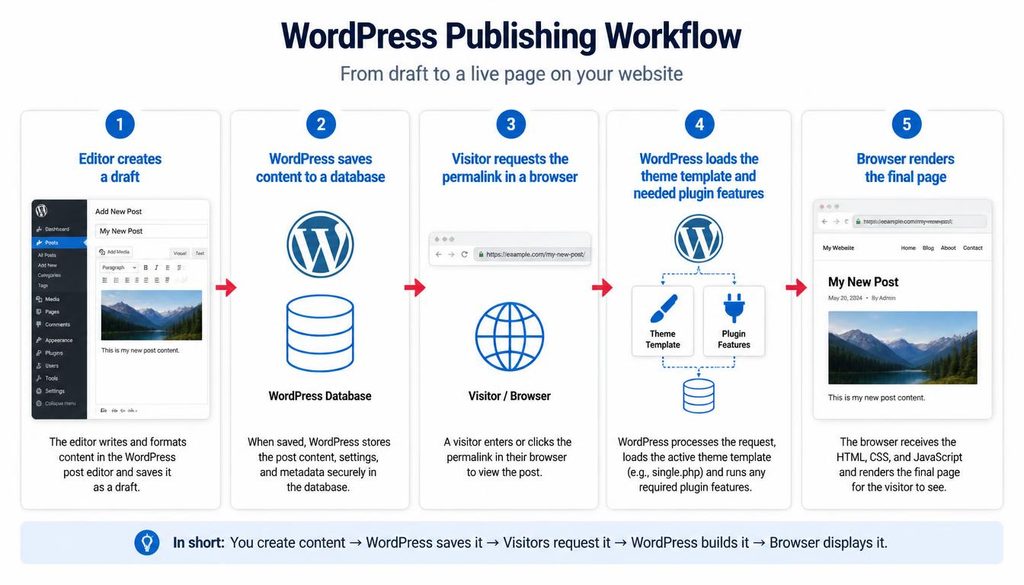
WordPress publishing workflow showing content creation, database storage, URL request, theme rendering, and browser display.
What is the difference between the frontend and backend?
The frontend is what visitors see: your navigation, article text, images, forms, and page layout. The backend is the administration side where you sign in and manage content, users, settings, themes, and plugins. The hosting server and database support both sides, but visitors usually do not see the dashboard.
For example, a reader sees your tutorial at example.com/how-wordpress-works/. You see the editor, revision options, and publishing controls after signing in to the dashboard. The same content connects these two views.
How to set up a WordPress site, step by step
If you are starting from zero, use this order. The exact buttons vary by host, but the overall process is similar.
Step 1: Choose a domain and hosting plan
Pick a domain that is easy to spell and matches the purpose of your site. Then choose hosting that supports WordPress, HTTPS, backups, and a current PHP version. If you are unsure which plan fits your needs, begin with a reputable entry-level plan that can be upgraded as traffic grows.
Do not buy add-ons just because they are shown at checkout. First check what is already included, especially SSL, email, backups, and migration help.
Step 2: Install WordPress
Many hosts provide a WordPress installer in their control panel. Open the hosting dashboard, find the WordPress installer, choose the domain, set an administrator username and a strong unique password, and start the installation. If your host does not offer an installer, follow the official WordPress installation instructions.
Save your login details in a password manager. Avoid a predictable username and never reuse the password from your email or hosting account.
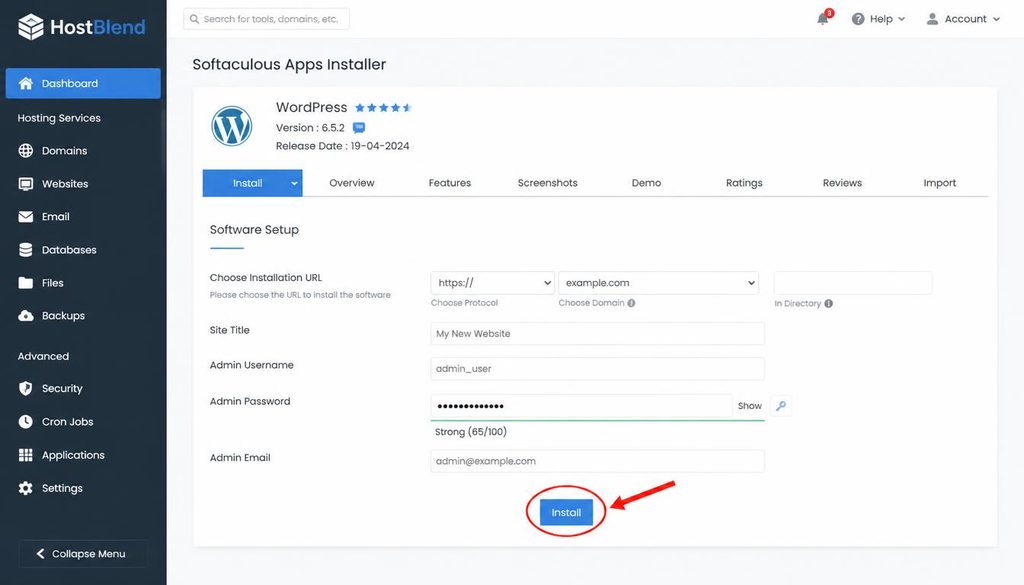
WordPress installation wizard in a hosting control panel with the domain and administrator details completed before installation.
Step 3: Open the dashboard and check the basic settings
Sign in at your site’s administration URL. In many installations, this is https://yourdomain.com/wp-admin/. Go to Settings → General and review the Site Title, Tagline, WordPress Address, Site Address, site language, and timezone. Do not change the address fields casually because incorrect values can make the site difficult to access.
Next, open Settings → Permalinks. Choose a readable URL structure, commonly Post name for a blog. Save the change. If the site already has published pages, do not change URL rules without planning redirects and checking the effect on existing links.
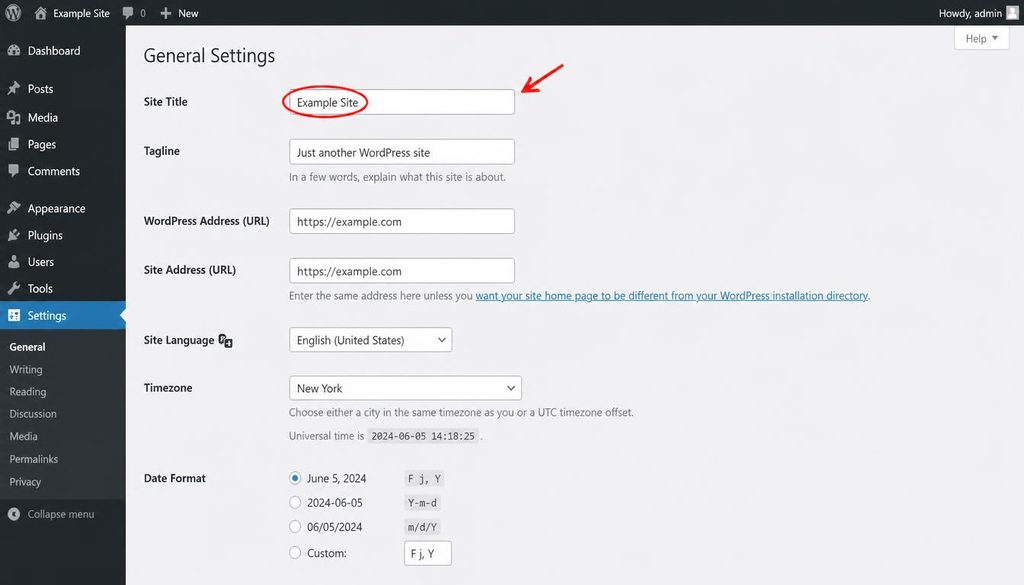
WordPress Settings General screen showing the site title and basic website configuration fields.
Step 4: Pick a theme
Go to Appearance → Themes. Preview themes and choose one that is readable, mobile-friendly, maintained, and suited to your content. Do not judge a theme by the demo homepage alone. Check a long article, navigation menu, search page, and footer before you settle on it.
Start with the theme’s built-in settings before adding custom code. If you use a page builder, learn which parts it controls so you do not end up with two tools fighting over the same layout.
Step 5: Add only the plugins you need
Write down the functions your site actually needs, then install plugins for those tasks. A beginner blog may need SEO controls, backups, spam protection, and a contact form. Your exact list will differ. Check for overlapping features and avoid installing a plugin just because it appears in a popular list.
After activating each plugin, open its settings and test the site. Add plugins one at a time so you can identify which one caused a problem if something changes.
Step 6: Create your key pages
Open Pages → Add New Page and create pages such as About, Contact, and Privacy Policy. Add a clear title, useful information, and a simple layout. Save each page as a draft while you review it, then publish when it is ready.
For a blog, create articles under Posts → Add New Post. Use headings to organize long posts, descriptive links to help readers continue, and meaningful alt text for informative images. Do not add keywords to every sentence; write to answer the reader’s question.
Step 7: Set your homepage and navigation
Go to Settings → Reading and check whether the homepage should show your latest posts or a static page. If you choose a static homepage, select the page for the homepage and, if you want a separate blog listing, select the posts page too. The exact controls can differ by theme and site setup.
Then set up the main navigation. Depending on your theme, this may be under Appearance → Menus or the Site Editor. Add only the most useful pages so visitors can find their way around without a crowded menu.
Step 8: Test before sharing the site
Open the website in a private browser window and on a phone-sized screen. Test every menu link, contact form, important button, and image. Confirm HTTPS works and that a visitor can reach the pages you intend to make public.
Make a backup before major updates. Keep WordPress core, themes, and plugins updated, but test important changes when possible. If you run an online store or receive leads through your site, make sure your backup and restore process is clear before you depend on the website for business.
How posts, pages, themes, and plugins fit together
These terms describe different jobs, and knowing the difference makes WordPress easier to manage.
- Posts are usually dated articles that appear in a blog feed and can be grouped by category.
- Pages are for stable information such as About, Contact, and service pages.
- Themes control the presentation and templates used to display content.
- Plugins add functions or change behavior.
- Media contains files such as images and documents that you can insert into content.
- Widgets and blocks provide pieces of content or layout, depending on the editor and theme.
For example, a tutorial is stored as a post. A theme decides how the title and body appear. An SEO plugin can add fields for a search title and meta description. An image uploaded to Media can be inserted into the post. Each part has a different role, even though visitors see one finished page.
How WordPress handles user access and security
WordPress uses user accounts and roles to control who can do what. An administrator has broad control over the site, while an editor can manage content and an author can publish their own posts. The exact capabilities may be changed by plugins, so check role permissions before giving an account access.
Use a unique password, enable two-factor authentication when available, and give each person their own account. Keep software updated and use backups that you know how to restore. Never share an administrator login among a team if separate accounts are practical.
HTTPS protects data as it moves between a visitor’s browser and your site, but it does not replace updates, access controls, or backups. Security is a set of habits, not a single plugin switch.
Why can WordPress be slow?
WordPress performance depends on the server, database work, theme, plugins, images, scripts, and caching. A small blog on suitable hosting may load quickly. A site with large images, several heavy plugins, and many third-party scripts can be slow even when WordPress itself is up to date.
Start with simple checks:
- Compress images before uploading and use suitable dimensions.
- Remove plugins and themes you do not need.
- Choose a maintained theme with a layout that fits your site.
- Use a caching solution that works with your host.
- Test important pages on mobile and desktop rather than relying on one score.
Do not install multiple caching plugins at once. They may overlap or conflict. Make one change at a time and measure the result.
Common beginner mistakes to avoid
Changing the site address without a plan
Changing the WordPress Address or Site Address can affect login access and the URLs WordPress generates. If you need to move a site, make a backup and follow a migration procedure rather than experimenting on a live site.
Installing too many plugins
More plugins do not automatically mean a bad site, but every plugin adds code and maintenance needs. Install tools for a clear reason and remove ones you no longer use.
Editing core files directly
Changes to WordPress core files can disappear during updates and may break the site. Use theme settings, a child theme, a supported plugin, or a carefully tested code snippet for custom behavior.
Forgetting backups
A backup is useful only if it can be restored. Check what your host saves, how often backups run, and how you would restore the site after a failed update or accidental deletion.
Publishing without testing
Preview posts and pages, check links, and view the site on a phone. A short test can catch broken images, missing headings, or a form that does not submit.
How WordPress works with SEO
WordPress gives you the tools to publish and organize content, but installing WordPress does not guarantee search rankings. Search engines still need useful pages, crawlable links, clear titles, and a site that works for visitors.
For each article, choose one main search topic and use related phrases only where they fit the subject. Put the main phrase naturally in the title, introduction, a relevant heading, URL, and meta description when it reads well. Use descriptive internal links so readers can move from a broad explanation to a detailed tutorial.
Use an SEO plugin such as SEOPress to manage search titles, descriptions, canonical URLs, social previews, and supported schema settings. Review the rendered page source or a structured data testing tool to confirm the output. A field saved in the dashboard is not proof that every markup item is valid.
Images should be useful, compressed, and given meaningful alt text when they convey information. Alt text should describe the image, not repeat a keyword list. For decorative images, an empty alt attribute may be more appropriate.
For official technical guidance, read the Google SEO Starter Guide and the WordPress documentation.
Frequently asked questions
Does WordPress need coding?
No. You can create pages, write posts, install themes, and add plugins from the dashboard without writing code. Code becomes useful when you need custom behavior or a design that your current tools cannot provide.
Does WordPress store everything in the database?
No. Much of the content and configuration is stored in the database, but WordPress core, theme, and plugin code live in files on the server. Uploaded media files are usually stored in the uploads directory, with their details recorded in the database.
What is the difference between WordPress and hosting?
WordPress is the website software. Hosting provides the server environment where it runs. You usually need both a hosting service and a domain name for a self-hosted WordPress website to be publicly accessible.
Can I change my WordPress theme without losing posts?
Usually, yes. Posts and pages are stored separately from the theme. However, theme-specific layouts, widgets, and design settings may look different after a switch, so preview the change and make a backup first.
Why does my WordPress page look different in the editor and on the website?
The editor preview and the live theme may use different styles or templates. Plugins, caching, responsive rules, and theme settings can also affect the result. Clear the relevant cache and check the page in a private browser window after saving.
Is WordPress free?
The WordPress software is free and open source. A self-hosted site may still have costs for a domain, hosting, premium themes or plugins, email, backups, or professional help. You can begin with a simple setup and add paid services only when you need them.
How do I learn WordPress faster?
Build a small test site and practice one task at a time: create a page, publish a post, change a theme, install a plugin, and review the settings. Keep a backup before experimenting with major changes, and use official documentation when you are unsure what a setting does.
Your next practical step
Open your WordPress dashboard and trace one page from beginning to end. Find it in Posts or Pages, preview it, identify the active theme, and check which plugins affect it. Once you can explain where the content is stored and how the theme displays it, WordPress becomes much less mysterious.