WordPress is free, open-source website software that lets you create, edit, and publish a website without building every page from scratch. You can use it for a blog, a business website, a portfolio, a news site, or an online store. You do not need to be a developer to get started.
The part that confuses many beginners is that WordPress is the software, not the website address or the hosting account. Once you understand how those pieces fit together, the rest becomes much easier.
This guide explains what WordPress is, what it can do, how it works behind the scenes, and how to set up a first site step by step. You can follow the steps even if you have never logged in to a WordPress dashboard.
What Is WordPress?
WordPress is a content management system (CMS). A CMS gives you a place to create and manage website content through an admin screen. Instead of writing every page in code, you work with an editor, choose a design, and add features when you need them.
The WordPress software is open source and released under the GNU General Public License, version 2 or later. That means people can use it, study how it works, change it, and share it under the license terms. The project is developed by a global community rather than being owned by one company. You can read the project’s own explanation on the official WordPress About page.
WordPress began as a publishing tool, but it can now support many kinds of websites. The core software handles common website tasks. Themes control much of the appearance, while plugins add functions that the core does not include by default.
What does WordPress actually do?
- Lets you write and edit pages and blog posts.
- Stores content, settings, user accounts, and other site information in a database.
- Displays your content to visitors through a theme and the site’s templates.
- Lets you extend the site with plugins, blocks, and custom code when needed.
- Gives you a dashboard where you can manage the site without editing files for everyday tasks.
WordPress does not automatically provide a custom domain, hosting plan, logo, finished design, or steady stream of visitors. You choose or arrange those pieces around the software.
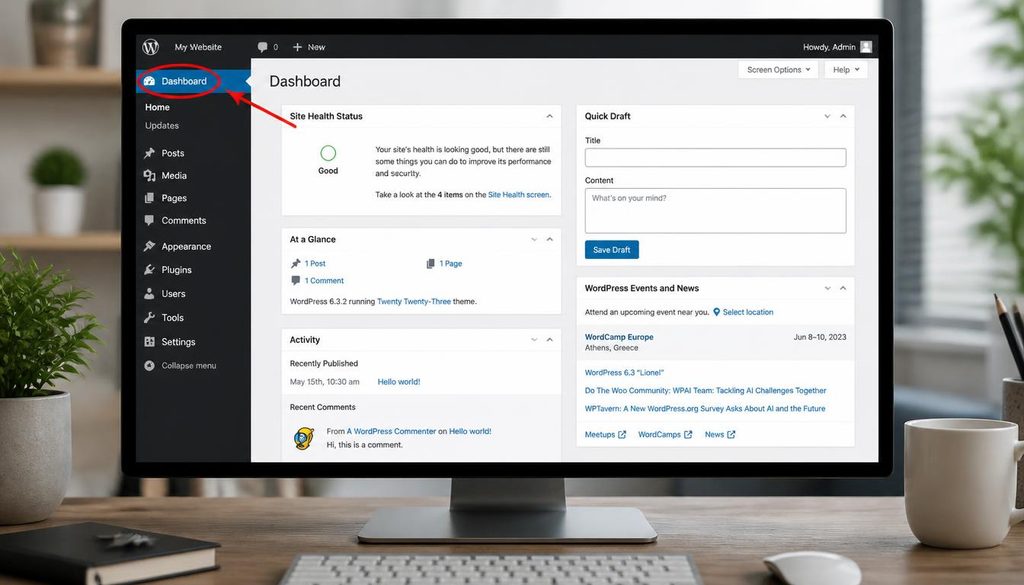
WordPress dashboard overview showing the main admin menu for managing a WordPress website.
What Can You Build With WordPress?
WordPress can support a small personal site or a large publishing operation. What you build depends on your goal, your content, the theme you choose, and the plugins you add.
- Blog or publication: Publish articles, tutorials, interviews, news, or personal stories.
- Business website: Explain your services, show your work, answer customer questions, and collect inquiries.
- Portfolio: Present photography, design work, writing samples, or projects.
- Online store: Add products, carts, checkout, payments, and order management with an e-commerce tool such as WooCommerce.
- Membership or learning site: Offer protected content, courses, or member accounts through suitable plugins.
- Community or resource library: Organize useful guides, downloads, directories, or discussion areas.
You can start with a simple site and add features as your needs change. That is often better than installing every available tool on day one.
How Does WordPress Work?
When someone visits your website, the browser asks your web host for the page. The server runs the WordPress software, collects the needed information from its database, applies the site’s theme and active features, then sends a page to the visitor’s browser. You do not need to understand every technical detail to publish content, but knowing the main parts helps when you choose a plan or troubleshoot a problem.
1. Domain name: the address people type
A domain name is the public address of your website, such as example.com. You register it through a domain registrar or through a host that offers domain registration. Choose a name that is easy to spell, suitable for your project, and not confusingly similar to another brand.
2. Web hosting: the space where the site runs
Hosting is a service that stores your site’s files and database and makes the site available online. A hosting provider may offer WordPress installation, backups, SSL setup, email, and support. Plans differ, so check renewal costs, backup options, server resources, and support hours before paying.
The WordPress software itself is free. A self-hosted site may still have costs for its domain, hosting, paid themes, paid plugins, email, or developer help. You can choose which optional services fit your budget.
3. WordPress core: the main software
The core is the standard WordPress software. It provides the editor, dashboard, user roles, media library, comments, basic site settings, and other main features. Keep it updated, since releases can include bug fixes, improvements, and security fixes.
4. Themes: how the site looks
A theme controls the visual design and layout, including elements such as typography, colours, header, footer, and page templates. Many themes include starter layouts, but do not choose a theme only because its demo looks attractive. Check mobile layout, accessibility, loading speed, support, and whether you can change the design without rebuilding the site.
5. Plugins: extra features
A plugin adds a capability to WordPress. Examples include search-engine optimization tools, contact forms, backups, caching, spam protection, and online shop features. Install plugins from trusted sources, check recent updates and compatibility, and remove plugins you no longer use.
6. Database and files: where site information lives
WordPress stores much of your content and settings in a database. Themes, plugins, images, and other uploads live in files on the server. A complete backup should protect both the database and the relevant files. Saving only a few images is not a full website backup.
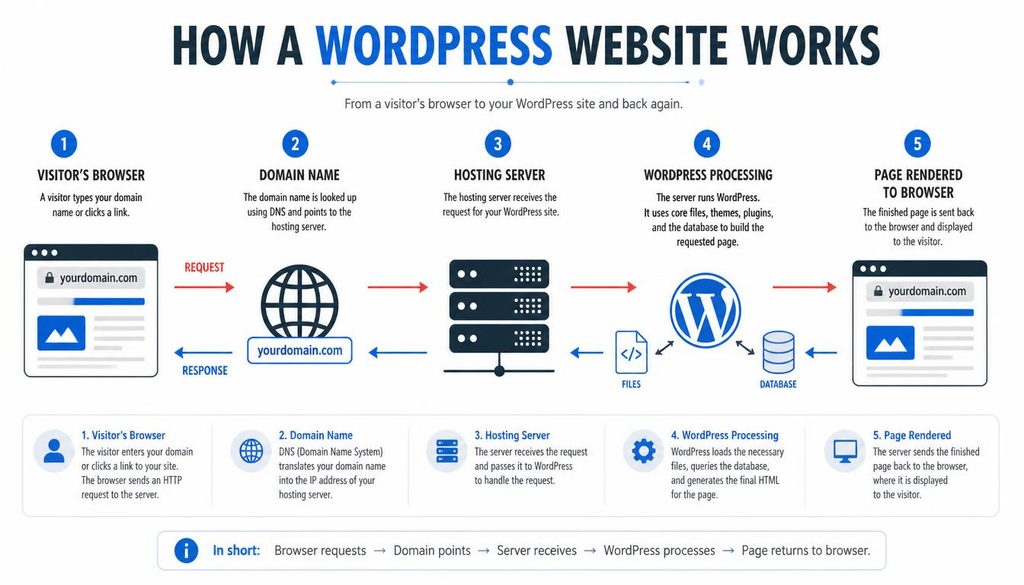
Diagram showing how a WordPress website connects a domain, hosting server, database, and visitor browser.
WordPress.org vs WordPress.com: What Is the Difference?
These names look similar, so beginners often assume they are the same service. They are related, but they describe different things.
WordPress.org is the project site where you can get the open-source WordPress software. With a self-hosted setup, you choose a hosting provider and manage your installation. You generally have more direct control over files, themes, plugins, and server choices, although the exact options depend on your host.
WordPress.com is a hosted service built around WordPress. The service handles much of the hosting and maintenance work. What you can install or change depends on the plan and current service rules.
| Question | Self-hosted WordPress | WordPress.com |
|---|---|---|
| Who arranges hosting? | You choose a hosting provider. | The service supplies hosting. |
| Who handles much of the server setup? | You or your hosting provider. | The platform handles much of it. |
| How much control do you have? | Broad control over your installation, subject to host limits. | Control depends on the plan and service features. |
| What costs should you check? | Hosting, domain, and any optional paid tools. | Plan price, domain options, and any paid extras. |
| Who may prefer it? | People who want greater control and are comfortable managing a hosting account. | People who want a hosted starting point with less server work. |
Neither option is automatically the right choice for everyone. Compare the current features before paying. The official WordPress.org versus WordPress.com guide explains the distinction in more detail.
Is WordPress Free?
The WordPress core software is free to download and use. A website built with it is not always free to run. The main costs usually come from services and extras around the software.
- Domain: Often billed by the year. Renewal prices may differ from introductory prices.
- Hosting: Usually billed monthly or yearly. Compare renewal rates and resource limits, not just the first invoice.
- Theme or plugins: Many free options exist. Paid versions may add support or advanced features.
- Optional services: Professional email, premium backups, stock assets, or paid development work may add costs.
You do not need to buy a premium theme or a long list of plugins to publish a useful first website. Start with the basics, then spend money when a clear need appears.
WordPress Benefits and Limits
Why people choose WordPress
- Flexible: It can support many types of content and websites.
- Content control: With a self-hosted site, you control your website files and content, subject to your hosting agreement and applicable law.
- Large ecosystem: There are many themes, plugins, tutorials, and community resources.
- Expandable: You can begin with a few pages and add features as the site grows.
- Editor options: You can use the block editor, a compatible page builder, or a custom theme workflow.
What to plan for
- Maintenance: You need a plan for updates, backups, and security checks.
- Plugin quality: Poorly maintained or overlapping plugins can cause problems.
- Speed depends on choices: Hosting, theme design, images, scripts, and plugin behavior all affect performance.
- Learning time: The first setup can feel unfamiliar, especially when domain and hosting settings are new.
WordPress handles many website tasks, but it cannot replace good planning. A clear site structure and a short list of well-chosen tools make maintenance easier.
How to Start a WordPress Website Step by Step
Use the steps below as a practical setup checklist. Your host’s screens may look different, but the order of work is similar.
Step 1: Decide what the website needs to do
Write down the main goal in one sentence. For example: “This website teaches beginners how to use WordPress” or “This website shows my photography portfolio.” Then list the pages visitors need to complete that goal.
For a small business site, your first list might include Home, About, Services, Contact, and Privacy Policy. For a tutorial blog, you may need Home, Blog, About, Contact, and clear topic categories. Avoid creating dozens of empty pages before you have content.
Step 2: Choose the WordPress setup
Choose between self-hosted WordPress and WordPress.com. If you want direct control over a hosting account, plugin choices, and site files, compare self-hosted hosting plans. If you prefer a managed service, compare the current WordPress.com plans and their limits.
Before paying, confirm the plan supports the features your project needs. Check storage, backups, SSL, staging options, support, email arrangements, and renewal price. Do not assume every plan includes every feature.
Step 3: Register a domain and arrange hosting
Choose a domain that people can remember and spell. If your host offers a bundled domain, check who controls the domain registration and how transfers work. Turn on account security and save the renewal date.
For hosting, look for a provider that supports current WordPress requirements and offers a clear backup process. The official WordPress hosting requirements page is a good starting point when comparing a provider’s technical support.
Step 4: Install WordPress
Many hosts offer a WordPress installer in their control panel. The names of the buttons vary by provider. Look for a tool labelled WordPress, Website Installer, or App Installer.
- Sign in to your hosting account.
- Open the WordPress or website installer.
- Select the domain where the site should live.
- Choose the installation directory. For a site that should load at the domain root, leave the directory empty if the host instructs you to do so.
- Create a site title, administrator username, strong password, and administrator email address.
- Review the settings and start the installation.
- Save the login address and account details in a password manager.
Use a unique administrator username where possible, and never reuse a password from another service. If your host does not offer an installer, follow its manual installation guide rather than copying commands from an unknown website.
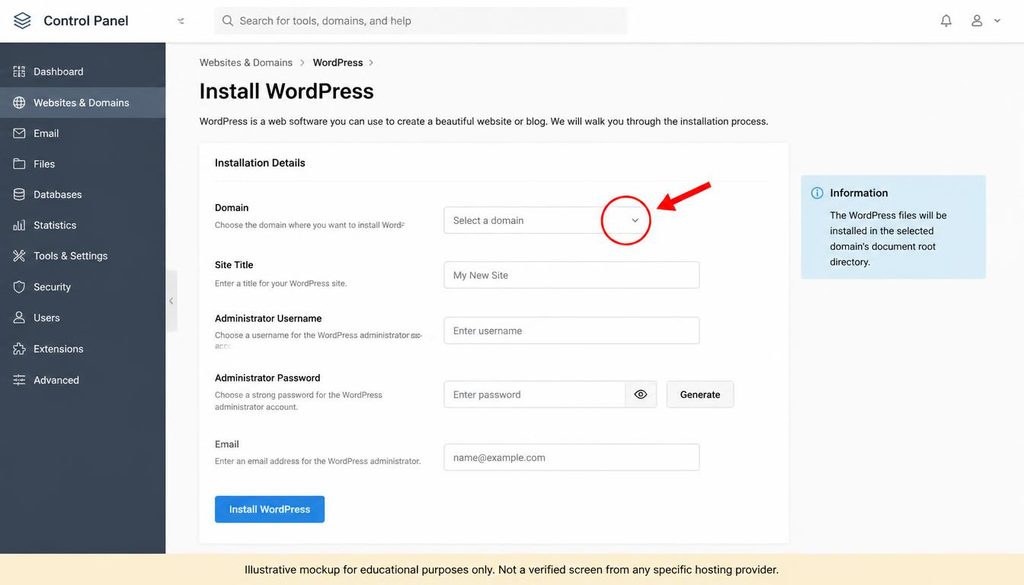
WordPress installation wizard showing the domain selection and site setup fields.
Step 5: Sign in to the WordPress dashboard
On many standard installations, the login address is your domain followed by /wp-admin/, for example https://example.com/wp-admin/. A host may provide another login route. Use the secure HTTPS address and sign in with the administrator account created during installation.
The dashboard is the control area for your site. The left menu contains sections such as Posts, Media, Pages, Appearance, Plugins, Users, Tools, and Settings. Your exact menu depends on the theme and active plugins.
Step 6: Set the site title, language, and time zone
- From the dashboard, go to Settings > General.
- Enter a clear Site Title. It should identify the site or brand.
- Add a short Tagline that tells visitors what the site offers. If a tagline adds no value, keep it brief rather than stuffing it with keywords.
- Review the WordPress Address and Site Address. Do not change these URLs casually, because a wrong value can make the site difficult to access.
- Choose the site language, time zone, date format, and time format.
- Confirm the administration email is current, then click Save Changes.
Changing the site title does not always change the logo or every page heading. Those can be controlled separately by the theme or site editor. WordPress documents these fields in its General Settings guide.
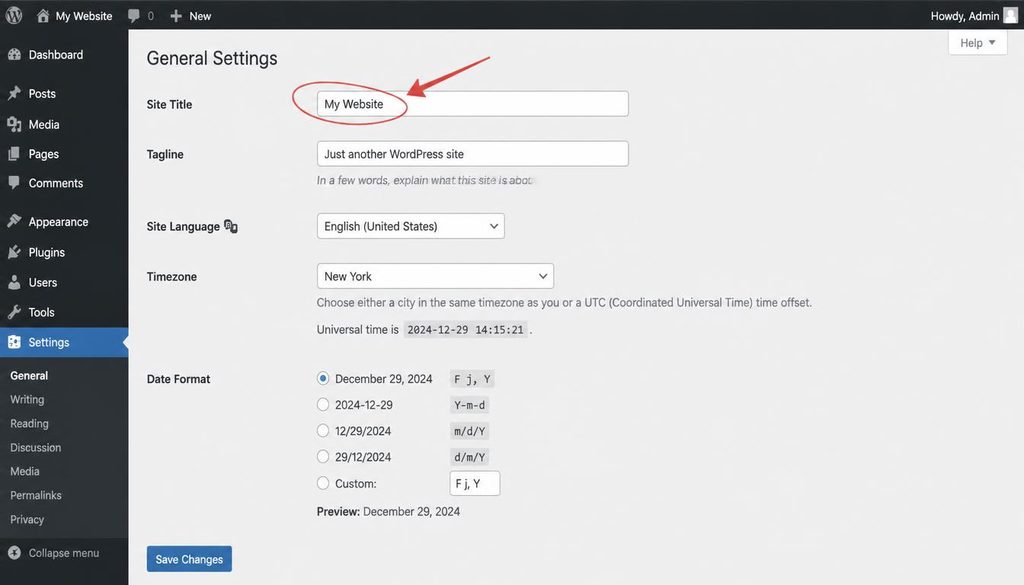
WordPress General Settings screen showing where to edit the site title and tagline.
Step 7: Choose a readable theme
- Open Appearance > Themes.
- Use the Add New Theme option if you want to browse the theme directory.
- Preview the theme on a phone-sized screen as well as a desktop.
- Check the theme’s update history, documentation, support, and required plugins.
- Install the theme and activate it when you are ready.
- Open the Site Editor or Customizer, depending on the theme, to adjust the logo, colours, typography, and layout.
Do not install several themes just to try every demo. Keep one active theme and remove unused themes after checking that you are not relying on a child theme or another dependency. If you use a page builder such as Elementor, keep your layouts simple and make sure they work on mobile.
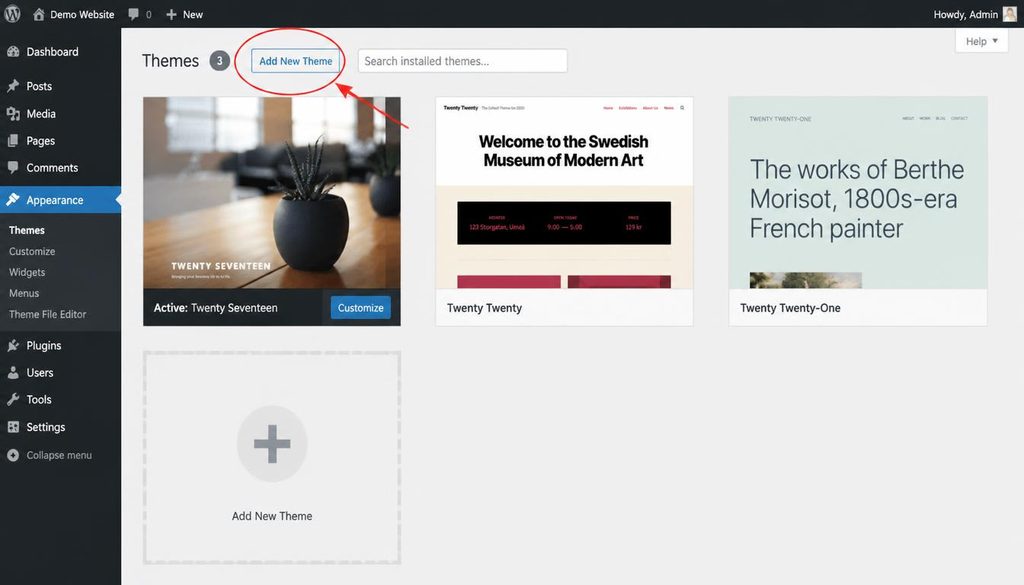
WordPress Themes screen showing how to browse and add a theme to a website.
Step 8: Set a clean permalink structure
A permalink is the permanent URL of a post or page. A short, readable URL helps users understand what they are opening and makes links easier to share. Your site should keep URLs stable after content starts receiving traffic.
- Go to Settings > Permalinks.
- Review the available permalink structures.
- For many blogs, the Post name format is a clear starting point.
- Click Save Changes.
- Open a post or page to confirm the URL looks as expected.
Do not switch permalink structures on an established site without planning redirects. Changing a URL can break old bookmarks and links unless you redirect the old address to the new one. Read the official WordPress Permalinks screen documentation if you need help with the options.
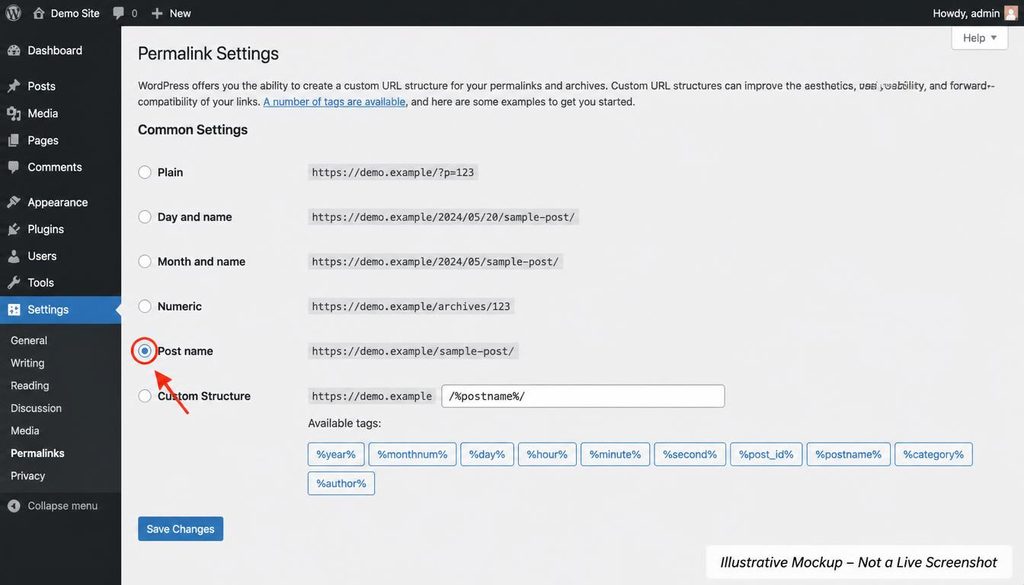
WordPress Permalinks settings showing the Post name URL structure option.
Step 9: Install only the plugins you need
Open Plugins > Add New Plugin to search the WordPress plugin directory. Before installing a plugin, look at its description, last update, compatibility notes, support activity, and reviews. Make sure the features solve an actual problem for your site.
A new site may need a tool for backups, spam protection, search-engine metadata, forms, or performance. You do not need a separate plugin for every small design change. Two plugins that do the same job can create extra settings and conflicts.
- Search for the feature you need, not just a popular plugin name.
- Review the publisher and update history.
- Install one plugin at a time.
- Activate it and test the feature.
- Remove it if it is not useful or causes errors.
For more safety tips, use the official WordPress plugin directory and avoid downloading premium plugins from sites that do not have the right to distribute them.
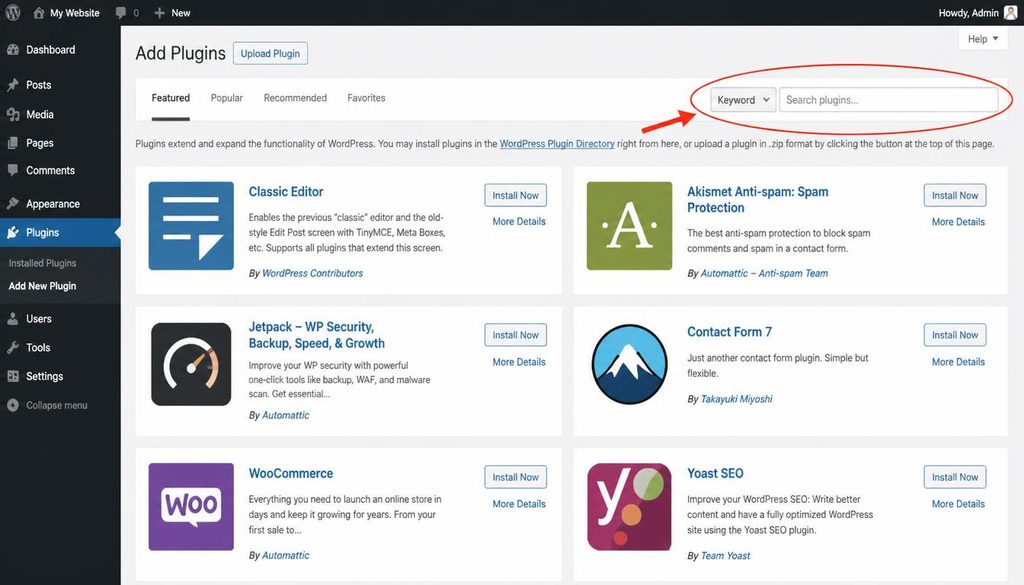
WordPress Add Plugins screen showing the plugin search field and installation controls.
Step 10: Create the main pages
Go to Pages > Add New Page to create the pages your visitors need. A page is usually used for information that does not belong to a dated stream of posts. Examples include About, Contact, Services, Privacy Policy, and Start Here.
- Enter a clear page title.
- Add useful information in the editor.
- Use headings to break long text into sections.
- Preview the page on desktop and mobile.
- Publish when the information is ready for visitors.
For a blog, the Posts area is where you will write tutorials, news, and other dated articles. WordPress explains the difference in its guide to creating pages.
Step 11: Make a navigation menu
A menu should help visitors find the next useful page without thinking too hard. Add only the main sections. Put related pages under a clear parent item if your theme supports dropdowns, and check that the menu works with touch on a phone.
Depending on your theme, edit navigation in Appearance > Menus or in the Site Editor under Navigation. Add the required pages, order the items, save, and test each link. Some block themes do not have the older Menus screen, so follow the interface available on your site.
Step 12: Write and publish the first post
- Open Posts > Add New Post.
- Write a title that clearly matches the reader’s question.
- Start with the direct answer. Do not force a long introduction.
- Use headings and short paragraphs to help readers scan the article.
- Add examples or screenshots when they explain a task better than text alone.
- Choose the most relevant category and add a few useful tags only if they help navigation.
- Check the permalink and write a short excerpt if your theme uses one.
- Preview the article and test its links before publishing.
Save as a draft while you are still checking the facts, links, and formatting. Publishing is a separate action; you do not need to rush it.
Step 13: Protect the website
Security starts with daily habits. Use strong unique passwords, give each user only the access they need, remove accounts that are no longer required, and keep WordPress, themes, and plugins updated. Use HTTPS and check that the browser shows the secure connection for your site.
Set up backups that you can restore. A backup stored only on the same hosting account may not help if the account becomes unavailable, so review whether you can keep a separate copy. Test a restore process on a staging site when possible.
For administrator accounts, enable two-factor authentication when available. Never share login details with a person who only needs to write content; use an appropriate WordPress role instead.
Step 14: Make the site useful and fast
Resize images before uploading them, use a suitable modern format such as WebP when your workflow supports it, and avoid uploading huge originals for small thumbnails. Add descriptive alternative text when an image carries meaning. For decorative images, use empty alt text rather than repeating the same keyword.
Use a responsive theme, test pages on mobile, and remove features that slow the site without helping visitors. Caching may help, but configure one caching system at a time and test the site after changing performance settings. Check a few important pages with a real performance test instead of relying only on a plugin’s green score.
Step 15: Prepare the site for search engines
Search-engine optimization (SEO) helps search engines understand your pages and helps people choose the right result. It cannot guarantee a specific position or a fast ranking.
- Choose one clear topic for each important page.
- Write a unique title and meta description for each article.
- Use the target phrase in the title, introduction, and a relevant heading when it fits naturally.
- Write useful content that answers the reader’s real question.
- Use descriptive internal links to related pages once those pages exist.
- Link to trustworthy sources when an outside reference adds value.
- Compress media and add meaningful alt text.
- Connect the site to Google Search Console and submit the sitemap generated by your SEO plugin.
For this article, the primary keyword is “what is WordPress.” Related phrases include “WordPress beginner guide,” “WordPress website,” “WordPress CMS,” “how WordPress works,” “WordPress themes,” “WordPress plugins,” and “WordPress hosting.” These are topic clues, not a checklist to repeat in every paragraph. A natural article that answers the question clearly is more useful than a page packed with repeated search terms.
Posts, Pages, Themes, and Plugins: Know the Difference
| WordPress item | What it is for | Example |
|---|---|---|
| Post | Time-based articles shown in blog or archive lists. | A tutorial published this month. |
| Page | Long-lasting site information. | About or Contact. |
| Theme | Controls the site’s design and templates. | A clean tutorial-blog layout. |
| Plugin | Adds a feature to the site. | A contact form or backup tool. |
| Block | A building part used in the content editor. | A heading, image, button, or columns block. |
| Widget or template part | Adds reusable site elements in themes that support them. | A sidebar area or footer section. |
If you remember one distinction, remember this: content is what you publish, a theme controls much of how it appears, and plugins add features. Some tools overlap, so check what your current theme and plugins already provide before adding another one.
Common WordPress Beginner Mistakes
Installing too many plugins at once
It becomes hard to tell which plugin caused a problem, and you may end up with duplicate features. Add tools only when you can explain what each one does. Back up the site before changing a plugin that affects checkout, security, caching, or the editor.
Changing the site URL without a plan
The WordPress Address and Site Address fields affect how WordPress locates the installation and public site. Do not change them just to tidy up a URL. Read the documentation, prepare a backup, and make sure you know how to recover access.
Choosing a design before writing the content
A theme demo may contain polished sample text, photos, and layouts that do not fit your site. First decide which pages and sections visitors need. Then choose a design that makes those sections easy to read.
Ignoring backups and updates
A working site can still have problems after a failed update, a plugin conflict, or a hosting issue. Use a backup routine, update in a controlled way, and test important pages after changes. A backup is useful only if you can restore it.
Writing for search engines instead of readers
Repeating a phrase again and again makes an article hard to read. Include the primary keyword in the places that make sense, then use related terms only when they help explain the subject. Do not add keywords that do not match what the article actually covers.
Publishing before checking the mobile layout
Open every key page on a phone-sized screen. Look for text that is too small, horizontal scrolling, buttons that are hard to tap, images that overflow, and menus that do not open correctly. Fix those problems before sending visitors to the page.
WordPress SEO and Content Checklist Before Launch
Run through this list before you share the new site:
- The site has a clear purpose and simple navigation.
- The main pages contain original, accurate information.
- The site uses HTTPS, strong passwords, and an active backup plan.
- WordPress core, the active theme, and required plugins are up to date.
- Each important page has a useful title and a short, distinct meta description.
- The URL is short, readable, and stable.
- Headings follow a clear order, with one main page title and useful section headings.
- Images are compressed and have suitable alt text.
- Internal links point to relevant pages that actually exist.
- Outbound links support the content and lead to trustworthy sources.
- There are no accidental noindex settings on pages that should appear in search.
- The site has a privacy policy and any required disclosures for forms, analytics, or advertising.
- Important pages load and work on mobile.
If you plan to earn money through advertising, build the site for readers first. Publish original content, make navigation clear, offer contact information, and avoid filling every open space with ads. No theme or checklist can promise AdSense approval, and a site should comply with the current policies that apply to its content and region.
Frequently Asked Questions About WordPress
Is WordPress good for beginners?
Yes. You can publish pages and posts through the dashboard without writing code. You will still need to learn basic site management, such as choosing a theme, updating plugins, and keeping backups.
Do I need to know coding to use WordPress?
No. The standard editor, many themes, and many plugins can handle common tasks without code. HTML, CSS, PHP, or JavaScript can help with advanced changes, but they are not required to start a basic website.
Is WordPress a website builder or a CMS?
WordPress is a content management system. Its editor and themes also let you build page layouts, so it can feel like a website builder for many common tasks.
What is the difference between WordPress and hosting?
WordPress is the software used to manage the website. Hosting is the service that runs the software and stores the site files and database so visitors can reach the site online.
Can WordPress make an online store?
Yes. You can add e-commerce features with a tool such as WooCommerce. Before you accept payments, plan for product details, taxes, shipping where relevant, payment providers, customer support, privacy, and store security.
Can I change my WordPress theme later?
Yes, but review the site after changing it. Some themes add their own layouts or shortcodes, so switching themes can alter spacing or page appearance. Make a backup and test the change before applying it to a busy site.
How many plugins should a WordPress website have?
There is no ideal plugin count for every site. Use the smallest set that meets your needs, and focus on code quality, updates, compatibility, and overlap instead of chasing a number.
Will WordPress automatically get my website ranked on Google?
No. WordPress gives you tools to publish crawlable content and manage SEO settings, but rankings depend on many factors, including relevance, useful content, competition, technical access, and the quality of links and reputation signals. Results take time and are never guaranteed.
Where should a complete beginner start?
Start with a clear goal and a small set of useful pages. Choose the hosting setup that fits your needs, install WordPress, check the main settings, select a simple theme, and publish a helpful first article. You can browse the WPressTips blog for more WordPress learning resources as the site’s tutorial library grows.
Your First WordPress Task
Do not try to build every feature today. Set the site title, check the permalink structure, create the main pages, and publish one helpful piece of content. Once that works, you have a real foundation to improve, one clear step at a time.