WordPress.org and WordPress.com both let you build a WordPress website, but they give you different levels of control. With WordPress.org, you usually arrange your own hosting and manage the software. With WordPress.com, hosting and much of the technical setup are handled through one service, while the features available to you depend on your plan.
The right choice depends on what you want to build, how much maintenance you want to handle, and what you can spend. This guide explains the differences in plain English, then walks you through choosing and setting up the option that fits.
WordPress.org vs WordPress.com: the short answer
WordPress.org is the home of the open-source WordPress software. You download it or install it through a hosting provider, choose your hosting plan, and control the site files and database within the limits of your host.
WordPress.com is a hosted website service operated by Automattic. You create an account and build your site on its platform. Hosting and several maintenance tasks are handled for you, and the available customization tools depend on the plan you choose.
One naming detail causes confusion: WordPress.org is not a hosting company, and WordPress.com is not simply another name for the software. The first provides the software and community resources; the second offers a hosted service built around WordPress.
WordPress.org vs WordPress.com: key differences at a glance
| Feature | WordPress.org software | WordPress.com service |
|---|---|---|
| Hosting | You choose and pay a hosting provider, unless using a local or self-managed server. | Hosting is included in the service. |
| Setup | Often a one-click installer, or a manual installation. | Account-based setup with guided steps. |
| Maintenance | You and your host share responsibility for updates, backups, security, and performance. | The platform manages much of the infrastructure; your responsibilities depend on the plan and site settings. |
| Themes | Broad choice of compatible themes, including custom themes. | Theme options and installation controls depend on the service and plan. |
| Plugins | You can install compatible plugins on a typical self-hosted site. | Plugin access depends on current plan rules and platform features. |
| Code and files | More direct access to site files and database through your host. | Less server-level access; the service controls the hosting environment. |
| Costs | Software is free, but hosting, a domain, premium tools, and maintenance may cost money. | Plans bundle hosting and features at different prices; a custom domain or upgrades may cost extra. |
| Technical responsibility | More choices and more tasks to manage. | Less infrastructure work, with platform-specific limits. |
Plan names, pricing, and feature limits can change. Before paying, check the current WordPress.com plan comparison and the terms of your chosen hosting company.
Official references: WordPress.org, WordPress.com, and the WordPress.com support guides.
What is WordPress.org?
WordPress.org distributes WordPress, a free, open-source content management system (CMS). A CMS helps you create and manage pages, blog posts, media, navigation, and other website content without writing every page by hand.
For a typical self-hosted site, you buy or register a domain, choose a hosting provider, install WordPress, and sign in to your dashboard. You can then select a theme, add plugins, and publish your own content.
What you control with WordPress.org
- Hosting provider: choose a company based on price, support, storage, speed, and backup options.
- Theme and design: use a free theme, buy a premium theme, or commission a custom design.
- Plugins: add compatible features such as forms, SEO tools, security controls, or an online store.
- Content and data: access your WordPress content and, through your host, usually the database and files.
- Monetization: choose suitable advertising, affiliate, membership, service, or store tools while following applicable laws and provider policies.
That freedom comes with responsibility. You need a plan for software updates, strong passwords, backups, security monitoring, and performance. A good managed WordPress host can take some of this work off your hands, but you should still know how your site is protected.
Who should choose WordPress.org?
It is a strong fit for a business website, a growing tutorial blog, a portfolio, a membership site, or an online store that needs specific plugins and room to change over time. It also suits people who want to learn how WordPress works under the hood.
What is WordPress.com?
WordPress.com is a hosted service. Instead of arranging separate hosting first, you create an account and use the tools offered by the service. The platform runs the hosting environment and handles many infrastructure tasks.
This can be convenient if you prefer fewer server decisions. The trade-off is that the service defines which features, plugins, themes, developer tools, and monetization options are available to your site. Check the current plan details before assuming a feature is included.
What WordPress.com handles for you
- Hosting infrastructure for your website.
- Platform-level maintenance and parts of the security and update process.
- A guided account and site setup experience.
- Plan-based tools for design, publishing, and site management.
You still need to write useful content, manage your account safely, review your site settings, and understand the limitations of your selected plan. Hosted does not mean you can ignore every security or content responsibility.
Who should choose WordPress.com?
It can suit a personal blog, a small project, a writer who wants to publish quickly, or someone who would rather not manage a separate hosting account. It may also suit larger projects, but only after you confirm that the current plan supports your required plugins, integrations, traffic needs, and business model.
Which option costs less?
There is no universal winner. The WordPress.org software costs nothing to download, but a live website commonly has recurring costs for hosting and a domain. You may also pay for premium themes, plugins, email, backups, or professional help.
WordPress.com packages hosting and features into plans. The entry price may look simple, but the plan you need depends on your domain, design needs, plugin access, storage, commerce features, and other requirements. Compare the annual total, renewal prices, and upgrade costs, not just the introductory monthly figure.
A practical way to compare your budget
- Write down the features your site needs now, such as a custom domain, contact form, SEO controls, or a store.
- List the features you may need within the next year, such as a booking system, memberships, or email marketing.
- Calculate the first-year and renewal costs for both options, including the domain and any paid tools.
- Set aside a small amount for backups, support, or troubleshooting if you choose self-hosted WordPress.
- Confirm the provider’s refund rules and what happens if you move your website later.
Do not buy a more expensive plan just because it sounds professional. Pay for features that match a real need, and leave room to upgrade if the site grows.
Plugins and themes: where the choice matters most
Plugins add functions to WordPress. Themes control much of the site’s visual presentation. On a typical WordPress.org installation, you can install compatible plugins and themes from the dashboard or upload them when appropriate. Your host may set limits, and every plugin still needs to be maintained and checked for compatibility.
On WordPress.com, plugin and theme access is governed by the current service and plan. The details can change, so verify access before selecting a plan around a specific tool. If your site depends on a particular booking plugin, custom integration, or store extension, check that exact use case rather than relying on a broad marketing description.
How to check before committing
- Write the name of every must-have plugin or theme.
- Open the official plugin or theme page and check its requirements and maintenance history.
- Compare those requirements with the current WordPress.com plan restrictions or your chosen host’s policies.
- Check whether you can export your content and move to another host if your needs change.
A site with only a few pages may never need advanced plugins. A business site that relies on forms, analytics, a store, or membership access should check compatibility early.
SEO, advertising, and making money
Both routes can support a website that appears in search results. Search visibility depends on helpful content, crawlable pages, technical health, links, and how well the site answers a searcher’s question. Choosing one platform does not guarantee higher Google rankings.
With self-hosted WordPress, you generally have broad choice over SEO plugins, redirects, structured data tools, analytics, and ad integrations. On WordPress.com, available tools and monetization options depend on the plan and current platform rules. Review the official requirements for any advertising or affiliate program you want to use.
For either platform, start with clear page titles, useful headings, descriptive image alt text, a sensible site structure, and internal links that help visitors find related guides. Avoid stuffing repeated keywords into paragraphs. Explore the WordPress Basics tutorial collection and read our WordPress tutorial blog for more beginner-friendly site-building guidance.
Security, backups, and updates
A hosted service handles much of its own server maintenance, while a self-hosted WordPress site requires you to understand which tasks belong to you and which belong to the hosting company. The exact split depends on the provider and plan.
For a self-hosted website, choose a reputable host, enable HTTPS, use a unique administrator password, keep WordPress and extensions updated, and make backups that you can restore. Do not install plugins from untrusted sources. Remove extensions you no longer use, and test major changes on a staging copy when your host offers one.
For WordPress.com, use a strong account password and available two-step verification, keep your account email secure, and learn how the service handles restores and site exports. Read the current documentation rather than assuming every backup or security feature works the same across plans.
Official guidance: WordPress documentation and WordPress.com security support.
How to choose the right platform: a step-by-step decision
Step 1: Define the job your website must do
Write one sentence describing the goal: publish articles, present a local business, collect leads, sell products, or build a member community. Your goal narrows the feature list and keeps you from paying for tools you will not use.
Step 2: Decide how much technical work you want
If you want the hosting environment managed for you, begin by reviewing WordPress.com. If you want greater control over hosting, plugins, files, and integrations, compare self-hosted WordPress providers. Managed WordPress hosting can offer a middle ground for people who want the WordPress.org software with extra support.
Step 3: Check must-have features
Make a checklist for your domain, theme, plugins, email forms, analytics, SEO, store tools, and any custom code. Verify each item against the current plan or host before paying.
Step 4: Compare the real yearly cost
Add the domain, hosting or service plan, paid extensions, email, backup options, and likely support costs. Check renewal pricing. A low introductory price can change after the first term.
Step 5: Think about moving later
Ask how to export posts, pages, images, and other data. A move can require more than copying text, especially when themes, plugins, or platform-specific features are involved. Read the export and migration instructions before your site becomes business-critical.
Step 6: Choose the option that fits today
You do not need to solve every future problem on day one. Pick the least complicated option that supports your current requirements and has a clear upgrade or migration path.
Decision shortcut: choose WordPress.org when control and extension freedom matter most and you are willing to manage hosting tasks. Consider WordPress.com when you value an integrated hosted service and its current plans cover the features you need.
Step-by-step: getting started with WordPress.org
Step 1: Register a domain and choose hosting
Choose a domain that is easy to spell and fits your site. Then compare hosts for support, backup options, SSL, storage, performance, renewal cost, and WordPress installation tools. Confirm that you can access your files and database if you need them.
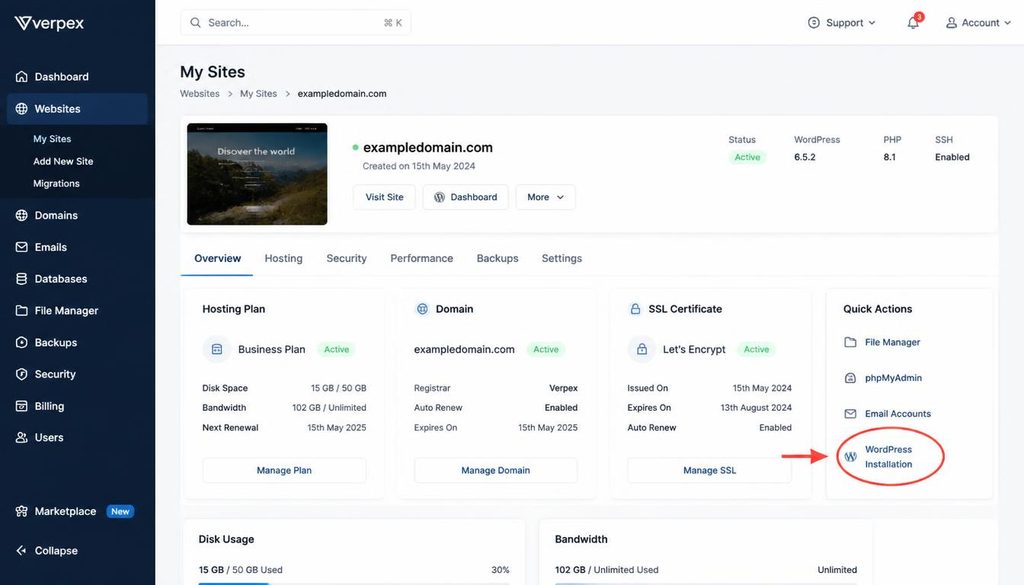
WordPress.org website setup showing hosting control panel, domain connection, and WordPress installer.
Step 2: Install WordPress
Sign in to your hosting dashboard and look for an option such as WordPress, Website Installer, or Softaculous. Choose the domain, set a site title, create a unique administrator username and strong password, and confirm the installation directory. Avoid using a predictable administrator username. If your host has no installer, follow the official WordPress installation guide.
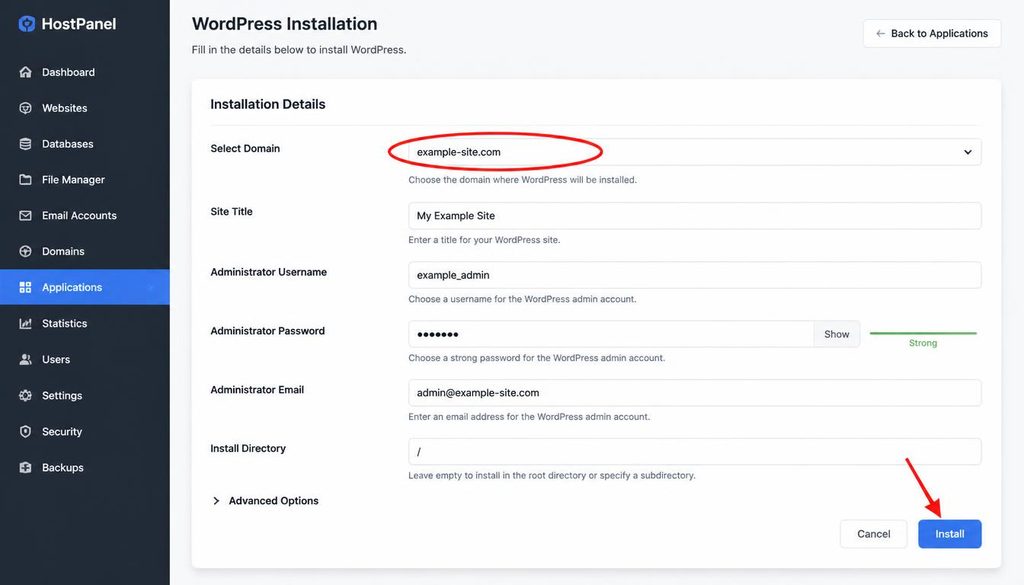
WordPress installation wizard with the domain field and Install button highlighted.
Step 3: Sign in to your WordPress dashboard
After installation, visit your site’s login page, commonly at yourdomain.com/wp-admin/, and sign in with the administrator account you created. Use HTTPS. If the login page is different, check your host’s instructions.
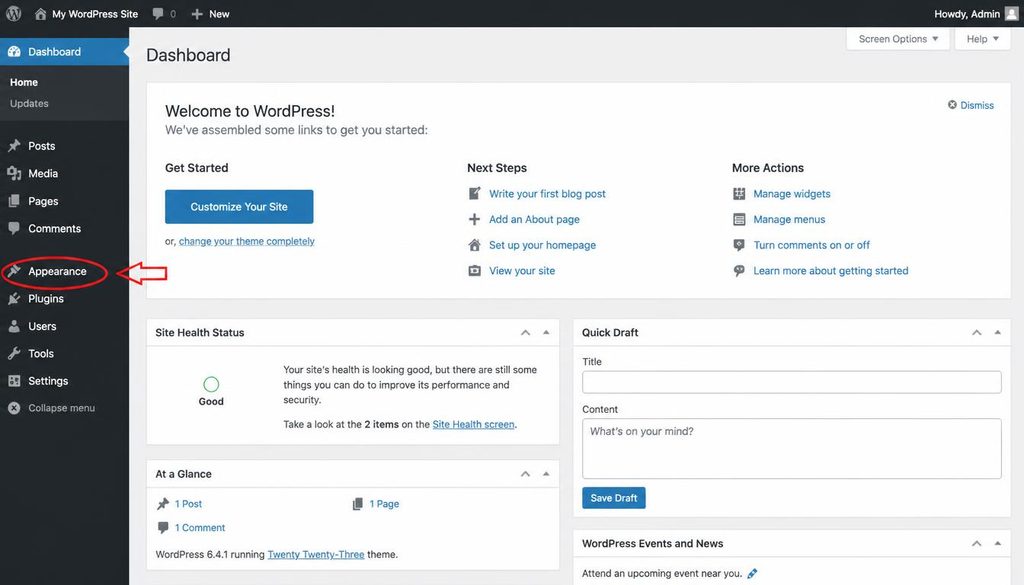
WordPress dashboard with Appearance, Plugins, Pages, and Settings highlighted for beginners.
Step 4: Choose a theme and set up your pages
Go to Appearance > Themes, review available themes, install one that fits your site’s needs, and activate it. Before choosing, check mobile layout, accessibility, recent updates, and whether the theme works with your page builder. Then go to Pages > Add New and create essential pages such as Home, About, Contact, and Privacy Policy where appropriate.
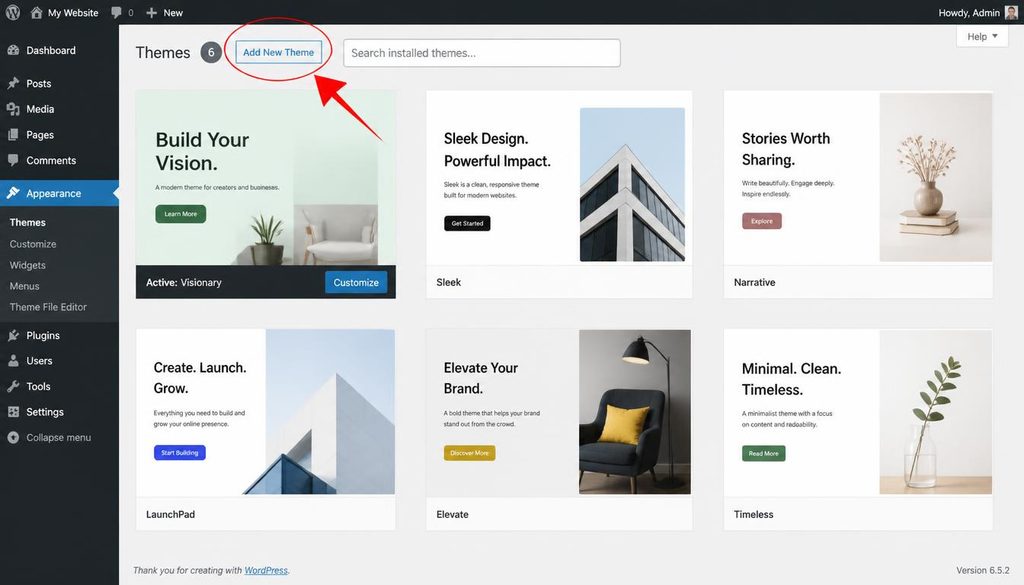
WordPress Appearance Themes screen with the Add New Theme control highlighted.
Step 5: Install only the plugins you need
Go to Plugins > Add New Plugin, search for a specific feature, read the plugin description and compatibility details, then install and activate it. Start with essentials such as SEO, backups, forms, or security only when your host or theme does not already provide the feature. Two plugins doing the same job can create conflicts, so avoid installing extensions just to collect them.
Step 6: Set your site settings and navigation
Open Settings > General to review the site title, tagline, site language, and timezone. Then check Settings > Permalinks and choose a readable URL structure, often Post name for a new site. If a site already has traffic, plan redirects before changing existing URLs. Add your main pages to the navigation using the controls provided by your theme or Site Editor.
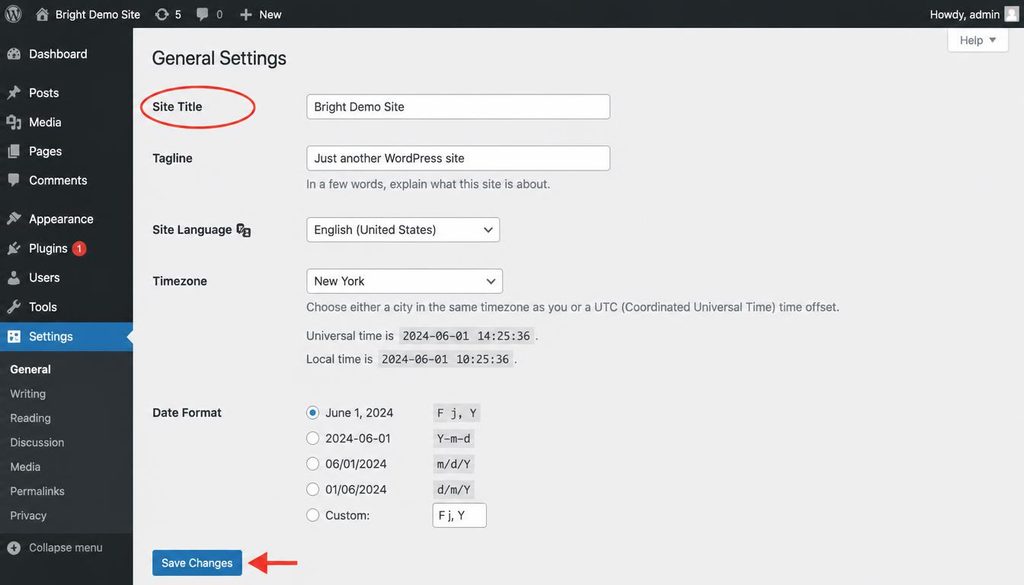
WordPress Settings General screen with the Site Title field highlighted.
Step 7: Test before launch
Open the site on a phone and a desktop. Test every menu item, form, key button, and checkout if you have one. Check that HTTPS works, pages load without errors, images have useful alt text, and visitors can understand what to do next. Set up backups and an update routine before you promote the site.
Step-by-step: getting started with WordPress.com
- Visit WordPress.com and create an account.
- Follow the site creation flow and select the site type or goal that best matches your project.
- Choose a site address and review the options for connecting a custom domain.
- Select a plan only after checking whether it includes the themes, plugins, storage, and business features you need.
- Pick a theme or design, then add your pages and navigation.
- Set your site title, basic privacy choices, and other settings offered in your dashboard.
- Preview the site on mobile and desktop, test forms and links, and review the service’s backup and export documentation.
- Publish when the content is ready and continue checking your site’s settings as it grows.
WordPress.com changes its interface and plan features over time. Follow the current on-screen instructions and support documentation rather than relying on an older screenshot for a paid feature.
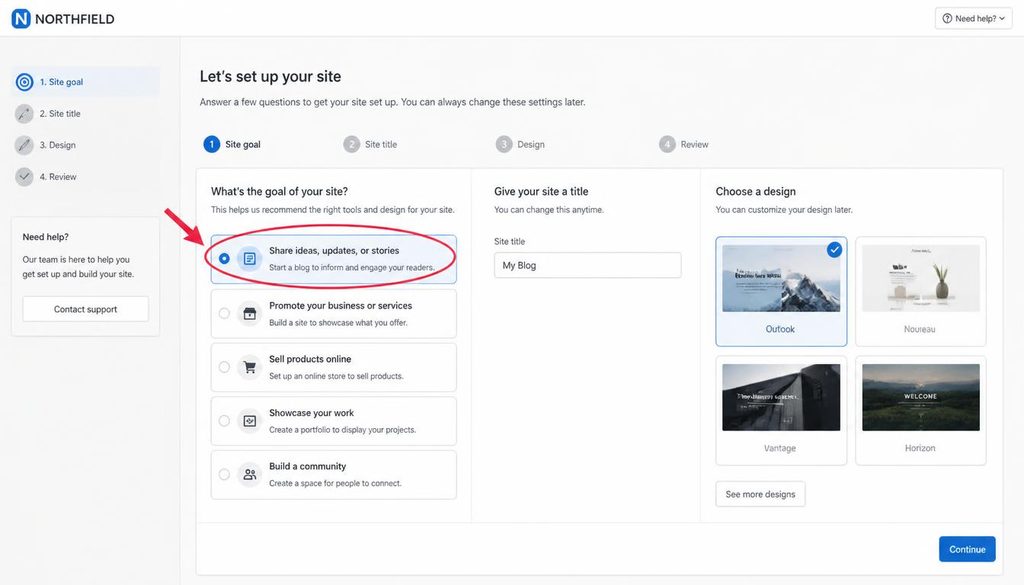
WordPress.com site setup flow showing site goal and design selection for a beginner.
Can you move from WordPress.com to WordPress.org later?
In many cases, yes, but the process depends on your current plan, site features, domain setup, and the destination host. Content exports can help move posts, pages, and related information, but themes, plugins, design settings, and platform-specific features may need to be rebuilt or replaced.
- Read the current export instructions and create a fresh backup where available.
- Set up the destination WordPress installation and confirm it works before moving the domain.
- Export the source content and import it into the destination site.
- Review images, menus, internal links, forms, and any store or membership data carefully.
- Plan domain and DNS changes, redirects, analytics, and search engine checks.
- Keep the old site available until you have tested the new one and confirmed that important pages work.
For a business site, store, or large blog, consider a migration specialist if lost orders, broken URLs, or downtime would be costly. Do not cancel the old service until the move is complete.
Common mistakes when choosing between the two
- Choosing by price alone: compare renewal cost and required features, not only the starting price.
- Assuming every plan includes plugins: verify the exact current plan and extension rules.
- Ignoring backups: learn how restores work before you need one.
- Installing too many plugins: choose maintained tools that solve a clear problem.
- Expecting a platform to guarantee SEO: useful content and sound technical setup still matter.
- Forgetting migration: understand export options and platform-specific features before your site becomes hard to move.
Frequently asked questions
Is WordPress.org really free?
The WordPress software is free and open source. Running a public website usually costs money for hosting and a domain, and optional paid themes, plugins, or support may add to the budget.
Is WordPress.com better for beginners?
It can be easier for people who want hosting included and fewer server tasks. WordPress.org can also work well for beginners when their host offers a clear installer and helpful support.
Can I use my own domain with WordPress.com?
WordPress.com offers custom-domain options, but the exact process and whether a domain is included depend on current plan terms. Check its official domain support page before subscribing.
Which is better for SEO?
Neither option automatically ranks better. Both can support search-friendly content, but the tools and technical controls available to you differ. Focus on helpful content, clean URLs, performance, accessibility, and correct indexing settings.
Can I install any plugin on WordPress.com?
Plugin access depends on the current WordPress.com plan and platform rules. Check the plan comparison and confirm that your required plugin is supported before you commit.
Can I sell products with either option?
Both may support selling, but the available store tools, payment options, fees, and plan requirements differ. Confirm that your preferred commerce setup supports your products and the countries where you operate.
Will I lose my content if I switch later?
Not necessarily, but migration may need extra work. Posts and pages may export more easily than theme layouts, plugin settings, or platform-specific features. Back up and test the new site before changing your domain.
Choose based on control, support, and the features you need
If you want broad control over hosting, files, and extensions, start by comparing self-hosted WordPress providers. If you prefer a managed service, review WordPress.com’s current plans and confirm that they support your project. Make the decision from a written feature list and a realistic yearly budget, not from the name alone.