WordPress does not provide a simple username edit box on the standard user profile screen. If you open your profile and try to change your login name, you will find that the username field is locked. That is normal WordPress behavior, not a problem with your account.
You can still change a WordPress username safely. The best method depends on whether you can sign in, whether you need to keep the same user account, and whether the site has other administrators. For most site owners, creating a new user with the desired username and transferring the content is the clearest approach. There are also plugin and command-line options for more advanced situations.
Quick answer: how to change your WordPress username
The standard WordPress dashboard does not let you edit an existing username directly. For most users, the safe dashboard method is to create a new user with the username you want, give it the appropriate role, sign in to that account, and then handle the old account carefully.
- Back up your website and make sure you can access the registered email account.
- Go to Users → Add New User.
- Enter the new username, a working email address, and a strong password.
- Choose the role the new account actually needs. Use Administrator only if full site control is required.
- Sign out and test the new account in a separate browser window.
- Check which posts and pages belong to the old user before deleting or changing that account.
- If you delete the old user, choose the option to attribute that user’s content to the new user, when WordPress offers it.
Do not delete your only administrator account before you have confirmed that the replacement account works. Keep a second trusted administrator available during the change if possible.
What is a WordPress username?
Your WordPress username is the login name associated with a user account. You can usually sign in with that username or the account’s email address, depending on the site’s login setup.
The username is different from the public display name shown beside posts or comments. It is also different from your site title, your email address, and your password.
- Username: The account identifier used to sign in with a username.
- Display name: The name visitors may see on articles, comments, or author pages.
- Email address: Used for account messages and password recovery, depending on your settings.
- Password: The secret credential used to prove that you can access the account.
If your only goal is to change the name visitors see under your articles, you may not need to change the username at all. Open Users → Profile and review the Nickname and Display name publicly as settings. If you need to change the actual login name, continue with the methods below.
Why can’t you edit the username in WordPress?
WordPress treats the username as a core account identifier and locks it on the standard profile screen. This helps avoid accidental changes that could affect account references, integrations, or site workflows.
The restriction does not mean the username can never change. It means you need a different method, such as creating a replacement user, using a trusted username-editing plugin, or using an administrative tool such as WP-CLI.
Before changing your WordPress username
Take a few minutes to prepare. Most username problems happen after an account is deleted too early or a new user is given the wrong role.
- Make a fresh backup. Include the database and website files, or confirm your hosting provider has a recent restorable backup.
- Confirm you have administrator access. If you are not allowed to add or manage users, ask the site owner to make the change.
- Check the new username. It must be available and should not contain spaces. Use a name that is easy for you to recognize but avoid exposing unnecessary personal details.
- Confirm the email address. Use an inbox you can access. WordPress may use it for account notices and password recovery.
- Review content ownership. Check posts, pages, and other content authored by the existing account.
- Plan a safe test. Keep your current session open until you have confirmed that the new account can sign in and has the correct permissions.
If you are changing the username because you suspect someone has accessed your account, also change the password and review administrator access. Follow our guide on changing your WordPress password safely.
Method 1: Change your username by creating a new WordPress user
This is the most straightforward dashboard method because it uses WordPress’s built-in user management. It works well when you can sign in as an administrator and want to replace an old login name with a new one.
Step 1: Open the Add New User screen
Sign in to your WordPress dashboard and go to Users → Add New User. If the menu item is missing, your current role may not have permission to create accounts.
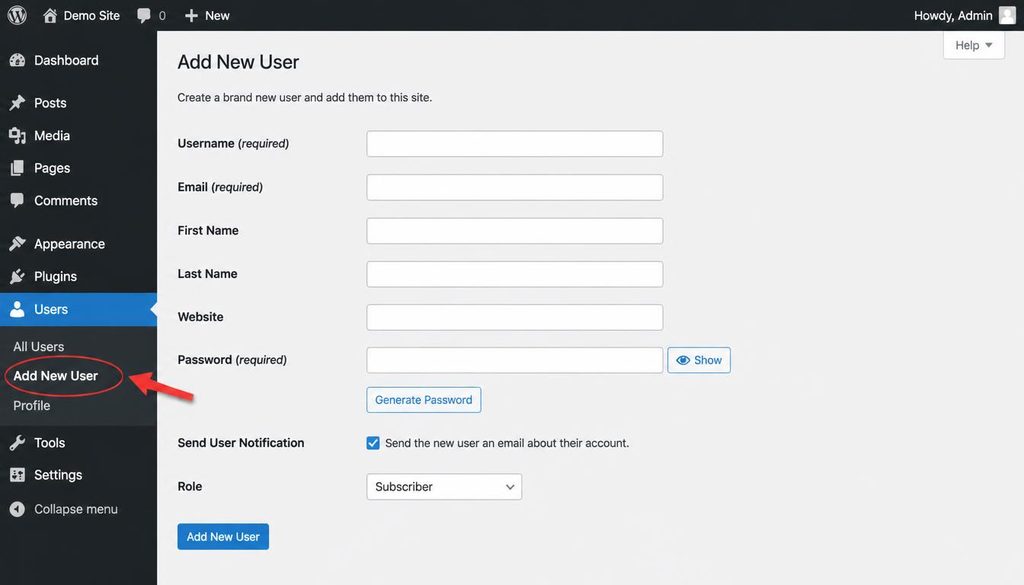
WordPress dashboard Users menu with Add New User highlighted for creating a replacement username.
Step 2: Enter the new username and account details
Fill in the required fields on the Add New User screen. The username is the important part of this process, so check the spelling before you save the account.
- Username: Enter the login name you want to use going forward.
- Email: Enter an email address you can access. If your site requires a unique email for each account, you may need a different address from the old user.
- Password: Use WordPress’s generated password or enter a long, unique one.
- Send User Notification: Enable this if you want WordPress to email the new account details or notification to the address entered, where supported by your site configuration.
- Role: Choose the lowest role that gives the account the permissions it needs.
For your own main site account, you may need Administrator. For someone who only writes articles, Editor or Author may be enough. Do not grant full administrator access just because it seems easier.
Step 3: Save the new account
Select Add New User to create the account. If WordPress displays an error that the username or email already exists, choose an available username or check whether the email is already assigned to another user.
Creating the new user does not automatically move your old posts, settings, or ownership to that account. It creates a separate user record. Handle content ownership in a later step, after you have tested the new login.
Step 4: Test the new username before touching the old account
Open a private or incognito browser window, or use a separate browser. Sign in with the new username and password. Confirm that the dashboard loads and that the account has the expected role.
If you cannot sign in, do not delete or alter the old user. Check the spelling, password, and email address, and reset the new user’s password if necessary. The guide to using the WordPress dashboard can help you find the relevant user-management screens.
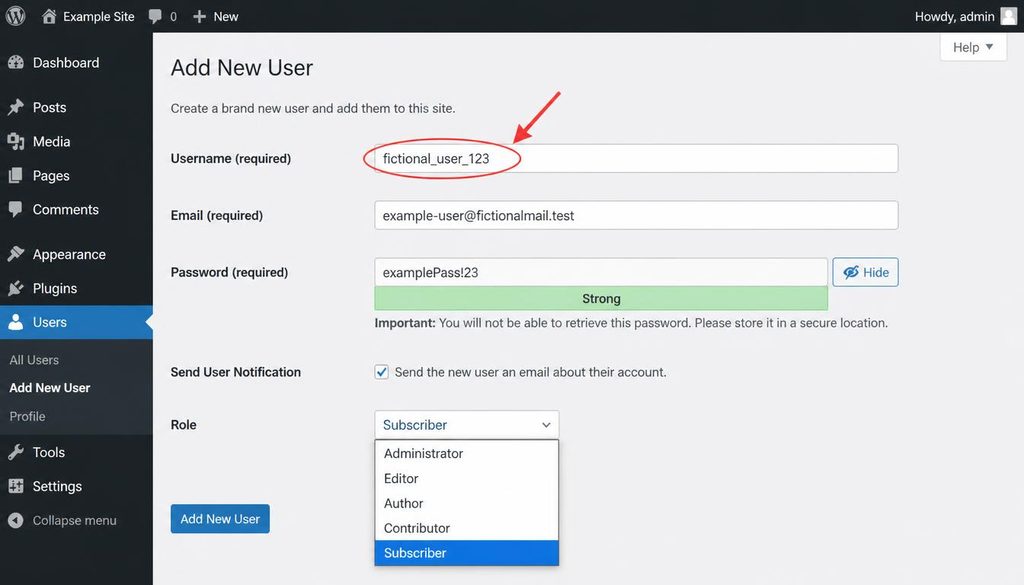
WordPress Add New User form showing the username field and account role selector.
Step 5: Decide what to do with the old user account
Once the new account works, you have a choice. You can keep the old account temporarily, remove it after checking its content, or use a supported username-editing tool if your goal is to retain the same user record.
Before deleting anything, open Users → All Users and check the old account’s role and content. If the account authored posts or pages, WordPress may ask what should happen to that content when you delete the user. Choose the option to attribute content to the new account if that matches your needs.
Do not delete an account simply because its username is no longer the one you want. If it owns content, is used by a workflow, or is the only administrator, take extra care before removing it.
Method 2: Change the username with a username-editing plugin
If you need to keep the existing user record and change its login name, a reputable username-editing plugin may be more convenient than creating a replacement account. Plugin features and compatibility can change, so check the current listing, recent updates, support activity, and compatibility with your WordPress version before installing anything.
Step 1: Review the plugin before installing it
Go to Plugins → Add New Plugin and search for a plugin that specifically allows users to change usernames. Read its description and documentation carefully. Confirm that it edits the actual login username, rather than only changing the public display name.
Do not install a plugin just because its name sounds right. Check the developer, update history, reviews, active support, and the permissions it requests. Make a backup before using any plugin that edits user data.
Step 2: Install and activate the plugin
When you are satisfied with the plugin’s reliability, install it from the WordPress plugin directory or a trusted vendor, then activate it. Avoid downloading plugin ZIP files from unofficial download sites.
Step 3: Use its username-change control
Follow the plugin’s own instructions to locate the username-editing control. Depending on the plugin, it may appear in the user profile or a user-management screen. Enter the new username, save the change, and look for a confirmation message.
The exact screen varies by plugin, so do not assume every plugin uses the same fields. If the plugin only changes the display name, it will not change the username used at login.
Step 4: Test the updated login
Open a separate browser window and sign in with the new username. Check that the correct account, role, and content remain in place. If the login fails, use the site’s normal recovery process or the plugin’s documented rollback steps rather than making random database edits.
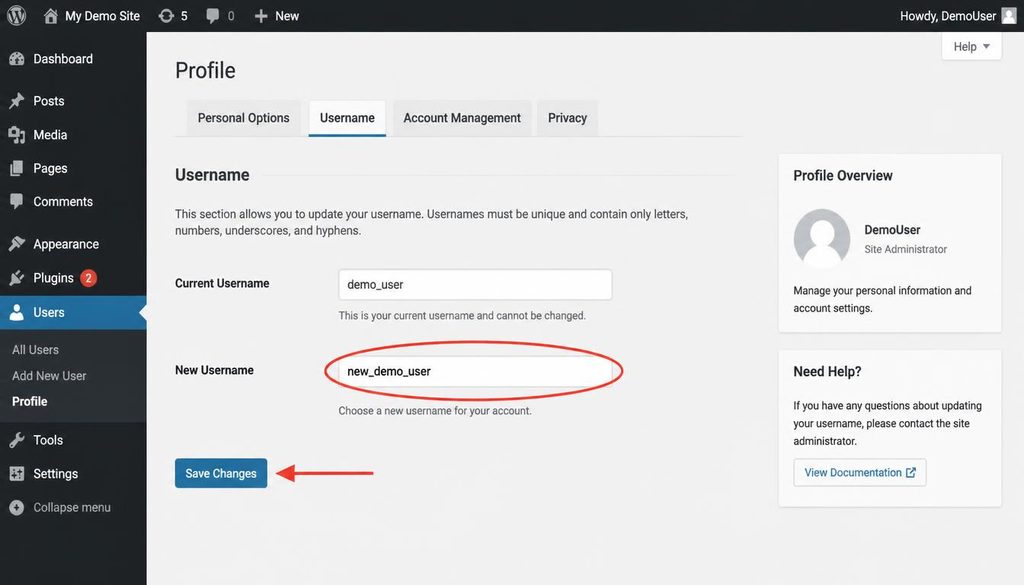
Illustrative WordPress username-editing plugin screen showing the new username field and save control.
Method 3: Change a WordPress username with WP-CLI
WP-CLI is a command-line tool for managing WordPress. It can be useful for site owners and developers who have authorized shell access and need to update an existing user’s login name without creating a replacement account.
Use this method only if you understand how to access the correct WordPress installation. If your hosting account contains multiple websites, confirm the working directory before running a command.
Step 1: Back up the site and identify the correct user
Make a restorable database backup first. Connect to the server through your approved SSH or hosting terminal access, then use WP-CLI to list the users and identify the account by its ID. Do not guess the ID based on the order of users in the dashboard.
Step 2: Update the username with WP-CLI
WP-CLI provides a user update command. The command needs the correct user identifier and the new username value. A typical command pattern is:
wp user update USER_ID --user_login=new_usernameReplace USER_ID with the verified numeric ID and new_username with the username you want. Do not type the placeholder values literally. Use a username that is available and follows the rules shown by your site.
If your installed WP-CLI version or hosting environment does not support that field in the expected way, stop and consult the official documentation instead of trying unverified commands. Always run commands against the intended WordPress installation.
Step 3: Confirm the change
Use WP-CLI to inspect the user record again, then test a login in a separate browser window. Keep your backup until you have confirmed that the new username works and site content remains intact.
See the official WP-CLI user update documentation for the supported options and current syntax.
Method 4: Change the username directly in the database
Direct database editing is an advanced recovery option, not the recommended method for beginners. A mistake can change the wrong user, and table prefixes differ from site to site. Prefer the dashboard, a trusted plugin, or WP-CLI when possible.
If you are the authorized site owner and have a specific reason to use the database, make a full backup first and ask your host or developer for help if you are unsure.
- Open your hosting control panel and launch the database management tool provided by your host.
- Confirm the database used by the correct WordPress installation. The site’s
wp-config.phpfile contains the database name and table prefix. - Find the users table. Its name may look like
wp_users, but the prefix may be different. - Identify the correct row using the user ID and other account details. Do not rely on the username alone if you are unsure which site database you opened.
- Only after verifying the backup, installation, and user record should an experienced administrator change the
user_loginvalue. - Confirm the result and test the new login before making any further changes.
Never paste database credentials into a public message, and never replace a password field with plain text. A username change should not require editing password hashes or unrelated user metadata.
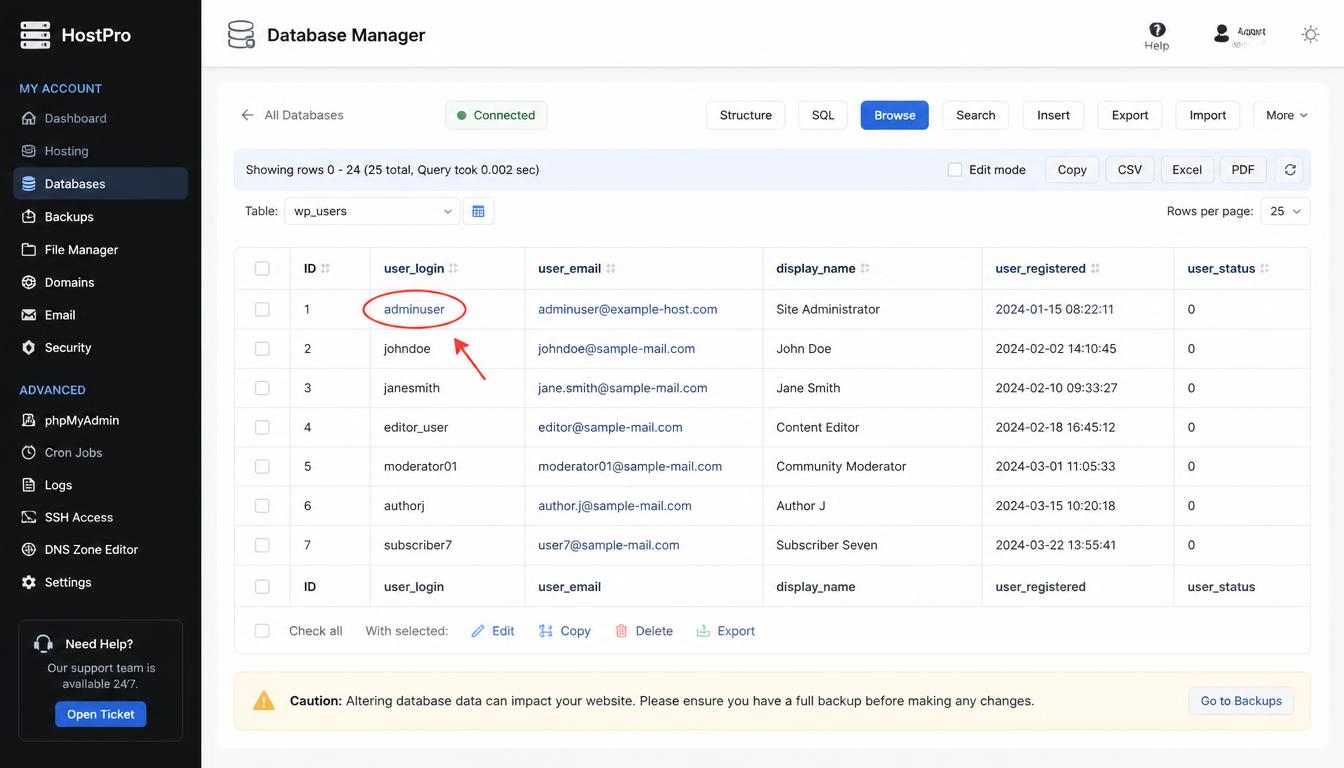
Fictional WordPress users database table highlighting the user_login field during an advanced username change.
What happens to posts and pages when you change a username?
The result depends on the method you use. If you create a new user, WordPress treats it as a separate account. Posts and pages written by the old account remain assigned to that old user until you reassign them or delete the old user and select the content reassignment option.
If a tool updates the username on the existing user record, the account ID normally remains the same, so its existing content stays connected to that account. Still, verify the author’s name and public display settings after the change, especially if your theme or plugins use user details in custom ways.
Before you remove an old account, check:
- Published posts and scheduled posts.
- Drafts and pending reviews.
- Pages or custom post types assigned to that user.
- Author archive pages and any author profile widgets.
- Plugins or external services that refer to the old username.
If your site has several authors, test one representative article after the change. Make sure the byline is correct and the content remains published.
Does changing your WordPress username improve security?
A username change may reduce exposure if your login name is publicly displayed, but it is not a complete security measure. Attackers can still target common usernames, email-based login, weak passwords, or vulnerable software.
For better protection, use a unique password, enable multi-factor authentication for administrator accounts where possible, keep WordPress and plugins updated, and remove accounts that no longer need access. Review our WordPress security guidance for more ways to protect your site.
Do not rely on hiding the username as your only defense. A strong password and well-managed access controls matter much more.
Common WordPress username problems and fixes
The username field is greyed out
This is expected on the standard WordPress profile screen. Use the new-user method, a trusted username-editing plugin, or WP-CLI if you need to change the actual login name.
WordPress says the username already exists
Usernames must be unique within a WordPress installation. Choose another available username, or check whether the account you want already exists. Do not delete another user just to free up a name unless you have confirmed the account is no longer needed and its content is handled safely.
The new account cannot sign in
Check the spelling, password, and login URL. Confirm the account was created on the correct website if your hosting plan has multiple WordPress installations. Reset the new user’s password if needed, and keep the original account until the replacement login works.
The old user’s posts disappeared from the author page
The content may still exist but be assigned to the old user or another author. Check the post list and author information before assuming anything was deleted. If you used the delete-user workflow, review the content reassignment choice and restore from backup if necessary.
The display name changed, but the login username did not
Nickname and display-name settings control the name shown publicly. They do not change the underlying login username. Use a method that specifically edits the username if that is your goal.
You cannot access Users → Add New User
Your account may not have permission to manage users. Ask the site administrator or owner to make the change. Avoid trying to bypass permissions, particularly on a business or client website.
Best practices after changing your WordPress username
- Sign in with the new username and confirm the account’s role.
- Keep a record of the account’s recovery email in a secure password manager or team vault.
- Update saved login entries so your browser does not keep autofilling the old username.
- Review public author names and author archive pages.
- Check any connected publishing tools or plugins that use the old username.
- Remove the old user only after checking content ownership and confirming another administrator can manage the site.
- If the change was part of a suspected security incident, review administrator accounts and change any exposed credentials.
WordPress username change checklist
- ☐ Back up the website and database.
- ☐ Confirm the new username is available.
- ☐ Create the new account or choose a trusted method for editing the existing one.
- ☐ Assign only the permissions the account needs.
- ☐ Test the new login in a separate browser window.
- ☐ Check posts, pages, drafts, and author display details.
- ☐ Reassign content before deleting the old user, if needed.
- ☐ Update password-manager entries and review site security.
Frequently asked questions
Can I change my WordPress username without a plugin?
Yes. The standard dashboard does not offer a direct edit field, but you can create a new user with the desired username and handle content ownership carefully. Advanced users can also use WP-CLI to update the existing account.
Can I change my WordPress username from the profile page?
Not with the standard WordPress profile screen. The username field is normally locked. You can change the nickname and public display name there, but those settings do not change the login username.
Will changing my WordPress username delete my posts?
Changing the login name on the same user record should keep the account’s content associated with that user. Creating a separate account does not automatically move content. If you delete the old user, choose the content reassignment option when available and check the result.
Can I use the same email address for the new WordPress user?
WordPress sites commonly require a unique email address per user. If the address is already assigned to the old account, you may need to use another address for the replacement user or choose a method that edits the existing account instead.
Should I change my username for security reasons?
You can change it if the current login name is exposed or no longer appropriate, but a username change alone does not secure the site. Use a strong unique password, enable multi-factor authentication where possible, and keep software updated.
Is it safe to change a WordPress username in phpMyAdmin?
It can be done by an experienced site administrator, but it carries risk if you edit the wrong database or user row. Back up first and prefer the dashboard, a trusted plugin, or WP-CLI when those options are available.
What is the difference between a WordPress username and display name?
The username identifies the account for login, while the display name is the public name shown on posts or comments. If you only want to change how your name appears to visitors, edit the profile’s nickname and display-name settings instead.
Official WordPress references
- WordPress documentation: Roles and capabilities
- WordPress documentation: Your Profile screen
- WP-CLI documentation: User update command