Need to change the email address WordPress uses for important site notices? You can update it from the dashboard, but first make sure you are changing the right email field. WordPress has a site administration email for site-wide notices and a separate user email for each account. They can be different, and changing one does not automatically change the other.
This guide shows you how to change the WordPress admin email step by step, confirm the new address, update the email for your administrator user account, and troubleshoot confirmation messages that never arrive. It also explains when a database or hosting-level fix may be needed, and how to avoid locking yourself out of important site notifications.
What is the WordPress admin email?
The phrase “WordPress admin email” can refer to two different settings. Knowing which one you need will save time and prevent a common mistake.
1. Site administration email
This is the email address saved in Settings → General → Administration Email Address. WordPress uses it for certain site administration messages, such as important notices and some site-management notifications. The address can belong to the site owner, a technical contact, or a team inbox that is monitored regularly.
2. Administrator user email
This is the email address attached to a particular WordPress user account. It is managed from the user’s profile and can be used for account-related messages, password resets, and other user notifications. A person can have the Administrator role while their user email differs from the site’s Administration Email Address.
Example: Your site-wide administration address might be site-notices@example.com, while the administrator account you use to sign in might use alex@example.com. Updating the first address does not change the second one.
| Setting | Where to change it | What it controls |
|---|---|---|
| Administration Email Address | Settings → General | Site-wide administration notices |
| Administrator user’s email | Users → Profile | Email tied to one user account |
Before you change the WordPress admin email
Choose an address you can open right now. If WordPress sends a confirmation link to the new address, you will need access to that inbox to finish the change. A typo or an abandoned mailbox can delay the update.
- Check that the new mailbox is active and spelled correctly.
- Make sure you can sign in to that mailbox, including any required two-factor authentication.
- Use an address that will remain available to the person or team responsible for the website.
- If the site is business-critical, avoid using an inbox that only one departing employee can access.
- Keep your WordPress login credentials safe and do not share them just to change an email address.
For a general site maintenance refresher, read our WordPress dashboard guide. If you are changing contact details as part of a broader site move, see the guide to changing the WordPress site URL. The email address and site URL are separate settings.
How to change the WordPress administration email in Settings
This is the standard method for changing the site-wide administration email on a typical WordPress installation. You need an account that is allowed to manage general site settings.
Step 1: Open your WordPress dashboard
Sign in to the WordPress admin area. On many sites, the address is your domain followed by /wp-admin/, although your host or security setup may use a different login URL. If you are not sure how to find the admin menu, follow our beginner’s guide to the WordPress admin dashboard.
Step 2: Go to Settings → General
In the left-hand menu, select Settings, then General. Look for the field labeled Administration Email Address. Do not confuse it with the WordPress Address (URL), Site Address (URL), or the Site Title fields above it.
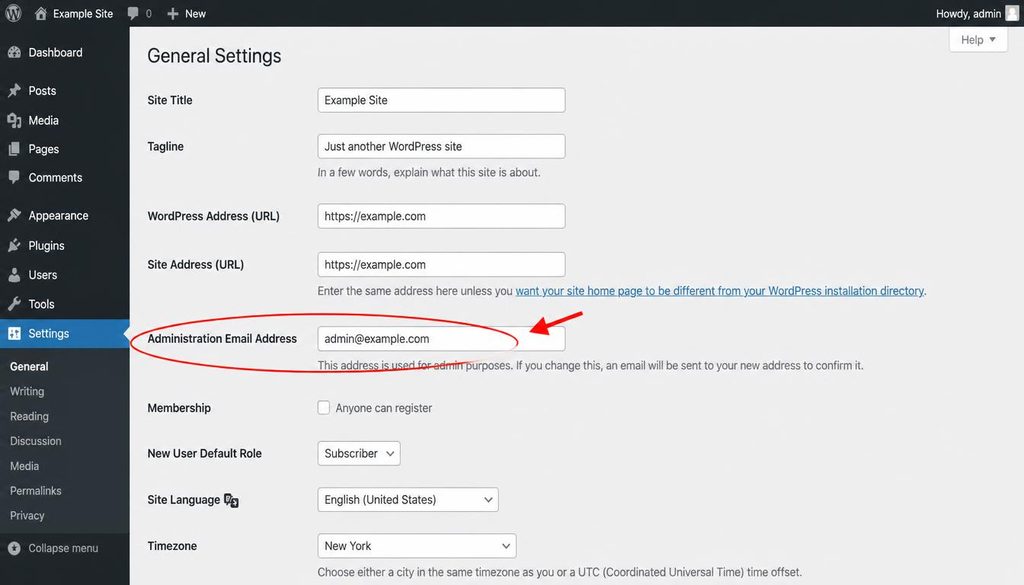
WordPress General Settings screen highlighting the Administration Email Address field.
Step 3: Enter the new administration email
Select the current address and replace it with the new one. Check every character, especially the domain after the @ symbol. Avoid spaces at the beginning or end, and do not use an address that you cannot access.
Step 4: Save the settings
Scroll to the bottom of the page and click Save Changes. WordPress may send a confirmation email to the new address. On installations that use this confirmation process, the requested address is pending until the recipient follows the confirmation link. The old address can remain active as the administration address until the change is confirmed.
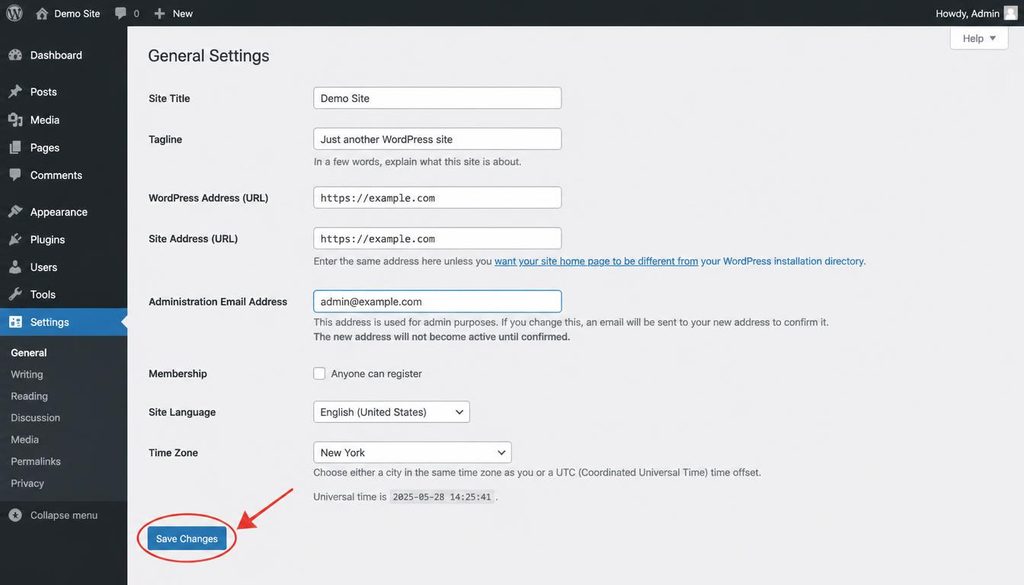
Save Changes button in WordPress General Settings after entering a new admin email address.
How to confirm the new administration email
After you save, open the inbox for the new address and look for a WordPress administration email change message. Follow the confirmation link in that message. The exact wording can vary by WordPress version and email configuration, so read the message before taking action.
- Open the inbox for the new administration address.
- Look for a confirmation message from your WordPress site.
- Check the spam, junk, and promotions folders if it is missing.
- Open the message and verify that the request is for your own website.
- Follow the confirmation link and wait for the confirmation page to load.
- Return to Settings → General and check whether the new address is now saved as the active value.
Security check: Do not approve a change you did not request. If an unexpected administration email change arrives, sign in to WordPress using your usual trusted route, review your user accounts, and change compromised credentials if you suspect someone else has access.
How to change the email for your WordPress administrator account
If you want to change the email attached to the account you use to log in, edit your user profile instead. This is a separate task from changing the site’s Administration Email Address.
Step 1: Open your user profile
In the dashboard, go to Users → Profile or open Users → All Users and select your own account. Depending on your permissions and site setup, the menu wording may differ slightly.
Step 2: Find the Email field
Look for the email field in the account details. Replace the existing address with the new one, making sure it belongs to you and is accessible. Do not change another user’s email unless you are authorized to manage that account and the change is intended.
Step 3: Update your profile and confirm if asked
Save the profile. WordPress may require email confirmation before the new user address becomes active. Follow the message sent to the new inbox, then return to the profile to verify the result. A pending change may continue to show the old active address until the confirmation is complete.
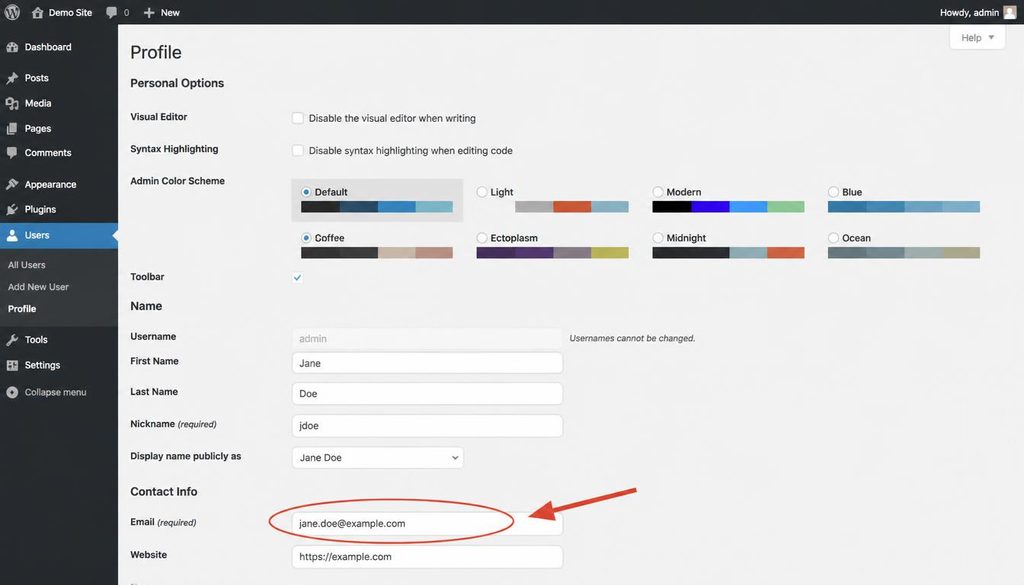
WordPress user profile screen showing the Email field for changing an administrator account email.
What if the confirmation email never arrives?
If the message does not show up, do not keep submitting the form over and over. Work through the checks below, then try again after you have identified the likely cause.
Check the new email address carefully
Return to Settings → General and check whether the requested address is spelled correctly. If a confirmation is pending, WordPress may display a notice or show the proposed address separately from the active address. Correct a typo if needed and follow the current on-screen instructions.
Look in spam and other folders
Search the mailbox for your website’s name or WordPress email notification. Check junk, spam, promotions, and any quarantine folder managed by your email provider. If you use a company mailbox, ask the email administrator whether messages from the site are being blocked.
Test whether WordPress can send email
WordPress relies on the site’s hosting environment and mail configuration to send messages. A successful save in the dashboard does not prove that an email reached the recipient. Ask your host to check mail delivery logs, sender restrictions, and server mail configuration. A properly configured SMTP service can improve delivery reliability, but it must be set up with valid credentials and the correct sender domain.
If you are working on broader site reliability, review our WordPress security tips and make sure the site has a reliable maintenance process. Do not install multiple mail plugins at random or paste email passwords into untrusted support forms.
Check whether the old address is still active
If the new email is still pending, the previous address may remain the active administration address until confirmation. This is expected behavior in the normal confirmation flow. Keep access to the old inbox until you have verified that the new address is active, especially if the old inbox receives important site notices.
Can you change the WordPress admin email without confirmation?
In a standard WordPress setup, the site administration email change may require confirmation at the new address. This helps prevent an accidental or unauthorized change to a contact address. The exact workflow can depend on the type of email setting, WordPress version, and site configuration.
If you cannot access the new inbox, first restore access to that mailbox or choose another address you control. If the old mailbox is no longer available and the request is stuck, ask your hosting provider or a qualified WordPress administrator to review the situation. Avoid changing database values blindly, because an incorrect edit can create confusion about which address is active or pending.
Advanced options when dashboard access is not enough
Most site owners should use the dashboard. Advanced methods are best reserved for recovery cases where the normal workflow cannot be completed and you have a verified backup and suitable access.
Ask your hosting provider for help
Your host may be able to help confirm whether WordPress is sending email, review relevant logs, or guide you through a safe recovery process. Explain whether you are changing the site administration address or the email for a user account. Those details help support staff avoid changing the wrong field.
Use WP-CLI only if you understand the difference between the settings
Experienced site administrators may use WP-CLI to inspect or update WordPress options and user records. The site administration email is stored as a WordPress option, while a user’s email is part of that user’s record. They are not interchangeable. Before making a command-line change, verify the site path, current value, intended address, and backup. Use the official WP-CLI command reference and avoid copying commands from unknown sources.
Treat database editing as a last resort
Direct database edits can bypass normal WordPress checks and may not resolve a pending confirmation workflow in the way you expect. Never run an update against a guessed table, option name, or user ID. If a database change is truly needed, make a verified backup, identify the exact record, and get help from someone who knows WordPress database structure.
Security tips for your WordPress admin email
The administration inbox may receive notices that help you maintain the site. Protect it as carefully as you protect your WordPress account.
- Use a mailbox with a strong, unique password and multi-factor authentication when available.
- Remove access for people who no longer manage the website, using a documented handover process.
- Do not approve unexpected email-change requests or password reset messages.
- Keep at least one trusted site administrator account with a working email address.
- Review users and roles from time to time, especially after contractors or staff leave.
- Keep WordPress, themes, and plugins updated, and maintain tested backups.
Common mistakes when changing the WordPress admin email
- Changing the wrong email field: General Settings controls the site’s administration email; the user profile controls a specific account’s email.
- Forgetting to confirm the new address: A requested change may stay pending until the email link is used.
- Using an inbox you cannot access: You may be unable to complete confirmation or receive future notices.
- Assuming a saved form means email delivery works: WordPress can save settings even when mail delivery has a separate problem.
- Editing the database too early: Try the normal dashboard flow and check the mail setup before using advanced methods.
- Removing the old inbox too soon: Keep it available until you confirm the new address is active.
- Sharing account credentials with support: Use your host’s official support channel and never send passwords in plain text.
WordPress admin email change checklist
- ☐ Decide whether you need to change the site administration email or a user account email.
- ☐ Confirm you can access the new mailbox.
- ☐ Open the correct screen in the WordPress dashboard.
- ☐ Enter the new address and check the spelling.
- ☐ Save the setting or user profile.
- ☐ Open the confirmation email and follow its link if required.
- ☐ Verify the new address is active in WordPress.
- ☐ Test mail delivery and retain access to the old inbox until the change is complete.
Frequently asked questions
1. Where do I change the WordPress admin email?
For the site-wide administration email, go to Settings → General and edit Administration Email Address. For the email attached to your own administrator user account, go to Users → Profile and edit the Email field.
2. Why does WordPress ask me to confirm the new admin email?
Confirmation helps make sure the new address is valid and that the person requesting the change can access it. Follow the message sent to the new inbox, then check the active value in WordPress settings.
3. Does changing the admin email change my WordPress login email?
No, not automatically. The Administration Email Address is a site-wide setting. Your login account has its own email field in the user profile, and you must update that separately if you want to change it.
4. What should I do if the confirmation email does not arrive?
Check the address for typing errors, search spam and quarantine folders, and ask your host to check mail delivery. If you use SMTP, verify that the service is configured correctly. Keep the old address available until the change is confirmed.
5. Can I use Gmail as my WordPress admin email?
Yes, you can generally use an accessible Gmail address or another mailbox provider for the administration contact. Choose an address you control and can keep using. Your site’s ability to send outgoing messages still depends on its mail configuration.
6. Can I change the WordPress admin email from the database?
Advanced administrators may be able to update WordPress options or user records directly, but database editing should be a last resort. Back up the database, identify the correct record, and understand whether you are changing the site option or a user’s email. A direct edit may not replace the normal confirmation process.
7. Will changing the admin email affect my website address or SEO?
No. Changing the administration email does not change your domain, permalink structure, page titles, or canonical URLs. It changes the contact address WordPress uses for the relevant notices or account. If you need to change your website address, use the separate site URL settings and plan that change carefully.
Official documentation and next steps
For details about the fields on the General Settings screen, read the official WordPress General Settings documentation. If you need command-line guidance, use the official WP-CLI command reference rather than unverified commands from a forum.
Before you finish, make sure the address you changed is the one you intended, the new inbox is accessible, and the confirmation step is complete. A working administration email helps you stay informed when your WordPress site needs attention.