A WordPress 500 Internal Server Error means the server could not complete a request, but the message rarely reveals the real cause. A plugin conflict, PHP fatal error, invalid rewrite rule, memory limit, permission problem, or hosting issue can all produce the same response. The safest fix is to work from evidence: back up the site, check the logs, change one thing at a time, and reverse every diagnostic change you do not need.
This guide covers both dashboard-based checks and recovery methods for when wp-admin is unavailable. Make a backup of your files and database before editing configuration files, changing server settings, or restoring an older version.
What does the WordPress 500 Internal Server Error mean?
HTTP status code 500 is a general server-side error. It says that the server encountered a condition it could not handle, but it does not name the cause. The message may appear as “500 Internal Server Error,” “HTTP Error 500,” “This page isn’t working,” or a blank page.
The whole site may fail, or only one post, form, shop page, or admin screen may return the error. That difference matters: a site-wide failure points toward PHP, server configuration, or a shared plugin, while a single failing URL may involve a template, redirect, shortcode, or feature that runs only on that page.
Before you start: find the scope and protect your site
- Test several URLs. Open the homepage, one post, a key landing page, and /wp-admin/. Use a private browser window to reduce the chance of seeing a cached error.
- Record what changed. Note when the error began, the exact URLs affected, and whether WordPress, PHP, a plugin, a theme, a redirect, or hosting configuration was changed recently.
- Check hosting status. Look for provider incidents, full disk space, CPU or process limits, PHP worker limits, and error-log access.
- Back up files and database. If the dashboard is down, use your host’s snapshot or backup tool, file manager, SFTP, or database export feature.
- Keep a change log. Write down the original name or setting and the time you changed it. Restore temporary changes after each test.
Do not delete plugins, overwrite configuration files, or restore an old backup as your first move. Those actions can remove evidence or discard new orders, comments, form submissions, and other site data.
Step 1: inspect the server and PHP error logs
The error log is often the fastest route to the cause. In your hosting control panel, look for “Errors,” “PHP Errors,” “Logs,” or “Metrics.” Names and locations vary by provider. Reproduce the error once, then inspect the newest entries around that timestamp.
Useful clues include PHP Fatal error, Uncaught Error, Allowed memory size exhausted, Premature end of script headers, missing-file messages, or a message identifying an invalid directive. A path inside a plugin or theme folder is a useful lead, though it does not always prove that file is the original cause.
Record the error text, file path, timestamp, and PHP version. Do not post complete logs publicly; they may contain private file paths or other operational details. Share only the relevant, redacted lines with your developer or hosting support.
Step 2: enable WordPress debug logging safely
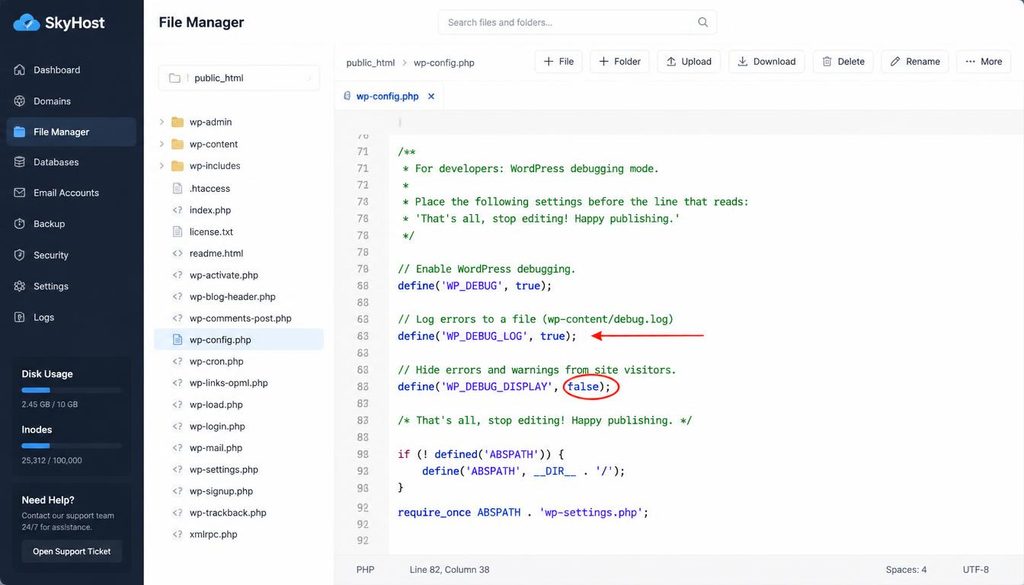
If the host log does not give enough detail, WordPress can log PHP errors. First download a copy of wp-config.php from the site’s document root. Find any existing debugging constants and edit them instead of adding duplicate definitions. For a temporary diagnostic session, the settings can look like this:
define( 'WP_DEBUG', true );
define( 'WP_DEBUG_LOG', true );
define( 'WP_DEBUG_DISPLAY', false );
@ini_set( 'display_errors', 0 );
Place the definitions before the line that says “That’s all, stop editing! Happy publishing.” If the constants already exist, update the existing lines. Reproduce the error and, if WordPress can write the file, inspect wp-content/debug.log. Some hosts route errors elsewhere or block this file, so a missing log does not prove that no PHP error occurred.
When troubleshooting is complete, turn debugging off and securely remove or archive the log. Never display PHP errors to ordinary visitors on a production site. Read the official WordPress debugging guide for details about the supported settings.
WordPress wp-config.php debugging settings showing error logging enabled and error display disabled.
Step 3: disable plugins to find a conflict
A plugin can cause a PHP fatal error after an update, conflict with another extension, or use more resources than the host allows. If the dashboard works, open Plugins → Installed Plugins and deactivate plugins temporarily. Test the affected page. If the error disappears, reactivate the plugins one at a time and test after each activation until the problem returns.
If wp-admin is unavailable, use SFTP or the hosting file manager. Open the wp-content directory and rename the plugins folder to something such as plugins-paused. This prevents WordPress from loading plugins in the usual way. Test the site, then rename the folder back to plugins. If the error returns after restoring the folder, isolate the likely plugin with controlled tests rather than deleting folders.
This method can temporarily disable forms, caching, security controls, store functions, or membership features. Do it during a quiet period if possible, restore the original folder name promptly, and avoid leaving the site without important protection. If a single plugin is implicated, check its version, compatibility notes, vendor support page, and log entries before deciding whether to update, roll back, or replace it.
Step 4: test the active theme
If disabling plugins does not help, test a default WordPress theme that is already installed and compatible with your WordPress version. When wp-admin is available, go to Appearance → Themes and activate the default theme temporarily. If the error disappears, investigate the original theme, child-theme code, custom functions, and recent changes.
If the dashboard is unavailable, a developer or experienced site owner may use WP-CLI or a carefully planned file-manager method. Make sure a fallback theme exists before changing theme files. Theme switching can change layouts, menus, widgets, and page-builder output, so treat it as a diagnostic test rather than a permanent redesign.
WordPress Appearance Themes screen showing a default theme selected for testing a 500 internal server error.
Step 5: check the .htaccess file and rewrite rules
On Apache-based hosting, a malformed .htaccess rule can trigger a 500 error. The file may contain WordPress rewrite rules, redirects, access restrictions, or directives added by plugins. Not every server uses it: Nginx does not use a site’s .htaccess file for its main rewrite configuration.
Download a copy of .htaccess before changing it. If a recent rule may be responsible, rename the file to .htaccess-backup and test the site. If the error disappears, the file or one of its rules is likely involved. This test can break pretty permalinks, redirects, or access rules, so do not leave the file renamed.
When the dashboard works again, go to Settings → Permalinks and select Save Changes without changing the structure. WordPress may regenerate its standard rules if the server permits it. Compare the resulting file with your backup and re-add only custom rules you understand and still need. If the error remains, restore the original file before moving on. See the official WordPress .htaccess documentation; on Nginx or managed hosting, ask the provider to check the server configuration instead.
Step 6: investigate PHP memory and hosting resource limits
If logs say Allowed memory size exhausted, a PHP request may be using more memory than permitted. WordPress has a memory allowance, but the host’s PHP and account-level limits still apply. A higher setting cannot repair inefficient code or a runaway loop.
After confirming that memory exhaustion is the actual error, ask the host or developer to check current limits. A WordPress configuration value may look like this, if the host supports it:
define( 'WP_MEMORY_LIMIT', '256M' );Do not keep raising the number without diagnosis. Review the plugin or theme named in the logs, check disk space and process limits, and ask the host whether PHP workers or account resources are exhausted. On managed hosting, the supported setting may be in the provider’s dashboard or require a support request.
Step 7: check PHP version and extension compatibility
If the host recently changed the PHP version, an older plugin, theme, or custom snippet may now fail. Check the PHP error log and the extension’s documented requirements. Do not permanently switch to an obsolete PHP version to hide the problem. Update or replace incompatible code, and ask the host which supported versions and extensions are available.
If a temporary rollback is needed to restore a critical site, arrange it with the host and treat it as a short-term recovery measure. Plan a proper compatibility fix rather than leaving the site on an unsupported runtime.
Step 8: review recent updates and custom code
If the error began immediately after an update, identify the exact component and version. Use a staging copy, the vendor’s supported rollback process, or a verified backup. Reinstalling the same package without reading the logs may not fix a dependency or compatibility issue.
Check snippets added through a code-snippet plugin, custom functions in a child theme, and recent edits to configuration files. A missing semicolon, invalid function call, or unsupported PHP syntax can trigger a fatal error. Disable or revert one recent change at a time, and keep the original version so you can restore it if needed.
Be careful with full-site restores. Restoring an older database can remove newer orders, comments, form entries, or user changes. Restoring only some files while keeping a database changed by a newer plugin can also cause problems. If the site handles business-critical data, ask your host or developer to plan the recovery before rolling back.
Step 9: check file permissions, ownership, and core files
Incorrect file ownership or permissions can stop the server from reading scripts or writing required files. Do not set every file to broad, world-writable permissions as a quick fix. Ask the hosting provider to confirm the correct ownership and permission values for its environment.
If logs indicate missing or modified WordPress core files, verify the core installation or replace only the affected core files with a clean copy of the same WordPress version. Do not overwrite wp-content or wp-config.php during a core-file repair. Those locations hold site-specific files, plugins, themes, uploads, and configuration.
Step 10: use WP-CLI if you have secure shell access
WP-CLI can inspect a site without relying on the dashboard. Run commands from the correct WordPress directory and make sure you have a current backup. These examples are for inspection:
wp core version
wp plugin list
wp theme list
wp option get home
wp option get siteurl
These commands do not automatically repair a server-level failure. Before using WP-CLI to deactivate a plugin or change an option, confirm the target and record the original state so you can reverse the change. Use the official WP-CLI command reference for syntax and options.
If the error happens on only one page
If the homepage and dashboard work but one post, form, category, or shop page fails, avoid disabling every feature at once. Check the page template, shortcode output, page-builder widgets, redirects, query parameters, and plugins that run only on that route. Compare the failing URL with a working page of the same type.
- Review recent edits to the page, template, shortcode, or custom code.
- Check whether a security, redirect, membership, or ecommerce plugin handles that URL.
- Inspect the server log immediately after requesting the failing page.
- Do not delete the page or change its permalink simply because it returns HTTP 500.
If wp-admin also returns a 500 error
You can still troubleshoot through your host’s error logs, file manager, SFTP, or SSH if those services are available. Start with logs, then make one reversible change such as temporarily renaming the plugin directory. Check for a recent edit to wp-config.php, and inspect .htaccess only if your server uses it. Record each change and restore the original state after the test.
If you cannot access the site files or logs, contact hosting support. Provide the affected URLs, exact time and time zone, recent changes, and the relevant error-log lines. Never send passwords, private keys, database credentials, or an unredacted configuration file in a public ticket.
Common mistakes that make a 500 error harder to fix
- Changing several things at once: you lose track of which change helped or caused a new issue.
- Deleting plugins or themes: a reversible deactivation is usually enough to test a conflict.
- Leaving debug output visible: public errors may expose internal paths and technical details.
- Replacing .htaccess without a backup: redirects and custom access rules may be lost.
- Increasing memory without checking logs: the underlying code problem may remain.
- Restoring an old backup without checking new data: newer orders or submissions may disappear.
- Opening permissions too widely: this can create a security issue without fixing the error.
Prevent future WordPress 500 errors
Keep WordPress core, themes, and plugins updated, but test major changes on staging when possible. Remove abandoned extensions, confirm compatibility before changing PHP versions, and maintain off-site backups that you have tested restoring. Review resource usage and keep enough disk space available for logs, uploads, and temporary files.
After updates, check the site and error logs rather than assuming the update succeeded. Document custom server rules and configuration changes. Your broader WordPress security routine, WordPress performance setup, and WordPress website launch checklist can help reduce avoidable problems.
Final recovery checklist
- The homepage, posts, key landing pages, and wp-admin load normally.
- The same fatal error no longer appears in the logs when the affected URL is tested.
- Plugins and the intended theme have been restored unless one was confirmed as the cause.
- Rewrite rules are restored and redirects and permalinks work.
- Temporary debugging settings are disabled and logs are protected.
- Forms, login, checkout, search, and other critical functions have been tested.
- Cache is cleared only after the origin server is healthy.
- A fresh backup is created after recovery.
Frequently asked questions
What is the most common cause of a WordPress 500 Internal Server Error?
There is no single cause for every site. Plugin or theme conflicts, PHP fatal errors, invalid rewrite rules, and hosting resource limits are common possibilities. Start with the server or PHP error log to find a specific clue.
Can a plugin cause a 500 Internal Server Error?
Yes. A plugin may trigger a PHP fatal error, conflict with another extension, or exceed a resource limit. Temporarily deactivate plugins and test them one at a time to isolate the cause.
Will saving permalinks fix a WordPress 500 error?
It may help if invalid Apache rewrite rules are involved, but it will not fix every 500 error. Back up .htaccess first, confirm the server uses it, and save permalink settings only when the dashboard is available.
Is a 500 error caused by my browser?
HTTP 500 usually points to a server-side problem. Testing another browser can rule out cached output, but if the origin server returns status 500, investigate server logs and application code.
Should I increase the WordPress memory limit?
Only when logs or reliable diagnostics indicate memory exhaustion. A higher WordPress allowance may not override hosting limits or fix inefficient code.
Can I fix the error without wp-admin access?
Often, yes. Hosting logs, a file manager or SFTP, and WP-CLI may help. Back up first and make reversible changes one at a time. Contact your host if you cannot access files or logs safely.
Is it safe to leave WP_DEBUG enabled?
Do not leave error display enabled on a public production site. Keep debug display disabled, protect logs, and turn debugging off when troubleshooting is complete.
Official resources
- WordPress debugging guide — debug constants and logging.
- WordPress .htaccess documentation — rewrite rules and file context.
- WP-CLI command reference — terminal-based WordPress administration.
- WordPress troubleshooting FAQ — further checks for common site issues.