To update WordPress safely, prepare a backup, check compatibility, update in a controlled order, and test the site before you call the job finished. Updates fix security issues, repair bugs, and add features, but a rushed update can expose plugin conflicts, broken layouts, or PHP errors. This guide shows you how to update WordPress safely across core, plugins, themes, and PHP, with less risk even if you manage your site alone.
You do not need to be a developer to follow these steps. You do need access to your WordPress dashboard and hosting account, a recent backup, and enough time to check the site afterward. If your website handles orders, bookings, memberships, or other important transactions, schedule updates during a quieter period and make sure you know how to restore the site before you begin.
What should you update in WordPress?
A WordPress website has several moving parts. Updating one component can affect another, so start by understanding what each update changes.
- WordPress core: The main software that runs the dashboard, content editor, APIs, and site functions.
- Plugins: Add features such as forms, SEO controls, backups, security, analytics, and ecommerce.
- Themes: Control much of the site’s layout, templates, styling, and display behavior.
- PHP: The server-side language WordPress and its extensions use. PHP updates happen through your hosting provider, not the normal WordPress update screen.
- Database updates: Some core, theme, or plugin releases need to update stored data after the files change.
Keep each category in mind when planning how to update WordPress safely. A plugin update and a PHP version change are not the same task, and you should not combine several major changes if you cannot easily identify which one caused a problem. The safest way to update WordPress safely is to separate unrelated changes and test the site after each important step.
Before you update WordPress safely: prepare your site
Preparation takes a little time, but it can save hours of troubleshooting. Complete these checks before you press an update button.
1. Make a complete backup
Create a backup that includes both your WordPress files and database. The database stores posts, pages, settings, users, and many plugin records. Files include themes, plugins, media uploads, and WordPress core files. A files-only backup or a database-only backup may not be enough to restore the whole site.
- Open your hosting control panel or backup plugin.
- Create a fresh backup of the database and all required site files.
- Confirm the backup job completed without errors.
- Check where the backup is stored and how to restore it.
- If possible, keep a copy outside the same hosting account.
A backup is useful only if you can access and restore it. Read the provider’s restore instructions before you need them. This backup step is a basic part of any plan to update WordPress safely. For a business-critical website, test the restore process on a staging copy rather than experimenting on the live site during an outage.
2. Check that the site already works
Open the homepage, a few important posts, a contact form, and the dashboard. For a store, also check product pages, cart, checkout, and account pages. Note any existing errors so you do not mistake an old problem for a new update failure.
If the site already shows a blank screen or server error, fix that problem before updating unrelated components. These guides can help you investigate a WordPress White Screen of Death or a WordPress 500 Internal Server Error.
3. Review update notes and compatibility
In the dashboard, go to Dashboard → Updates. Review the available core, plugin, and theme updates. For major releases or essential plugins, open the developer’s changelog or release notes. Look for required PHP versions, database changes, removed features, migration steps, and known conflicts.
Check the compatibility information in the WordPress plugin and theme directories when available. If a plugin has not received updates for a long time, has unresolved support issues, or does not support your WordPress or PHP version, investigate before updating it on a live site.
4. Choose a suitable update window
Pick a time when you can monitor the website and respond if something breaks. Avoid starting just before a campaign, a client presentation, a product launch, or the end of your workday. For high-traffic or revenue-generating sites, notify the people who manage orders, content, or support.
5. Use staging for high-risk changes
A staging site is a separate copy where you can test updates before applying them to the live website. Use staging for major WordPress releases, major plugin upgrades, theme redesigns, PHP changes, and complex ecommerce or membership sites. Make sure staging uses a reasonably similar PHP version and plugin configuration. Protect it from public access and prevent test emails or orders from confusing real customers.
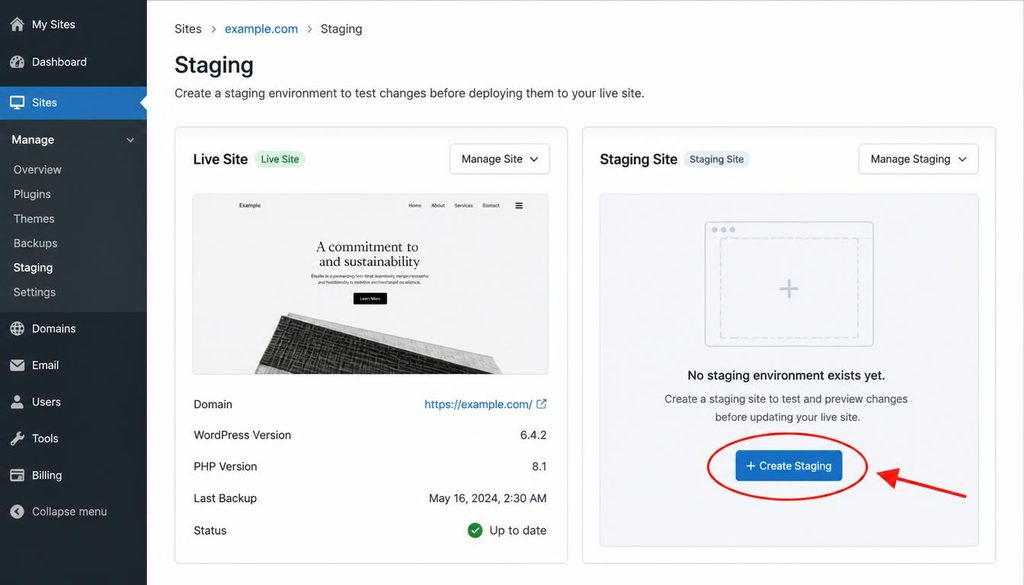
WordPress hosting dashboard showing the staging site option before a safe WordPress update.
How to update WordPress core from the dashboard
For most small sites, the WordPress dashboard is the simplest way to update core. If you want to update WordPress safely, follow the same sequence each time instead of clicking through every available update without checking.
- Sign in as an administrator. Use a secure connection and confirm you have permission to install updates.
- Open Dashboard → Updates. Review the current WordPress version and the available update information.
- Read the release notes. Pay special attention to major releases and compatibility changes.
- Confirm your backup. Do not skip this step because the update looks small.
- Start the core update. Use the dashboard’s update control and keep the browser window open while WordPress completes the process.
- Wait for the completion message. Avoid refreshing repeatedly or opening multiple update requests.
- Follow any database update prompt. If WordPress asks to update the database, read the message and continue when appropriate.
- Test the site. Open the homepage, dashboard, editor, and key conversion paths in a new tab.
WordPress often handles routine maintenance and minor security releases automatically, depending on configuration. You can still check the current version and confirm that the website works. When you update WordPress safely, do not treat the completion message as your only test. For more control over larger releases, use a staging site and review your hosting provider’s guidance.
For official instructions, see the WordPress documentation on updating WordPress.
How to update WordPress plugins safely
Plugins can change how forms, layouts, payments, SEO metadata, caching, and security work. Update them carefully, especially when a plugin supports a business-critical feature.
Update one plugin at a time when troubleshooting matters
- Open Dashboard → Updates or Plugins → Installed Plugins.
- Read the update details for critical plugins.
- Update one important plugin, or a small group of clearly unrelated plugins.
- Wait for WordPress to report completion.
- Test the feature that plugin controls.
- Continue with the next plugin after the site passes the check.
Updating several plugins at once can be efficient on a simple site, but it makes troubleshooting harder if something fails. To update WordPress safely on a complex website, use smaller batches and record which components you updated.
Pay extra attention to these plugin types
- Page builders: Check the homepage, templates, headers, footers, and pages built with the editor.
- SEO plugins: Confirm titles, meta descriptions, canonical URLs, sitemaps, and schema output still appear as expected.
- Commerce plugins: Test product pages, cart, checkout, payment status, order emails, and customer accounts using the site’s recommended test procedure.
- Security plugins: Confirm login, firewall, and scheduled scans work without blocking legitimate visitors.
- Backup and cache plugins: Confirm backup jobs still run and clear the cache after an update when necessary.
- Forms and email plugins: Submit a test form and confirm the message arrives.
If a plugin update causes a visible error, avoid installing unrelated updates until you identify the cause. See the steps in our guide to fixing WordPress login problems if the update affects dashboard access.
How to update a WordPress theme safely
A theme update may change templates, styles, menus, widgets, or custom features. Before updating, note whether you use a parent theme, a child theme, or a site builder that controls most of the design.
- Back up the site and record any custom theme changes.
- Review the theme’s release notes and supported WordPress version.
- If you edited the parent theme’s files directly, move those customizations into a child theme or another maintainable solution before updating.
- Open Appearance → Themes and update the theme when ready.
- Review the homepage, navigation, mobile layout, blog posts, archive pages, and any custom templates.
- Clear relevant caches and check again if the design appears unchanged.
A theme update usually does not delete content stored in posts and pages, but it can change how that content appears. A child theme can preserve custom code, yet it does not make every customization automatically compatible with a new parent theme. Review the code and test the result before you update WordPress safely on the live site.
Should you update WordPress core, plugins, or themes first?
There is no universal order for every website. Compatibility notes should guide the order, particularly when a plugin requires a newer core version or a theme release depends on a specific plugin. For a typical site, a cautious workflow looks like this:
- Back up files and database.
- Review WordPress core, plugin, theme, and PHP requirements.
- Test the planned versions on staging if the change is significant.
- Apply the updates in the order recommended by the developers.
- Run site checks after each meaningful change.
- Record the versions and results.
Do not assume you must update everything in one session. If a major plugin release requires a migration, follow its documented steps. If the plugin developer says to update WordPress first, follow that instruction. The goal is to update WordPress safely by using a deliberate, compatible sequence, not by following a rigid order that ignores release notes.
How to update WordPress with a hosting control panel or WP-CLI
Most beginners should use the dashboard or a reputable hosting control panel. Advanced users may use WP-CLI, the command-line tool for managing WordPress, when they have shell access and understand how to recover the site.
Before using WP-CLI, confirm the working directory points to the correct WordPress installation and take a backup. Common commands include:
wp core check-update
wp core update
wp plugin list
wp plugin update --all
wp theme list
wp theme update --all
These commands can update software across the installation, so do not run them blindly on a production site. Review available updates first, check the official WP-CLI command documentation, and use staging for high-risk changes. For a plugin or theme update, consider updating one named component at a time rather than using --all.
Official references: WP-CLI core update, WP-CLI plugin update, and WP-CLI theme update.
When and how to update PHP
PHP is the server-side language WordPress uses. Your hosting provider controls the PHP version through its hosting dashboard or support team. Do not treat a PHP change as a routine plugin update: older themes and plugins may use code that no longer works with the selected version.
- Check the current PHP version in your hosting panel or a trusted site-health screen.
- Review WordPress, theme, and plugin requirements.
- Back up the site and test the new PHP version on staging.
- Choose a supported PHP version recommended by WordPress and your host.
- Switch versions using your hosting provider’s documented controls.
- Test the dashboard, forms, checkout, scheduled tasks, and important pages.
- If errors appear, check PHP error logs and contact the host or plugin developer.
Do not choose a version solely because it is the newest number in a dropdown. Confirm that your stack supports it. Consult the official WordPress requirements and your host’s compatibility notes.
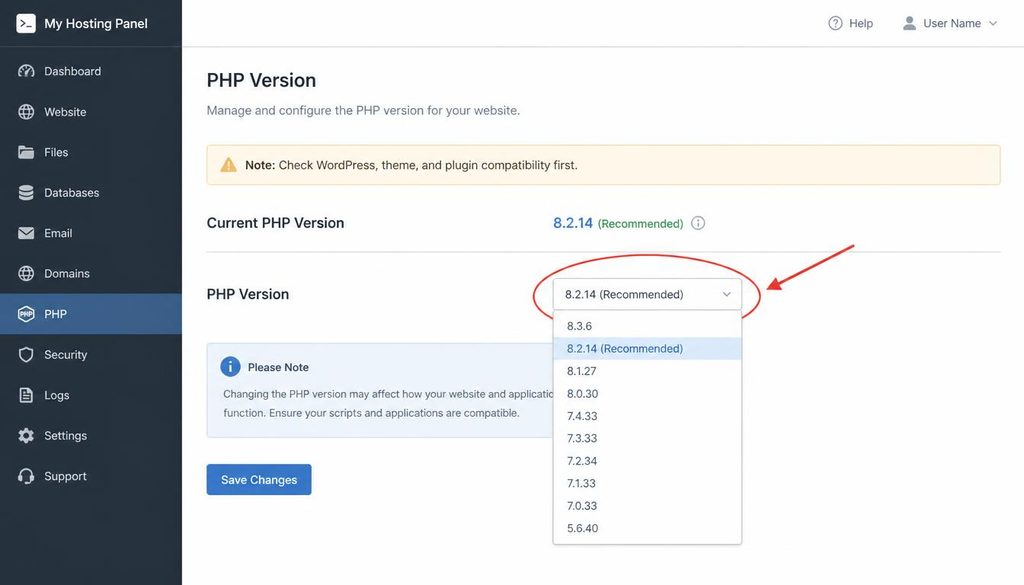
Hosting control panel showing the PHP version selector before a WordPress compatibility check.
How to test your website after updates
Do not stop when the dashboard says “updated.” A successful file update does not prove that every feature still works. Use a consistent test routine.
Quick post-update test checklist
- Open the homepage in a private or incognito browser window.
- Visit a few posts, pages, category archives, and search results.
- Sign in and out of the WordPress dashboard.
- Open the editor and save a harmless test change only if appropriate.
- Check navigation, footer links, responsive layouts, and important templates.
- Submit contact forms and verify email delivery.
- For online stores, follow the site’s safe checkout test process.
- Check that the sitemap and key SEO metadata still load.
- Review browser console errors and hosting logs if you see unusual behavior.
- Clear page, object, or CDN caches if the site shows an old version.
Use a mobile device or browser responsive mode as well as a desktop. These checks are part of how to update WordPress safely, because a page can work on desktop while failing on mobile. If you use a caching plugin, purge the cache after the update only when needed and then test again. Avoid clearing unrelated server data without understanding what it does.
What to do if a WordPress update fails
If an update stalls or the site breaks, slow down. Repeatedly clicking Update can make it harder to see what happened. First identify whether the problem affects the dashboard, front end, one feature, or the entire server.
1. Wait and check the update status
Give a normal update time to finish. If the dashboard remains stuck, open a second tab to check whether the site still responds. Avoid launching duplicate updates. Some interrupted updates leave a temporary maintenance file, but do not delete files until you have confirmed the cause and know the correct WordPress root directory.
2. Check the error message and logs
Record the exact message and the time it appeared. Check your hosting error logs and the relevant plugin’s log tools. If you enable WordPress debugging, do so carefully and avoid displaying errors publicly on a live site. Disable public debug display after troubleshooting and protect log files because they may contain sensitive paths or data.
3. Isolate a plugin or theme conflict
If the dashboard still works, deactivate the suspected plugin and test again. If the dashboard is inaccessible, use your host’s file manager or another documented recovery method only if you understand the steps. Rename one suspected plugin folder temporarily rather than changing many folders at once, and restore the original name after testing. If the issue began immediately after a theme update, switch to a known-good theme only when you can safely do so.
4. Restore a known-good backup if needed
If the site is seriously broken and you cannot resolve it quickly, restore the backup according to your host’s instructions. Remember that restoring the database may discard orders, comments, or content created after the backup. On an active store or membership site, ask the host how to restore files without overwriting newer transactions.
5. Ask for help with useful details
When contacting hosting support or a developer, provide the time of the update, the component and version involved, the exact error, what you have tested, and whether you have a backup. Never send passwords, secret keys, or a full unredacted configuration file in a public support forum.
Common WordPress update mistakes to avoid
- Updating without a backup: Create and verify a backup first.
- Changing too many things at once: Separate major updates so you can trace failures.
- Ignoring compatibility notes: Review version requirements and developer guidance.
- Updating on a busy site without a plan: Choose a quiet window and know your recovery route.
- Editing parent theme files: Use a child theme or a suitable customization method.
- Assuming automatic updates mean no testing is needed: Check important pages and functions.
- Leaving debug output visible: Keep diagnostic details private on production sites.
- Restoring an old database without checking new data: Protect orders and recent submissions before rollback.
- Forgetting cache layers: Clear the relevant cache and retest when old files or styles remain visible.
How often should you update WordPress?
Check the dashboard regularly and apply security updates promptly after reviewing your backup and recovery options. For routine plugin and theme maintenance, set a recurring time each week or follow a schedule that matches the site’s risk and traffic. Major releases deserve a compatibility review and, where practical, a staging test before production.
Do not leave known security updates unattended for long periods. At the same time, avoid turning maintenance into a blind habit. A clear process, reliable backups, and post-update tests are more valuable than clicking every update notification without review.
A repeatable safe WordPress update checklist
- ☐ Confirm the website currently works.
- ☐ Back up both files and database.
- ☐ Confirm you can access the backup and restore instructions.
- ☐ Review update notes and compatibility requirements.
- ☐ Choose a low-risk maintenance window.
- ☐ Use staging for major or high-impact changes.
- ☐ Update core, plugins, themes, and PHP according to documented requirements.
- ☐ Test the front end, dashboard, forms, and business-critical workflows.
- ☐ Review errors, logs, and cache behavior.
- ☐ Record versions, results, and any follow-up work.
Following this checklist makes it easier to update WordPress safely and repeat the process without relying on memory. Use the same routine each time you update WordPress safely, then record anything that needs follow-up. For related setup guidance, read our tutorials on installing WordPress step by step, the WordPress dashboard, and WordPress security.
Frequently asked questions
Will updating WordPress delete my content?
Routine core, plugin, and theme updates should not delete posts or pages, but errors or incompatible changes can affect the site. Back up the database and files first, and test important pages after each update.
Should I update WordPress automatically or manually?
Automatic updates can help keep routine maintenance and security releases current. Manual review or staging tests are useful for major releases, business-critical plugins, and sites with custom code. Choose a method that includes backups and post-update checks.
Can I update all plugins at once?
You can, especially on a simple site with reliable backups, but updating one at a time or in small groups makes it easier to find the cause of a conflict. Test important features between batches.
What should I do before a major WordPress update?
Create a complete backup, read the release notes, check plugin and theme compatibility, test the update on staging when possible, and schedule enough time to verify the live site.
Why does my website look the same after an update?
Your browser, WordPress cache plugin, hosting cache, or CDN may still serve older files. Clear the relevant cache and reload the page. If the issue remains, check whether the update completed and whether the changed component controls that part of the design.
Is it safe to update WordPress on a live website?
Routine updates can be performed on a live site when you have a verified backup, a recovery plan, and time to test. Staging is the safer choice for major releases, custom themes, complex plugins, and websites that process payments or user data.
Should I update PHP at the same time as WordPress?
Not automatically. Check the requirements for WordPress, your theme, and every essential plugin. Test a PHP change separately on staging when possible, then apply it when the site supports the chosen version.
Official resources
- WordPress: Updating WordPress
- WordPress server requirements
- WP-CLI command reference
- WordPress backup guidance