WordPress login problems can lock you out of your own site, reject a password you know is correct, send you in a login loop, or show a blank page after you sign in. Start with the exact error message and the simplest checks before changing files or database records. This guide walks you through safe fixes, from a forgotten password to plugin conflicts and server errors.
Most WordPress login problems come from a small group of causes: an incorrect username or password, a blocked reset email, browser cookies, a security or cache plugin, a wrong site URL, or a server-side error. Work through the steps in order. After each change, test the login again so you know what fixed it.
Before fixing WordPress login problems: protect your site
First, open a private or incognito browser window and visit https://yourdomain.com/wp-login.php, replacing yourdomain.com with your real domain. If your site uses a different domain or a custom login URL, use the address you normally use.
- Check the address carefully. Look for spelling mistakes, an old domain, or an unexpected HTTP/HTTPS change.
- Save a backup before file or database changes. Use your host’s backup tool or a trusted backup plugin if you still have access.
- Keep one change at a time. Avoid changing the password, site URL, plugins, and database in one go. That makes the cause harder to find.
- Do not share your password. Your hosting provider should not need your WordPress password to inspect server logs.
If you can still reach another administrator account, keep that session open while you troubleshoot. It may be your easiest way back in.
1. Fix WordPress login problems caused by a wrong username or password
The most common WordPress login problems start with credentials. WordPress usernames are not always the same as email addresses, and a password manager may still hold an old password after a change.
Check the username and password
- Open
/wp-login.phpon your site. - Enter the username or email address tied to your account.
- Type the password again instead of relying on autofill.
- Check Caps Lock and your keyboard language.
- Submit the form once and read the message WordPress displays.
If the form says the password is incorrect, avoid repeated guesses. Some security tools limit login attempts and may temporarily block your IP address.
Reset a forgotten WordPress password by email
- Open your WordPress login page.
- Select Lost your password?
- Enter the username or email address on the account.
- Check your inbox for the password reset message.
- Open the reset link and set a new, unique password.
- Return to the login page and sign in with the new password.
Choose a long password that you do not use on another site. A password manager can create and store one for you. For a full walkthrough, see how to change or reset your WordPress password.
If WordPress says it sent an email but nothing arrives, check the spam folder and search for your site’s domain. Also confirm that you entered the correct account email. If the message still does not arrive, continue to the email troubleshooting section below.
2. Fix WordPress password reset emails that never arrive
WordPress often relies on your web host’s mail setup to send password reset messages. If the server cannot send email or the recipient’s provider rejects it, you may not receive the reset link.
- Check spam, junk, promotions, and quarantine folders.
- Search your mailbox for the site name or the phrase “password reset”.
- Confirm that the account email is correct, if another administrator can view it.
- Ask your host whether outgoing PHP mail is working and whether they see delivery errors.
- If needed, set up a reputable SMTP plugin with a mail service you control, then test delivery.
Do not install several mail plugins at once. Configure one method, send a test message, and check the provider’s delivery log. If you cannot access WordPress to configure SMTP, your host may be able to help with mail logs or a temporary recovery path.
3. Clear cookies and cache when WordPress keeps sending you back to login
A login loop happens when WordPress appears to accept your details but returns you to the login form. Stale cookies, a cache layer, or a mismatch between the site’s URL settings can cause this type of WordPress login problem.
Test in a clean browser session
- Open a private or incognito window.
- Visit the login page and try once.
- If it works there, clear cookies and cached site data for your domain in your usual browser.
- Close and reopen the browser, then try again.
Clearing all browser data is rarely necessary. Remove the data for your website first so you do not sign out of unrelated services.
Clear WordPress and hosting cache
If you use a caching plugin, a host-level cache, a CDN, or a reverse proxy, clear the relevant cache after confirming that the login page is not being cached. A well-configured cache should exclude login and administration pages. Do not cache /wp-login.php or private dashboard responses for public visitors.
If the issue began after a cache setting changed, undo that one change and test again. You can also review the site’s recommended WordPress settings to check the basic setup.
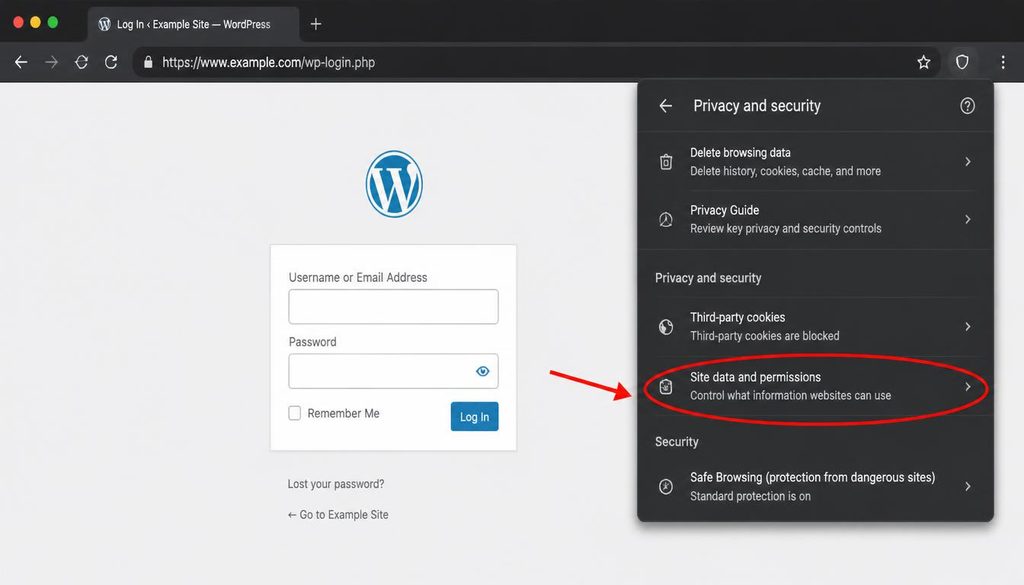
WordPress login troubleshooting showing the browser cookie settings to check when a login loop occurs.
4. Check whether the WordPress site URL is causing login trouble
WordPress stores a WordPress Address (URL) and a Site Address (URL). If these values point to the wrong domain, use different protocols, or disagree with your actual site setup, the login page may redirect to the wrong place or lose its authentication cookies.
If you can access the dashboard
- Go to Settings → General.
- Review WordPress Address (URL) and Site Address (URL).
- Check that both use the intended domain and the correct HTTPS setting.
- Do not change either field casually on a live site. A wrong value can lock you out.
If you recently moved your site, changed domains, or enabled HTTPS, review the step-by-step guide to changing the WordPress site URL safely before editing these settings.
If the dashboard is inaccessible
Ask your host to help you confirm the stored URL values or use a documented recovery method for your hosting setup. You can also check whether WP_HOME or WP_SITEURL constants in wp-config.php override the dashboard settings. Do not add new constants unless you understand which values your site needs.
After correcting a URL, test both the front end and /wp-login.php. Check for unexpected redirects between http and https, between www and non-www, or between an old and new domain.
5. Troubleshoot WordPress login problems after installing a plugin
If login stopped working right after you installed or updated a plugin, that plugin is a strong suspect. Security tools, cache plugins, redirect plugins, and custom login plugins can affect authentication or hide the normal login page.
Disable plugins safely with your hosting file manager
Use this method only if you cannot access the dashboard. Sign in to your hosting control panel and open File Manager or connect with SFTP. Before changing anything, make a backup of the site’s files.
- Open the WordPress folder that contains
wp-admin,wp-content, andwp-includes. - Open
wp-content. - Rename the
pluginsfolder to a temporary name such asplugins.disabled. - Try to sign in again.
- If login works, rename the folder back to
plugins. - In the dashboard, deactivate plugins and reactivate them one at a time, testing login after each activation.
Renaming the whole folder disables all standard plugins at once. It may affect forms, layouts, or other site features while you test. Restore the folder name as soon as the test is complete.
If the site uses a custom login plugin or a must-use plugin, check those separately. Must-use plugins live in wp-content/mu-plugins and do not appear in the normal plugin list.
Use recovery mode if WordPress sends an error email
When a plugin or theme causes a fatal PHP error, WordPress may send the site administrator a recovery-mode email. If you receive one, use the recovery link from that message and follow the instructions to pause the faulty component. Treat the link as sensitive and do not forward it to anyone.
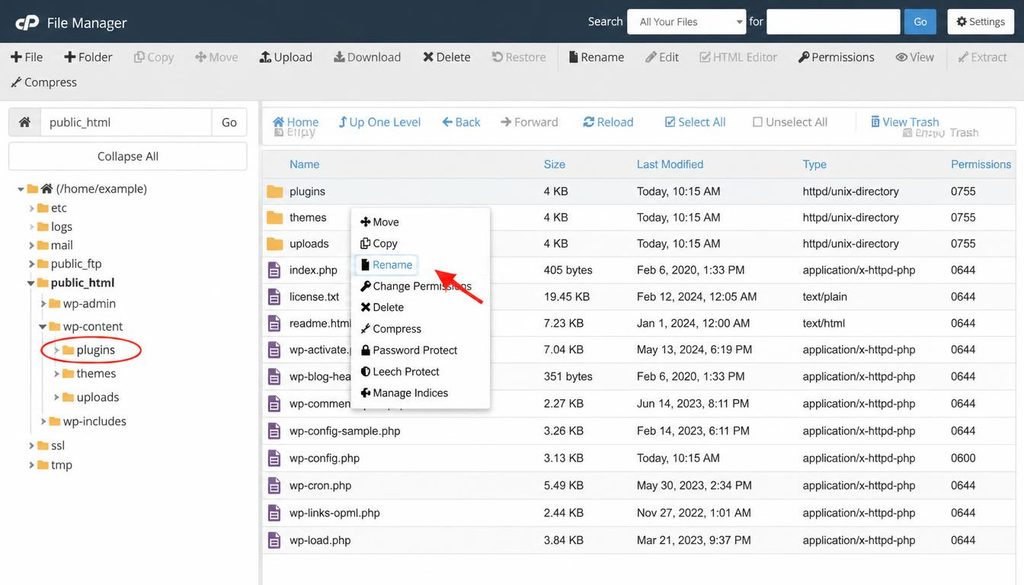
WordPress login problems troubleshooting by temporarily renaming the plugins folder in the hosting file manager.
6. Test the active theme if WordPress login fails after a theme change
A theme rarely controls the standard WordPress login form, but theme code, custom functions, or a theme-related plugin can still trigger a PHP error. This often happens after an update or a change to functions.php.
If you can sign in with another administrator account, switch briefly to a default WordPress theme that is already installed. If you cannot reach the dashboard, ask your host or developer to inspect the active theme and PHP error logs. Do not delete the theme folder; rename it only as part of a planned recovery with a backup and a known fallback theme.
If a recent edit to functions.php caused the issue, restore the previous working version instead of removing random lines. A missing bracket or a typo can stop PHP from loading.
7. Fix a blank page, 403, 404, or 500 error on the login page
Not every WordPress login problem comes from a password. If the login URL shows an error page, identify the error before changing account details.
- 403 Forbidden: A security plugin, firewall, hosting rule, or file permission may block the request. Check security logs and ask your host whether your IP address was blocked.
- 404 Not Found: The login path may be wrong, a custom login URL may be active, or a rewrite/security rule may hide the standard endpoint. Confirm the correct URL with your site administrator.
- 500 Internal Server Error: A PHP fatal error, server configuration issue, or damaged rewrite rule may stop the page from loading. Follow the guide to fix a WordPress 500 Internal Server Error.
- Blank white screen: Check PHP error logs, recent updates, and plugin conflicts. See the guide to fixing the WordPress White Screen of Death.
- Too many redirects: Check HTTPS, domain redirects, site URL values, and cache settings.
Do not change file permissions to broad values such as 777. That can expose your site to risk and usually does not solve the real cause. Ask your hosting provider to inspect the web server and PHP logs around the time the error occurred.
8. Recover access if a security plugin blocks your login
Security plugins can limit repeated login attempts, block suspicious IP addresses, require two-factor authentication, or change the login URL. These features can protect your site, but a rule may also block you by mistake.
- Wait for any temporary lockout to expire before trying again.
- Check whether you enabled a custom login URL and use that exact address.
- Look for a two-factor authentication prompt, backup code request, or authenticator app issue.
- Use the plugin’s documented recovery process or contact the site administrator.
- If you manage the site files, disable the relevant plugin only as a temporary diagnostic step, then restore it and fix the setting that caused the lockout.
Do not try to bypass another person’s security controls. If this is a client or employer website, ask the site owner to grant access or remove the block through the approved process.
After you regain access, review your WordPress security settings. Keep two-factor authentication enabled where possible, store backup codes in a safe place, and make sure at least one trusted administrator can recover the site.
9. Fix WordPress login problems caused by a wrong username or account role
WordPress may reject a login if the account name is wrong, the account no longer exists, or its role has changed. An editor or author account can sign in but may not have permission to open every dashboard screen. That is a permissions issue, not necessarily a failed login.
If another administrator can access the dashboard, ask them to check Users → All Users and confirm that your account exists and has the right role. Avoid sharing one administrator account across a team. Each person should have an individual account so you can review access and remove it safely when needed.
If you need to update the account name, use the guide to changing a WordPress username. For access and menu questions after login, the WordPress dashboard guide explains the main admin areas.
10. Use hosting tools or WP-CLI when dashboard recovery is not possible
Advanced recovery may be necessary when reset email, browser cleanup, and plugin checks do not work. Start with your host’s control panel, backups, error logs, and support team. If you use WP-CLI, ask a developer or follow the official documentation carefully; the wrong command can change the wrong account or site.
What a developer should check
- Confirm that the WordPress installation points to the correct database and site URL.
- Check PHP and web server logs for the exact time of the failed login.
- Review plugin and theme errors without exposing credentials or session cookies.
- Verify that the account exists and has the expected role.
- Check whether a security plugin, web application firewall, CDN, or host rule blocks the request.
WP-CLI includes user-management commands, but only run commands against the correct WordPress installation. The official WP-CLI user command reference explains the available options. If you suspect a compromised account, preserve logs and ask your host for help before making broad database changes.
11. Check WordPress files and server settings only when evidence points there
Do not replace WordPress core files or edit .htaccess just because the login form rejects a password. Those steps are useful only when the error or logs point to a file or server problem.
If your host confirms a rewrite-rule issue, back up the existing .htaccess file before making a change. On many Apache setups, WordPress can rebuild basic permalink rules from Settings → Permalinks, but hosting setups differ. If the dashboard is unavailable, let your host confirm the right rule for your server.
When logs show a PHP fatal error, note the file name, line number, and plugin or theme involved. Fix that specific cause rather than increasing every server limit or turning off security protections without a plan.
12. WordPress login problems checklist
Use this checklist before making a risky change:
- Open the correct login URL in a private browser window.
- Enter the username and password manually.
- Use the password reset link if you forgot the password.
- Check spam and email delivery if the reset message does not arrive.
- Clear cookies for your domain if login loops back to the form.
- Confirm the site URL if you recently changed domains or HTTPS.
- Review recent plugin, theme, cache, and security changes.
- Read the exact 403, 404, 500, or PHP error instead of guessing.
- Back up the site before changing files or database values.
- Ask your host to review logs if the cause remains unclear.
How to prevent WordPress login problems in the future
A little preparation makes recovery much easier. Use a password manager, keep a current backup, update WordPress and plugins carefully, and remove accounts that no longer need access. Test major updates on a staging site when your host provides one.
Keep a record of the correct login URL, the administrator email, the hosting support contact, and the steps for restoring a backup. Store this information securely rather than in a public document. If you use a custom login URL or two-factor authentication, document the recovery process for another trusted administrator.
Finally, do not treat every login failure as a reason to reinstall WordPress. Most WordPress login problems have a smaller cause that you can isolate with a few careful tests.
Frequently asked questions about WordPress login problems
Why can’t I log in to WordPress even with the correct password?
Browser cookies, a login loop, a security block, a wrong site URL, or a plugin conflict may stop login even when the password is correct. Try a private window first, then check the exact error message.
How do I reset my WordPress password without email?
If the reset email fails, check spam and contact your hosting provider or another site administrator. A trusted developer may be able to recover the account using approved hosting tools or WP-CLI. Avoid direct database edits unless you understand the risks and have a backup.
Why does WordPress keep returning me to the login page?
This usually points to cookies, cache, a URL mismatch, or a redirect issue. Test in a private window, clear your site’s cookies, and review the WordPress Address and Site Address settings if you have safe dashboard access.
Why does wp-login.php show a 403 or 404 error?
A firewall, security plugin, custom login URL, server rule, or incorrect address may block the request. Check security logs and confirm the intended login URL before changing files.
Can a plugin lock me out of WordPress?
Yes. A security, cache, redirect, or custom-login plugin can affect access. If the problem began after a plugin change, back up the site and temporarily disable plugins through your host’s file manager to test the cause.
Should I reinstall WordPress to fix login problems?
Usually not. First check credentials, reset email, browser cookies, plugin conflicts, site URLs, and server logs. Reinstalling without a backup can create more work and may not fix a configuration problem.
When should I contact my hosting provider?
Contact your host if the login page returns server errors, you cannot access files safely, email delivery fails, a firewall blocks you, or logs show PHP or web server errors. Give them the error message and approximate time, but never send your password.
Official resources
- WordPress: Reset your password
- WordPress documentation
- WP-CLI user commands
- WordPress troubleshooting FAQ