WordPress 404 errors appear when a browser requests a page or file that the server cannot find at the requested URL. If visitors see “404 Not Found” on posts, pages, category archives, or media files, the cause may be a permalink rule, a changed slug, a missing page, a redirect problem, or server configuration. This guide explains how to fix WordPress 404 errors safely, restore broken links, and reduce the risk of losing search traffic.
Start with simple checks, then move to permalink settings, redirects, server rules, plugins, and hosting configuration. Back up the site before editing files or changing many URLs, and record original settings so you can reverse a change.
What does a WordPress 404 error mean?
An HTTP 404 status means the server could not find a resource at the requested address. WordPress may still be working normally: the page may have moved, its slug may have changed, the URL may contain a typo, or rewrite rules may no longer connect friendly URLs to WordPress.
A 404 response is not the same as a 500 Internal Server Error. A 404 means “not found,” while a 500 indicates an unexpected server problem. That distinction helps you choose the right troubleshooting steps.
Identify which WordPress 404 errors you are seeing
Test the homepage, one affected post, one page, and the WordPress dashboard. If only certain URLs fail, compare their slugs and publication status. If every post and page returns a 404 while the homepage works, start with permalink and rewrite rules.
- One post or page fails: check spelling, slug, publication status, trash, and redirects.
- All posts and pages fail: check permalink settings and server rewrite rules.
- Media files fail: check the file path, upload status, CDN, and permissions.
- The issue began after a migration: verify domain mapping, URL replacement, DNS, and redirects.
- Google shows an old URL: redirect it if relevant replacement content exists, then update internal links and the sitemap.
How to fix WordPress 404 errors: start with safe checks
1. Check the URL and confirm the content exists
Look for misspellings, extra characters, incorrect capitalization on case-sensitive servers, or a copied URL with an unexpected path. In the dashboard, open Posts → All Posts or Pages → All Pages and search for the title. Check whether the item is published, scheduled, private, draft, or in the trash.
If the page exists, open its editor and inspect the permalink or slug. If the page was intentionally removed, do not recreate it solely to eliminate the 404. A 404 is appropriate when no replacement exists and the URL should no longer be available.
2. Test the URL in a private browser window
Open the failing address in a private window or another browser. This helps rule out a stale cached response or browser extension. If your site uses a cache plugin, host cache, or CDN, purge the relevant cache after confirming that the origin page is correct. Clearing cache will not repair a missing page or invalid rewrite rule.
3. Save the WordPress permalink settings again
Saving permalink settings is a common first fix when the homepage works but individual posts and pages return 404. In your WordPress dashboard:
- Go to Settings → Permalinks.
- Note the current permalink structure.
- Leave the desired structure selected.
- Click Save Changes.
- Open several posts and pages in a new tab and test them.
You usually do not need to change the structure and then change it back. Saving the existing setting can refresh WordPress rewrite rules on supported configurations. If the dashboard is unavailable or the problem continues, check server rules and hosting settings next.
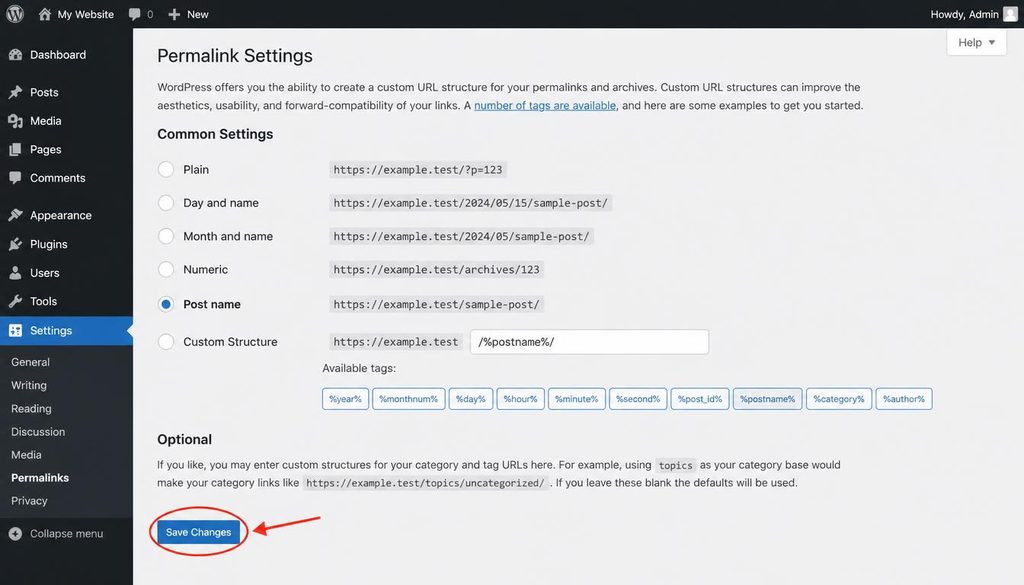
WordPress Settings Permalinks screen showing the Save Changes button used to refresh permalink rules and troubleshoot WordPress 404 errors.
Fix WordPress 404 errors caused by a changed slug
A slug is the readable part of a URL that identifies a post or page. Changing a page slug changes its public address. Old links may continue pointing to the former URL, which can lead to a 404 unless you redirect them.
To inspect a slug, edit the post or page and find its permalink setting. Use a short, descriptive slug that reflects the page topic. Avoid changing established URLs without a clear reason; each change creates another address you may need to redirect and update across the site.
If you already changed a URL, create a permanent 301 redirect from the old address to the closest relevant replacement. Update menus, buttons, contextual links, and any links you control so visitors go directly to the current URL. Do not redirect every missing URL to the homepage: irrelevant redirects confuse visitors and may not help search engines understand the replacement.
Use redirects to repair old or moved URLs
Redirects help when a post moved, a page was renamed, a category structure changed, or a domain migration altered URL paths. A 301 redirect tells browsers and search engines that the move is permanent. Use one when a genuine replacement exists.
- Write down the old URL and intended destination.
- Confirm that the destination loads and matches the old page’s purpose.
- Create a 301 redirect using a trusted redirect plugin, your SEO plugin’s redirect feature if available, or a server-level rule managed by someone familiar with your hosting.
- Test the old URL in a private window and confirm it reaches the right destination without a redirect loop.
- Update internal links to point directly to the destination.
If your SEO plugin does not include redirect management in your installed version, use a reputable redirect tool or ask your host or developer. Keep a record of rules and remove obsolete or conflicting rules carefully.
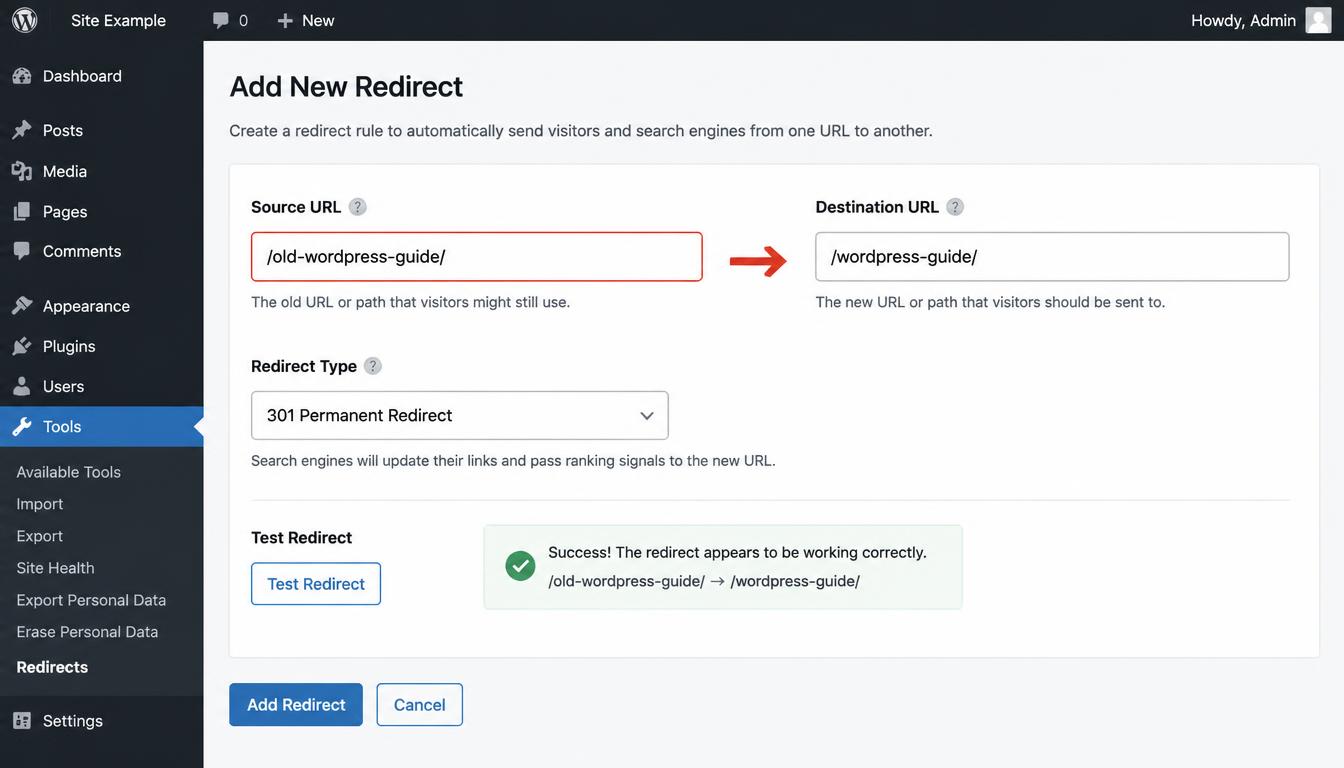
Example 301 redirect settings mapping an old WordPress URL to a relevant replacement to resolve WordPress 404 errors.
Check .htaccess and server rewrite rules
On Apache-based hosting, WordPress often relies on rewrite rules in the .htaccess file to make friendly permalinks work. If the file is missing, damaged, or contains an invalid custom directive, individual URLs may return 404 or the server may show another error. Nginx uses a different configuration approach and does not process a site’s .htaccess file for its main rewrite rules.
Before editing the file, download a copy from the site’s document root. Enable the option to show hidden files in your hosting file manager because filenames beginning with a dot may be hidden. If you do not know which rules came from your host or security tools, ask support to review them instead of replacing the file blindly.
If you use Apache and can test safely, compare the file with the standard WordPress rewrite rules for your installation. Saving Settings → Permalinks may regenerate standard rules if WordPress has permission to write them. Custom redirects, access restrictions, and security rules may not return automatically, so preserve the original file and restore any required rules carefully.
Read the official WordPress .htaccess documentation. If your site runs on Nginx or managed hosting, ask the provider to inspect the server’s rewrite configuration instead.
Check plugins and themes for routing conflicts
Some plugins add custom post types, taxonomies, redirects, membership rules, language-specific URLs, or other routes. A conflict or incomplete update can affect those URLs. If 404 responses began after activating or updating a plugin, note the change and check the plugin’s settings and error logs first.
When wp-admin works, deactivate the most likely plugin temporarily and test the affected URL. If that fixes the issue, reactivate it and review its configuration, compatibility, and update history. Test one plugin at a time and record the result. Avoid disabling all security or commerce features on a live site unless you can control the risk and restore them promptly.
A theme may register custom post types or modify rewrite behavior. If the 404 affects theme-specific content, test with a default theme on a staging copy where possible. Theme switching can change your layout, so avoid doing it casually on a busy production site. Repair or update the component once you identify the cause.
Fix WordPress 404 errors after moving to a new host or domain
After a migration, verify that the domain points to the correct hosting account and that the WordPress Address and Site Address are correct. Check that the database and files belong to the intended installation, the document root is correct, and HTTPS redirects do not send visitors between conflicting domain versions.
- Save permalink settings once the dashboard is accessible.
- Confirm that required files exist in the uploads directory and media URLs use the current domain.
- Review old-domain redirects and make sure they preserve the correct path.
- Check for hard-coded links to the former domain in menus, widgets, page-builder content, and custom code.
- Clear host cache and CDN only after verifying the origin site.
- Ask the host to confirm document root, rewrite configuration, and SSL setup.
When replacing URLs in a WordPress database, use a serialization-aware tool designed for WordPress. Blind search-and-replace can corrupt serialized data stored by plugins and themes. Back up the database before any migration-wide replacement.
Why WordPress images and media files return 404
If a post loads but images, PDFs, or other uploads return 404, inspect the file URL directly. Open the Media Library and check whether the attachment exists. If you migrated the site, verify that the file exists in the matching uploads directory and that its URL uses the correct domain and path.
Common causes include an incomplete migration, renamed upload folders, incorrect file permissions, CDN origin errors, hotlink protection, or a URL that still points to the previous site. Ask your host to check ownership and permissions rather than applying broad permissions to every file. If you use an image optimization or CDN plugin, test its URL rewriting and origin configuration.
Use Google Search Console to find important 404 URLs
Google Search Console can help identify URLs Google has tried to crawl and indexing issues reported for your property. Inspect the affected URL, test the live page where available, and compare the indexed address with the current canonical URL. Reports may take time to update, so do not expect an instant change after fixing a page.
Prioritize URLs that receive search impressions, external links, internal links, or meaningful visitor traffic. If the content still exists, restore the page or correct the URL. If it moved, redirect it to the closest replacement. If it was removed permanently and has no relevant replacement, a 404 or 410 may be appropriate. Update the sitemap and internal links so they reference only URLs you want people and search engines to use.
Google explains how to handle HTTP status codes and network errors. For URL inspection and search visibility checks, use Google Search Console.
Common mistakes when fixing WordPress 404 errors
- Changing the permalink structure without a plan: this can create many new URLs and break existing links.
- Redirecting every 404 to the homepage: send users to a close replacement only when one exists.
- Editing server rules without a backup: you may remove redirects or security restrictions the site needs.
- Assuming every 404 is an SEO emergency: first decide whether the URL should exist and whether a replacement is available.
- Ignoring internal links: update links you control instead of relying on redirects forever.
- Using an unsafe database replacement: serialized plugin data may break if changed with basic text replacement.
- Expecting Google to update instantly: recrawling and report updates take time.
Prevent future WordPress 404 errors
Choose a permalink structure early and avoid changing it unnecessarily. When you rename or remove content, record the old URL, decide whether it should remain available, and add a relevant redirect if the content moved. Keep a simple redirect inventory for migrations and large content updates.
Before a redesign or host migration, export important URLs, back up the site, test redirects on staging, and check the new installation before launch. After deployment, test the homepage, key posts, category pages, forms, and media files. Keep WordPress and extensions updated, and document custom rewrite rules.
Related guides on changing WordPress permalinks, fixing the WordPress 500 Internal Server Error, using the WordPress dashboard, and WordPress security can help with related maintenance tasks.
WordPress 404 errors troubleshooting checklist
- Confirm that the URL is spelled correctly and the content exists.
- Check the post or page status and current slug.
- Save Settings → Permalinks without changing the structure.
- Test in a private browser window and clear relevant caches.
- Inspect redirects and update internal links to the current URL.
- Check .htaccess only on servers that use it, and back it up first.
- Review plugins or theme features that control the affected route.
- For migrated sites, verify domain settings, media paths, and server configuration.
- Inspect Search Console for important affected URLs.
- Test key pages, media, and redirects again after the fix.
Frequently asked questions about WordPress 404 errors
Why do my WordPress posts show 404 but the homepage works?
This often points to permalink or rewrite rules rather than a completely unavailable site. Go to Settings → Permalinks and save the existing structure. If posts still fail, inspect server rewrite rules and plugins that manage URLs.
Will saving permalinks delete my content?
No. Saving permalink settings does not delete posts or pages. It can refresh rewrite rules, but note your existing settings and back up before making broader URL changes.
Should I redirect every WordPress 404 error?
No. Add a redirect when a URL has a relevant replacement, such as a renamed article or moved page. If the content is gone and no useful replacement exists, leaving a 404 or returning 410 may be more appropriate than sending visitors to an unrelated page.
Can a plugin cause WordPress 404 errors?
Yes. Plugins that manage redirects, custom post types, multilingual URLs, memberships, or rewrite rules can affect routing. Test likely components carefully, preferably on staging.
Why do images return 404 when my posts work?
The file may be missing, the URL may point to an old domain, or a CDN or permissions issue may block access. Check the Media Library, direct file URL, and uploads directory.
How long does it take Google to remove a fixed 404 from reports?
Google needs to recrawl the URL and update its reports. Make sure the page returns the intended status, update internal links and sitemaps, and inspect the URL where appropriate.
Are WordPress 404 errors bad for SEO?
A 404 is appropriate for content that no longer exists without a replacement. Problems arise when important content accidentally returns 404, valuable old URLs lack relevant redirects, or internal links point to missing pages.
Official resources
- WordPress .htaccess documentation — rewrite rules and file context.
- Google Search documentation on HTTP errors — how status codes affect crawling.
- Google Search Console — inspect URLs and monitor indexing reports.
- WordPress documentation — official guides for site administration.