Before you publish your first page, take a few minutes to review the WordPress settings that control your website’s identity, URLs, comments, privacy, time zone, and search visibility. A few careful choices now can prevent confusing dates, broken links, spam comments, and avoidable SEO problems later.
This guide explains the best WordPress settings for a new website, where to find each option, what to choose, and which changes deserve extra care. WordPress screens can vary slightly by version, hosting provider, theme, and plugins, but the core settings described here apply to most self-hosted WordPress websites.
Quick checklist: the best WordPress settings for a new website
If your site is brand new, use this checklist as a starting point. Read the details below before changing anything that could affect your URLs or search visibility.
- General: set the site title, tagline, site language, time zone, date format, and time format.
- URLs: confirm the WordPress Address and Site Address use the correct HTTPS domain.
- Reading: choose whether the homepage shows latest posts or a static page; keep search engines from indexing the site once it is ready to launch.
- Discussion: decide whether comments are needed and add sensible moderation controls.
- Media: review default image sizes and upload images at suitable dimensions.
- Permalinks: choose a clean URL structure before publishing many posts.
- Privacy: create and link a privacy policy that matches the data your site collects.
- Users and security: use unique accounts, strong passwords, least-privilege roles, backups, and updates.
- SEO: configure SEOPress, XML sitemaps, canonical URLs, and social previews without duplicating metadata.
- Performance: use reliable hosting, caching where appropriate, and only the plugins you need.
1. Open the WordPress dashboard and make a safe start
Sign in to your WordPress admin area, usually at https://yourdomain.com/wp-admin/. Replace yourdomain.com with your actual domain. If your host uses a custom login path or a staging address, use the login link supplied by your host.
Before changing settings, confirm that you are editing the correct site—especially if your hosting account has staging and production copies. If the site already contains content, make a fresh backup first. A wrong URL or visibility setting can affect the whole website.
If you are still getting familiar with the admin area, read our WordPress dashboard guide for beginners. If WordPress is not installed yet, follow the step-by-step WordPress installation guide first.
2. Configure General Settings first
Go to Settings → General. This screen contains your website’s basic identity and several settings that affect how WordPress displays dates, times, and language.
Set the Site Title
Use the name people should associate with your website or brand. Keep it recognizable and consistent with your logo, header, social profiles, and business name. For example, a site called “Green Garden Notes” should not use a random keyword string as its site title.
The Site Title is not the same as the SEO title of every page. A search engine may choose a title from several signals, and SEOPress lets you set SEO titles for individual posts and pages. Learn more in our guide to changing the WordPress site title.
Write a useful Tagline
The tagline is a short description of what the site offers. It may be displayed by your theme, used in some templates, or left out entirely. Write it for visitors rather than filling it with repeated keywords. If your theme does not display the tagline, that is not necessarily a problem.
Choose the site language
Choose the language used for your website’s WordPress interface and language files. This setting does not automatically translate your published content. If you publish in multiple languages, you may need a multilingual workflow or plugin, with each language’s pages and SEO details configured properly.
Set the time zone, date format, and time format
Choose a city in your time zone when one is available, or use the appropriate UTC offset if needed. A named time zone is generally easier to maintain when daylight-saving rules change. Select a date format that your readers understand and a time format that matches your publishing schedule.
These settings affect scheduled posts and displayed timestamps. If a post publishes at an unexpected time, check the site time zone before changing your computer clock or repeatedly editing the post schedule.
Membership and the default user role
Leave Anyone can register disabled unless your site genuinely needs public account registration. If registration is necessary, set the default role to the lowest level that provides the required access—usually Subscriber for a basic account system. Never give new registrants Administrator access.
Click Save Changes after reviewing the screen. WordPress may sign you out after certain URL or account-related changes, so make sure you know how to access your hosting control panel if you need to troubleshoot.
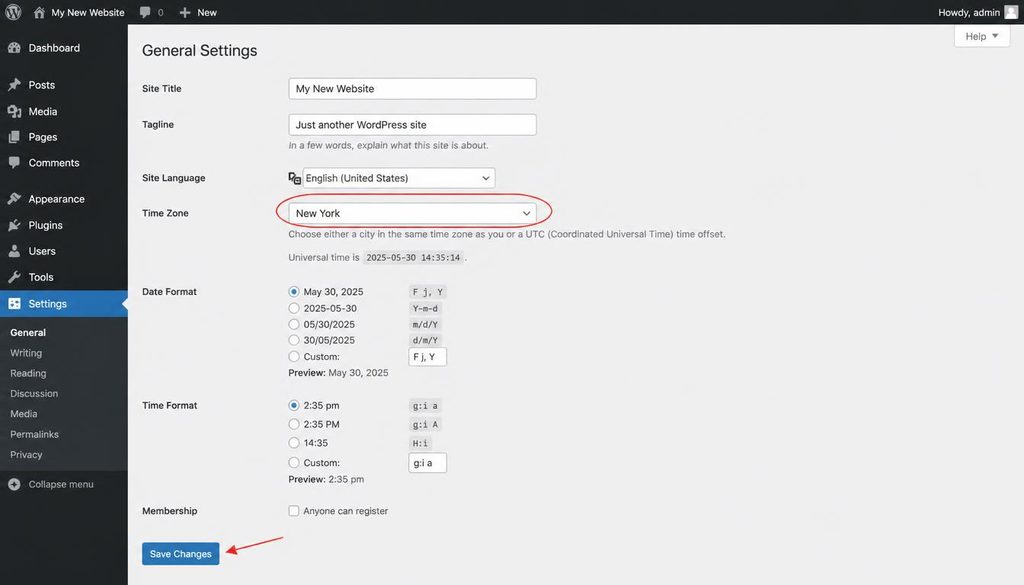
WordPress General Settings showing the site title, tagline, time zone, date format, and Save Changes button.
3. Check WordPress Address and Site Address carefully
On the General Settings screen, you may see WordPress Address (URL) and Site Address (URL). They often match, but they serve different purposes. The WordPress Address points to the location of the WordPress core files. The Site Address is the public URL visitors use to reach the site.
For many standard installations, both values should use the same HTTPS domain, such as https://example.com. Do not add a trailing slash unless your current WordPress setup specifically requires it, and do not change these fields casually on an established website.
If the domain, folder, or HTTPS setup is wrong, you can lose access to the dashboard or trigger redirects. Before changing either field, verify that the domain points to the correct hosting account and that the SSL certificate is active. For a planned domain or protocol change, follow our guide on how to change the WordPress site URL safely.
Important: a setting change does not install an SSL certificate, update DNS records, or automatically fix every old link stored in content. Complete those tasks as part of a planned migration, and test the site afterward.
4. Set your homepage and blog page under Reading
Go to Settings → Reading. The main choice is whether your homepage displays your latest posts or a static page.
Option A: Your latest posts
This is a simple option for a blog where the homepage should show recent articles automatically. It works well when new posts are the main reason visitors come to the site.
Option B: A static homepage
Choose this option if you want a designed homepage with an introduction, important categories, featured tutorials, or service information. First create the page under Pages → Add New, publish or save it as appropriate, and then select it as the homepage. If you want a separate blog index, create another page and select it as the Posts page.
Do not assign the same page as both the homepage and Posts page. WordPress needs separate choices when you want a static homepage and a dedicated article archive. Your theme or page builder may affect the final layout, so preview the page on desktop and mobile.
Blog pages and feed settings
The “Blog pages show at most” value controls how many posts appear on an archive page before pagination. A modest number can keep pages manageable, but the right value depends on your design and performance. The syndication feed setting controls how many recent items are included in feeds.
The “For each post in a feed, include” option usually offers Full text or Excerpt. Excerpts can reduce the amount of content shown in a feed, while full text gives feed readers the complete article. Choose based on your readers and publishing needs.
Search engine visibility: understand the checkbox
WordPress provides a checkbox commonly labelled Discourage search engines from indexing this site. It asks search engines not to index the site, but it is not a secure privacy control and does not guarantee that URLs will stay out of search results.
While building a private staging site, you may choose to discourage indexing and also protect the staging environment with access controls. Before launching a public website, revisit this setting and make sure the checkbox is unchecked if you want search engines to index the site. Then check your SEO plugin’s robots settings and sitemap.
Do not use this checkbox as a way to hide confidential pages. Use authentication or appropriate access controls for private material. If you want to launch a public site, make sure the setting is correct before submitting your sitemap.
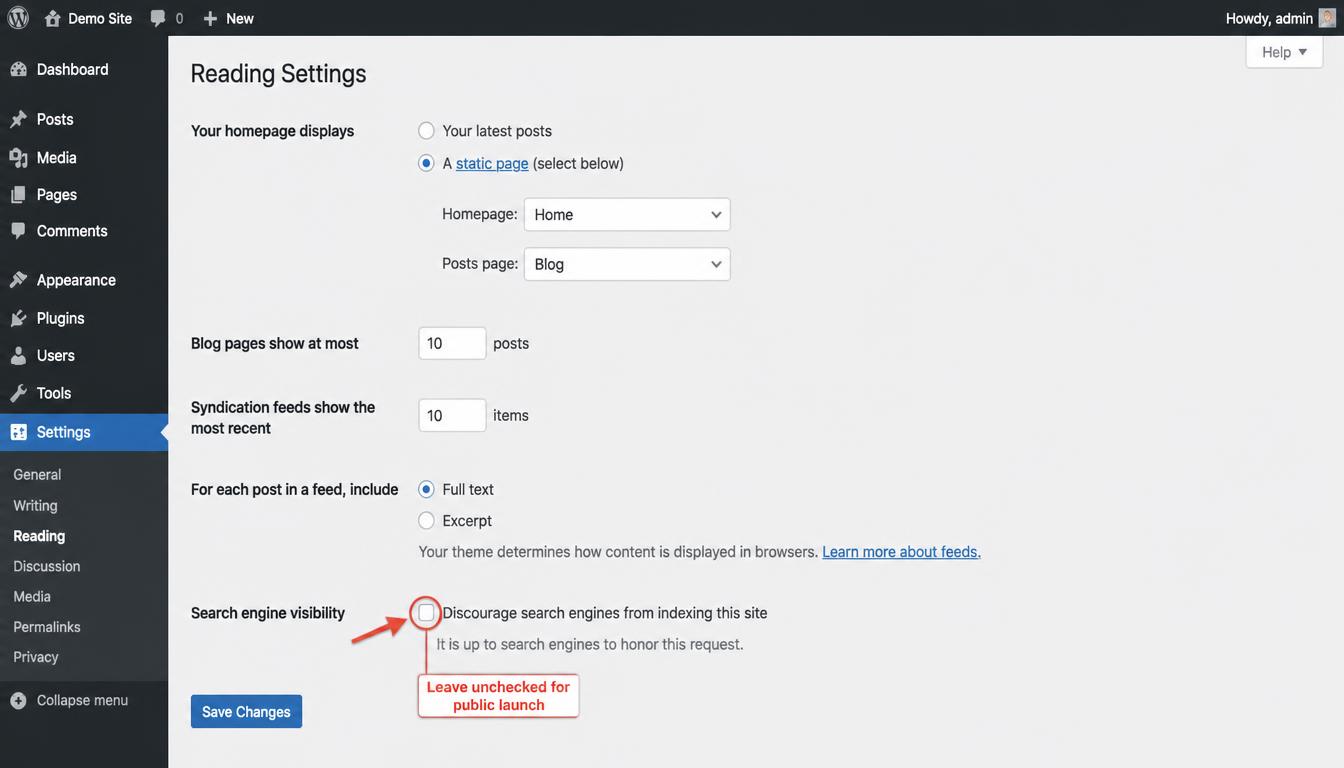
WordPress Reading Settings showing homepage display options and the search engine visibility checkbox before launch.
5. Choose a clean permalink structure before publishing
Go to Settings → Permalinks. Permalinks are the permanent URLs used for posts and many other content types. For most new blogs, Post name is a clear, reader-friendly starting point because the URL can describe the article without adding a date or numeric identifier.
For example, a tutorial titled “Best WordPress Settings for a New Website” could use a URL like https://example.com/best-wordpress-settings/. Keep the slug short, meaningful, and easy to read. Avoid stuffing every variation of a keyword into the URL.
Choose your structure before publishing lots of content. Changing permalink settings later can change URLs and cause 404 errors unless you plan and test redirects. WordPress may need to refresh rewrite rules, and some hosting setups may need extra attention.
For screenshots and detailed examples of each option, see how to change WordPress permalinks safely. After saving the structure, open a sample post and confirm it loads correctly.
6. Configure Discussion settings to control comments and spam
Go to Settings → Discussion. These options control how comments work, what information commenters must provide, and which comments are held for review.
Decide whether posts need comments
Comments can help a tutorial site answer follow-up questions, but they also need moderation. If your website does not need comments, you can disable them where appropriate. Turning off comments in settings may not automatically close comments on every older post, so review existing content if the site has already been used.
Use sensible moderation controls
Consider requiring a comment to be manually approved, especially when the site is new and you do not yet know its spam patterns. You can also hold comments that contain links or match words you add to the moderation list. These controls reduce risk, but they are not a substitute for checking the moderation queue.
Email notifications and avatars
Choose whether administrators should receive email notifications when comments are submitted or held for moderation. Too many notifications can become noise, but no alerts at all can make it easy to miss genuine questions. Test that your website can send email reliably.
Avatar settings control whether avatars appear beside comments. If you enable external avatar services, consider the privacy implications and explain relevant data practices in your privacy policy. The exact settings available may vary with your WordPress version and installed plugins.
7. Review Media settings and use images responsibly
Go to Settings → Media to review the default image sizes WordPress creates for uploads. Themes and plugins can register additional sizes, so this screen may not show every image dimension used by your site.
For a new website, avoid uploading huge images straight from a camera when a smaller, well-compressed image will look just as good. Resize images to fit the intended layout, choose a suitable format, and keep text inside screenshots readable. Modern formats such as WebP can help reduce file size when your workflow and hosting support them.
Use descriptive file names and accurate alt text when an image communicates information. Alt text should explain the image’s purpose—not repeat the same keyword unnaturally. Decorative images can often use empty alt text so screen readers do not announce unnecessary details.
Do not upload tutorial images merely to fill space. A screenshot should clarify a step, show a control the reader needs to find, or explain a concept that is hard to describe in words. Compress files and check mobile display before publishing.
8. Create a privacy policy and review privacy-related settings
WordPress includes tools to create or designate a Privacy Policy page. Open Settings → Privacy if that screen is available in your installation, then select an existing policy page or create one. The generated guidance can help you get started, but it is not a complete legal review.
Your policy should accurately describe the data your website collects and why. Depending on the features you use, this may include contact forms, comments, analytics, advertising, newsletter subscriptions, user accounts, embedded media, or payment processing. Do not list services that you do not use, and do not omit services that do collect visitor data.
Link the policy somewhere visitors can find it, commonly in the footer. If your website serves people in jurisdictions with specific privacy requirements, review the rules that apply to your audience and seek qualified advice when needed.
9. Set up users, roles, and basic security
Go to Users → All Users and review who can sign in. Every person who manages the site should have their own account. Shared administrator logins make it harder to track changes and remove access when someone leaves.
Give people only the access they need
WordPress roles have different capabilities. Administrators can change site-wide settings and manage users; Editors can manage and publish content; Authors can publish their own posts; Contributors can write posts but cannot publish them; Subscribers have limited access. Assign the least powerful role that still lets each person do their work.
Secure administrator accounts
- Use a long, unique password that you do not reuse on another website.
- Enable two-factor authentication where a trusted method is available.
- Keep WordPress core, themes, and plugins updated after checking compatibility and backups.
- Remove unused accounts and plugins instead of leaving them active “just in case.”
- Use a reliable backup process and confirm that you know how to restore a backup.
- Use HTTPS and keep the hosting account itself protected with a strong password and multi-factor authentication.
For more detail, read our guide to WordPress security basics, plus the tutorials on changing your WordPress password and updating the WordPress admin email.
10. Configure SEOPress and your essential SEO settings
WordPress settings help search engines access the site, but they do not guarantee rankings. Use SEOPress to manage page titles, meta descriptions, canonical URLs, social previews, XML sitemaps, and relevant structured data. Avoid adding multiple SEO plugins that generate overlapping titles, sitemaps, or schema.
Check indexability before launch
Once the site is ready for visitors, make sure WordPress is not discouraging indexing and that the pages you want found are not marked noindex by SEOPress or another plugin. A sitemap helps search engines discover URLs, but it does not force them to index every URL.
Write useful SEO titles and descriptions
Give important pages a unique title that clearly describes the page. Write a meta description that accurately summarizes what readers will learn and why the page is useful. Include the main topic naturally when it fits; do not repeat keywords simply to satisfy a plugin score.
Review canonical URLs and social previews
Canonical URLs help communicate which URL should be treated as the preferred version when similar or duplicate URLs exist. Most ordinary pages should use a self-referencing canonical unless there is a specific reason to consolidate them elsewhere. Confirm that your social title, description, and preview image make sense when a page is shared.
Use structured data honestly
Use the schema type that matches the page and the content visitors can actually see. Article markup can describe an article, and breadcrumbs can describe a real breadcrumb trail. Do not add fake ratings, reviews, business details, or FAQ content just to chase a rich result. Search engines decide whether eligible markup is shown.
For a wider SEO workflow, visit our WordPress SEO guides. Official guidance is available in Google’s SEO Starter Guide and WordPress documentation.
11. Set up a sitemap and connect Google Search Console
After you decide which pages should be public, open the sitemap feature in your SEO plugin and confirm it is enabled. Visit the sitemap URL shown by SEOPress rather than assuming a particular address, because plugin settings and site configurations can differ.
Next, verify your website in Google Search Console and submit the sitemap URL. Search Console can help you monitor indexing, inspect a URL, and identify some technical problems. It does not guarantee that Google will index or rank a page.
Only include URLs you want search engines to discover. Avoid intentionally placing private, duplicate, redirected, or noindex URLs in your sitemap. Keep your internal links consistent with the canonical URL you want search engines to use.
12. Improve speed without installing too many plugins
There is no single performance setting that makes every WordPress site fast. Speed depends on hosting, theme, plugins, images, fonts, scripts, caching, and the way each page is built.
Start with a dependable host, a lightweight theme, compressed images, and only the plugins you need. If you add a caching or optimization plugin, check whether your host already provides the same feature. Overlapping caching systems can cause stale pages, broken layouts, or confusing troubleshooting.
Test important pages on mobile and desktop. Pay attention to layout shifts, slow-loading hero images, large page-builder assets, and third-party scripts. Our WordPress speed optimization guides explain additional ways to improve performance.
13. Review themes and plugins before you publish
Go to Appearance → Themes and confirm that the intended theme is active. Remove unused themes you do not need, while keeping any theme files required for your active theme setup. If you use a child theme, be sure you understand which theme is active and where customizations are stored.
Under Plugins → Installed Plugins, review each plugin’s purpose. Keep the tools that solve a real problem, remove unused plugins, and avoid installing multiple plugins that perform the same job. Check update history, support information, compatibility, and whether the plugin is maintained before depending on it.
Before major updates, make a backup and test critical workflows. On a business site, consider testing updates on a staging copy first. Learn how plugins work in our WordPress plugins guide.
14. Check the default content, comments, and navigation
Before launch, remove or replace sample content such as the default “Hello world!” post, sample page, and any placeholder text. Check that your site does not show empty menus, broken buttons, or links that still point to a staging domain.
Create the key pages your audience needs—often an About page, Contact page, Privacy Policy, and any relevant disclosures. Add useful navigation and a footer that works on mobile. Do not publish thin pages just to make the site appear larger; each page should have a clear purpose.
15. Settings to avoid changing without a clear reason
Most settings are reversible, but some changes can disrupt URLs or access. Be careful with these areas:
- WordPress Address and Site Address: changing these incorrectly can lock you out or create redirect loops.
- Permalink structure: changing it later may break existing links unless redirects are handled.
- Search visibility: leaving a launch site set to discourage indexing can delay discovery.
- User roles: giving broad privileges to new users creates unnecessary risk.
- Plugin and theme files: editing code directly can be overwritten by updates or break the site.
- Database values: direct edits can damage serialized or related data if done incorrectly.
When a change affects URLs, access, or site-wide behavior, back up first, change one thing at a time, and test the result. If you lose dashboard access after a URL change, use your host’s documented recovery method rather than guessing at database values.
16. New WordPress website launch checklist
Use this final checklist before you share the site publicly. You do not need every advanced feature on day one, but you should understand the settings that affect access, content, and search visibility.
- ☐ Site title, tagline, language, time zone, and date format are correct.
- ☐ WordPress Address and Site Address use the intended domain and HTTPS setup.
- ☐ Homepage and blog page are assigned correctly.
- ☐ Search engine visibility is set appropriately for a public launch.
- ☐ Permalink structure is selected and sample URLs work.
- ☐ Commenting and moderation rules match the website’s needs.
- ☐ Privacy Policy is accurate and easy to find.
- ☐ User accounts have appropriate roles and strong authentication.
- ☐ Backups are configured and the recovery process is understood.
- ☐ Unused themes, plugins, sample content, and placeholder links are removed.
- ☐ SEOPress titles, descriptions, canonicals, robots settings, and sitemap are reviewed.
- ☐ Important pages work on mobile, forms work, and no staging URLs remain.
- ☐ Google Search Console is verified and the sitemap is submitted if appropriate.
Frequently asked questions
What are the most important WordPress settings for beginners?
Start with General Settings, your site URLs, Reading settings, Permalinks, Discussion, Privacy, user roles, and SEO visibility. These affect how your site is identified, how visitors find content, and whether search engines can access public pages.
Should I change WordPress settings before publishing content?
Yes, review the core settings before publishing many pages. In particular, choose your permalink structure early and confirm the homepage, time zone, site URL, and search visibility. You can adjust other settings later as your needs become clearer.
Should I use the Post name permalink option?
For most new blogs and tutorial sites, Post name is a clean, readable default. A different structure may make sense for specific publishing needs, but choose deliberately and avoid changing established URLs without a redirect plan.
Should I discourage search engines while building my website?
You may use the setting on a development site, but it is only a request to search engines—not a privacy barrier. Protect private staging sites with access controls, then uncheck the option when you want the public site indexed.
Do I need an SEO plugin on a new WordPress website?
An SEO plugin is not strictly required for a site to appear in search, but it can make titles, meta descriptions, canonicals, sitemaps, social metadata, and schema easier to manage. Configure one plugin carefully instead of stacking several tools with overlapping features.
How many plugins should a new WordPress site have?
There is no ideal number. Keep plugins that are trustworthy, maintained, and useful for a specific need. A small set of well-chosen plugins is usually easier to update and troubleshoot than a large collection of overlapping tools.
Can WordPress settings improve Google rankings quickly?
Correct settings help search engines access and understand your website, but they do not guarantee quick rankings. Useful content, strong internal linking, good page experience, crawlability, and competition all matter. Use SEO settings to remove avoidable problems, not as a promise of instant results.
Official documentation and further reading
For current details, refer to the official WordPress documentation, including the documentation for General Settings, Reading Settings, and Permalink Settings. For search visibility and site indexing, consult Google’s SEO Starter Guide.