The WordPress dashboard is the control room for your website. It is where you write posts, build pages, change your site’s appearance, install plugins, manage comments, and check important settings. Once you know what each menu does, WordPress becomes much easier to manage, even if this is your first website.
This guide explains the WordPress dashboard for beginners, including the first screen you see after logging in, the left-hand admin menu, the editor, settings, user roles, safe maintenance habits, and common problems. Menu labels can vary slightly by WordPress version, theme, and installed plugins.
What is the WordPress dashboard?
The WordPress dashboard is the administration area used to run a WordPress website. Visitors usually see the public-facing website, while an authorized user signs in to the admin area to make changes.
After logging in, WordPress normally opens the Dashboard screen. The admin area also includes sections for Posts, Media, Pages, Comments, Appearance, Plugins, Users, Tools, and Settings. You may see extra items if your hosting company or plugins add their own menus.
If you are still learning the platform, start with this beginner’s guide to what WordPress is. It explains the wider system behind the dashboard.
How to log in to your WordPress dashboard
For many standard WordPress installations, the login address is your domain followed by /wp-admin/, such as https://example.com/wp-admin/. WordPress may redirect you to a login screen if you are not already signed in. Some sites use a custom login URL or a security plugin, so the address may be different.
Follow these steps
- Open your site’s usual login address in a browser.
- Enter the username or email address connected to your WordPress account.
- Type your password carefully. Check Caps Lock if the login fails.
- Select Log In.
- If two-factor authentication is enabled, complete the additional verification step.
Use a private device when possible, keep your password private, and sign out on a shared computer. If you cannot log in, use the password reset link or follow a trusted recovery process. Do not repeatedly guess passwords or share login details with someone who offers unsolicited help.
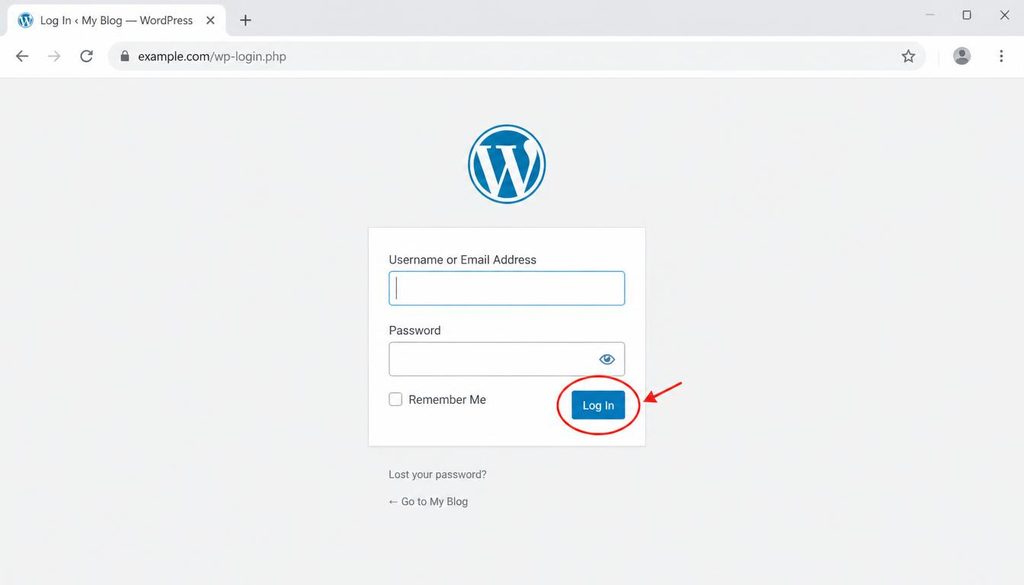
WordPress login screen with the username field, password field, and Log In button highlighted.
Understand the main parts of the dashboard
The admin screen is built from a few areas. Learning these makes it easier to find the right tool instead of clicking through every menu.
1. The admin toolbar
The toolbar runs across the top of many admin screens. Depending on your setup, it may show the WordPress logo, your site name, update notices, comment counts, a shortcut to create new content, and your account menu.
- Site name: open the public website in a new view or preview it.
- New: start a post, page, or another content type supported by your site.
- Updates: see whether WordPress, themes, or plugins have updates waiting.
- Your profile: edit personal account details or log out.
Not every toolbar item appears for every user. Your role, plugins, and screen determine which shortcuts are available.
2. The left-hand admin menu
The left sidebar is the main navigation for the WordPress dashboard. On a narrow screen, it may collapse into an icon menu. Hovering over or selecting a menu item can reveal its submenu.
WordPress dashboard menu explained
Dashboard: Home and Updates
Dashboard → Home usually displays summary panels, such as site health, activity, quick draft, or WordPress news. The exact panels depend on your WordPress version and plugins. These cards are shortcuts, not a complete report on your site’s security or performance.
Dashboard → Updates is where you can review available WordPress core, plugin, and theme updates. Before a major update, make sure you have a recent backup and check that your important plugins and theme support the version you plan to use.
Posts: publish articles and blog updates
Use Posts for time-based content such as tutorials, news, announcements, and blog articles. From Posts → All Posts, you can search, edit, preview, trash, or filter posts by status and date. Choose Posts → Add New Post to start a new article.
Posts can use categories and tags to help organize related articles. Categories usually describe broad subject areas, while tags describe narrower topics. Use them only when they help readers navigate your site. A post can be saved as a draft before it is ready for visitors.
For a practical walkthrough of the platform behind these menus, read how WordPress works behind the scenes.
Media: manage images, audio, and documents
The Media Library stores uploaded images, PDFs, and other supported files. Open Media → Library to search files, review details, and edit image information. Select Media → Add New Media File or use the upload button to add a file.
Give images descriptive file names before uploading when practical. Add meaningful alternative text when an image conveys information, and compress images to a sensible size. Alt text should describe the image for people using screen readers, not repeat a keyword list. Decorative images may need empty alt text depending on how they are added to the page.
Pages: create the main sections of your site
Use Pages for relatively stable information such as About, Contact, Privacy Policy, Services, or a landing page. Go to Pages → All Pages to manage existing pages or Pages → Add New Page to create one.
Pages can have parent and child relationships, depending on your site structure. For example, a parent page called Services might contain individual service pages. Your theme or page builder may change how pages are laid out, but the basic page-management options remain in the WordPress admin.
Comments: moderate reader discussions
If comments are enabled, the Comments menu lets you approve, reply to, mark as spam, or trash comments. Review unfamiliar links and promotional messages before approving them. You can also adjust comment settings under Settings → Discussion.
Appearance: control the site’s design
The Appearance menu manages parts of the site’s design. The options shown depend on your active theme. You may find themes, customization controls, menus, widgets, or the Site Editor. Some newer block themes use the Site Editor, while classic themes often provide a Customizer and separate menu or widget screens.
To change the overall design, start by reviewing your active theme and its settings. Avoid editing theme code directly on a live site unless you understand the change and have a rollback plan. Learn more in our planned WordPress themes tutorials.
Plugins: add site features
Plugins extend WordPress with features such as forms, SEO controls, backups, caching, security checks, and online stores. Open Plugins → Installed Plugins to review what is active, deactivate a plugin, or check for updates. If your account has permission, Plugins → Add New Plugin lets you search the plugin directory or install an uploaded ZIP file.
Install plugins only from sources you trust. Check when a plugin was updated, whether it supports your WordPress version, and whether it does what you need. Avoid installing several plugins that perform the same job. See our WordPress plugin guides for help choosing and managing add-ons.
Users: manage accounts and permissions
The Users menu lists accounts and, for authorized users, allows new accounts to be added. Each account has a role that limits what the person can do. Give people the lowest role that lets them complete their work.
- Administrator: can manage most site settings and users.
- Editor: can manage and publish content, including content created by other users.
- Author: can write and publish their own posts.
- Contributor: can write posts but normally cannot publish them.
- Subscriber: has limited access, often for profile management or member features.
Roles can be changed by plugins, and custom roles may exist. Do not make every writer an administrator. If an account no longer needs access, remove or change its role using a process that preserves any content you still need.
Tools: import, export, and site utilities
Tools contains utilities that may include importers, export tools, and personal data tools. The exact list varies. The export function can create a file containing selected WordPress content, but it is not a full website backup because it may not include all files, settings, and database data needed to restore the entire site.
Settings: set the basic site behavior
The Settings menu contains site-wide options. Spend a few minutes reviewing these after installation, since incorrect settings can cause confusion later.
- General: site title, tagline, site language, timezone, date format, and other basic values.
- Writing: default writing options and some publishing-related settings.
- Reading: whether the homepage shows recent posts or a static page, plus feed and search-engine visibility options.
- Discussion: comment rules and moderation preferences.
- Media: default image size settings.
- Permalinks: the format WordPress uses for many post and page URLs.
- Privacy: tools to create or select a privacy policy page.
For example, to update your site’s title, open Settings → General, edit the Site Title field, and select Save Changes. Use a title that accurately describes your site. Do not change the WordPress Address or Site Address fields casually, because a wrong URL can make the admin area difficult to reach.
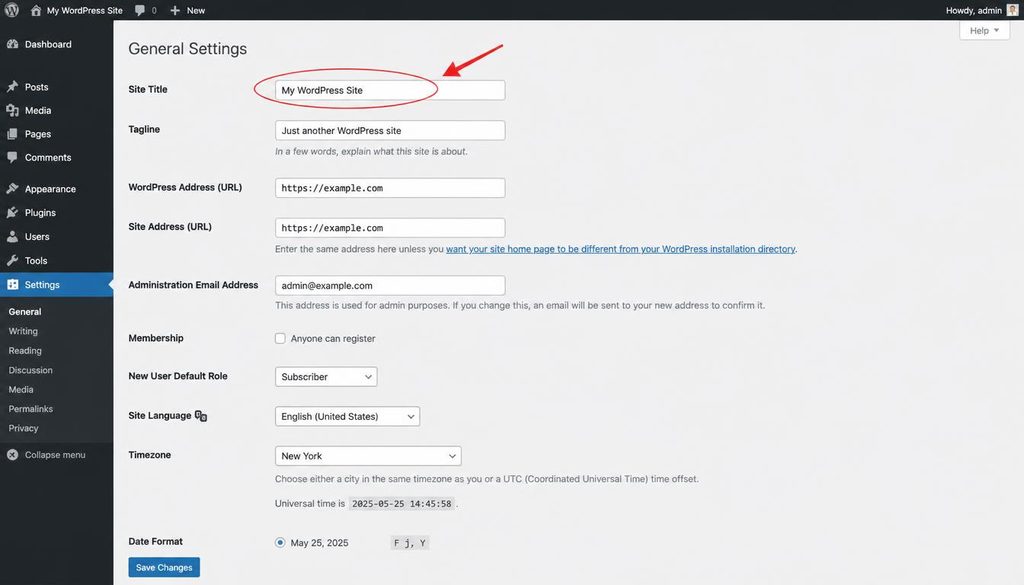
WordPress dashboard Settings General screen with the Site Title field highlighted.
How to write your first post from the dashboard
Once you know the menu, try creating a draft. You do not need to publish it immediately.
Step 1: open the post editor
Go to Posts → Add New Post. Enter a clear title at the top. WordPress opens the block editor on most standard installations, although a classic editor plugin or another tool can change the screen.
Step 2: add and organize the content
Use a paragraph block for normal text. Add headings to break a long article into sections, lists for steps, and images only where they help the reader. Use heading levels in order: the post title is normally the H1, major sections use H2, and smaller sections under an H2 use H3.
Keep paragraphs focused. A reader should be able to scan the page and understand what each section covers. Before publishing, check spelling, links, images, and whether the post answers the question in its title.
Step 3: save a draft and preview it
Use Save draft if the post is not ready. Select Preview to see how it may look on the front end. Preview on desktop and mobile if possible. The editor view and published page can differ because of your theme, page settings, or plugins.
Step 4: review the publishing settings
Before publishing, check the visibility, publication date, permalink, categories, featured image if needed, and any SEO fields provided by your SEO plugin. For a public article, confirm that search-engine visibility has not been disabled by mistake. If the site is still being prepared, leave the post as a draft.
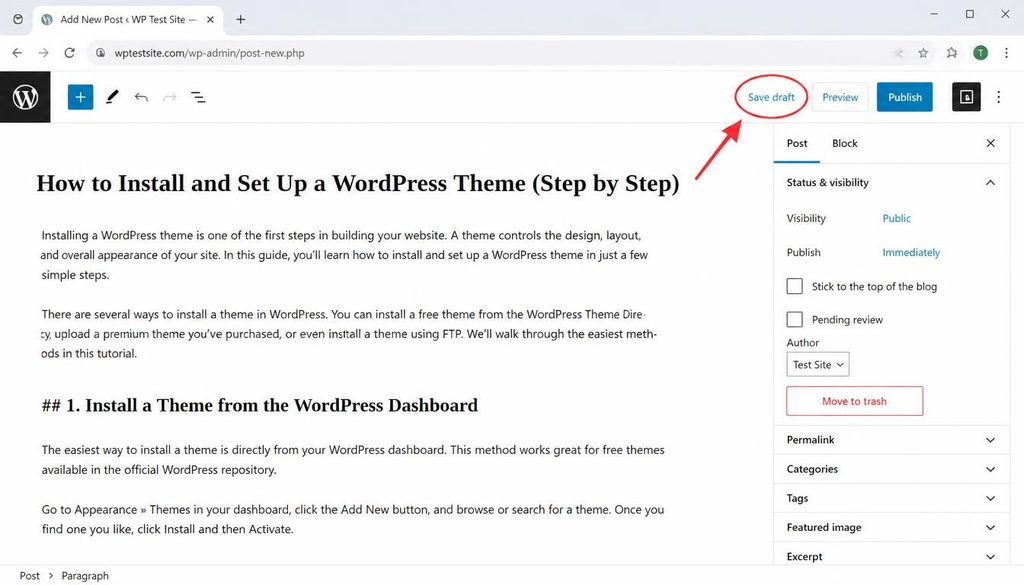
WordPress dashboard block editor with the Save draft control highlighted for a new post.
WordPress dashboard basics for SEO
The dashboard itself does not automatically make a website rank in search results. It gives you access to the content and settings that support good SEO. Start with useful pages, clear headings, descriptive URLs, relevant internal links, and content that answers the reader’s question.
Use an SEO plugin carefully
An SEO plugin such as SEOPress can add fields for an SEO title, meta description, canonical URL, social sharing information, and structured data options. The fields you see depend on the plugin and its configuration. Write a unique title and description that match the actual page. A green plugin indicator is a useful checklist, not a promise of high rankings.
For a deeper introduction, browse the WordPress SEO tutorials. Add internal links where they help readers move from a beginner topic to a related how-to guide. Avoid stuffing the same phrase into every heading or paragraph.
Check search visibility
Open Settings → Reading and review the option that discourages search engines from indexing the site. If the website is ready to appear in search, make sure this option is not enabled unintentionally. This setting is a request to search engines, not a guarantee that a page will be indexed or excluded.
Keep the dashboard secure and manageable
A tidy dashboard is easier to use and less likely to surprise you. Make small changes carefully, and keep a recovery path available.
- Use a unique, strong password and enable two-factor authentication when available.
- Give each person their own account instead of sharing an administrator login.
- Keep WordPress core, themes, and plugins updated after checking backups and compatibility where needed.
- Remove plugins and themes you no longer use, after confirming they are not needed.
- Maintain a recent backup stored somewhere separate from the live website.
- Review unfamiliar user accounts and unexpected admin notices.
- Use HTTPS and keep your hosting account protected.
For more practical advice, visit our WordPress security guides and WordPress speed tutorials. If you are still building the site, our guide on starting a WordPress website step by step covers the setup process.
Common WordPress dashboard problems
The dashboard menu looks different
This is often normal. User roles, installed plugins, the active theme, WordPress version, and screen size can all change which items appear. If a menu is missing, check whether your account has permission to use it before assuming the site is broken.
A plugin or theme update causes a problem
If the site starts behaving differently after an update, avoid installing more random fixes. Check the error message, review recent changes, and restore from a known-good backup if needed. On a production site, a staging environment can help you test updates before visitors see them.
You cannot save a post
Check your internet connection, whether your session has expired, and whether an error appears in the editor. A security plugin, caching layer, hosting limit, or plugin conflict may also affect saving. Copy your draft text somewhere safe before troubleshooting, so you do not lose your work.
You see a white screen or an error message
A blank screen or server error may come from a plugin conflict, theme issue, memory limit, or server problem. If you can still access the admin area, start by checking recent changes and site health. If you cannot sign in, use your host’s recovery tools or ask your hosting support team for help. Make a backup before changing files or database records.
A simple WordPress dashboard routine
You do not need to inspect every menu every day. Use a short routine that fits how often you publish and how important the site is to your work.
- When publishing: proofread the content, preview the page, check links, and confirm the post status.
- Regularly: review comments, form submissions, and account activity if your site uses them.
- Before updates: confirm a recent backup exists and check whether the update needs testing.
- Occasionally: review users, inactive plugins, site settings, and available storage or performance reports.
WordPress dashboard FAQ
Is the WordPress dashboard the same as wp-admin?
People often use the terms interchangeably. Technically, /wp-admin/ is a common URL for the WordPress administration area, while the Dashboard screen is the main overview page inside that area.
Can I use WordPress without coding?
Yes. You can write posts, create pages, upload media, manage menus, and install many features through the admin interface without writing code. Some custom designs or advanced fixes may require code or help from a developer.
Why do I not see the Plugins menu?
Your user role may not have permission to manage plugins. Some managed hosting plans or network administrators also restrict plugin installation. Contact the site administrator or hosting provider if you believe you should have access.
Does changing a setting update the public website immediately?
Many settings take effect as soon as you save them, but caching can delay what you see. Some changes also need to be published, assigned to a page, or applied in your theme or page builder. Preview the public site after making important changes.
What should I learn after the dashboard?
Learn how to create pages and posts, choose a theme, install trusted plugins, and set up backups and SEO. The best next step is to build a small test page, preview it, and save it as a draft until you are happy with the result.
The most useful dashboard skill is knowing where a setting lives and what it changes. Before you press Save or Publish, take a moment to check the option and preview the result.