WordPress permalinks determine the URL structure used for posts, pages, categories, tags, and other public content. Choosing a clear structure makes links easier for people to read, helps keep your site organized, and reduces the risk of confusing URLs. This guide explains how to change WordPress permalinks safely, what each structure means, how to choose a format, and what to check if links break afterward.
Important: Changing a permalink structure on an established website can change many existing URLs. Before you save a new structure, make a backup, identify URLs that already receive traffic or backlinks, and plan redirects where necessary. A permalink change does not guarantee higher rankings; the goal is a consistent, useful URL system with no avoidable broken links.
What you will learn
- What WordPress permalinks are and how they differ from a domain name or a page title.
- How to change the permalink structure in the WordPress dashboard.
- Which permalink structure is practical for blogs, business websites, and larger publications.
- How to change a single post or page URL without changing the entire site structure.
- How to check redirects, rewrite rules, internal links, canonical URLs, and SEO after a change.
- How to troubleshoot 404 errors, unexpected URLs, and server configuration problems.
What are WordPress permalinks?
A permalink is the permanent URL intended to identify a specific piece of content on your website. For example, a post might use https://example.com/how-to-install-wordpress/. The domain identifies the website, while the path after the domain identifies the content. WordPress uses its permalink settings and rewrite rules to map readable paths to the appropriate content record.
“Permanent” describes the intended stability of the address, not a technical guarantee that the URL can never change. If you edit a slug or switch the site-wide structure, the previous address may stop resolving unless WordPress or your server redirects it.
Permalinks, slugs, and domains: the difference
- Domain: the website address, such as
example.com. - Permalink structure: the site-wide pattern WordPress uses to build URLs, such as
/%postname%/. - Slug: the editable, content-specific part of a URL, such as
how-to-install-wordpress. - Full permalink: the complete URL, including protocol, domain, and path.
Changing a post slug is different from changing the global permalink structure. Use the smallest change that solves your problem. If only one post needs a clearer address, edit that post’s slug rather than changing every post URL on the website.
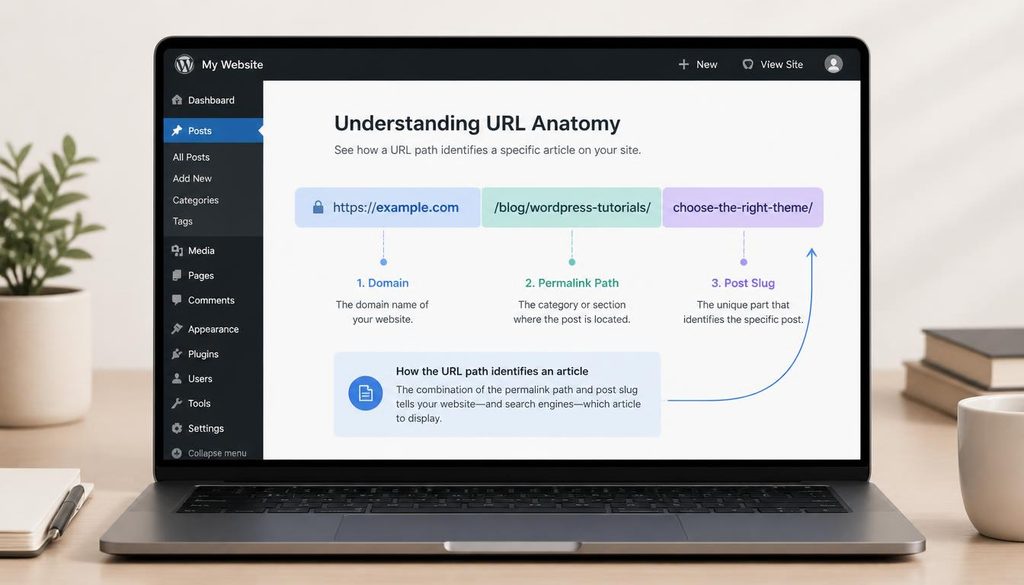
Diagram showing the domain, permalink path, and post slug in a WordPress URL.
Why permalink structure matters
A good permalink system makes URLs understandable and consistent. Visitors can often guess what a page is about before opening it, and editors can share or maintain links more easily. Search engines can discover URLs through links and sitemaps, but a keyword-rich URL alone is not a shortcut to ranking. Useful content, internal linking, accessibility, performance, and overall site quality remain important.
- Clarity: descriptive paths communicate what a page contains.
- Consistency: a predictable format makes a large site easier to manage.
- Shareability: short, readable URLs are easier to copy and discuss.
- Maintenance: a stable structure reduces avoidable link changes over time.
- SEO hygiene: consistent URLs help avoid duplicate or competing paths, provided canonical tags and redirects are handled correctly.
Do not change URLs merely to squeeze in extra keywords. A meaningful slug should accurately describe the page, be concise, and remain useful to readers. Repeatedly changing URLs can create broken links and redirect chains without providing a meaningful benefit.
Understand the WordPress permalink options
Open Settings → Permalinks in your WordPress administration area. Depending on the WordPress version and site configuration, the screen typically offers several common structures. The exact display can vary slightly, but the patterns below explain the usual choices.
Plain
Example: https://example.com/?p=123
This format identifies content through a query parameter and numeric post ID. It can work technically, but it provides little context in the URL. Many sites prefer a readable structure for editorial clarity.
Day and name
Example: https://example.com/2026/10/18/sample-post/
This pattern places the publication year, month, and day before the post slug. It may suit sites where the publication date is a central part of how readers navigate stories. For evergreen tutorials, the date can make a URL look older even when the article is regularly updated.
Month and name
Example: https://example.com/2026/10/sample-post/
This option includes the year and month but not the day. It is another date-based structure. Consider whether those date folders help your readers find content; they are not required for a WordPress blog to function.
Numeric
Example: https://example.com/archives/123
The URL includes an archive path and numeric identifier. It is more structured than the plain query-string format but does not describe the article topic.
Post name
Example: https://example.com/sample-post/
The post-name format uses the content slug as the main path. It is a practical choice for many blogs, tutorial websites, and small business sites because it produces readable URLs without date folders. Keep slugs specific and avoid changing them without a reason.
Custom Structure
A custom structure lets you combine supported WordPress tags, such as %year%, %monthnum%, %day%, %post_id%, %postname%, and category-related tags. The right pattern depends on your site’s content model. Avoid adding unnecessary layers that make URLs long or difficult to maintain.
| Structure | Example path | Consider when |
|---|---|---|
| Plain | ?p=123 | You have a specific compatibility reason for query-style URLs. |
| Day and name | /2026/10/18/article/ | Publication date is central to the archive experience. |
| Month and name | /2026/10/article/ | Monthly archives are a meaningful part of your editorial structure. |
| Numeric | /archives/123 | You need numeric paths for a specific legacy setup. |
| Post name | /article/ | You want readable, concise post URLs. |
| Custom | /topic/article/ | A carefully planned content hierarchy genuinely benefits users. |
Note: examples are illustrative. The URL patterns available and the behavior of custom structures can depend on WordPress configuration, post type settings, plugins, and the server.
How to change WordPress permalinks step by step
Step 1: Back up your website
Before changing the global permalink structure, create a fresh backup of both the database and website files, or confirm that your host’s backup can be restored. The database stores posts, pages, and many settings; files include themes, plugins, uploads, and configuration. A backup is a recovery option if the new URLs behave unexpectedly.
If this is a production site, choose a quiet period and avoid combining a permalink migration with unrelated redesigns, plugin changes, or domain changes. Make one change at a time so you can identify the cause if something breaks.
Step 2: Record the current structure
In the WordPress dashboard, go to Settings → Permalinks and note which option is currently selected. Record any custom structure exactly. Also capture examples of important URLs, including posts, pages, categories, and custom post types. This gives you a reference for redirect planning and testing.
Step 3: Choose the new structure carefully
For many tutorial and business websites, “Post name” is a sensible default because it creates clear URLs without date folders. However, if your site already has thousands of indexed URLs, strong backlinks, or a date-based archive that readers rely on, changing to a different format may not be worth the migration risk. Do not change an established structure solely because another site uses a different one.
Step 4: Open the Permalinks settings
- Sign in to your WordPress admin area.
- Open Settings in the left-hand menu.
- Select Permalinks.
- Review the current selection before changing anything.
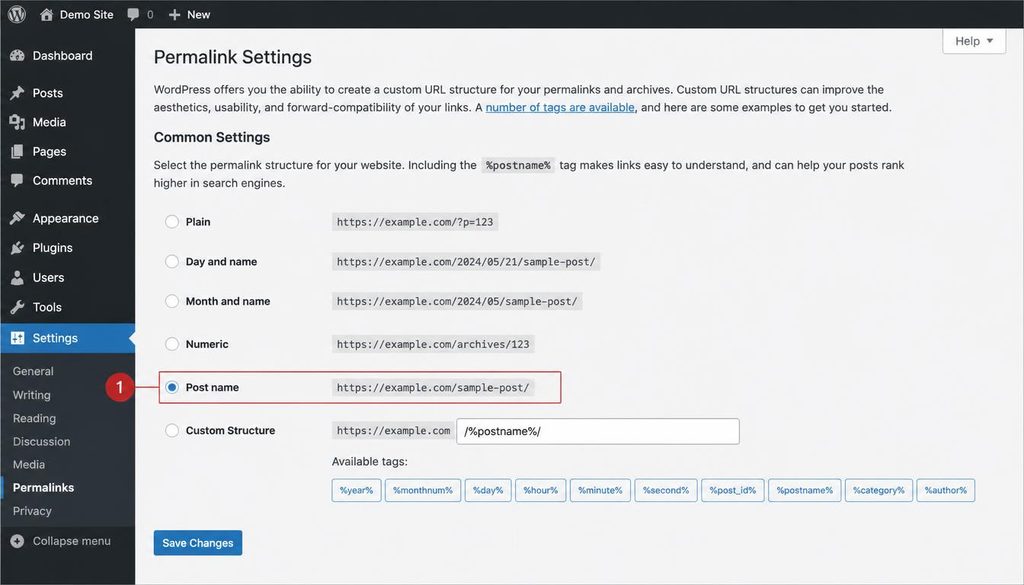
WordPress Settings Permalinks screen with the Post name option highlighted.
Step 5: Select the desired option
Choose the structure that matches your plan. If you select Post name, WordPress uses a readable slug as the post URL path. If you select Custom Structure, enter a valid pattern using the available permalink tags. Double-check the pattern before saving, especially if it includes category or date folders.
Step 6: Save the changes
Click Save Changes. WordPress typically refreshes its rewrite rules when you save the Permalinks screen. You do not need to repeatedly save the settings or manually edit server configuration as a first troubleshooting step. Saving this screen does not automatically guarantee that every previous URL redirects to its new destination.
Step 7: Test the website immediately
Open a private/incognito browser window and test a selection of URLs:
- The homepage.
- At least three existing posts, including an older post.
- Several pages, such as About, Contact, and key service pages.
- Category and tag archives, if your site uses them.
- Custom post types or plugin-generated content, where relevant.
- URLs with trailing slashes and any important URLs that have been shared externally.
Check that each URL loads the correct content, not merely that it returns a successful response. A URL can load the wrong page, redirect several times, or display a soft 404. Also test navigation menus, related-post links, breadcrumbs, XML sitemaps, and any campaign links used by your business.
Recommended permalink structure for a blog or tutorial site
For many WordPress blogs, a post-name structure is a straightforward starting point: /%postname%/. It keeps the path concise and makes the slug easy to understand. A tutorial titled “How to Install WordPress” might use /how-to-install-wordpress/.
Before using this structure, consider these questions:
- Does the slug describe the article clearly and naturally?
- Could two posts end up with confusingly similar slugs?
- Is the URL likely to remain appropriate if the article is updated?
- Does the structure fit pages, categories, and any custom post types on the site?
- Will the change require redirects from a large number of existing URLs?
Do not force a keyword into every URL if it makes the address awkward. Use lowercase words, separate words with hyphens, and remove unnecessary filler where practical. Keep a stable URL once the article is established, unless there is a meaningful reason to change it.
How to change the permalink for one WordPress post or page
If you only need to change one URL, edit the individual post or page instead of changing the site-wide structure. This is often safer for an established website.
- Open Posts → All Posts or Pages → All Pages.
- Edit the relevant item.
- Find the permalink or URL slug control. In the block editor, this is commonly available in the settings sidebar or near the title, depending on the interface.
- Change the slug to a short, descriptive version using lowercase words and hyphens.
- Update the post or page.
- Visit the new URL and verify the old URL redirects correctly if it was previously public.
WordPress may automatically redirect some changed post slugs in common situations, but do not assume that all old URLs, custom post types, plugin routes, or server-level rewrites will be handled perfectly. Test the old address and explicitly configure a redirect if necessary.
Changing permalinks on an established website: SEO and redirect checklist
A global permalink change can affect many URLs at once. Search engines and external websites may still reference the old addresses, while users may have saved old links. The objective is to preserve access and signals by mapping each changed URL to its closest equivalent.
1. Make a list of changed URLs
Use a crawl, analytics landing-page report, Search Console page data, or a site export to identify important URLs. Include pages with organic visits, external backlinks, newsletter links, social shares, and references from other websites. Keep a spreadsheet with columns for old URL, new URL, redirect status, final destination, and test result.
2. Add relevant permanent redirects
When a page has moved permanently, a server-side 301 redirect is commonly appropriate. Redirect each old URL to the most relevant new URL, not automatically to the homepage. Redirecting many unrelated URLs to the homepage can confuse visitors and may be treated as a soft 404 by search engines.
Use a trusted redirect plugin, your host’s redirect tools, or server configuration managed by someone who understands your hosting stack. If you use a redirect plugin, test the rules and avoid overlapping rules that create loops or chains. A redirect should ideally go directly from the old address to the final destination.
3. Update internal links
After a structure change, update hard-coded links inside articles, navigation menus, buttons, breadcrumbs, widgets, and reusable templates when needed. Internal links that pass through a redirect may still work, but pointing directly to the final URL is cleaner and avoids unnecessary hops.
For related tutorials on this site, see the WordPress dashboard guide, how to install WordPress, and how to change the WordPress site URL. If you are setting up a new site, the WordPress website launch guide can help you plan the wider setup.
4. Check canonical URLs
A canonical URL tells search engines which URL should be treated as the preferred version when similar or duplicate URLs exist. After a permalink change, make sure each important page’s canonical points to its intended final URL, not the previous path. In SEOPress, review the canonical field for pages where you have customized it and confirm the generated canonical on the live page.
Do not set every page’s canonical to the homepage. Each indexable post or page should generally have a self-referencing canonical unless there is a deliberate reason to consolidate it with another URL.
5. Refresh and inspect XML sitemaps
SEO plugins usually generate sitemaps from current content URLs. Confirm that the sitemap lists the new preferred URLs and does not continue to submit old paths as current locations. A sitemap is a discovery aid; it does not replace redirects or correct internal links.
6. Monitor Search Console and analytics
After the change, watch for increases in 404 errors, unexpected redirect destinations, indexing changes, and drops in traffic to important landing pages. A migration can take time to be recrawled and processed. Fix technical errors promptly, but avoid making repeated URL changes in response to short-term fluctuations alone.
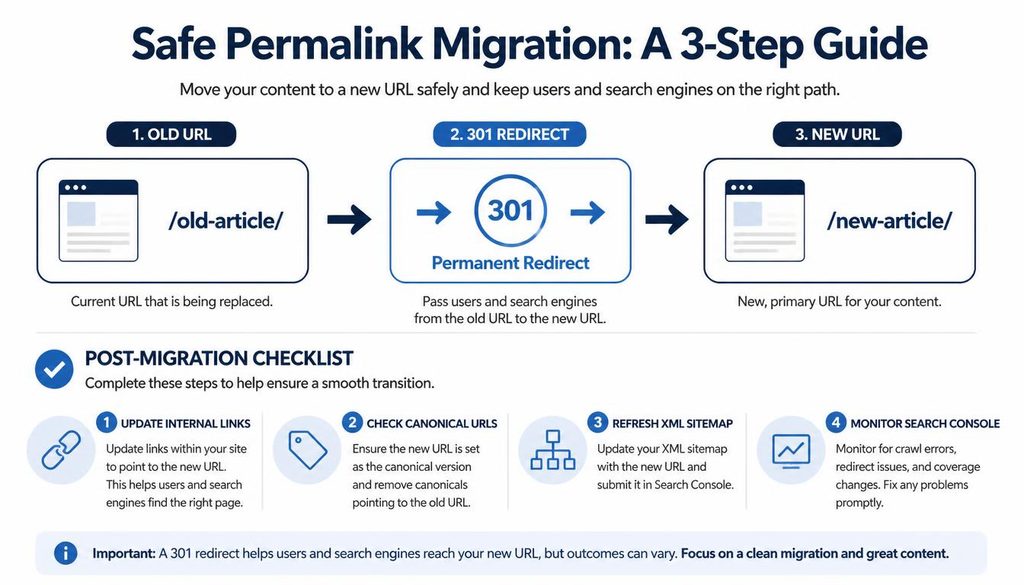
Diagram of an old WordPress URL redirecting to a new URL, with SEO migration checks.
How to configure a custom permalink structure
WordPress custom structures use tags to build the URL pattern. For example, /%year%/%postname%/ includes the year and post slug. A category-based structure might use a category tag and post name, but this requires planning: category changes can then change the URL path, and category names may be long or ambiguous.
Before adopting a custom pattern, check the official WordPress documentation and consider whether the hierarchy will remain stable. A category-based URL can be useful for some publications, but it adds maintenance if posts move between categories. For many small and medium sites, a simple post-name structure is easier to maintain.
Custom post types and taxonomy archives may have their own rewrite settings controlled by the theme or plugin that registers them. Changing the global post permalink setting does not necessarily rewrite every plugin-defined URL in the way you expect. Test each content type separately.
How to flush WordPress rewrite rules safely
WordPress rewrite rules translate readable URL paths into the query that loads the correct content. Saving Settings → Permalinks is the normal first step to refresh these rules. If URLs still fail, check whether the web server is correctly passing requests to WordPress and whether the site’s rewrite configuration is intact.
Avoid repeatedly flushing rewrite rules on every page load or adding code that does so on every request. Rewrite flushing is an administrative operation, not something a site should need to perform continuously. If the problem affects custom post types, review the plugin or theme that registers that content type and its rewrite settings.
Fix common WordPress permalink problems
Problem: posts show a 404 Not Found page
Try this first: open Settings → Permalinks and click Save Changes without making another change. Then test the URL again. If it still fails, clear relevant caches and inspect the web server configuration. On Apache, rewrite rules may depend on a working .htaccess file and the server’s configuration; on Nginx, rewrite handling is usually configured at the server level and is not repaired by editing an Apache .htaccess file.
If only one post fails, check that the post is published, its slug is correct, and another post does not create a conflicting route. If only custom post types fail, review the registering plugin or theme.
Problem: the Permalinks settings page does not save
Confirm that your account has permission to manage settings, that the request completes without an error, and that a security or caching plugin is not interfering. Some managed hosting environments control rewrite configuration centrally. Contact your host before manually changing server files if you do not know how the site is configured.
Problem: URLs still contain dates or numbers
Changing the global structure affects the URL pattern, but it does not rewrite every manually inserted link, cached HTML fragment, external link, or custom plugin route. Clear site and browser caches, then inspect the actual link destination. Also check whether you are looking at a custom post type or archive whose URL is controlled separately.
Problem: old URLs still appear in Google
Search results can continue to show an old URL while search engines recrawl and process the new location. Confirm that the old URL redirects to the right new URL, the new page returns a successful response, internal links use the new path, and the canonical is correct. Do not block the old URL in robots.txt if search engines need to crawl it to see the redirect.
Problem: redirects loop or pass through several URLs
Review redirect rules in your plugin, hosting panel, CDN, and server configuration. A loop can occur when two rules send each other back and forth or when HTTP/HTTPS and www/non-www rules conflict. Reduce overlapping rules and test each old URL through to the final destination. Avoid redirect chains when a direct redirect is possible.
Problem: the homepage works but other pages do not
This often points to rewrite handling rather than a completely unavailable WordPress site. Re-save the Permalinks screen, then check the web server’s configuration and hosting documentation. On Nginx, the relevant rewrite configuration is not stored in .htaccess; on Apache, confirm the correct rules and server permissions. Ask your host for help if server configuration is managed for you.
SEOPress checklist after changing permalinks
SEOPress can help you review metadata and XML sitemap output, but it does not remove the need to test actual HTTP responses and redirects. After the change, use this checklist for important posts and pages:
- Canonical: verify the canonical points to the preferred new URL.
- SEO title and meta description: confirm they remain relevant and are not accidentally replaced or duplicated.
- Social metadata: check Open Graph and X/Twitter URLs and preview metadata if customized.
- XML sitemap: confirm it lists the current canonical URLs.
- Robots settings: make sure important pages remain indexable and are not accidentally set to noindex.
- Internal links: update important links to the final URL rather than relying on redirects.
- Schema: check that structured data URLs, where present, reference the correct page URL.
- Redirects: test representative old URLs and confirm they lead to the correct new destination.
Keep routine editorial links as normal follow links. Do not add nofollow to internal links or trusted official documentation links as a default SEO tactic. Nofollow or the appropriate sponsored/UGC attributes are intended for particular link relationships, not as a blanket setting for ordinary references.
Best practices for future WordPress URLs
- Choose a permalink structure early, before publishing many pages.
- Prefer readable, stable slugs over cryptic IDs when appropriate.
- Use lowercase words and hyphens to separate terms.
- Keep URLs concise but descriptive; do not remove context that helps readers understand the page.
- Avoid adding dates unless dates genuinely support your editorial model.
- Do not change a successful URL without a clear reason and a redirect plan.
- When retiring content, redirect to a close replacement only when one exists; otherwise use an appropriate status rather than sending every URL to the homepage.
- Test posts, pages, archives, custom post types, and important external entry points after a change.
- Keep a record of redirects so future editors do not create loops or duplicate rules.
WordPress permalink change checklist
- Backup completed and restore path understood.
- Current structure and important existing URLs recorded.
- New structure selected for a clear, durable reason.
- Settings → Permalinks saved once.
- Homepage, posts, pages, archives, and custom content tested.
- Redirects added for URLs that changed and still matter.
- Canonical URLs and internal links checked.
- SEOPress sitemap and metadata reviewed.
- 404s, redirect loops, and analytics monitored after launch.
Frequently asked questions
Which permalink structure is best for WordPress SEO?
For many blogs and business websites, the Post name structure is a practical choice because it creates readable URLs. There is no structure that guarantees higher rankings. If an established site already uses another format successfully, weigh the migration risk and redirect work before changing it.
Will changing WordPress permalinks hurt SEO?
It can cause problems if existing URLs stop working, redirects are missing, or canonical and internal-link signals become inconsistent. A carefully managed migration with relevant permanent redirects and updated internal links can reduce disruption, but search engines still need time to recrawl and process changes.
Does WordPress automatically redirect old permalinks?
WordPress can automatically redirect some changed post slugs, but this behavior should not be treated as a complete migration plan. A global structure change, custom post type, plugin route, or server-level rule may need explicit redirects. Always test the old URL.
Should I include categories in my post URLs?
Only if category hierarchy is genuinely useful and stable. Category-based paths can make the topic structure visible, but moving a post to a different category can affect its URL in some configurations. A simple post-name URL is often easier to maintain.
How do I fix WordPress permalink 404 errors?
First save the Permalinks screen again, then clear relevant caches and test. If errors persist, check the server rewrite configuration, post status, slug conflicts, and custom post type settings. Ask your host to inspect server rules if you do not manage them directly.
Do I need a redirect for every old URL?
Every changed URL that people or search engines may still visit should have a deliberate outcome. Use a relevant 301 redirect when a page has permanently moved to an equivalent destination. Do not redirect unrelated URLs to the homepage just to avoid 404s.
Can I change one post permalink without changing all the others?
Yes. Edit the individual post or page slug. This changes that item’s address without changing the global permalink structure. If the old URL was public, test whether it redirects and add a redirect rule if it does not.
Official documentation and useful resources
- WordPress documentation: Customize permalinks
- WordPress documentation: Permalinks Settings screen
- Google Search Central: Redirects and Google Search
- Google Search Central: Consolidate duplicate URLs
- WordPress dashboard guide on WPressTips
- How to install WordPress on WPressTips
- How to change the WordPress site URL on WPressTips
Final recommendation: choose a permalink structure that makes sense for your readers and content model, then keep it stable. If you need to change an established site, plan the URL mapping first, implement appropriate redirects, update internal links, verify canonicals and sitemaps, and monitor the results rather than expecting a URL change alone to improve rankings.