To choose a WordPress theme that fits your website, start with the job the site must do, not with a pretty demo. The right theme helps visitors find information, read your content, and take the next step without confusion. It should also fit your budget, editing style, and plans for the next year.
A theme affects your site’s layout, colors, fonts, templates, and many visible details. It does not replace useful content, good hosting, or careful maintenance. This guide shows you how to compare themes, spot warning signs, test a design safely, and make a choice you can live with as your website grows.
Quick answer: how to choose a WordPress theme
If you are new to WordPress, keep the decision simple. To choose a WordPress theme, write down the pages you need and pick one that supports them, check that the developer maintains it, and test the demo on desktop and mobile. Start with the free version when it covers your needs. Pay for an upgrade only when a feature or support plan solves a real problem.
- Match the theme to your website type, such as a blog, business site, portfolio, or online store.
- Check that the theme works with your preferred editor, either the WordPress block editor, Site Editor, or a page builder.
- Review updates, support activity, accessibility, mobile layout, and the theme’s free and paid limits.
- Test real pages before you commit to a full redesign.
You do not need the theme with the most settings. You need one that makes the important parts of your website clear and easy to manage.
Step 1: Decide what your website needs to do
Before you choose a WordPress theme, list the main goal of the site. A blog needs readable articles and clear categories. A service business needs to explain its offer and make contact easy. A store needs usable product pages, a cart, and a checkout that works on phones.
Write down the pages you expect to publish first. Most small websites need a homepage, an About page, a contact page, and a few service or topic pages. A blog may also need category archives and an article template. An online store needs product and product-category pages, plus the standard shopping pages provided by its store plugin.
Think about what visitors should do when they arrive. Should they read a guide, request a quote, book a service, view your work, or buy a product? Keep that action in mind while you review themes. A design that hides the main action under large images and animations is probably the wrong fit.
Make a short list of must-have features
Separate essential features from things that would merely look nice. For example, a local consultant might need a clear services section, contact details, and a mobile menu. A photography portfolio may need a gallery that displays large images well. A publisher may care most about typography, category pages, and a comfortable reading width.
- Must have: features your site cannot work without.
- Useful later: features you may add once the site grows.
- Not needed: effects or tools that do not help your visitors.
This list helps you choose a WordPress theme for your real needs instead of picking one just because its demo looks impressive. It also helps you avoid buying a premium plan for features you will never use.
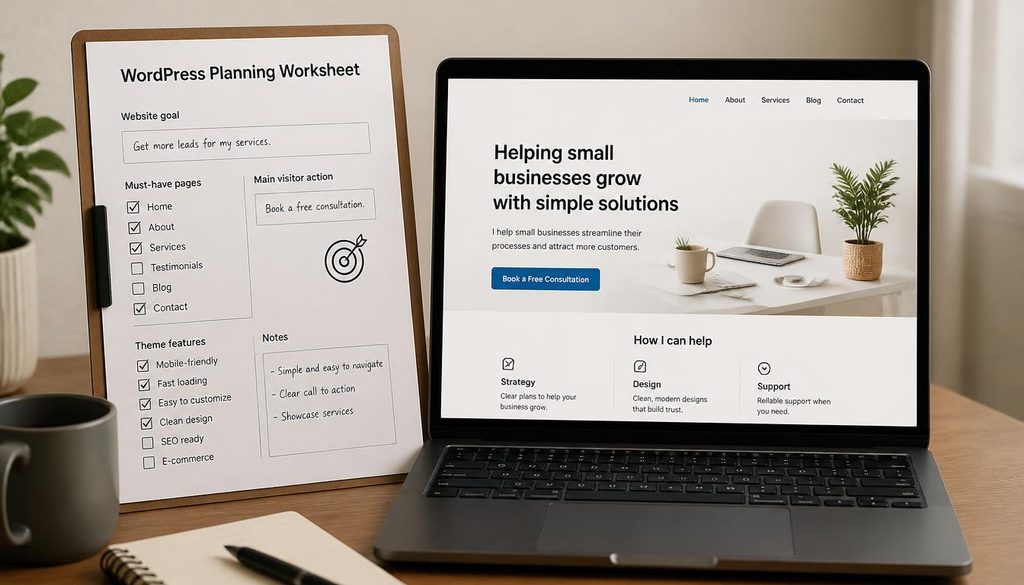
Planning checklist for choosing a WordPress theme based on website goals, pages, and needed features.
Step 2: Match the theme to your website type
The best theme for one site may be a poor fit for another. Start with the kind of content you will publish, then compare themes designed for similar needs. A multipurpose theme can work across several site types, but a focused theme may give you a better starting layout.
How to choose a WordPress theme for a blog
For a blog, focus on reading comfort and content navigation. Check the article template, heading styles, line length, featured image crop, category links, and previous or next post links. The homepage should help visitors discover articles without making them search through a wall of widgets.
Look for a readable body font and enough space between paragraphs. Test a long article, not just the short demo text. Real posts often contain subheadings, lists, tables, links, and images, and the theme should handle each one cleanly.
How to choose a WordPress theme for a business website
A business site needs to explain what you do and who you help. The top section should make your service clear, with a visible next step such as “Request a quote” or “Contact us”. Check that the theme supports service sections, testimonials if you use them, and a clear contact page.
Do not add every section from the demo. Keep the homepage focused on the questions customers ask before they get in touch. Make your phone number, email, address, or booking link easy to find when those details matter to your business.
How to choose a WordPress theme for an online store
For a store, test the theme with WooCommerce or the ecommerce plugin you plan to use. Open a product page, browse a category, add an item to the cart, and try the checkout flow on a phone. Look at product image sizes, variation controls, stock notices, sale prices, and how the site shows shipping information.
A nice homepage is not enough. Shoppers spend much of their time on product pages and checkout screens, so those pages must work well. Check the theme’s free version and paid add-ons before you build the whole store around a feature.
How to choose a WordPress theme for a portfolio
A portfolio should put the work first. Check how the theme displays galleries, project descriptions, and images on smaller screens. Make sure you can add context to each project instead of showing a grid of pictures with no explanation.
Keep navigation simple. Visitors should be able to move from your work to your About page or contact details without hunting for links.
How to choose a WordPress theme for an Elementor site
If you plan to build most layouts with Elementor, choose a theme that works well with it and does not fight the builder’s styling. Astra and Neve are common multipurpose options to compare. Hello Elementor is deliberately minimal and makes the most sense when Elementor handles most of the page design.
If you plan to use the standard WordPress block editor, you may not need a page builder at all. Start with the editor you expect to use most often, rather than installing several tools before you know what you need.
Step 3: Understand classic themes and block themes
WordPress themes use different editing approaches. Classic themes often provide settings through Appearance > Customize, theme options, and widget areas. Block themes use the Site Editor to change templates, header and footer areas, navigation, and global styles with blocks.
| Question | Classic theme | Block theme |
|---|---|---|
| Where do you change shared design? | Often Appearance > Customize or theme settings | Appearance > Editor |
| How do you edit a header? | Use theme controls or a header builder | Edit the header template part |
| How do you adjust templates? | Options depend on the theme | Use the Site Editor’s template tools |
| Good fit for | People who prefer familiar theme settings | People who want to edit layouts with blocks |
Neither type is automatically better. A classic theme may feel familiar if you have used the Customizer before. A block theme can give you more direct control over templates, but it takes time to learn the Site Editor. If you are unsure how to choose a WordPress theme, try both approaches on a test site.
For a simple introduction, read our guide on what a WordPress theme does. Knowing the difference between the theme and your content will help you make a more informed choice.
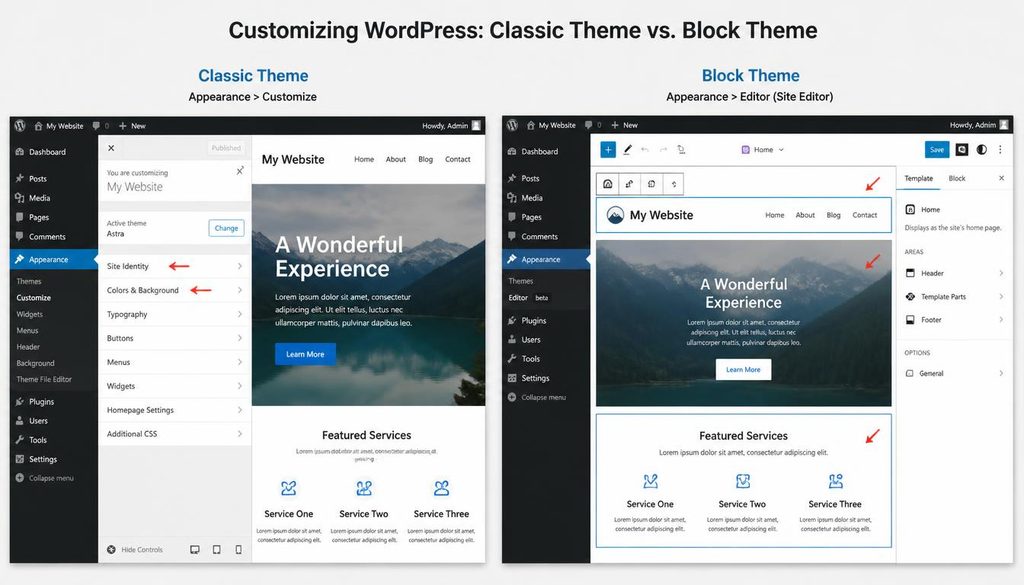
Comparison of classic WordPress theme customization and the block theme Site Editor.
Step 4: Check the theme’s quality before installing it
A theme can look polished and still be a poor choice if its developer has stopped maintaining it or its support area is full of unresolved problems. Before you install anything, check the official WordPress theme directory or the developer’s trusted website.
Review the update history
Look at the last update date and compatibility details. An older theme is not automatically unsafe, but a theme that has gone a long time without updates deserves closer review. Check whether the developer responds to support questions and fixes reported bugs.
Read support topics and reviews
Do not rely on the star rating alone. Read recent reviews and a few support topics to see how the theme behaves in real use. Look for repeated reports about broken layouts, slow support, missing features, or problems after WordPress updates.
Check the theme’s documentation
Clear setup instructions can save hours when you are new to WordPress. Look for documentation about menus, header settings, homepage layouts, fonts, colors, and mobile options. If the theme depends on a companion plugin, check what that plugin adds and whether you actually need it.
Download themes from trusted sources
For free themes, start with the official WordPress theme directory. Avoid modified or “nulled” premium themes from file-sharing sites. Those packages may include harmful code, skip updates, or create problems that cost more to fix than a legitimate theme would cost.
Step 5: Check mobile design and accessibility
Many visitors will open your website on a phone. A theme should adapt to narrow screens without making the text tiny, hiding key links, or creating sideways scrolling. Do not assume a theme is mobile-friendly just because the demo has a responsive label.
Preview the theme at desktop, tablet, and phone widths. Open the navigation menu, scroll through a long page, tap buttons, and inspect forms. Check whether important content remains visible and whether the page still makes sense when the screen is narrow.
Look for these accessibility basics
- Text and background colors have enough contrast to read comfortably.
- Links look different from regular text and have clear labels.
- Menus and forms work with a keyboard, not just a mouse.
- Headings follow a sensible order, and buttons describe their action.
- Focus indicators remain visible as people move through links and controls.
A theme cannot fix every accessibility problem automatically. Your images need useful alt text when they convey information, your link labels should make sense, and your content should use headings in a clear order. Still, a theme with readable text and usable controls gives you a better foundation.
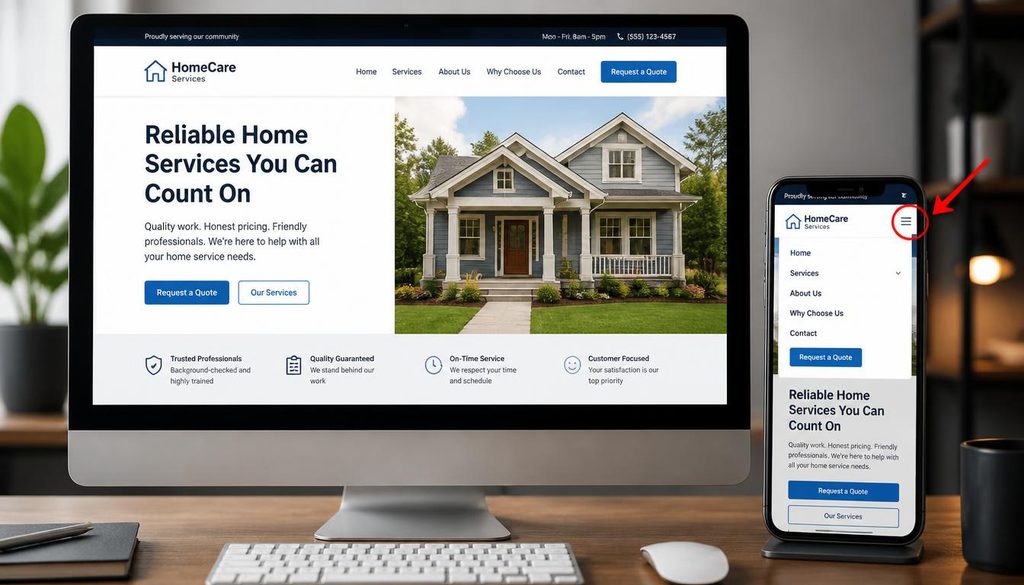
WordPress theme mobile responsiveness check showing a desktop homepage and a phone menu.
Step 6: Think about speed without trusting hype
A theme can affect page speed, but its name alone cannot tell you how fast your website will be. Hosting, image sizes, fonts, plugins, scripts, and page layouts all affect performance. Two websites that use the same theme can load at different speeds because the rest of their setups differ.
When you choose a WordPress theme, look for one that avoids features you do not need. If you will never use a large slider or animation, do not make it part of your core design. Test a real page with your own images and plugins instead of judging speed from a demo that may run on different hosting.
How to test a theme fairly
- Set up a staging site or a clean test installation.
- Add the same sample content and images for each theme you compare.
- Keep hosting and plugins the same during the test.
- Test the homepage, a long article, and any important product or service page.
- Run the same performance test more than once and compare the results.
Do not chase a perfect score at the cost of a useful site. Focus on pages loading promptly, text appearing clearly, and controls responding when people tap them. Our WordPress speed guide covers more ways to improve performance after you choose a theme.
Step 7: Compare free and premium theme features
You can build a real website with a free theme. Many theme developers offer a free version and sell optional upgrades for extra templates, advanced headers, shop features, or support. That model can work well, but read the limits before you design every page around a paid-only feature.
When a free theme is enough
- You can create all the pages your site needs.
- The available header, footer, color, and typography controls meet your needs.
- You can build the layout with WordPress blocks and a small set of plugins.
- You do not need paid support or advanced store features yet.
When a premium theme or upgrade may help
- A paid feature solves a clear design or store problem.
- You need specific templates that are not included in the free version.
- The plan provides support you are likely to use.
- The total price is fair for the time it saves you.
Check the renewal price, the number of sites covered, update access, support terms, and what happens when you stop paying. Do not buy a premium theme just because the demo uses it. First check whether the free version can produce a clear, usable site.
Step 8: Check compatibility with your plugins and tools
Your theme needs to work with the WordPress features and plugins you plan to use. If you run an online store, test the shopping flow. If you use a form plugin, submit a test form. If you use a page builder, edit a page and make sure the theme’s styles do not cause strange spacing or font changes.
Make a short list of the tools your site truly needs. A theme demo may recommend a slider, gallery plugin, form builder, blocks plugin, and several other add-ons. You may not need all of them. Install only the tools that support a clear purpose.
Before you choose a WordPress theme, check its documentation for known conflicts and required companion plugins. Then test the theme on a staging site with the tools you expect to use. This can reveal problems before visitors see them.
Step 9: Test the theme with real content
A demo is a sales example, not a preview of your finished site. Demos often use carefully cropped photos, short text, and optional plugins. Your actual pages may have longer headings, different images, extra links, and more content.
To choose a WordPress theme with confidence, install it on a staging site or temporary WordPress installation and add a sample of your own content. Include a long article, a page with a list, a contact form, and any special content such as product cards or a gallery. If possible, check both a narrow mobile screen and a wide desktop screen.
Use this theme testing checklist
- The homepage explains the site’s purpose quickly.
- The main menu is easy to understand and use.
- Long articles remain comfortable to read.
- Images display at sensible sizes and do not stretch out of shape.
- Buttons, links, forms, and menus work as expected.
- The footer contains the details and links your visitors need.
- The design still looks consistent on mobile.
- The theme does not require a long list of plugins just to match its basic demo.
If a theme needs many fixes before it works with your real content, try another one. The purpose of a theme is to help you manage your site, not to give you a second job repairing its design.
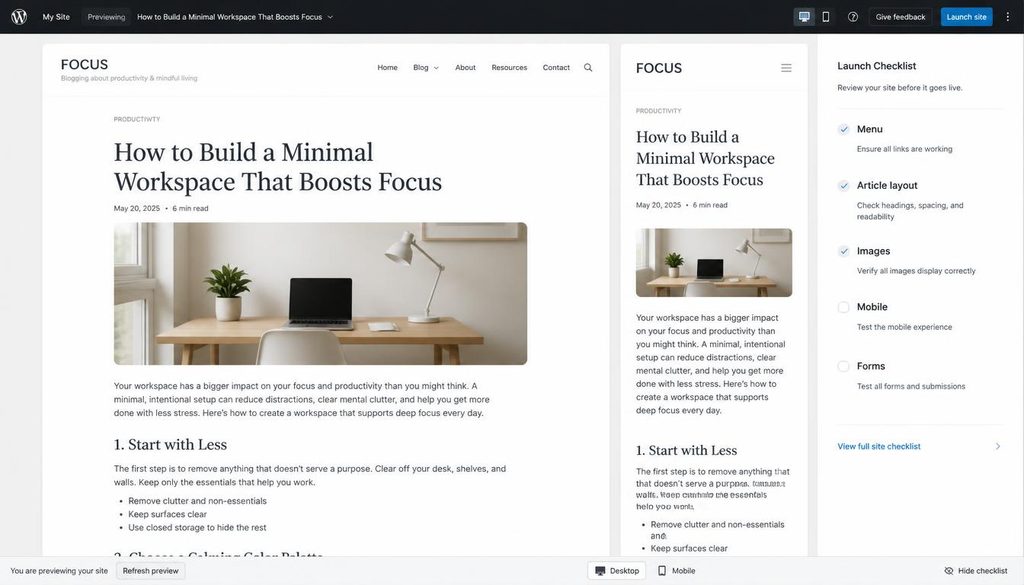
WordPress theme testing checklist showing article layout, images, navigation, and mobile preview.
Step 10: Avoid common theme selection mistakes
Choosing only by the demo
A polished demo can make almost any theme look attractive. Look past the photos and ask whether the layout suits your content. A demo with a large video header may look impressive, but it may not suit a simple blog or a site where visitors need to find contact details quickly.
Choosing a theme with too many settings
More options do not always make the job easier. A new site owner may spend hours adjusting minor details instead of publishing useful content. Start with a clean layout and change only what helps visitors.
Installing too many plugins to copy the demo
Some demo layouts rely on extra plugins. Check which features each plugin provides before installing it. Avoid adding several plugins that do the same job, and remove demo tools you do not need after testing.
Assuming the theme will handle SEO
A theme can provide a sensible heading structure and responsive layouts, but it cannot replace helpful content, clear titles, internal links, or technical maintenance. Use descriptive page titles, write for your readers, and keep the site easy to navigate. If you need a broader starting point, see our beginner’s guide to WordPress.
Ignoring updates and support
A theme that no longer receives updates can become harder to use as WordPress changes. Review maintenance history before installing it and check again during routine site maintenance. Keep WordPress, your theme, and your plugins updated after making a backup when appropriate.
Changing the live site without a backup
Theme changes can affect menus, widgets, templates, shortcodes, and page layouts. Back up your site before a major redesign and test the new theme on a staging copy if your hosting supports it. Our guide to updating WordPress safely explains a careful maintenance routine.
How to choose between two themes that both look good
If two themes meet your basic needs, compare them with the same sample content. Give each theme a simple score from 1 to 5 for the features that matter to your site. Do not score a feature if you do not need it.
| What to compare | Questions to ask |
|---|---|
| Fit for your site | Does the theme support the pages and content you plan to publish? |
| Editing workflow | Can you comfortably use its settings, blocks, or page builder? |
| Mobile layout | Can visitors read, navigate, and use forms on a phone? |
| Maintenance | Does the developer publish updates and respond to support questions? |
| Cost | Can you do what you need with the free version, or is a paid feature necessary? |
| Performance | Does the real site perform well with your content and plugins? |
| Accessibility | Are the text, links, menus, and controls easy to use? |
Write down the scores and the main reason for each one. If one theme wins only because of a visual effect, review the choice again. A useful theme should help you build, publish, and maintain the site with less friction.
Can you change your WordPress theme later?
Yes. WordPress lets you switch themes, and your posts and pages normally remain in the database. The visual layout can change, though. Theme-specific settings, widgets, templates, and shortcodes may not transfer to the new design.
Before you switch, make a backup and note any special settings. If your site receives steady traffic or sales, test the new theme on a staging site first. Check the homepage, blog posts, forms, menus, and store pages after the change. Do not remove the old theme until you know the new one works as expected.
If you are still learning how themes work, read What Is a WordPress Theme? and compare your plan with our guide to the best free WordPress themes for beginners.
Frequently asked questions about choosing a WordPress theme
What should I look for when choosing a WordPress theme?
Start with the website’s goal, the pages you need, and the editor you prefer. Then check mobile design, readability, update history, support, accessibility, plugin compatibility, and the cost of any features you need.
Which WordPress theme is best for beginners?
There is no single best theme for every beginner. Astra, Kadence, Neve, and GeneratePress are common multipurpose options to compare, while Twenty Twenty-Five is worth considering if you want to use the block-based Site Editor. Test a theme with your own content before deciding.
Should I use a free or premium WordPress theme?
Use a free theme when it provides the layouts and settings your site needs. Consider a paid upgrade when it offers a specific feature, template, or support service that solves a real problem. Check the full price and renewal terms first.
Are free WordPress themes safe?
Many free themes are safe when you download them from the official WordPress theme directory and keep them updated. Review recent updates, support topics, compatibility notes, and the developer’s documentation. Avoid unofficial modified theme packages.
Does a WordPress theme affect SEO?
A theme can affect mobile usability, page structure, and performance, which can influence how people experience your site. It does not guarantee search rankings. Useful content, clear page titles, internal links, and sound technical setup still matter.
Does a theme control the content on my website?
Your posts and pages are stored in WordPress, while the theme controls much of how the site displays them. Switching themes usually keeps the content, but theme-specific widgets, shortcodes, and layout settings may change.
How many WordPress themes should I install?
You can install more than one theme, but only one is active at a time. Keep themes you use for testing or a child-theme setup, and remove unused themes when you confirm you no longer need them.
Do I need a page builder to use a WordPress theme?
No. WordPress includes a block editor, and many themes work well with it. Use a page builder only if its editing tools solve a real need for your site.
How can I tell if a theme is mobile-friendly?
Preview the theme at different screen widths. Test the navigation, text, images, buttons, and forms on a phone. Check for tiny text, overlapping sections, and horizontal scrolling.
Can I change my theme without losing my website?
In most cases, your posts and pages remain when you switch themes. The design can change, and theme-specific settings may not transfer. Back up the site and test the new theme before switching a busy live website.
Useful WordPress theme resources
- Official WordPress theme directory for free themes and their current details.
- WordPress documentation for help with the dashboard, block editor, and Site Editor.
- WooCommerce for online store tools and documentation.
Choose the theme that supports the site you are building now, test it with real content, and keep the setup as simple as you can. If a theme makes ordinary tasks harder, keep looking.