The best free WordPress themes for beginners make it easier to build a clean, useful website without paying for a design before you know what you need. A good theme gives your pages a clear layout, readable text, mobile-friendly menus, and enough control to match your brand. You can start with a free option, learn how WordPress works, and upgrade only if a real need comes up.
This guide compares beginner-friendly themes by the type of website they suit, how much control they offer, and what to check before installing one. It does not claim that every theme is fastest in every test. Your hosting, plugins, images, fonts, and page layout all affect speed, so treat theme choice as one part of a healthy site.
Quick picks: the best free WordPress themes
If you want a short answer, start with Astra for an all-purpose website, Kadence for flexible design controls, GeneratePress for a lean foundation, Blocksy for modern layouts and shop options, or Twenty Twenty-Five if you want to build with the WordPress Site Editor. Neve is another sensible option for small business sites and blogs. The best fit depends on how you want to edit your website, not just how a demo looks. For many new site owners, the best free WordPress themes are the ones that cover the basics without pushing paid extras.
- Best all-round starting point: Astra, for blogs, service businesses, and general websites.
- Best for visual controls: Kadence, for beginners who want to adjust headers, colors, and page layouts.
- Best for a simple, lean setup: GeneratePress, for people who prefer a clean base and fewer built-in extras.
- Best for modern shop layouts: Blocksy, for blogs and WooCommerce stores that need flexible design options.
- Best for native WordPress editing: Twenty Twenty-Five, a block theme built around the Site Editor.
- Best for a mobile-first business site: Neve, with a clean starting design and a free version.
These are practical starting points for comparing the best free WordPress themes, not a universal ranking. Theme features and free limits can change. Check the current listing and test the theme on your own site before committing.
How we chose the best free WordPress themes for beginners
A theme should help a new site owner get the basics right without forcing them to learn a pile of extra tools. For this shortlist, the main questions are simple: Can a beginner set it up? Is the free version useful on its own? Does it support current WordPress editing tools? Can visitors read and use the site on a phone? Is the theme listed in the official WordPress theme directory?
We also considered the kind of site each theme suits. The best free WordPress themes should match your actual site goals. A theme that works well for a personal blog may not be the best choice for a product catalog. A minimal theme can be excellent for speed but may require more hands-on styling. A feature-rich theme can save time, but extra settings can make the first setup feel busy.
We have not run identical laboratory speed tests on every theme in this article. Avoid treating general claims such as “fastest theme” as a guarantee. For your own comparison, use the same content, hosting, plugins, and image sizes with each theme, then test the pages visitors will actually use.
Best free WordPress themes for beginners compared
| Theme | Best fit | Why beginners may like it | Keep in mind |
|---|---|---|---|
| Astra | General websites, blogs, service businesses | Flexible starter designs and broad builder compatibility | Some templates and design controls require paid products |
| Kadence | Business sites and block-editor builds | Useful free customization controls and a visual workflow | More options can take time to learn |
| GeneratePress | Simple blogs and performance-conscious sites | Clean foundation with little visual clutter | The free version may feel basic if you want many ready-made layouts |
| Blocksy | Modern blogs and WooCommerce stores | Contemporary design controls and useful layout options | Spend time checking which features are free |
| Neve | Small businesses, freelancers, blogs | Clean pages and a mobile-friendly approach | Some advanced options and starter designs are paid |
| Twenty Twenty-Five | Writers, portfolios, block-editor learners | Uses the built-in Site Editor and WordPress blocks | Its editing workflow differs from classic themes |
| Hello Elementor | Sites built mainly with Elementor | Minimal design that leaves much of the page layout to Elementor | It is less useful if you do not plan to use Elementor |
| OceanWP | Sites that need many layout controls | Flexible options and WooCommerce-related features | Check the number of settings and paid extensions you really need |
| Sydney | Service businesses and professional portfolios | Business-oriented layouts and a clear homepage structure | Some demo sections or controls may depend on paid add-ons |
| Hestia | Startups and compact business sites | A focused front page can be quick to arrange | Its opinionated layout may not suit every type of site |
1. Astra: a flexible first theme for many websites
Astra is a practical first choice if you are not sure what kind of website you will build long term. It can support a blog, a company website, a portfolio, or a small online store. Its free version works as a normal WordPress theme, while paid upgrades add more design controls and templates.
What Astra does well
- It gives beginners a starting point for several common website types.
- It can work with the WordPress block editor and popular page builders.
- Its layout settings let you adjust content width, sidebars, and page structure.
- You can begin with the free theme and decide later whether paid features solve a real problem.
Where Astra may not be ideal
Starter templates can depend on other plugins, and some template choices or settings may be locked behind a paid plan. Do not install every optional plugin just because a demo recommends it. Add only what your site needs, then check the finished pages on a phone.
Who should choose Astra?
Choose Astra if you want a familiar all-purpose theme and may build more than one type of page. It is a sensible starting point for a small business, an affiliate blog, a service website, or a basic WooCommerce store.
2. Kadence: helpful design controls without starting from scratch
Kadence suits beginners who want to adjust the look of a site but do not want to write code. The free theme includes useful visual controls, and it works well with the WordPress block editor. You can create a consistent header, footer, and content layout, then refine the details as the site grows.
Why Kadence is beginner-friendly
The theme gives you a visible way to adjust important parts of the design. That can be easier than trying to fix spacing or colors with custom CSS. Its free version can be enough for a straightforward site, though advanced layouts and some starter designs may need paid features or companion products.
What to watch for
Do not mistake more controls for a requirement to change everything. Set your main colors, choose readable fonts, make the navigation clear, and leave the rest alone until a specific issue appears. Too many design changes at once make it harder to see what improved the site.
Kadence is a good fit for a service business, a personal brand, or a content site where you want a little more control than a bare theme provides.
3. GeneratePress: a clean base for content-focused websites
GeneratePress focuses on a light, straightforward foundation. It is worth considering if your main goal is to publish useful articles without loading the site with decorative effects. The free version gives you a basic theme that you can build on over time.
Strengths of GeneratePress
- The design stays out of the way of your content.
- It suits blogs, documentation sites, and simple business pages.
- Its basic setup can help you avoid adding visual features you do not need.
- It leaves room to make deliberate design decisions as your site develops.
Its main trade-off
The free version can feel plain if you expect a polished demo site immediately. You may need to spend more time on the layout, typography, and page structure. That is not a flaw if you prefer control, but it may frustrate someone who wants a ready-made design with minimal setup.
Pick GeneratePress if content and a clean foundation matter more to you than a large library of prebuilt sections.
4. Blocksy: a modern option for blogs and online stores
Blocksy offers modern design controls and works with the block editor. It is worth a look if you want a polished layout, clear content areas, and room to grow into a store. Its free version is useful, but you should check the feature list before planning a design around a paid-only option.
Why consider Blocksy?
Blocksy can suit a blog that uses featured images and categories, a small business site, or a WooCommerce store. It provides more visual options than a minimal theme, which may save time when you want a distinct header or a more tailored page layout.
Check the free limits before building
Open the theme settings and identify which controls you can use without upgrading. If the site depends on a premium feature, decide whether you can achieve the same result with a core WordPress block or whether a paid plan is worth the cost. Make this decision before you build every page around that feature.
5. Neve: a tidy choice for small businesses and blogs
Neve is a clean, mobile-friendly theme that can work for a freelancer, local service provider, personal blog, or small company. It gives you a straightforward starting design without forcing you to use one kind of content layout.
Beginners may appreciate its simple page structure and its support for common WordPress workflows. As with other free themes, some starter sites or advanced options may require paid products. Check the current theme listing and avoid assuming that every part of a demo comes with the free version.
Choose Neve if you want a flexible theme for a business site and prefer a simple design that you can expand gradually.
6. Twenty Twenty-Five: learn the WordPress Site Editor
Twenty Twenty-Five is a default WordPress block theme. It is a strong option if you want to use the tools that come with WordPress rather than rely on a separate page builder. With a block theme, the Site Editor lets you work on templates, navigation, header and footer areas, and global styles.
What makes a block theme different?
A classic theme often uses the Customizer, widgets, and theme-specific settings. A block theme puts more of the site design inside the Site Editor. You can change templates and shared areas using blocks, which are the same basic building pieces you use when editing posts and pages.
This approach gives you broad control, but it has a learning curve. If you are used to Appearance > Customize, the Site Editor may feel unfamiliar at first. Start with colors, typography, and a simple header. Make one change at a time and preview the site before saving.
Who should use Twenty Twenty-Five?
Choose it if you are happy to learn the native WordPress block workflow, want a free theme maintained within the WordPress project, or prefer not to depend on a separate page builder. It is a strong fit for writers, portfolios, and simple websites that can use block patterns and templates.
7. Hello Elementor: best when Elementor builds the pages
Hello Elementor is intentionally minimal. It makes the most sense when Elementor handles most of the page design. If you already plan to build your homepage, headers, and other layouts with Elementor, a simple theme can reduce overlap between theme styling and page-builder styling.
It is not the best general recommendation for someone who does not plan to use Elementor. On its own, a minimal theme may not provide the ready-made layouts and visual controls that a beginner expects. Read our WordPress dashboard guide if you need help finding your way around the admin area before setting up a builder.
8. OceanWP: flexible, but check whether you need its extras
OceanWP offers a range of layout and store-related controls. It can be useful when a site needs more than a basic blog layout, especially if you are building a WooCommerce store. The number of options can also make the setup feel busy for a first-time site owner.
Before choosing OceanWP, write down the features you need. Check which are included in the free theme and which require extensions or a paid plan. If you only need a homepage, an About page, a contact page, and a blog, a simpler theme may be easier to maintain.
9. Sydney: a business-focused theme for service providers
Sydney is worth considering for a consultant, freelancer, tradesperson, or small agency that wants a clear business homepage. A business theme should make it easy for visitors to understand what you offer and how to contact you. Sydney can give you a useful starting structure for that kind of site.
Keep the homepage focused. State what you do near the top, explain who you help, show evidence of your work, and make the next step obvious. Do not add sliders or decorative sections unless they help a visitor make a decision.
10. Hestia: a compact design for a small company or startup
Hestia uses a front-page style that can suit a startup, a small service business, or a one-page website. It can help you organize the main message, service details, and contact information in one place. That makes it useful when you have a small amount of content and need a clear starting layout.
A one-page design is not always the right choice. If you plan to publish many articles, build a large service catalog, or organize dozens of products, use a structure that gives each topic its own page. A compact homepage can still link to separate pages for services, pricing, and contact details.
Which of the best free WordPress themes fits your website?
For a blog or affiliate website
Start with Astra, GeneratePress, Kadence, or Twenty Twenty-Five. The best free WordPress themes for blogs put reading comfort first. Use a clear font size, enough line spacing, visible category links, and a content width that does not stretch paragraphs across a large screen. Make sure the theme displays featured images well without forcing every image into an awkward crop.
If your site depends on search traffic, choose a theme that makes it easy to publish and organize helpful content. The theme itself will not rank your pages. You still need useful articles, descriptive titles, internal links, good page speed, and a sound technical setup. Our WordPress speed guide covers practical steps that can help after you choose a theme.
For a small business website
Astra, Kadence, Neve, and Sydney are good starting points. For many small companies, these are among the best free WordPress themes for a business website. Look for a clear homepage, a simple service layout, a contact page, and a header that works on mobile. Do not choose a theme just because its demo includes animations or a large hero image. Choose one that helps a customer find the information they need.
For an online store
Blocksy, Astra, Kadence, and OceanWP are options to compare alongside the official Storefront theme. Before you settle on one, install WooCommerce on a test site and review product pages, category pages, the cart, and checkout. Check the free features carefully. A theme demo may show store elements that need a paid add-on.
For a portfolio
Try Astra, Kadence, Neve, or Twenty Twenty-Five. Make project images easy to view, write a short description for each project, and include a clear way to contact you. A portfolio should show the work quickly, not make visitors scroll through decorative effects before they can see it.
For an Elementor website
Consider Astra, Neve, or Hello Elementor. Hello Elementor makes the most sense when Elementor controls most of the design. If you prefer to use standard WordPress blocks, start with a theme that works well with the block editor instead of adding a builder you do not need.
Best free WordPress themes vs premium themes: do you need to pay?
You can build a real website with a free WordPress theme. The best free WordPress themes give you a useful starting point without an upfront design cost. Free does not mean that the theme is automatically low quality, and premium does not guarantee a better result. The useful question is whether the free version supports the pages and features you need today.
Many themes use a freemium model. The basic theme costs nothing, while extra templates, header controls, store options, or support come with a paid plan. That can be a fair deal if you need those features. It can also lead to an unnecessary subscription if you pay before testing the free version.
Stay with the free version when…
- You need a blog, a small business website, or a simple portfolio.
- The free theme lets you set your colors, typography, menu, and page layout.
- You can build the pages you need with WordPress blocks and a small set of plugins.
- You are still learning what your site requires.
Consider paying when…
- A paid feature solves a clear problem that blocks your site launch.
- You need a specific header, footer, or shop layout that the free version cannot create.
- You value direct support and the plan includes support you will use.
- The price is reasonable for the time it saves you.
Before paying, compare the renewal price, license limits, support terms, and what happens if you stop renewing. Read our guide to what a WordPress theme does if you want to understand the difference between a theme and other site-building tools.
Classic themes vs block themes: which is easier?
WordPress themes generally follow two editing approaches. Classic themes often use the Customizer and widget areas for theme settings. Block themes use the Site Editor to change templates and shared design areas with blocks. Neither approach is automatically better for every beginner.
| Question | Classic theme | Block theme |
|---|---|---|
| Where do you edit shared design? | Often Appearance > Customize, plus theme settings | Appearance > Editor, using the Site Editor |
| How do you edit a header? | Usually theme controls or a header builder | Open the header template part in the Site Editor |
| How do you change templates? | Options depend on the theme | Use the template editor |
| Good starting point | Astra, Kadence, GeneratePress, Neve | Twenty Twenty-Five |
If you want the familiar Customizer workflow, try a classic theme. If you want to build headers, footers, and templates with blocks, try a block theme. You can learn either approach, but choose one workflow first so you do not have to learn several tools at once.
How to install a free WordPress theme
You can install a theme from the WordPress dashboard without downloading files yourself. Use the official theme directory when possible. It makes it easier to find the correct theme and reduces the risk of installing a modified package from an unknown website.
- Sign in to WordPress. Open your site’s admin area and use an account with permission to manage themes.
- Open the theme screen. Go to Appearance > Themes.
- Choose Add New Theme. In some dashboard versions, the button label may appear as “Add New”.
- Search for the theme. Enter a name such as Astra, Kadence, or GeneratePress. Check the theme name and author before installing.
- Install the theme. Select Install and wait for WordPress to finish.
- Preview or activate it. Use Preview if available. Activate the theme only when you are ready to make it the site’s active design.
- Check the main pages. Visit the homepage, a post, a page, the menu, and the mobile layout.
Changing themes affects the design, but it should not delete your posts and pages. Still, theme-specific shortcodes, widgets, and layout settings may not transfer neatly. Back up the site before a major design change. For a more detailed walkthrough, follow our WordPress installation guide if you are still setting up the site itself.
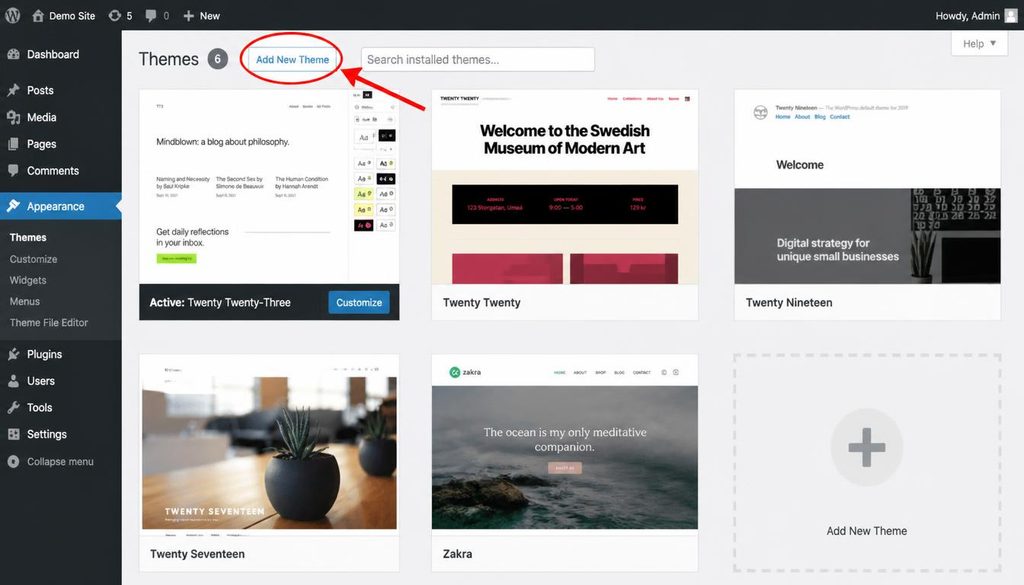
WordPress dashboard showing Appearance Themes and the Add New Theme button for installing a free WordPress theme.
What to do after you activate your theme
Do not stop after activation. A new theme may change the menu layout, widget areas, page widths, fonts, and homepage display. Take a few minutes to check the whole site before you start writing new content.
- Set the site identity. Add your logo if you have one, check the site title, and make sure the header does not look crowded.
- Choose readable fonts. Use a body font that is easy to read on a phone. Avoid using many font families or decorative styles.
- Set your colors. Pick a small palette and keep links, buttons, and headings consistent.
- Review the menu. Make the main pages easy to find. Remove sample links and empty pages.
- Check the homepage. Confirm that WordPress displays the page you intend. If needed, go to Settings > Reading and set the homepage and posts page.
- Preview a blog post. Check headings, links, images, lists, and the author or date details.
- Test on mobile. Open the site on a phone or use your browser’s responsive preview. Check menu taps, text size, and horizontal scrolling.
- Remove demo content. Delete sample posts, placeholder sections, and unused plugins after you confirm they are not needed.
For more control over your design, read our tutorial on WordPress themes and how they work. Keep the first design simple. A site that explains its purpose clearly is more useful than one with every visual effect turned on.
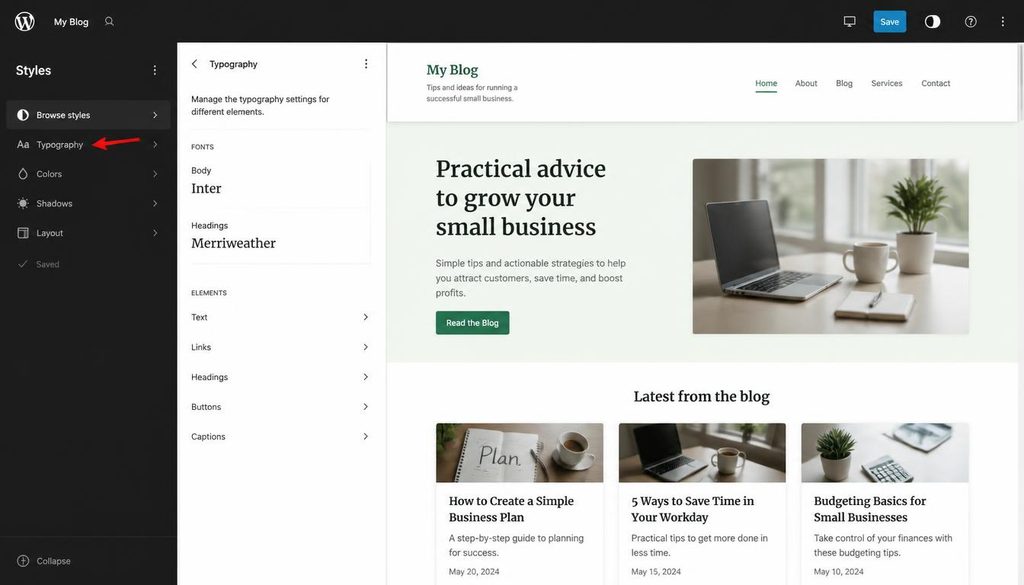
WordPress theme customization screen showing global typography and color settings for a beginner-friendly website design.
How to check whether a free theme is safe to use
A free theme should come from a source you trust and receive updates. Start with the official WordPress theme directory. Review the theme’s last update, compatibility notes, support activity, ratings, and documentation. A high rating alone does not prove that a theme is right for your site, but a neglected theme with unresolved problems deserves extra caution.
- Check its update history. Look for signs that the developer still maintains it.
- Read support topics. See whether common problems receive useful answers.
- Review the free and paid features. Confirm that the free version includes the controls you need.
- Skip unofficial “nulled” downloads. Modified premium theme packages can contain harmful code and may not receive safe updates.
- Keep WordPress updated. Updates help address bugs and security issues, but take a backup before major changes.
Do not install a theme from a random file-sharing site just because it offers paid features for free. The risk to your site, visitors, and search reputation is not worth it. Use our WordPress security guide for more ways to protect a new website.
Will a free WordPress theme slow down your website?
A theme can affect page speed, but it is only one part of the page. Large images, too many plugins, third-party scripts, slow hosting, and heavy page layouts can have a bigger impact than the theme name alone. Two websites using the same theme can perform very differently.
To keep your site responsive, use image dimensions that fit the layout, avoid loading large video backgrounds without a reason, limit plugins to the features you need, and test your most important pages. Compare performance before and after major design changes. Do not trust a speed claim unless the test explains the hosting, page content, device, and measurement method.
Read our guide to improving WordPress speed for practical checks. A simple theme with a clear layout is a good start, but your publishing habits and hosting choices still matter.
Mistakes to avoid when choosing the best free WordPress themes
Choosing a theme only because the demo looks impressive
Demo sites often use polished photography, carefully written copy, and optional plugins. Your site will not look the same after one click. Choose a theme whose basic layout fits your needs, then judge the result using your own pages and images.
Installing several themes and leaving them all in place
WordPress uses one active theme at a time. Keep the active theme and any parent theme needed by a child theme, then remove unused themes you do not need. Before deleting anything, confirm that the site does not rely on it and keep a backup.
Installing too many plugins to copy a demo
Some starter sites suggest a page builder, slider, blocks plugin, forms plugin, and other tools. You may need only a few of them. Install a plugin when it solves a clear problem, not because a demo uses it.
Changing themes before checking existing layouts
A theme change can alter widgets, menus, custom layouts, and shortcodes. Make a backup and test the change on a staging site when possible. If the site is already live, check the main pages after activation and fix any layout issues before announcing the redesign.
Assuming the theme handles SEO by itself
A theme can support a clean structure, responsive design, and readable content, but it cannot replace useful pages and good site management. Write helpful titles, organize content with headings, add descriptive internal links, and keep the site easy to use. Use an SEO plugin for tasks it handles well, and avoid installing overlapping tools that add the same feature twice.
Can you change your WordPress theme later?
Yes. You can change themes whenever you need to, but plan the switch rather than treating it as a harmless color change. Your posts and pages normally remain in WordPress, while theme-specific settings, widgets, templates, and shortcodes may change or disappear from the design.
Before switching, make a full backup, record important settings, and test the new theme on a staging copy if your host provides one. Check the homepage, posts, forms, menus, product pages, and mobile view after the switch. If the new theme does not work out, you can usually reactivate the old one, provided you have not removed it and your data remains intact.
For a site that already gets visitors or sales, avoid making major design changes during a busy period. Read our guide to updating WordPress safely for a cautious maintenance workflow that also applies when you prepare for theme changes.
Frequently asked questions about the best free WordPress themes
What is the best free WordPress theme for beginners?
Astra is a practical all-purpose starting point for many beginners. Kadence is worth comparing if you want more visual controls, while Twenty Twenty-Five is a good option if you want to learn the native Site Editor. The best choice is the one that supports your pages without forcing you to buy features you do not need.
Are free WordPress themes really free?
Yes, a theme listed as free can be installed without paying. Some themes also sell premium upgrades, starter templates, support, or advanced controls. Check the feature list so you know which parts you can use at no cost.
Which free WordPress theme is best for a blog?
Astra, GeneratePress, Kadence, Neve, and Twenty Twenty-Five can all work for a blog. Focus on readable text, clear categories, a useful menu, and a good mobile layout. Your publishing plan and content quality matter more than a theme’s demo appearance.
Which free WordPress theme is best for a business website?
Astra, Kadence, Neve, and Sydney are useful starting points for many small business websites. Choose one that makes your services, contact details, and main call to action easy to find.
Which free theme is best for WooCommerce?
Compare Blocksy, Astra, Kadence, OceanWP, and Storefront. Install WooCommerce on a test site and check product pages, the cart, checkout, and mobile navigation before deciding. Some advanced shop layouts may need paid features.
Are free themes safe?
Many free themes are safe when you download them from the official WordPress theme directory and keep them updated. Review update history, support activity, and compatibility information. Avoid modified or pirated theme packages from unknown sources.
Do I need Elementor to use a free WordPress theme?
No. WordPress includes a block editor, and many themes work well with it. Elementor is optional. Hello Elementor is mainly useful when you plan to build pages with Elementor, while a block theme such as Twenty Twenty-Five uses the native Site Editor.
Will changing my theme delete my posts?
Changing the active theme normally does not delete posts or pages. It can change how content appears, and theme-specific settings, widgets, or shortcodes may not transfer. Back up the site and check important pages after the switch.
Should I install multiple themes?
You can install more than one theme, but WordPress uses only one active theme at a time. Keep themes you actually need for testing or a child-theme setup, and remove unused ones after you confirm they are not required.
How many plugins should I install with a free theme?
Install only the plugins that provide features your site needs. There is no single safe plugin count because the quality and work of each plugin matter more than the number alone. Avoid adding several plugins that do the same job.
Official resources for checking free WordPress themes
- Browse free themes in the WordPress.org directory.
- Read the official WordPress documentation for help with the dashboard and site editor.
- View Twenty Twenty-Five in the official theme directory.
- Visit WooCommerce if you plan to build an online store.
Pick one theme that fits the site you want to launch, build a few real pages, and test the experience on mobile before you spend money on upgrades. If the free version handles your needs, keep using it.