WordPress not sending emails can stop password resets, contact form replies, order notices, and important site alerts from reaching your inbox. The fix depends on which message fails and where it gets stuck. Use this guide to test WordPress email step by step, find the cause, and set up reliable delivery without making risky changes.
When WordPress not sending emails is the problem, the site may still look normal. WordPress can create a message but fail to hand it to a mail server, or the receiving provider may reject or filter it. We will test both parts so you can tell the difference between a sending problem and a delivery problem.
What causes WordPress not sending emails?
WordPress often uses the server’s PHP mail function to send email. Some hosting providers limit that function, and some receiving mail services treat messages from shared servers as spam. A plugin can also use the wrong sender address or fail to send a message after a form submission.
Common causes include:
- Your host blocks or limits PHP mail.
- The sender address does not match your domain or mail setup.
- Your domain lacks valid SPF, DKIM, or DMARC records.
- A contact form plugin has the wrong recipient or notification settings.
- An SMTP plugin has an incorrect password, API key, port, or encryption setting.
- A plugin or theme error stops the message from being created.
- The recipient’s inbox filters the email as spam or rejects it.
- A site migration changed the domain, server, or mail service settings.
Do not install another mail plugin straight away. First identify which email fails and test the current setup.
Step 1: Find out which WordPress emails are failing
Start with one clear test. This saves time because a failed password reset may have a different cause from a failed contact form notification.
- Write down the message that should have arrived, such as a password reset, form notice, new user alert, or store order email.
- Check the recipient address for spelling errors.
- Look in Spam, Junk, Promotions, and any company quarantine folder.
- Test delivery to a second inbox that you control, ideally at a different email provider.
- Note the time of each test and any error message shown by WordPress or the plugin.
If every type of message fails, check the site’s mail transport or SMTP setup first. If only one plugin fails, inspect that plugin’s notification settings before changing the whole site’s mail system.
Step 2: Test WordPress email delivery with a mail test tool
A mail test helps you separate a WordPress problem from an inbox filtering problem. Use the diagnostic or test-email feature in your current SMTP plugin if it provides one. Send the test to an address you can check, then read the full result rather than relying only on a green success notice.
A successful test may mean the mail service accepted the message; it does not always prove that the recipient received it. Open the receiving inbox, check spam, and review the provider’s delivery log if available.
If the test reports an authentication error, verify the login method and credentials. If it reports a connection or timeout error, check the host, port, encryption method, and any outbound mail restrictions from your web host.
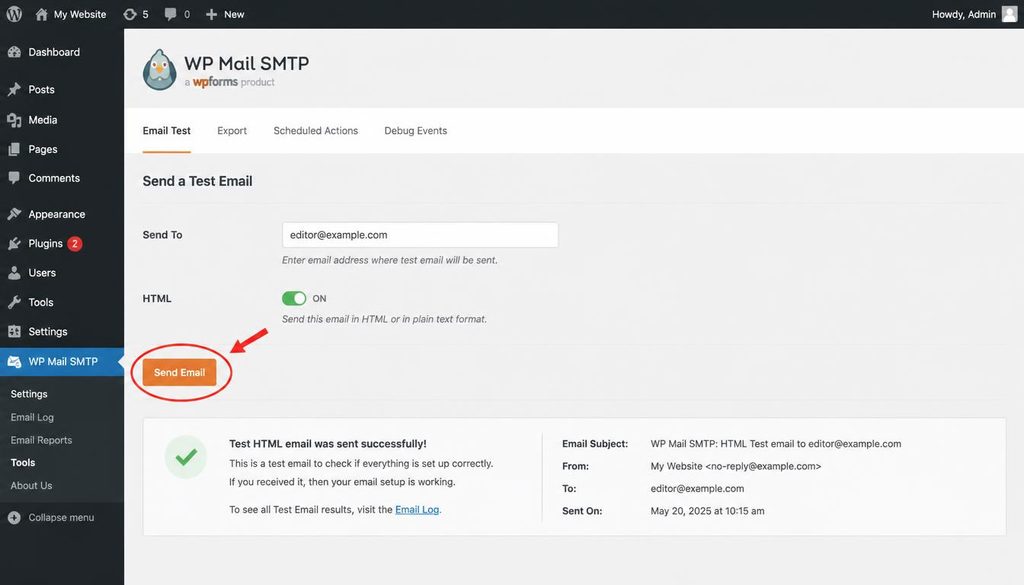
WordPress email troubleshooting using an SMTP plugin test email screen to check whether site messages can be sent.
Step 3: Fix WordPress not sending emails by setting up SMTP
For many sites, SMTP or a provider’s authenticated mail API is more reliable than the server’s default PHP mail function. SMTP lets WordPress send messages through a mail service that can authenticate your site and track delivery.
Choose a provider that fits your site’s needs. You might use the mail service included with your domain, your hosting provider’s SMTP service, or a dedicated transactional email provider. Check the provider’s current setup guide because hostnames, ports, and authentication steps vary.
Set up SMTP carefully
- Choose the sending service. Confirm that the service allows website or transactional messages and that your account is ready to send.
- Verify your domain. Follow the provider’s steps to add any required DNS records.
- Install one reputable SMTP plugin. Use the WordPress plugin directory or the provider’s official instructions. Avoid installing several mail plugins that may conflict.
- Select the mailer. Choose the provider or SMTP option that matches your account.
- Enter the connection details. Add the host, port, encryption method, and authentication details exactly as your provider specifies.
- Set a valid From address. Use an address you control and that your mail provider allows.
- Save and send a test email. Check both the plugin result and the receiving inbox.
- Review the logs. If the message fails, use the exact error to guide the next step.
Do not guess the port or encryption setting. Providers may use different combinations, and the wrong combination can block the connection. Store passwords and API keys in the plugin’s secure settings or an approved secrets system; never paste them into a public support post.
Which SMTP settings should you use?
There is no single set of SMTP values that works for every website. Use the settings supplied by your mail provider. Common setups use authenticated SMTP with encryption, or an authenticated API connection. Some hosts block certain outbound ports, so ask support if the correct settings still time out.
If your provider supports an API mailer, it may be easier to manage than a mailbox password. Follow the provider’s official instructions and grant only the access needed to send mail.
Step 4: Check the WordPress From name and From email address
A mismatched sender address can cause delivery issues. For example, your site may try to send as a free email address while using a different domain’s mail server. Some providers rewrite or reject that message because the site cannot prove it is allowed to send for that address.
- Open your SMTP plugin’s sender settings.
- Set the From email to an address on a domain you control, such as
website@example.com. - Use a clear From name, such as your site or business name.
- If the plugin offers a force-from option, enable it only when that matches your mail setup and the provider’s guidance.
- Send another test and check the message details in the receiving inbox.
Use an address that exists or is approved by your provider. You may not need a separate inbox for every sender address, but the domain and service must permit that address.
Step 5: Check SPF, DKIM, and DMARC DNS records
If WordPress sends messages but they land in spam or disappear, your domain’s email authentication may be incomplete. SPF, DKIM, and DMARC help receiving mail services check whether a sender is allowed to send for your domain and whether the message passes the checks you have set.
- SPF: Lists the servers or services allowed to send mail for your domain.
- DKIM: Adds a digital signature that receiving services can check.
- DMARC: Tells receiving services how to handle mail that fails alignment checks and can provide reports.
Open your email provider’s domain setup page and copy the exact DNS records it supplies. Add them at the DNS provider that manages your domain’s nameservers. If your DNS is hosted separately from your web hosting, changing records in the wrong control panel will not help.
Important: Do not add a second SPF record just to make a new service work. A domain should have one SPF policy that includes all approved sending services. Ask your mail provider or DNS administrator to merge the entries safely. Incorrect SPF, DKIM, or DMARC records can make delivery worse.
DNS updates may take time to appear across the internet. Use your provider’s verification tool to confirm the records before running another test.
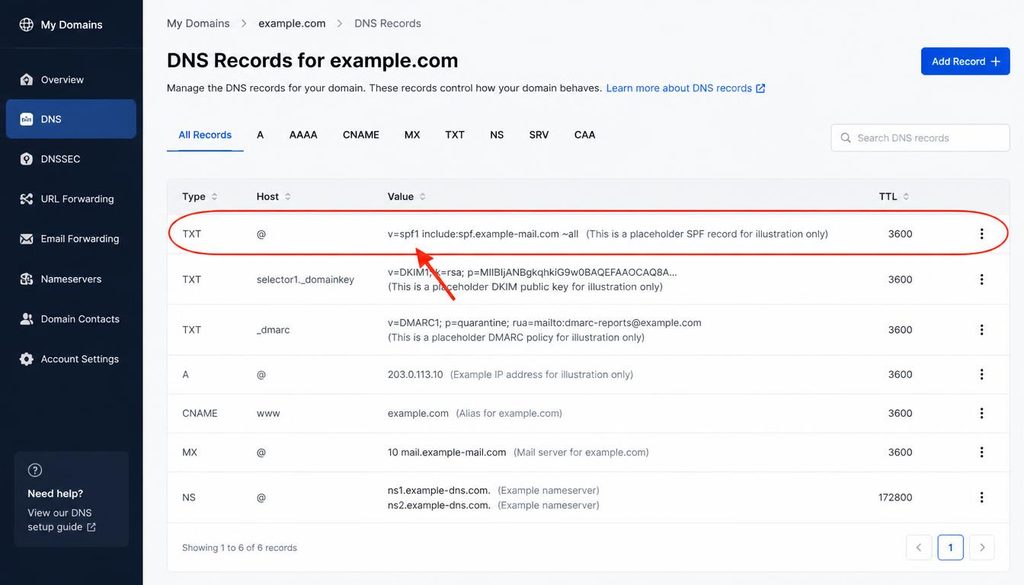
Example DNS dashboard highlighting an SPF TXT record while troubleshooting WordPress not sending emails and domain authentication.
Step 6: Fix WordPress contact form emails
If password resets work but contact form messages do not, the mail system may be fine. The form may have a wrong recipient, a failed validation step, a notification rule, or an anti-spam setting that blocks the submission.
Review the form notification settings
- Open the contact form plugin’s settings in the WordPress dashboard.
- Find its email, notification, or actions section.
- Confirm the recipient address is correct and has no extra spaces.
- Check the subject and message fields for invalid template tags.
- Submit a test from the public form and note whether the form shows success or an error.
- Check the SMTP plugin’s log to see whether WordPress tried to send the message.
Be careful with the visitor’s email address in the From field. Many sites should use a fixed, verified address from their own domain as the sender and put the visitor’s address in the Reply-To field. That lets you reply to the visitor without pretending your server is allowed to send as their email provider.
If the form shows success but no message arrives, check the form’s delivery log and the mail provider’s logs. A success notice may only mean that the form accepted the submission, not that the email reached your inbox.
Step 7: Fix WordPress password reset emails that do not arrive
Password reset messages use WordPress’s email system, so a broken mail setup can lock users out. First check Spam and Junk, then confirm the account email and test other WordPress messages.
If other site emails arrive but reset messages do not, check whether a security plugin or custom login plugin changes the reset process. Also review any plugin that alters user registration or account emails. For login-specific recovery, read how to fix WordPress login problems.
If the reset message is not generated, a developer can check the PHP and WordPress logs around the time of the request. Avoid sharing reset links publicly; they can grant account access.
Step 8: Check whether a plugin or theme stops WordPress email
A plugin can change mail settings, block a message, or cause a PHP error before WordPress sends it. If email stopped after an update, focus on that recent change first.
- Make a backup before disabling plugins or changing files.
- If you can access the dashboard, deactivate the most recently added or updated mail-related plugin first.
- Send a test email after each change.
- If the dashboard is unavailable, ask your host or developer to test plugins in a safe way, ideally on staging.
- Restore any plugin that was not responsible for the issue.
Do not rename the entire plugins folder on a busy production site unless you understand the impact. That can disable forms, security tools, and other features. If you must use the file manager for recovery, coordinate with your host and restore the folder promptly after testing.
The active theme is less likely to control mail delivery, but custom code in a theme’s functions.php file can hook into email actions or trigger a fatal error. Review recent code changes if logs point to the theme.
Step 9: Check your hosting provider and server mail limits
Some hosting plans restrict PHP mail, limit the number of messages a site can send, or block outbound connections to mail servers. A shared host may also suspend mail if it detects spam-like traffic.
Contact hosting support if your SMTP settings look correct but connections time out, all messages fail, or delivery stopped without a WordPress change. Ask them to check:
- Whether outbound SMTP connections are allowed from your plan.
- Whether PHP mail is disabled or rate-limited.
- Whether the account or server has a mail sending limit.
- Whether logs show a blocked connection, rejected message, or queue failure.
- Whether your domain or server IP has a mail reputation issue.
Give support the time of a failed test and its error text. Never send your WordPress password, mailbox password, or API secret in a support ticket.
Step 10: Use email logs to find the real error
Logs can show whether WordPress attempted to send a message and whether the mail provider accepted or rejected it. If your SMTP plugin has email logging, turn it on only as needed and protect the log because messages may contain personal data.
Look for clues such as:
- Authentication failed: Check the username, password, API key, or provider permissions.
- Connection timed out: Confirm the host and port, then ask the host about outbound restrictions.
- Sender rejected: Check the From address and domain verification.
- Recipient rejected: Confirm the recipient address and provider policy.
- Accepted or sent, but not received: Check spam, quarantine, recipient mail logs, and domain authentication.
- No log entry at all: The form or WordPress action may not have triggered the send attempt.
Delete or protect logs when you no longer need them. Avoid leaving full message contents, reset links, or personal data exposed to users who do not need access.
Step 11: Check site changes after migration or HTTPS setup
If WordPress not sending emails started after a migration, review what changed. The new host may use different mail rules, the domain’s DNS may still point to the old provider, or the SMTP plugin may still use an old credential.
- Confirm the website domain and DNS are correct.
- Check that the mail provider still verifies the sending domain.
- Update any SMTP hostname, API key, or mailbox credential that changed.
- Check the From address after a domain change.
- Run a test message and review the logs.
Changing a website’s HTTPS settings does not automatically repair email authentication. Web hosting DNS and mail DNS may use different records, so check both services before changing anything.
Step 12: Prevent WordPress email problems from returning
Once email works, keep the setup easy to test and maintain.
- Use one trusted SMTP plugin or an approved mail API integration.
- Verify your domain with your mail provider and keep its DNS records current.
- Send occasional test messages to a monitored inbox.
- Keep WordPress, themes, and plugins updated, and test major changes carefully.
- Review delivery logs when a critical message fails.
- Protect API keys, mailbox passwords, and email logs.
- Use a dedicated transactional email service for high-volume or business-critical mail when appropriate.
- Keep your site and email service backups and recovery contacts up to date.
Do not send bulk marketing campaigns through a basic website mail setup unless the provider explicitly supports that use. A newsletter service is often better suited to consent management, unsubscribe requests, and high-volume delivery.
WordPress not sending emails: quick troubleshooting checklist
- Check spam, junk, and quarantine folders.
- Test whether all site emails fail or only one type.
- Run the SMTP plugin’s test email and read the full error.
- Verify the From address and sender name.
- Confirm SMTP credentials, host, port, and encryption.
- Check SPF, DKIM, and DMARC records with the mail provider.
- Review contact form recipients and notification rules.
- Check logs before disabling plugins.
- Ask the host about blocked connections or sending limits.
- After a migration, verify both website and mail DNS settings.
Frequently asked questions about WordPress not sending emails
Why is WordPress not sending emails by default?
WordPress often relies on the server’s PHP mail function. Some hosts restrict it, and some receiving services do not trust messages from shared servers. An authenticated SMTP service or mail API can improve delivery and provide useful logs.
Does WordPress need an SMTP plugin to send email?
Not every site needs one, but SMTP or a mail API often makes delivery more reliable and easier to diagnose. Choose a plugin that supports your provider and keep its credentials private.
Why do WordPress emails go to spam?
Messages may lack valid domain authentication, use a mismatched sender address, or come from an IP with a poor reputation. Check SPF, DKIM, and DMARC with your email provider, then test delivery to more than one inbox.
Why are contact form emails not working when other emails do?
The form may have the wrong recipient, invalid notification fields, or an issue with its submission rules. Check the form settings and logs before changing the site’s global mail setup.
Will changing DNS fix WordPress email delivery?
It can help when SPF, DKIM, or DMARC records are missing or wrong, but DNS changes will not fix every sending problem. Use the exact records from your mail provider and avoid creating multiple SPF records.
Can hosting block WordPress emails?
Yes. A host may limit PHP mail, block outbound SMTP, or cap the number of messages. Ask support to check the mail logs and connection rules if the plugin reports timeouts or every message fails.
How can I tell if WordPress sent an email successfully?
Check the SMTP plugin log and the mail provider’s delivery log. A message marked as accepted may still be filtered by the recipient’s provider, so check the inbox, spam folder, and any available delivery events.
Official resources
- WordPress documentation
- WordPress Plugin Developer Handbook
- DNS records explained by Cloudflare
- DMARC.org