Your WordPress site title is one of the first things visitors and search engines use to understand your website. It may appear in browser tabs, search results, site headers, and other places depending on your theme and SEO settings. If you are rebranding, correcting a typo, or making your site topic clearer, changing the title is usually simple—but it helps to understand which setting controls it and where the title is displayed.
This guide explains how to change the WordPress site title, what the Site Title and Tagline settings do, how themes and SEO plugins affect what people see, and how to troubleshoot a title that does not appear to update. The steps are written for beginners and include safe checks you can complete before and after making the change.
What is the WordPress site title?
The WordPress site title is the name assigned to your website in WordPress settings. It identifies the site rather than an individual post or page. For example, a website about home gardening might use “Green Garden Notes” as its site title, while an article on that site might have the separate page title “How to Grow Tomatoes in Containers.”
Depending on your theme, browser, and plugins, the site title may be used in the site header, browser tab, default document title, feeds, or other site metadata. Search engines may use your supplied title information when generating search result titles, but they can choose a different title when they believe another version better matches a search.
Site Title vs. Tagline vs. page title
- Site Title: The name of the overall website, such as “Green Garden Notes.”
- Tagline: A short description of the website, such as “Practical advice for growing at home.”
- Page or post title: The heading for one specific page or article, such as “How to Grow Tomatoes in Containers.”
- SEO title: The title configured for search engines through your SEO plugin or theme. It can be different from the site title and the visible page heading.
These fields serve different purposes. Changing the Site Title will not automatically rename every post, rewrite your domain, or change the title of every page. If you want to change a single article headline, edit that post instead. If you want to change the web address, follow our guide to changing the WordPress site URL; the site title and site URL are separate settings.
Before changing your WordPress site title
Most site-title changes are low risk and do not require a backup on their own. Still, pause for a moment to decide what the new name should be and check where the current title is being used. If your website is a business, publication, portfolio, or established brand, consistency matters more than inserting extra keywords.
- Choose a clear name that matches your brand or the subject of your website.
- Check spelling, capitalization, and punctuation before saving.
- Decide whether your tagline should change as well.
- Note the current title so you can restore it if needed.
- If you use a custom header, page builder, or SEO plugin, plan to verify those areas after saving.
SEO tip: Use the name people should recognize, not a long string of search phrases. A site title such as “Green Garden Notes” is usually more credible and readable than “Best Gardening Tips Plants Flowers Vegetable Gardening Guide.” Keyword stuffing can make the site look untrustworthy and does not guarantee better rankings.
How to change the WordPress site title in Settings
The standard method works on most WordPress installations and is the recommended place to start. You need an account with permission to manage site settings.
Step 1: Sign in to your WordPress dashboard
Open your website’s WordPress administration area and sign in. On many installations, the dashboard address is your domain followed by /wp-admin/. Your host or security plugin may use a customized login URL, so use the address configured for your site if it differs.
Step 2: Open Settings → General
In the left-hand administration menu, select Settings, then choose General. This screen contains the Site Title and Tagline fields, along with other basic site settings. If you cannot see Settings, your account may not have the required permissions.
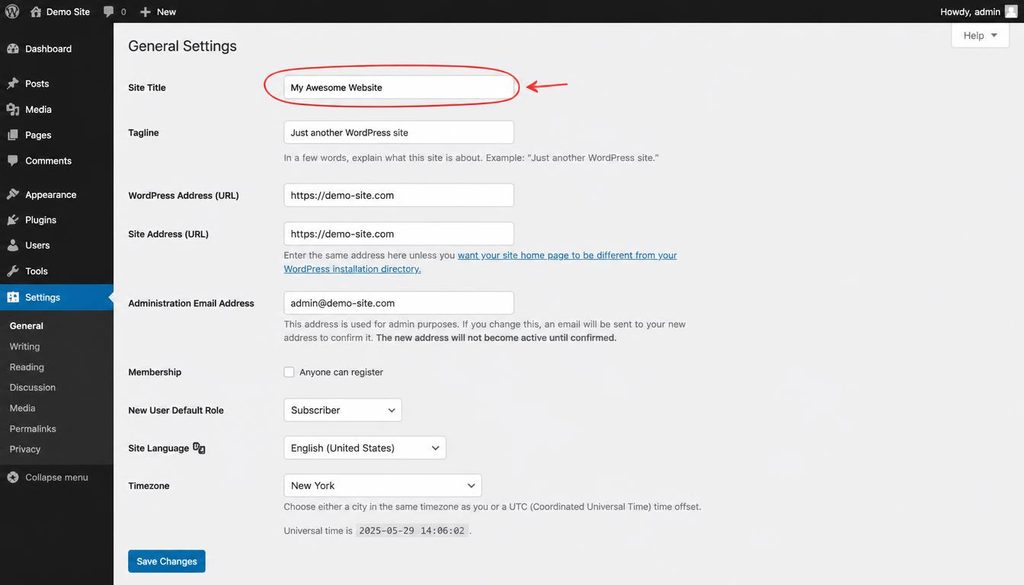
WordPress Settings General screen highlighting the Site Title field for changing a website name.
Step 3: Edit the Site Title field
Find the field labeled Site Title. Select the existing text and replace it with your preferred website name. Keep the title concise, easy to recognize, and consistent with your branding. Do not add your entire list of target keywords to this field.
If you also want to update the short description beneath or alongside your name, edit the Tagline field. A tagline should explain the site’s purpose in natural language. You can leave it blank if you do not need one, although your theme may display a default or custom description elsewhere.
Step 4: Save your changes
Scroll to the bottom of the General Settings screen and select Save Changes. Wait for WordPress to reload or display its confirmation. Your new Site Title is now stored in WordPress settings. Saving this field does not change your domain name or the URL structure of your posts and pages.
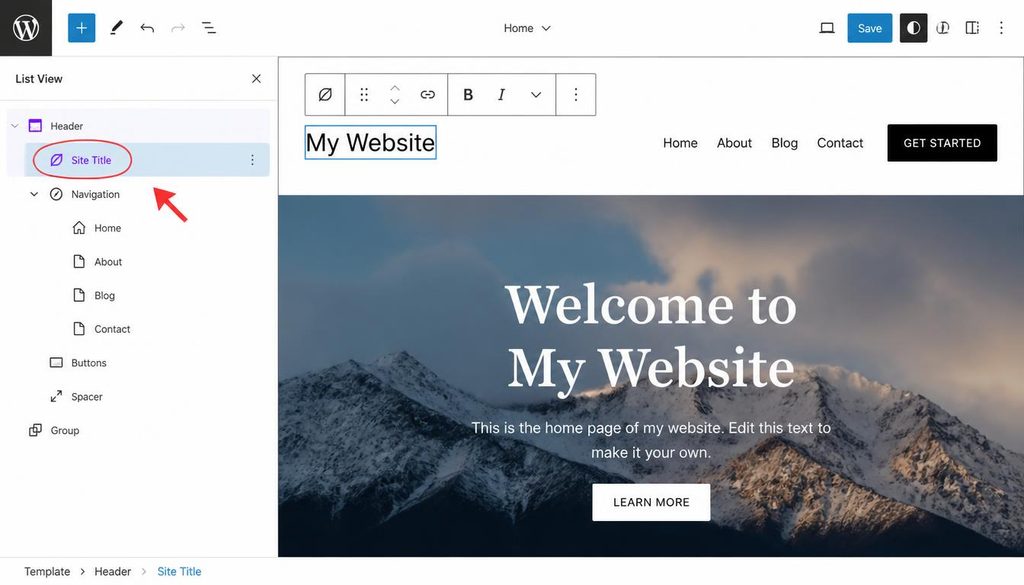
Save Changes button on the WordPress General Settings page after editing the site title.
How to change the site title in the Site Editor or a theme
On some sites, the title displayed in the header is controlled by a block theme, a custom logo, a page builder, or theme-specific settings. If you update Settings → General but the visible header still shows an old name or logo, the title may be coming from a different design element.
For block themes: check Appearance → Editor
If your site uses a block theme, open Appearance → Editor and inspect the header template or template part. A block named Site Title can display the name saved in General Settings. However, a header may instead contain ordinary text, a custom logo, or another block that does not automatically reflect the Site Title setting.
- Open the Site Editor and navigate to the header or relevant template part.
- Select the Site Title block or the text/logo currently shown in the header.
- If it is a Site Title block, verify that it is configured to display the site name.
- If it is ordinary text, edit it carefully and keep it consistent with the site’s identity.
- Preview the header on desktop and mobile, then save the template changes.
For classic themes: check Customize or theme options
Many classic themes provide a title or logo option under Appearance → Customize, often in Site Identity. Some themes use a custom logo instead of displaying the Site Title as text. In that situation, changing the Site Title in General Settings may update browser metadata while leaving the logo unchanged. Update the logo file or theme setting if the visible branding needs to change.
For Elementor and other page builders
If your header was built with Elementor or another page builder, open the relevant header template and inspect its Site Title widget, logo widget, or static text. Dynamic Site Title widgets typically use the WordPress site name, while a logo image or manually typed heading may need a separate edit. Make the smallest necessary change, update the template, and check both desktop and mobile layouts.
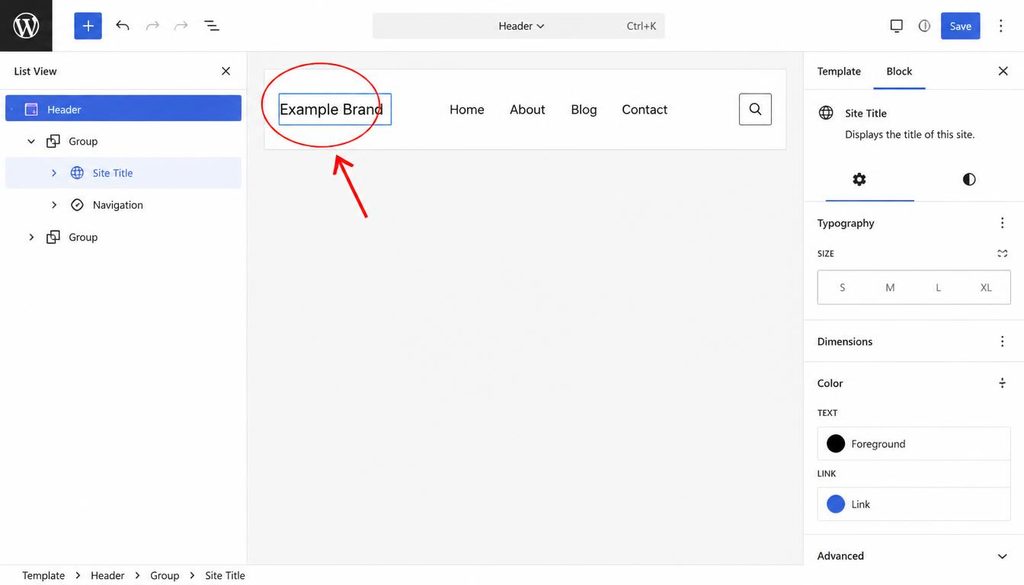
WordPress Site Editor showing the Site Title block in a website header template.
How the site title affects SEO
Your Site Title is useful for brand recognition and can contribute to how your website is identified in browser and search contexts. It is not, by itself, a shortcut to higher rankings. Search engines consider many signals, including page relevance, content quality, links, usability, and technical accessibility. A sensible title helps people recognize the site, but ranking improvements are not guaranteed simply because you change it.
Keep your brand name clear and consistent
Use the same recognizable brand name across your website, social profiles, and other business listings where appropriate. Avoid repeatedly changing the name for short-term keyword experiments. Frequent, unnecessary changes can confuse returning visitors and make brand signals less consistent.
Understand the difference between site title and SEO title
An SEO plugin such as SEOPress can provide fields for a homepage SEO title, individual post titles, social titles, and other metadata. These fields do not all mean the same thing as the WordPress Site Title. If your goal is to change the title that may appear in a search result for the homepage, review the homepage’s SEO title settings separately after updating the Site Title.
- Site Title: The overall website name in WordPress General Settings.
- Homepage SEO title: A title element or SEO-plugin value intended for the homepage.
- Post SEO title: The title configured for an individual article.
- Social title: A title used for social sharing previews when supported.
For example, your Site Title could be “WP Press Tips,” while your homepage SEO title could be “WP Press Tips – WordPress Tutorials for Beginners.” The second version adds context while preserving the brand. Keep it accurate and readable rather than repeating the same phrase unnaturally.
Check your homepage settings in SEOPress
After changing the Site Title, open the relevant SEOPress title and social metadata settings for your homepage. The exact interface can vary by plugin version and whether the homepage displays a static page or the latest posts. Check the title preview, meta description, and social preview, and save any changes you intentionally make. Do not assume that the Site Title automatically overwrites every custom SEO title.
For broader optimization, review our WordPress SEO guidance and make sure important pages have useful titles, descriptive headings, and content that answers visitors’ questions.
How to check whether the new site title is working
After saving, verify the change in more than one place. Different parts of a site may use different title sources, and cached pages can make an update appear delayed.
- Reopen General Settings: Confirm that the Site Title field contains the new value.
- Visit the homepage: Check whether the header displays the updated name, if your theme shows it.
- Check the browser tab: Look at the text shown for your homepage tab. The tab may include the page title or SEO title as well as the site name.
- Inspect a post or page: See whether its title format includes the site name. This depends on the theme and SEO configuration.
- Check mobile view: Ensure the new name or logo fits the header without awkward wrapping or overflow.
- Review source or SEO previews if needed: If the browser title still seems wrong, inspect the generated page title and the homepage SEO settings.
Troubleshooting: WordPress site title not changing
The old title still appears on the website
First, confirm the new value is saved under Settings → General. Then determine exactly where the old title appears. If it is in the site header, check your theme, Site Editor, custom logo, or page-builder template. If it appears only in the browser tab, review the homepage title settings and your SEO plugin. A hard-coded text block will not necessarily update when the Site Title field changes.
The old title appears because of caching
Clear the cache layers used by your site, if any: your WordPress caching plugin, hosting cache, content delivery network (CDN), and browser cache. Test in a private browsing window as well. Do not disable every performance tool permanently; clear the relevant cache and then test again. Our guide to improving WordPress speed explains why caching can affect what visitors see.
The browser tab or Google result shows a different title
The browser tab may use the page’s HTML title, which can be assembled from a page title, site name, theme rules, and SEO-plugin settings. Search engines may also rewrite a displayed result title. Verify the homepage SEO title and generated page title before making more changes. If the page was recently updated, a search result may not reflect the latest version until the page is crawled and processed again; there is no guarantee of an immediate change.
You cannot find Settings → General
Check that you are signed in to the correct WordPress installation and that your user role has permission to manage settings. Some managed WordPress services, multisite networks, or custom admin configurations restrict these controls. If you are on a multisite network, the network administrator may control certain settings.
The title is correct, but the logo still has the old name
A logo is an image file, not the Site Title text field. Upload or select the updated logo in the theme’s Site Identity options, Site Editor, or page-builder header, depending on how your site is built. Check the logo’s dimensions, contrast, mobile appearance, and alternative text where appropriate. Do not replace a logo with a huge image containing a long list of keywords.
Common mistakes to avoid
- Confusing the site title with the domain: The Site Title is a name, not the website address.
- Expecting every title to change: Individual page headings, SEO titles, social titles, and logos may be configured separately.
- Stuffing keywords into the site name: Prioritize a clear, trustworthy brand.
- Changing the title repeatedly: Make a considered decision and keep the name consistent.
- Forgetting the header template: Custom text or a logo may not be connected to the Site Title setting.
- Ignoring the mobile layout: Long names can crowd navigation or wrap badly on small screens.
- Assuming Google changes instantly: Search-result titles are selected by the search engine and may not update immediately.
WordPress site title change checklist
Use this short checklist to finish the task without overlooking a separate title source.
- ☐ Choose the final site name and check spelling.
- ☐ Open Settings → General and update Site Title.
- ☐ Update the Tagline only if needed.
- ☐ Select Save Changes.
- ☐ Check the visible header, Site Editor, theme options, or page-builder template.
- ☐ Review homepage SEO title and social metadata in SEOPress.
- ☐ Clear relevant caches and test the site on desktop and mobile.
- ☐ Confirm that the site title is readable, brand-consistent, and not keyword-stuffed.
Frequently asked questions
1. Where do I change the site title in WordPress?
Go to Settings → General in your WordPress dashboard, edit the Site Title field, and select Save Changes. If the visible header does not update, check your theme, Site Editor, custom logo, or page-builder template.
2. Can I change my WordPress site title without changing my domain?
Yes. The Site Title is the name of your website, while the domain is its web address. Changing the Site Title does not, by itself, change your domain, permalink structure, or the URLs of your posts and pages.
3. Does changing the Site Title affect SEO?
It can affect how your brand is presented in places that use the site name, but it does not guarantee a ranking improvement. Keep the name accurate and consistent, and review your homepage SEO title separately in your SEO plugin.
4. Why is the old site title still showing in my header?
Your header may use a custom logo, manually typed text, a Site Editor template, or a page-builder widget. Check the component that actually displays the name, save the template if necessary, and clear relevant caches.
5. Is the WordPress Site Title the same as the SEO title?
No. The Site Title is the overall website name stored in General Settings. An SEO title is a page-specific title setting that can be managed by your theme or SEO plugin. They can be related, but they are not interchangeable.
6. Should my WordPress site title contain keywords?
Use a relevant, natural brand name. If a descriptive word is genuinely part of your brand, it can be included, but do not turn the Site Title into a list of search terms. Put topic-specific phrases in useful page titles, headings, and content where they fit naturally.
7. How long does it take for Google to show the new title?
There is no fixed timeline. Search engines need to recrawl and process the page, and they may choose a different result title. Make sure the site is accessible, the homepage title is accurate, and internal branding is consistent; then allow time for search results to refresh.
Final thoughts
For most WordPress websites, the process is straightforward: open Settings → General, update the Site Title, and save. The extra work is checking the places that may use a separate source—especially a custom header, logo, page-builder template, browser title, or homepage SEO settings. Keep the name clear and consistent, verify the result on mobile and desktop, and treat the site title as one part of a broader, helpful SEO setup.
For the next step, learn how to use the WordPress dashboard or follow our step-by-step WordPress website setup guide if you are still building your site.