Installing WordPress through cPanel is usually straightforward once you know which settings matter. The main risk is not the install button. It is choosing the wrong domain or folder, leaving the admin account weak, or discovering later that the site was installed at the wrong address.
This guide walks through the common cPanel options, including Softaculous, WP Toolkit, and a manual installation when your host does not provide an installer. Menu names vary between hosting companies, so use the option your account actually shows rather than expecting every cPanel screen to look identical.
Quick answer: Sign in to your hosting account, open cPanel, launch Softaculous or WP Toolkit if available, select WordPress, choose the correct domain and directory, enter secure administrator details, and run the installation. Then sign in to WordPress and complete the first settings checks below.
Before you install WordPress using cPanel
Take a few minutes to check the basics first. This helps prevent common installation problems and avoids having to move the site later.
1. Make sure the domain points to your hosting account
Your domain needs to be connected to the hosting account where you plan to install WordPress. If you bought the domain from a different company, your host may ask you to update nameservers or DNS records. DNS changes can take time to appear everywhere, so a domain that was connected moments ago might not work consistently yet.
In cPanel, open Domains and check that the domain appears in the list. Depending on your host, you may see a document root such as public_html for the main domain or a separate folder for an addon domain or subdomain. Make a note of the document root before you install.
2. Check the hosting plan and WordPress requirements
Use a hosting plan that supports a current, maintained version of PHP and a compatible MySQL or MariaDB database. WordPress.org publishes the latest recommendations on its official WordPress requirements page. Your hosting provider controls the server software, so contact support if you cannot select a supported PHP version or if the installer reports a missing extension.
3. Decide where the website should live
This choice affects the address visitors will use. If you want the main website at https://example.com/, the installation directory should usually be the domain’s document root. If you intentionally want the site at https://example.com/blog/, use a folder named blog. Do not type a folder name just because the field is there.
- Main domain: install into the correct document root, often
public_html. - Subdirectory: enter a folder such as
blogonly if you want WordPress at that path. - Subdomain: select the subdomain itself, such as
learn.example.com, after it has been created in cPanel.
If WordPress is already installed in that folder, stop and check before proceeding. A second installation in the same location can overwrite files or create confusion about which database belongs to the site.
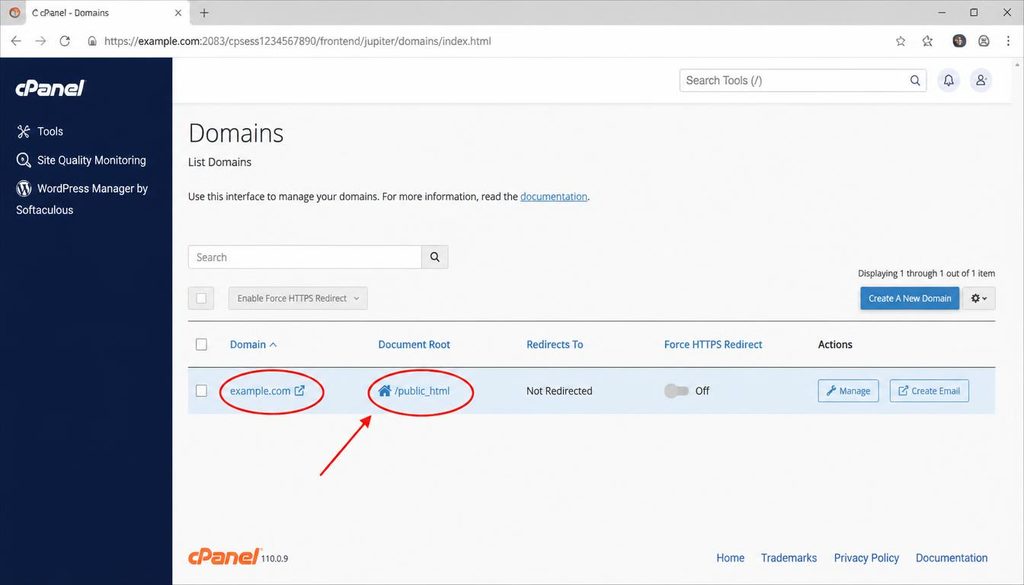
cPanel Domains screen showing the website domain and document root to check before installing WordPress.
Find the WordPress installer in cPanel
There is no single cPanel layout used by every host. Look for one of the following tools. If none appears, your hosting provider may have disabled automatic installation or may require you to ask support for the correct method.
Option A: Softaculous Apps Installer
Many hosting companies include Softaculous. In cPanel, look under Software or use the search field at the top and type Softaculous. Open it, find WordPress, and choose the install option.
Option B: WP Toolkit
Some accounts provide WP Toolkit, often under Domains. Open WP Toolkit and choose Install WordPress or Install. The tool may also help manage updates and existing WordPress sites. The exact controls depend on the version your host has enabled.
Option C: Another hosting installer
Your host may provide Installatron or a branded WordPress installer. The form usually asks for the same core details: domain, directory, site name, administrator login, language, and database settings. Follow the labels shown by your host.
For official background, see the WordPress documentation on hosting control panels and the cPanel guide to installing WordPress.
How to install WordPress using Softaculous
The steps below describe the usual Softaculous flow. Your screen may have different labels or a slightly different order, but the decisions are much the same.
Step 1: Open WordPress in Softaculous
- Log in to your hosting account.
- Open cPanel.
- Find Softaculous Apps Installer, then open it.
- Search for WordPress and select the WordPress listing.
- Choose Install or Install Now.
Check that the product is WordPress itself, not a similarly named theme or another application. Use the current stable version offered by the installer unless your host has a documented reason for another supported version.
Step 2: Choose the installation URL carefully
Find the section called Software Setup, Installation URL, or similar. It may contain fields for protocol, domain, and directory.
- Protocol: choose
https://if the domain already has a working SSL certificate. If HTTPS is not available yet, arrange SSL with your host before directing visitors to the site. - Domain: select the exact domain or subdomain where WordPress should run.
- In Directory: leave this blank for a root installation when the selected domain’s document root is the intended location. Enter a folder only when you want the site in that subdirectory.
Example: to make the website open at https://example.com/, select example.com and leave the directory field blank. If you enter wp, the installer will normally place it at https://example.com/wp/. A folder name in this field is not a site title.
Do not select a temporary URL unless your hosting company specifically instructs you to use one. A temporary address can complicate later URL changes, redirects, and SSL setup.
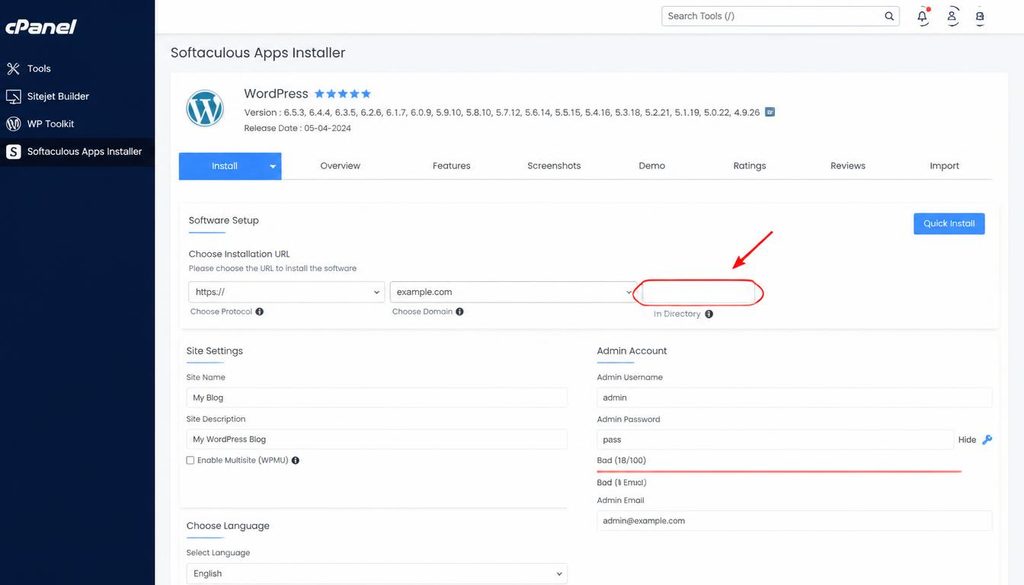
Softaculous WordPress installer showing HTTPS, the selected domain, and a blank directory field for a root installation.
Step 3: Enter the site name and description
In the Site Settings section, enter a working website name and a short description if the installer asks for them. You can change both later in WordPress under Settings → General, so do not get stuck trying to perfect the wording at this stage.
If the installer offers optional plugins or a theme bundle, read the selections before accepting them. Skip add-ons you do not need. You can install a trusted plugin or theme later from the WordPress dashboard.
Step 4: Create a secure administrator account
The administrator account has broad control over the website. Treat it like the key to your house.
- Use a unique username that is not easy to guess. Avoid relying on a predictable public name such as
admin. - Generate a long, unique password and store it in a reputable password manager.
- Use an email address you can access, because WordPress may need it for account notices and password recovery.
- Do not reuse your hosting account password for WordPress.
If the installer asks you to choose a language, select the language you want for the dashboard. You can usually adjust the site language later in Settings → General.
Step 5: Review advanced options before installing
Some installers hide database and update settings inside an Advanced Options section. Open it and review the choices rather than assuming every default is right for you.
Database name and table prefix: the installer normally creates a database and user for you. If it lets you change the table prefix, use a unique prefix rather than assuming a custom prefix alone makes a site secure. Never share database passwords in screenshots or support messages.
Automatic updates: options vary. Keep WordPress core security updates enabled where your host supports them, and choose a plugin and theme update approach that fits your backup and testing routine. Major changes can affect compatibility, so make sure you have a way to restore the site.
Backup options: if the installer offers scheduled backups, check the frequency and retention period. An installer backup is useful, but it should not be your only copy. Confirm what is included and where the backup files are stored.
Step 6: Start the installation and wait for confirmation
Review the URL one last time. Confirm that the domain and directory are correct, then click Install. Keep the browser tab open until the installer reports success. Do not refresh repeatedly or submit the form again while the process is running.
When the installer finishes, it usually shows two links: the public website and the WordPress administration area. The admin address commonly ends in /wp-admin/, for example https://example.com/wp-admin/.
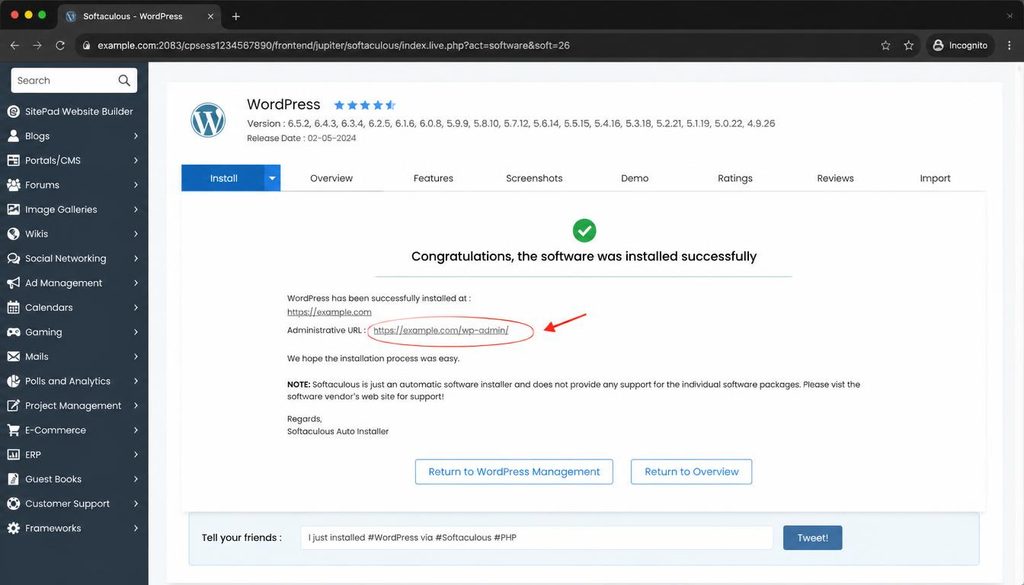
WordPress installation success screen showing the website address and WordPress admin login URL.
How to install WordPress using WP Toolkit in cPanel
If your hosting account includes WP Toolkit, you can use it instead of Softaculous. WP Toolkit is not enabled on every account, so skip this section if you cannot find it.
- Sign in to cPanel and open WP Toolkit, often listed under Domains.
- Select Install WordPress or Install.
- Choose the domain and installation path. For the main site, check that the destination is the domain’s document root and not an unintended subfolder.
- Enter the website title and select the language.
- Set the administrator username, a strong password, and a working email address.
- Review database details and automatic update choices if those settings are available.
- Click Install and wait for the completion message.
Some WP Toolkit screens also offer plugin or theme sets. Only select a set when you know what it adds. After installation, open the site and the admin URL to verify that both work.
For the current interface notes, consult the official WP Toolkit for cPanel documentation. Your hosting company can confirm which features are enabled for your plan.
What if cPanel does not have Softaculous or WP Toolkit?
You may still be able to install WordPress manually, but first check your host’s help center. Some providers hide the installer under another name or install WordPress for you on request. If you need the manual method, follow the separate guide to install WordPress step by step, which covers downloading WordPress, creating a database, and completing the setup process.
Manual installation requires more care. You need a database and database user, correct file permissions, the WordPress files in the right document root, and valid database credentials in the configuration. Do not upload a second copy of WordPress over an existing website without a backup and a clear plan.
After installation: complete these first WordPress settings
A successful installer message is only the start. Sign in to the WordPress dashboard and do the following before you publish the site.
1. Confirm the site address and HTTPS
Open Settings → General. Check the WordPress Address (URL) and Site Address (URL). They should match your intended setup and use HTTPS when SSL is configured. Do not change these fields casually on an established site, because an incorrect URL can lock you out or break links. If the URL is wrong, read the steps for changing the WordPress site URL before editing it.
2. Set the permalink structure
Go to Settings → Permalinks. For most new content sites, Post name is a clear, readable choice. Click Save Changes even if the option already appears selected. If the site has existing content or custom routing, check the effect before changing its permalink structure.
3. Set the site title and timezone
Under Settings → General, review the site title, tagline, language, timezone, and administration email. Use a timezone that matches how you plan to schedule posts. If you need more help, see the guide to changing the WordPress site title.
4. Remove sample content you do not need
Check Posts, Pages, and Comments for default sample items. Delete only the content you know is disposable. If the installer created a sample page or post, replace it with useful content before visitors find it.
5. Choose a theme and add only needed plugins
Open Appearance → Themes to select a theme. Use a maintained theme from a trusted source and check that it works with your version of WordPress. Then add plugins only for features the site needs. Each plugin adds code to maintain, so avoid installing several plugins that do the same job.
Our WordPress dashboard guide for beginners explains where the main controls live. You can also read how to choose WordPress plugins before adding features.
6. Set up backups and basic security
Confirm that you can create a backup and restore it. A backup that has never been tested may not help when something breaks. Keep WordPress, themes, and plugins updated, remove unused extensions, and use unique passwords for hosting and WordPress.
Ask your host whether SSL is active, whether server backups are included, and how you can restore a backup. For more practical steps, read the WordPress security guide.
7. Check search visibility before launch
Go to Settings → Reading and find the option that discourages search engines from indexing the site. Make sure you understand its state before launch. During development, you may choose to discourage indexing, but when the website is ready to appear in search results, this setting should normally be off. It is a request to search engines, not a password or a privacy barrier.
Once the site is ready, create useful pages, make sure the navigation works, and add descriptive page titles and meta descriptions. The WordPress SEO guide covers the next steps.
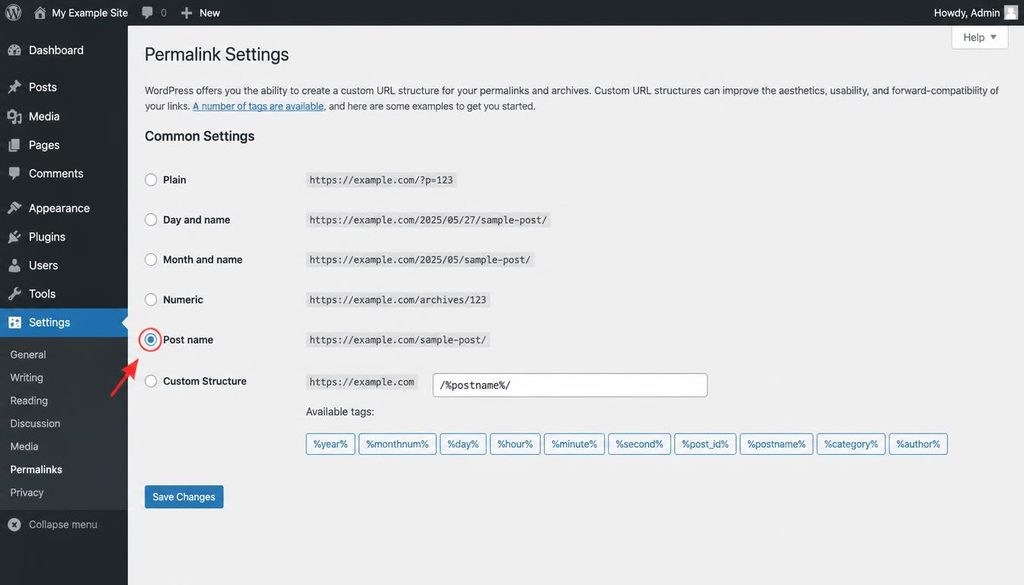
WordPress Permalinks settings with Post name selected after installing WordPress through cPanel.
Common cPanel WordPress installation problems and fixes
The site shows a 404 page or the wrong website
Check the domain selected in the installer and confirm the installation directory in cPanel’s Domains screen. If the site is installed in a subfolder, the URL must include that folder. Also check whether DNS still points to another host. Avoid changing several settings at once, because that makes the cause harder to identify.
The installer says the directory is not empty
The selected folder may contain an existing site, default hosting files, or an earlier WordPress installation. Open File Manager and inspect the directory before deleting anything. If it contains a live website, do not overwrite it. Make a full backup and ask your host for help if you are unsure which files belong to which site.
The browser reports a database connection error
An automatic installer normally creates the database and configuration for you. If the error appears, check whether the installer actually completed and whether your host reports a database service issue. For a manual setup, confirm that the database name, database username, password, and host in wp-config.php match the values provided by the host. Database credentials are case-sensitive on some systems. Never paste them into a public support forum.
The site works on HTTP but not HTTPS
Check that the domain has an active SSL certificate and that it covers the exact hostname you selected, including www if you use it. Ask your host to verify the certificate before forcing HTTPS redirects. After SSL is active, make sure WordPress uses the intended HTTPS address and check for mixed-content warnings caused by old HTTP image or script URLs.
The admin page redirects repeatedly or will not load
This can happen when the site URL is incorrect, HTTPS is not configured properly, a caching or security rule interferes, or the installation is in a different folder than expected. Test the correct admin URL from the installer success screen. If you recently edited the WordPress Address or Site Address, follow a recovery guide or contact your host rather than guessing at more changes.
The installer cannot select the PHP version or reports missing requirements
PHP settings are controlled by the hosting environment. If cPanel has MultiPHP Manager, it may let you choose a supported version for the domain. Select a version supported by the current WordPress release and your theme and plugins. If no suitable option appears, ask the hosting provider to update the server or explain the available plan limits.
The installer completed but the site looks unfinished
That is normal. WordPress installs the content management system, not a finished business website. You still need to select a theme, create pages, set up navigation, review mobile layouts, and publish your own content. Start with a small set of useful pages rather than installing lots of design add-ons at once.
WordPress installation checklist for cPanel
- Domain and DNS point to the correct hosting account.
- Correct domain or subdomain selected in the installer.
- Directory field is blank for a root install, or set intentionally for a subfolder.
- HTTPS is active or a plan is in place to activate it before launch.
- Administrator username is not predictable and password is unique.
- Administrator email address is correct and accessible.
- Installation finished without an error message.
- Public website and
/wp-admin/both load at the intended address. - Site title, timezone, and permalink settings have been checked.
- Backups, updates, and basic security have been reviewed.
- Search visibility is set correctly for the site’s launch stage.
Frequently asked questions
Can I install WordPress for free using cPanel?
WordPress software is free, and many hosting plans include cPanel installers at no extra installation charge. You still pay for hosting and may pay for a domain name, premium themes, or paid services. Check your hosting plan for any limits or fees.
Is Softaculous the same as cPanel?
No. cPanel is the hosting control panel. Softaculous is a separate application installer that some hosting providers add to cPanel. Other accounts may offer WP Toolkit or another installer instead.
Should the In Directory field be blank?
Leave it blank when you want WordPress installed at the root of the selected domain and that domain points to the intended document root. Enter a folder name only when you want the website at a subdirectory, such as example.com/blog/.
Can I install WordPress without a database?
No. WordPress needs a MySQL-compatible database to store site content, settings, users, and other records. An automatic installer usually creates and connects the database for you, while a manual installation requires you to set it up.
How long does a cPanel WordPress installation take?
The installer itself often takes only a few minutes. Domain connection, DNS updates, SSL setup, or hosting limits can add time. The first installation is finished when the installer reports success and you can open both the website and its admin area.
Can I install WordPress in a subfolder?
Yes. Enter a folder name in the installer if you want the site to live at a path such as example.com/blog/. Confirm the resulting URL before proceeding, because moving a site later can require URL and redirect changes.
What should I do if my cPanel account has no WordPress installer?
Check the hosting provider’s documentation or ask support whether an installer is available under another name. You can use a manual installation if your plan supports it. Follow a current installation guide and back up any files already in the target folder before making changes.
Official documentation and further reading
- cPanel: How to Install WordPress with cPanel
- WordPress Developer Resources: Control Panels
- WordPress.org: Server Requirements
- WordPress.org: Automated Installation